How to Decode Wingdings Online
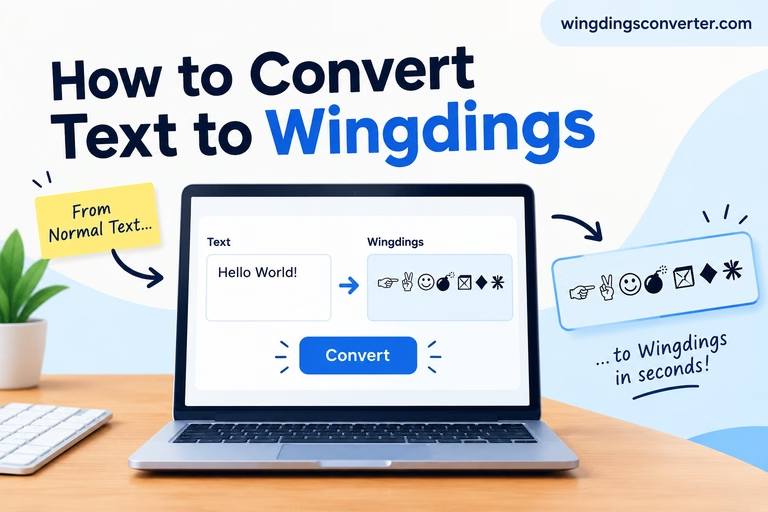
Someone sent you a string of symbols — a little plane, a hand, a few faces — and swears there’s a message in it. Maybe it’s a puzzle from a friend, maybe it’s text you copied out of an old document, maybe it’s something you found on a forum from 2009. Either way, you don’t want to install anything or wrestle with fonts. You just want to know how to decode Wingdings online, quickly, in your browser, and be done.
Good news: that’s exactly what online decoders are built for. The slightly less good news is that how you got those symbols changes whether decoding will work at all. Let’s sort that out first, then do the decoding itself.
What “Decoding Online” Actually Means
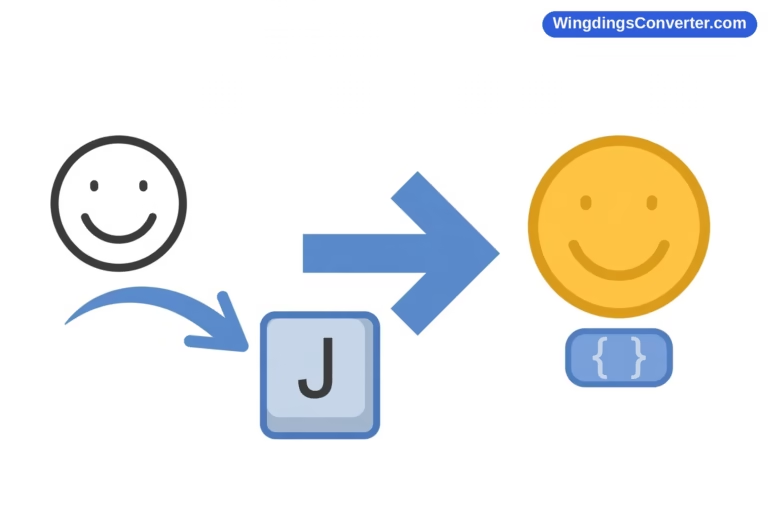
Wingdings, the symbol font Microsoft released in 1990 from designs by Charles Bigelow and Kris Holmes, works by drawing a picture over each ordinary keyboard character. The letter J gets drawn as a smiling face, K as a neutral face, L as a sad face, and so on through the whole keyboard.
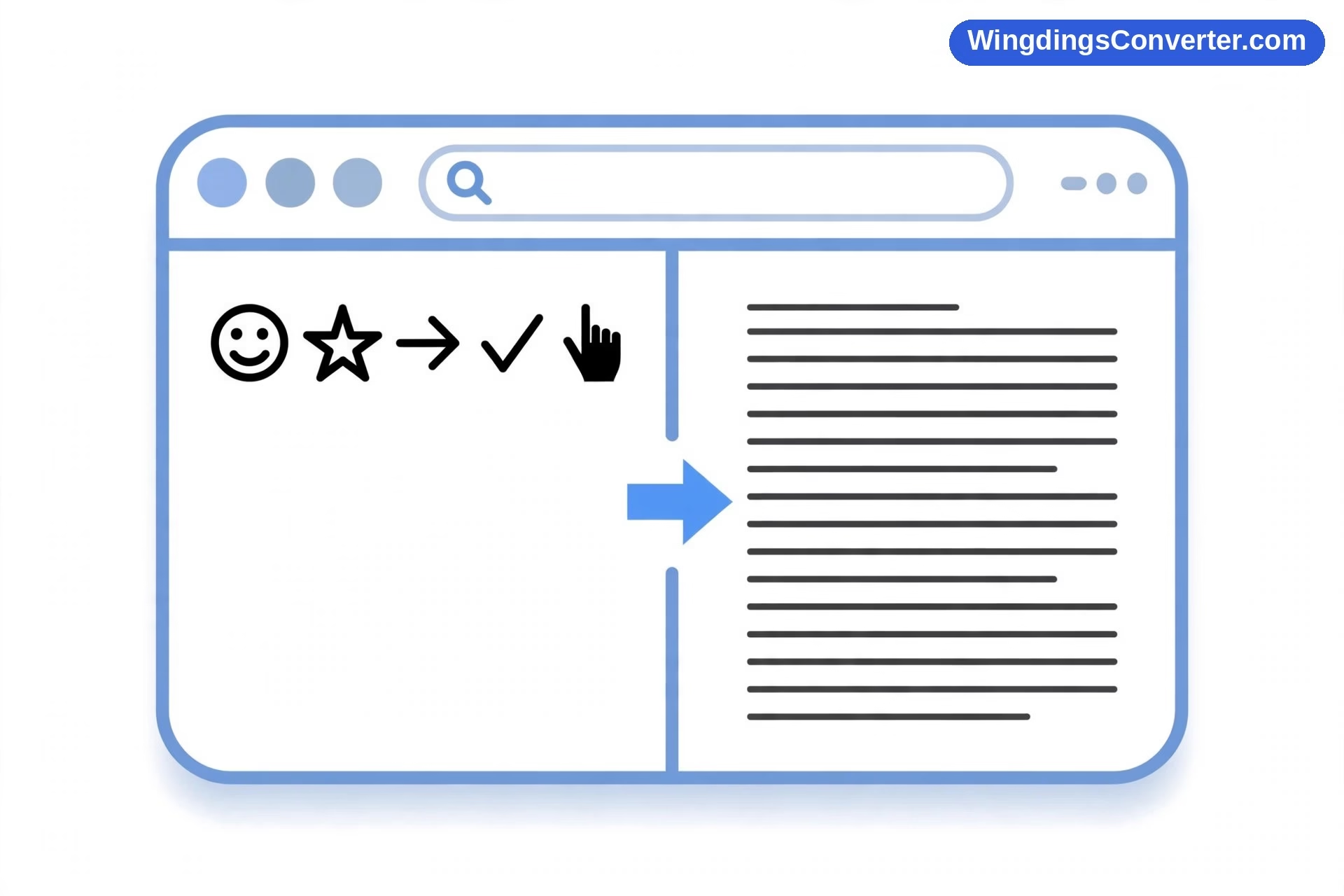
“Decoding” is just reversing that. A decoder holds the font’s map and answers one question for each symbol: which keyboard character were you sitting on?
An online decoder does that lookup in your browser, which gives it two big advantages over messing around in a word processor:
- No font required. Your device doesn’t need Wingdings installed. The decoder works from the characters themselves, so phones and Macs without Office can still decode.
- No document surgery. You don’t have to select text, change fonts, and hope formatting survives. Paste, read, leave.
But — and this matters — an online decoder can only decode what actually reaches it. That’s where most failures happen, and it’s nobody’s fault. It’s just how copying works. Hold that thought; we’ll troubleshoot it properly below.
How to Decode Wingdings Online, Step by Step
Here’s the straightforward workflow. It takes under a minute once you’ve done it once.
Step 1: Get your symbols into a copyable form
If your source is a document, select the Wingdings text and copy it from an app that displays it as Wingdings. Copying from Word while the text is visibly in Wingdings is ideal.
If your source is a puzzle post, a chat message, or a web page where the symbols are already showing as symbols, just select and copy them as you see them.
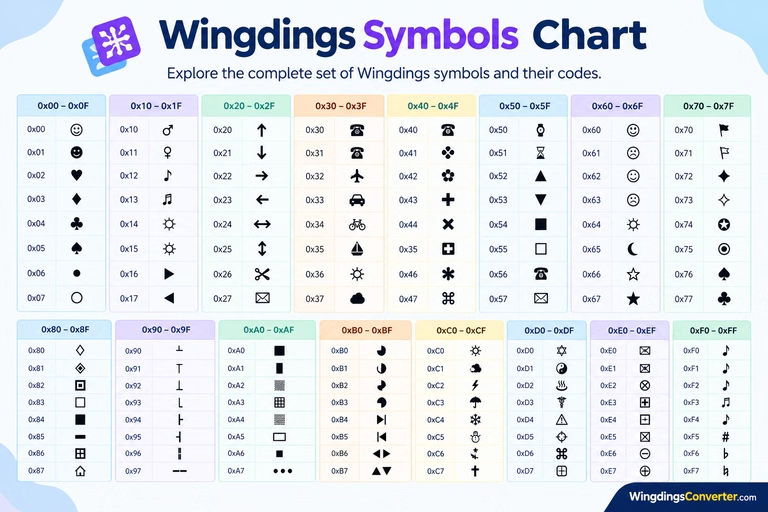
If your source is an image — a screenshot, a photo of a page, a meme — stop here. Online text decoders cannot read pictures. You’ll need to identify the symbols manually against a chart first, which is a different process covered in our guide on how to translate Wingdings symbols. For short image-based strings, that manual route is honestly not bad; for long ones, brace yourself.
Step 2: Open a decoder and paste
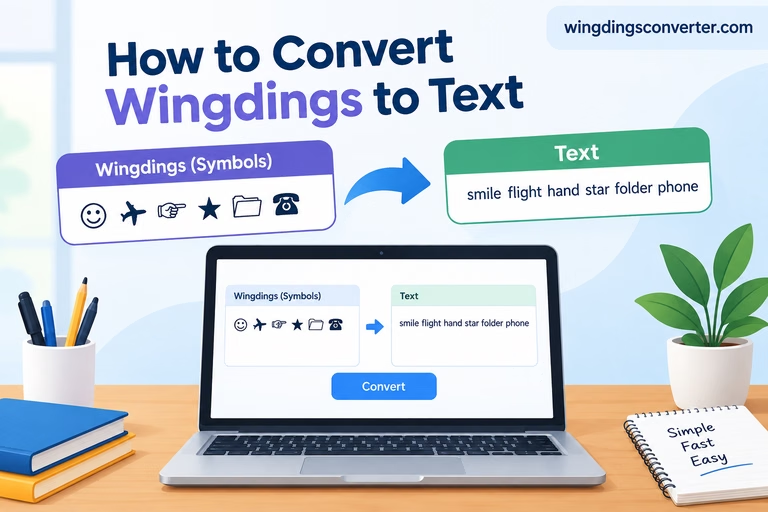
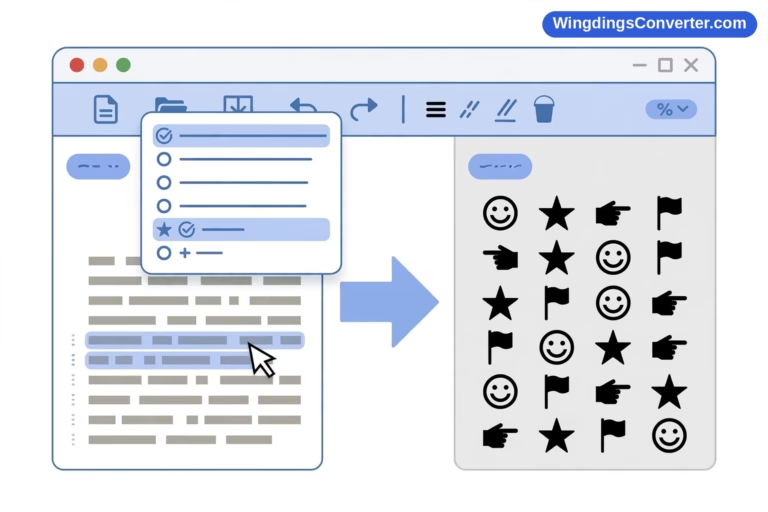
Open the converter tool on our homepage — or any Wingdings decoder you trust — and paste your symbols into the Wingdings input side. In most tools, direction matters, so double-check you’ve pasted into the “Wingdings to text” direction and not the reverse. It sounds obvious, but half of all “the decoder is broken” reports are just the tool converting in the wrong direction with total confidence.
Step 3: Read — then sanity-check — the output
You’ll get plain text back instantly. Now, don’t just accept it. Run a quick reality check:
- Does it read as words? Decoded Wingdings should look like ordinary typing, typos and all, because that’s what it originally was.
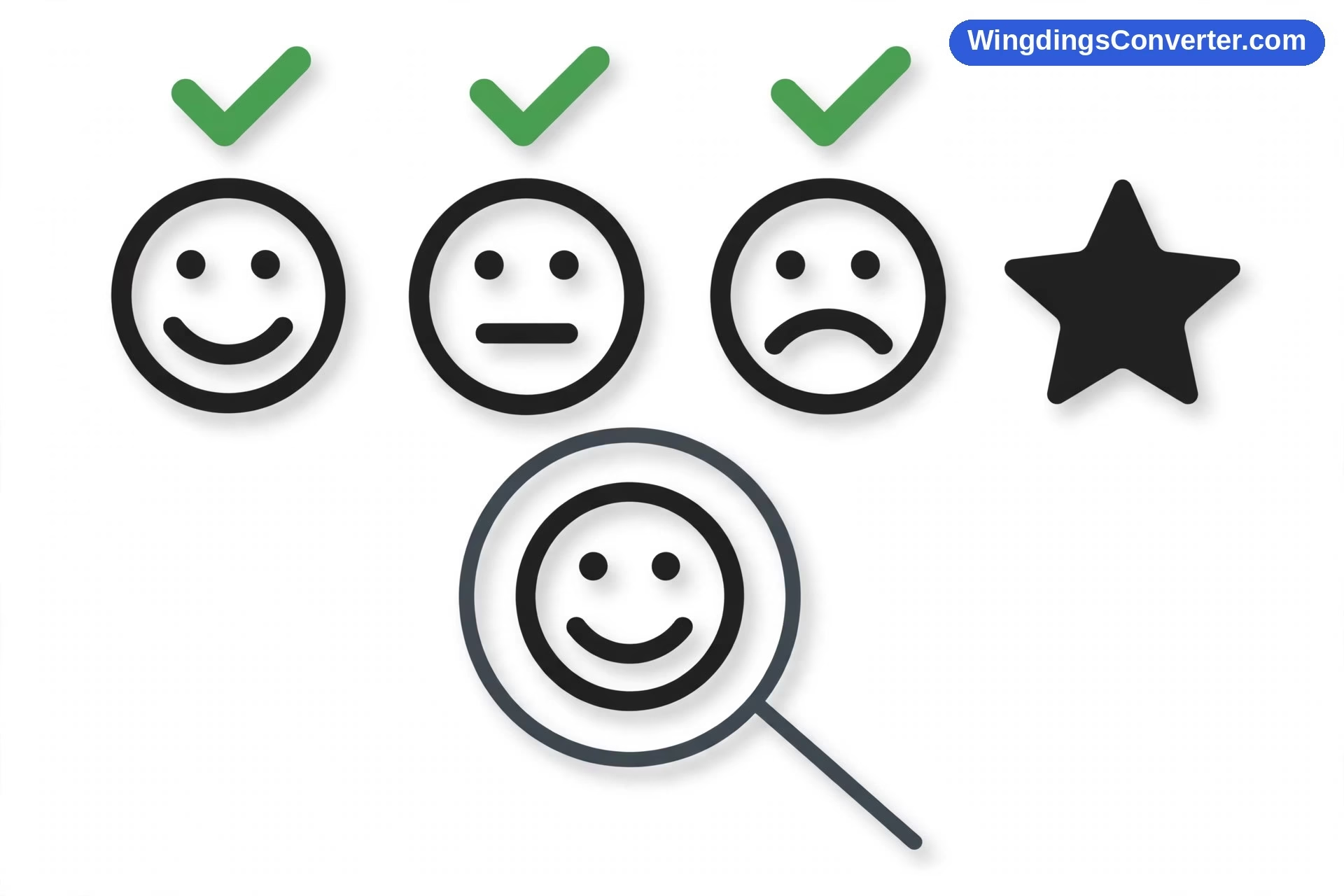
- Check the faces. If your input included faces, remember J is smiling, K is neutral, L is sad. If the output has J, K, or L in places that fit, your decoding is on the right map.
- If the output is gibberish, you almost certainly have a different font — Webdings, Wingdings 2, or Wingdings 3. Try decoding again with the correct variant if the tool offers it. Webdings, which Microsoft shipped in 1997 alongside Internet Explorer 4, catches people out constantly because the name is so similar. Our explainer on Wingdings vs. Webdings can help you tell them apart visually.
Step 4: Use the decoded text
Copy the plain-text result wherever you need it. It’s ordinary text now — the font costume is gone — so it’ll behave in email, documents, and messages without surprises. If instead you need proper, portable symbols (not plain letters), that’s a conversion job rather than a decoding job; see how to convert Wingdings to Unicode for that path.
The Copy-and-Paste Trap (Why Decoding Sometimes “Does Nothing”)
Let’s talk about the single most confusing experience in this whole topic, because you’ll probably hit it:
You copy what look like Wingdings symbols. You paste them into the decoder. The decoder hands you back ordinary letters — or you paste and the symbols turn into letters before you even decode.
Did it break? No. It told you something true.
Remember, Wingdings symbols are ordinary letters with a font applied. Depending on the app you copied from, the clipboard may carry the letters and the font name, or just the letters. If only letters arrived, then:
- In your destination, they’ll show as letters, because no font instruction came with them.
- The “decoded” result and the “encoded” text are literally the same characters. There’s nothing left to decode.
In a way, the paste decoded it for you. The letters are the message. This behaviour is also why Wingdings falls apart so often in real life, and why people end up Googling decoders at 1 a.m. in the first place. It’s not you. It’s a 1990 font design meeting a modern, Unicode-based clipboard. For background on why the font was built this way, Wikipedia’s Wingdings article is a solid read.
The mirror-image trap exists too: you paste genuine Unicode symbols you’d copied from a modern website — a real ★ or ✓ with its own code point like U+2605 or U+2713 — into a Wingdings decoder, and get odd or empty results. Those symbols were never Wingdings characters, so a Wingdings map has nothing sensible to say about some of them. Decoders are font-specific tools, not universal symbol translators.
Decoding Puzzles and Messages from Friends
A huge share of online decoding isn’t about old documents at all. It’s about fun: puzzles, escape-room-style posts, classroom worksheets, and that one friend who sends entire messages in symbols.
A few tips for that use case:
Work in chunks. Decode a word or a line at a time instead of pasting a giant block. If one section comes out as nonsense, you’ve isolated the problem — often a different font slipped into that section — instead of doubting the whole result.
Preserve spacing as you copy. Word boundaries are gold when you’re verifying a decode. If a tool’s output loses spacing, decode smaller pieces so you can keep track of where words split.
Expect deliberate weirdness. Puzzle makers know the J/K/L faces and other famous glyphs, and they lean on them. They also mix capitalisation to reach different symbols, since uppercase and lowercase sit on different glyphs. If a decode is almost right, check whether case-sensitivity in the input could explain the odd characters.
Don’t decode the same message twice through two tools and average the results. Pick the tool whose output reads as real language. Language itself is your verification — real decodes click into readability in a way wrong-font decodes never quite do.
Privacy and Safety When Using Online Decoders
A quick, grown-up note, because it genuinely matters: anything you paste into a website could, in principle, be logged by that website.
For a puzzle or a birthday message in Wingdings, nobody cares. But if you’re decoding something sensitive — text from a work document, anything with names, account details, or personal information rendered in a symbol font (which, to be clear, is not encryption and never protected it) — prefer a decoder that runs entirely in your browser, or handle sensitive text locally in Word with the font-swap method instead.
Wingdings deserves one more warning while we’re here: never treat it as a way to hide text. Anyone with a chart can read it in minutes. It’s an obscurity costume, not a lock.
When Online Decoding Isn’t the Right Tool
Being honest about limits saves you time. Reach for a different method when:
- Your source is an image. Charts and manual translation, as mentioned above. Online text decoders need text.
- Your document mixes multiple symbol fonts. Decode section by section and be ready to switch variants. A single paste-and-pray decode will mangle it.
- You need the output as symbols for a website or publication. Decode to plain text first if you like, but finish with a proper Unicode conversion so the symbols survive without the font.
- You have the original Word file. Then the ten-second font swap beats every website: select the text, change the font, read the letters. Online decoding exists for when you don’t have that luxury.
And if symbols are showing up as blank boxes on your screen before you even start, that’s a display problem — your device is showing the .notdef placeholder (“tofu”) because it has no glyph for what it’s being asked to draw. The text underneath is usually fine; try a different device or browser to view and copy it.
FAQ
Do I need the Wingdings font installed to decode online?
No — that’s the main advantage of decoding online. The decoder works from a built-in copy of the font’s character map, so it can translate symbols on devices that have never had Wingdings or Microsoft Office installed, including phones and Chromebooks.
Why did my symbols turn into letters before I could decode them?
Because Wingdings symbols are letters underneath, and your copy-and-paste stripped the font information away. The letters you’re seeing are the decoded message itself. Nothing went wrong; the clipboard simply skipped a step for you.
The decoder gave me gibberish. What happened?
Most likely, your symbols aren’t from the original Wingdings font. They may be Webdings, Wingdings 2, or Wingdings 3, each of which uses a different map. Check whether your tool lets you select the source font, and try the variants. You can verify it’s really Wingdings with the face test: J, K, and L should be the smiling, neutral, and sad faces.
Can an online decoder read a screenshot of Wingdings?
No. Decoders process characters, and a screenshot contains only pixels. You’ll need to match each symbol in the image against a Wingdings chart yourself and type the corresponding characters, then, if you like, run that text through a tool to check it reads correctly.
Is it safe to decode private text on a random website?
Be cautious. Assume anything pasted into any website might be stored. For harmless content like puzzles, it doesn’t matter. For anything personal or work-related, use a browser-based tool you trust, or decode locally in Word by changing the font — that never leaves your machine.
Can I also encode normal text into Wingdings online?
Yes, most converters work in both directions: type or paste normal text and the tool shows you the Wingdings version. That’s handy for making puzzles and worksheets. Just remember the output only looks like symbols while the font or the tool’s rendering applies — share it as an image if you need the appearance guaranteed.
Conclusion
Decoding Wingdings online is a one-minute job when the symbols arrive as real text and you know they really are Wingdings: paste, decode, sanity-check the result against plain common sense. Most failures aren’t failures at all — they’re the font-swap nature of Wingdings showing through, a paste that stripped the costume, or a cousin font like Webdings sneaking in under a similar name.
Now you know how to spot each of those. Decode away — and maybe send your most symbol-happy friend a reply in plain text, just to make the point.