How to Convert Text to Wingdings: Step-by-Step Guide
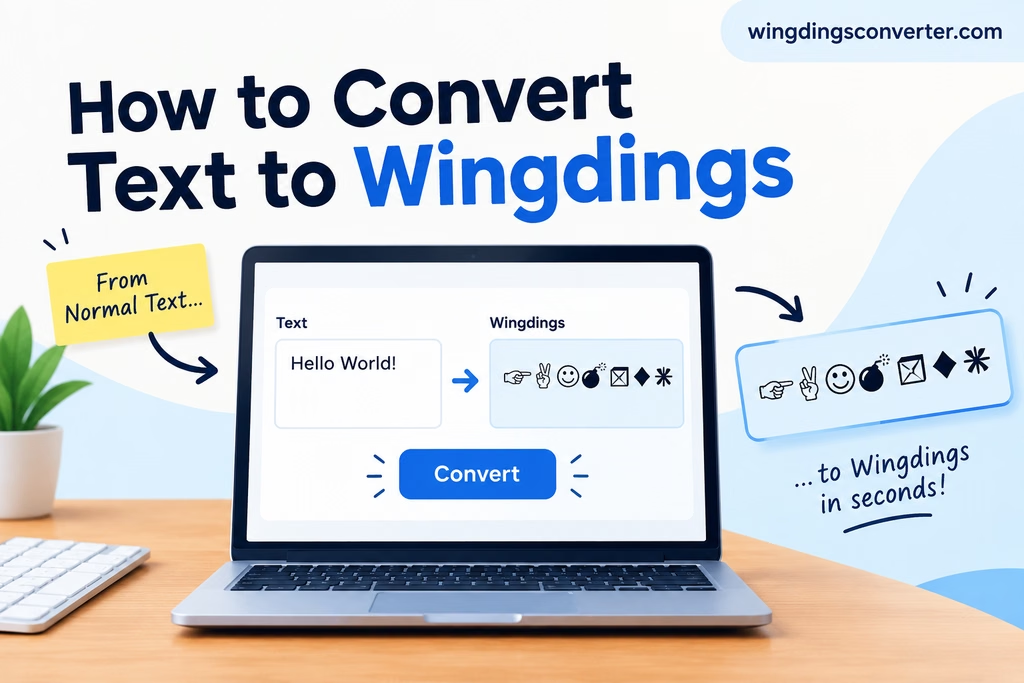
Converting regular text into Wingdings is easier than it might seem. You don’t need to memorize a long list of symbols or manually replace every letter. With an online Wingdings converter, you can turn ordinary text into a series of symbols in just a few steps.
You can also read: Wingdings Keyboard Symbols Explained
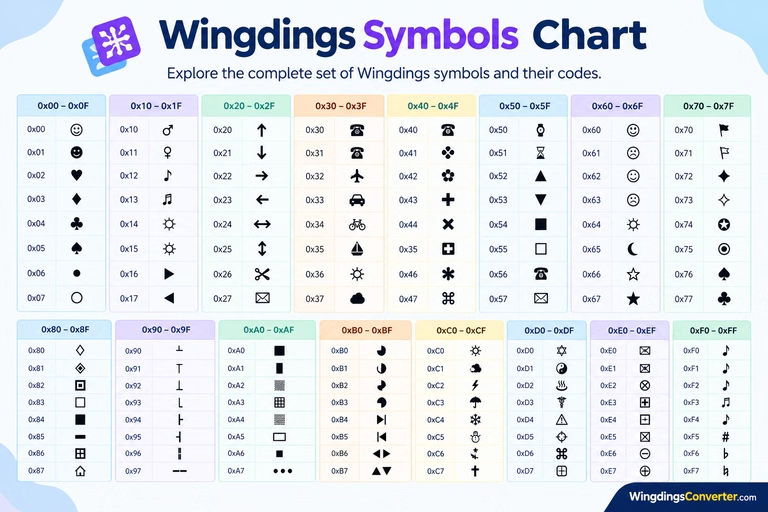
Wingdings is a symbol font that displays pictures and shapes instead of the usual alphabet when the appropriate font is applied. For example, typing a letter in a Wingdings font may display a hand, an arrow, or another symbol rather than the letter itself. This makes the font useful for creating symbol-based designs, adding visual elements to documents, and exploring a different way to represent text.
In this guide, you’ll learn how to convert text to Wingdings online, how the conversion works, what to do with the converted symbols, and how to solve common problems.
The Quickest Way to Convert Text to Wingdings
The simplest option is to use an online tool such as the Wingdings Converter on WingdingsConverter.com. It helps you convert regular text into Wingdings-style symbols without having to work through individual font characters yourself.
Here’s how to get started:
- Open the converter: Visit WingdingsConverter.com.
- Enter your text: Type a word, sentence, or short message into the text input field.
- Convert the text: Use the converter’s conversion button to process your input.
- Review the result: Check the generated symbols to make sure the output is what you expected.
- Copy the converted text: If the tool provides a copy option, use it to copy the result.
- Paste it where needed: Add the converted output to a document, message, design, or another compatible application.
That’s the basic process. You can use it for a single word or a longer sentence, although the result may be more difficult to read when you convert large blocks of text.
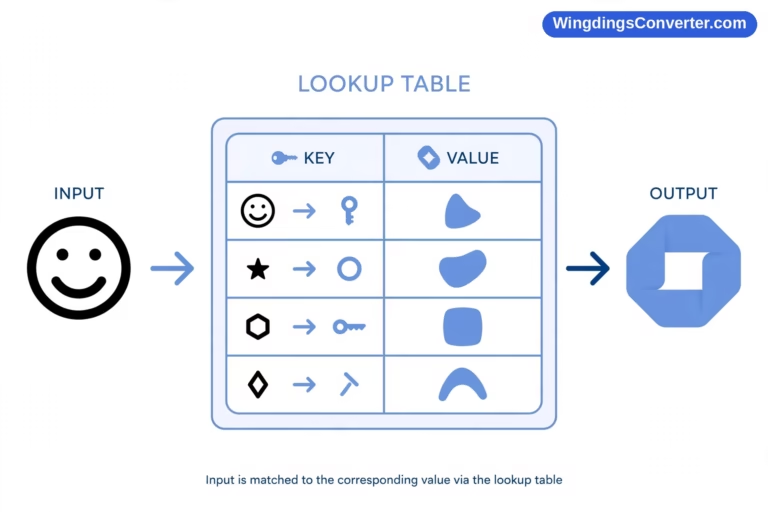
Keep in mind that Wingdings is a symbol font, not a conventional alphabet with a unique picture for every possible word. The appearance of the output depends on the character mapping used by the converter.
What Happens When You Convert Text to Wingdings?
To understand the process, it helps to know the difference between ordinary text and a symbol font.
When you type a word such as HELLO in a standard font, each character appears as a familiar letter. When a Wingdings font is applied, the same character positions can display symbols instead.
A simplified example looks like this:
| Input | What changes |
|---|---|
A | May display as a Wingdings symbol |
B | May display as a different symbol |
HELLO | May appear as a sequence of symbols |
123 | The appearance depends on the font’s character mapping |
These examples illustrate the idea rather than specify exact symbol mappings. The actual symbols depend on the Wingdings version and the conversion method.
There is also an important distinction between converting characters and changing a font.
When you apply a Wingdings font in a word processor, the underlying characters may remain ordinary letters even though they appear as symbols. A dedicated converter may instead produce symbol characters or another representation designed to display the result outside the original font.
That difference matters when you copy and paste the output into another application.
Method 1: Convert Text Using WingdingsConverter.com
An online converter is a convenient choice when you want to produce symbols without manually selecting a font for every document.
Step 1: Prepare your text
Decide what you want to convert. It could be a name, a short phrase, a sentence, or a few words for a creative project.
For example:
Welcome to my page
Starting with a short phrase makes it easier to check the output before converting a larger passage.
Step 2: Enter the text into the tool
Visit WingdingsConverter.com and locate the text input area. Enter or paste your original text into it.
If you’re converting text copied from another source, check for unnecessary spaces or line breaks. These may affect the result, depending on how the tool handles whitespace.
Step 3: Run the conversion
Use the available conversion control. The tool processes the text according to its supported character mapping and generates a symbol-based result.
Some characters may not have a direct equivalent in a particular mapping. Letters, punctuation, spaces, numbers, and special characters may therefore behave differently.
Step 4: Check the converted output
Look over the result before using it elsewhere.
Ask yourself:
- Does the output contain symbols rather than ordinary letters?
- Are the spaces and punctuation handled as expected?
- Are any characters missing or displayed unexpectedly?
- Does the result match the kind of Wingdings output you need?
If something looks wrong, try a shorter sample to identify whether a particular character is causing the issue.
Step 5: Copy and use the result
Once you’re satisfied, copy the output using the tool’s available controls or your browser’s normal text-selection method.
Paste it into your intended application and check how it appears there. The result may look different if the destination application uses a different font or does not support the characters produced by the converter.
Method 2: Use the Wingdings Font in Microsoft Word
You can also work with Wingdings directly in Microsoft Word if the font is installed on your computer.
This method is useful when you want symbols inside a document and don’t necessarily need a standalone converted string.
- Open Microsoft Word and create a document.
- Type a character or short sequence of characters.
- Select the characters you want to display as symbols.
- Open the font menu.
- Choose an available Wingdings font.
- Check the result in the document.
The selected characters may now appear as symbols rather than letters.
However, this method has a limitation: changing the font generally changes how the characters are displayed, not the underlying text itself. If you send the document to someone who doesn’t have the relevant font, the symbols may appear differently.
Also, typing an ordinary word and changing its font does not guarantee that the word will turn into symbols that spell out its meaning. Wingdings uses a character-to-symbol mapping, not a translation system.
If your goal is to generate a converted sequence that you can copy and use elsewhere, an online converter may be more convenient.
Method 3: Convert Text for Copying Into Other Applications
Sometimes the real challenge isn’t converting the text. It’s getting the result to display correctly after copying it.
Suppose you’ve converted a short phrase and want to use it in a presentation, a social media graphic, or a document. Before relying on the output, consider where it will be displayed.
In documents
A word processor may support the Wingdings font, but the appearance can depend on the installed font and the document’s formatting. If you share the document, check it on another device when possible.
In graphic design
For a design, you can paste the symbols into a compatible application and adjust their size, spacing, and placement. If the application doesn’t preserve the expected characters or font, you may need to use a different method to insert the symbols.
On websites
Web browsers don’t automatically display every character using the Wingdings font. A website must have an appropriate font available and apply it correctly, or use another supported way to represent the symbols.
If you’re building a website, remember that a sequence that looks correct in one editor may not look the same on another device.
Why Doesn’t Wingdings Look the Same Everywhere?
This is one of the most common sources of confusion.
Wingdings is a font, and fonts determine how characters are displayed. The same underlying text can look different when a different font is applied.
Several factors can affect the result:
- Font availability: The computer or application may not have the required Wingdings font.
- Font version: Different versions or related symbol fonts may use different mappings.
- Character encoding: The output may contain characters that the destination application handles differently.
- Application support: A program may not support the font or character representation used by the converter.
- Copy-and-paste behavior: Some applications preserve formatting, while others retain only the underlying characters.
For this reason, there isn’t one guaranteed display result for every Wingdings conversion method.
If you’re creating something that must look identical on different devices, test the output in its final location rather than relying only on how it appears in the converter.
Common Problems and How to Fix Them
If your converted text doesn’t look right, try these practical solutions.
The output still shows normal letters
First, check whether the conversion actually ran. Some methods only change the font, leaving the underlying text unchanged.
If you’re using a font-based method, confirm that the correct Wingdings font is selected. If you’re using an online converter, check the generated output rather than assuming that the original input has been converted.
Symbols appear as boxes or question marks
This can happen when the destination application cannot display the characters or lacks the required font.
Try opening the result in an application that supports the intended font or character set. If you’re sharing a document, consider whether the recipient will have access to the same font.
The symbols change after copying and pasting
The destination application may remove font formatting or handle the copied characters differently.
Try pasting the result into a plain-text editor to see what characters are actually being copied. Then test it in the application where you intend to use it.
Remember that plain-text editors generally don’t preserve font-based symbol formatting in the same way as word processors.
Some characters don’t convert as expected
Not every input character necessarily has a direct equivalent in a particular Wingdings mapping. Unsupported punctuation, accented letters, emoji, and other special characters may be handled differently.
Try converting a short sample containing only basic letters first. Then add punctuation, numbers, and special characters to see how your chosen converter handles them.
The result looks different on a phone
Mobile applications may use different fonts or have different font-support limitations. A symbol sequence that works on a desktop computer may not render identically on a phone.
If mobile compatibility is important, test the result on the target device before publishing or sharing it.
What Can You Use Converted Wingdings Text For?
Converting text to Wingdings can be useful in several situations, particularly when you want symbols rather than ordinary letters.
Creative documents: Add symbol-based elements to invitations, worksheets, personal notes, or other documents where the font is supported.
Design experiments: Explore how different characters map to symbols and use the results as part of a visual concept.
Learning about symbol fonts: Compare normal text with Wingdings output to understand how a font can change the appearance of characters.
Decorative content: Use suitable symbols in a design or project when the destination application can display them correctly.
Wingdings isn’t a reliable way to encrypt private messages. Its character mapping is not a security system, and the output can often be interpreted or reproduced by someone who understands the font.
For ordinary decorative use, however, it can be a fun way to experiment with text and symbols.
Frequently Asked Questions
Can I convert text to Wingdings online for free?
You can use an online tool such as WingdingsConverter.com to convert text without manually changing font settings. Check the tool itself for its current features and any usage limitations.
Can I convert an entire sentence to Wingdings?
Yes, you can enter a sentence if the converter supports the length and characters you need. The resulting symbol sequence may be difficult to interpret, and some characters might not have a direct mapping.
Does Wingdings translate English into symbols?
Not in the same way that a language translator converts English into another language. Wingdings maps characters to visual symbols. It doesn’t determine the meaning of a sentence and then translate that meaning into pictures.
Can I convert Wingdings back to normal text?
The answer depends on how the original output was created. If you have a symbol sequence generated from a known character mapping, a compatible reverse converter may be able to recover the original characters. If the symbols were used decoratively or the mapping is unknown, recovering the exact original text may not be possible.
Will converted Wingdings text work on every device?
No. The result depends on the font, character representation, and application used to display it. Always test the output in the place where you plan to use it.
Is changing the font in Word the same as using an online converter?
Not necessarily. Changing the font can make ordinary characters appear as symbols while leaving the underlying text unchanged. An online converter may produce a different type of output intended for copying or displaying elsewhere.
Convert Your Text and Check the Result
Converting text to Wingdings doesn’t have to be complicated. For a quick result, enter your text into the Wingdings Converter at WingdingsConverter.com, run the conversion, and review the symbols before copying them.
If you need the output for a Word document, a graphic, or a website, remember to check how it displays in the destination application. That small step can save you from unexpected symbols or missing characters later.