Wingdings Converter: How Does It Work?
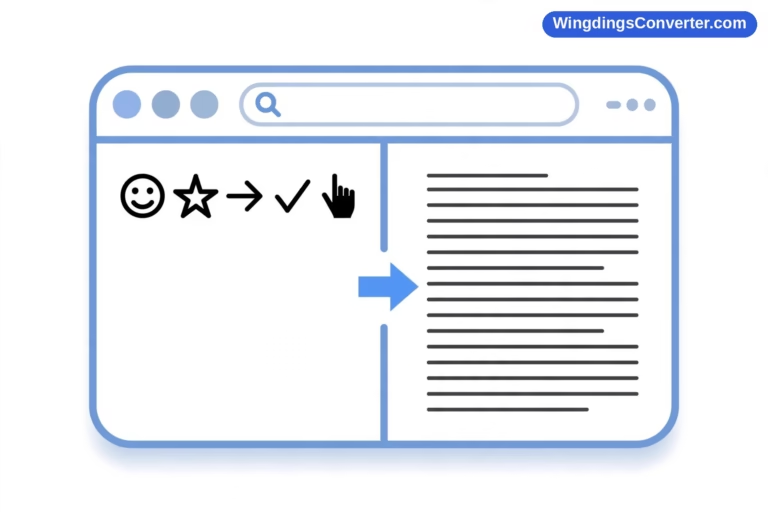
You paste a row of symbols into a box, click nothing in particular, and readable English appears in the box next to it. It feels a bit like magic, or at least like the website is doing something clever with fonts behind a curtain. So let’s pull the curtain back: Wingdings converter: how does it work? The honest answer is that the mechanism is beautifully simple — a lookup table, doing its lookups very, very fast. The interesting part isn’t the lookup. It’s everything around it: what gets pasted, what can go wrong, and where the limits honestly are.
The One Idea Everything Rests On
To understand the converter, you first have to understand the font — briefly, because it’s genuinely the whole story.
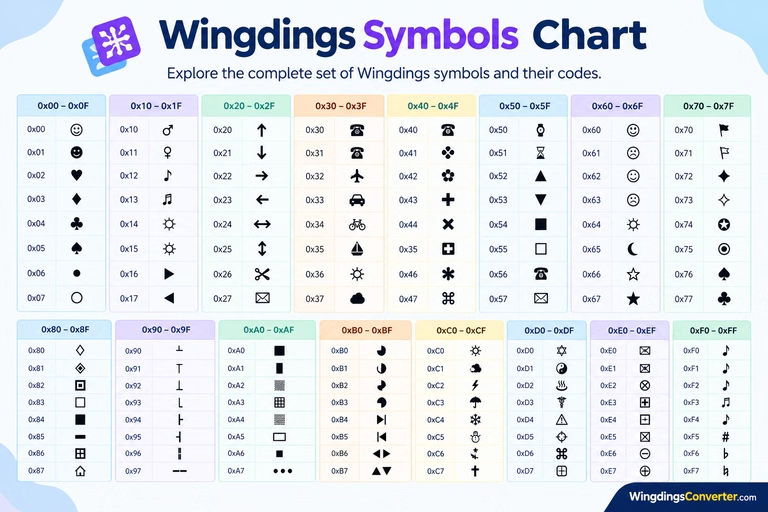
Wingdings was released by Microsoft in 1990, designed by Charles Bigelow and Kris Holmes. Instead of drawing letters, it draws a small symbol — a dingbat — in place of each ordinary keyboard character. The computer still stores a normal character; the font just paints a picture over it. Capital J paints a smiling face. K paints a neutral face. L paints a sad face. And so on, across letters, digits, and punctuation.
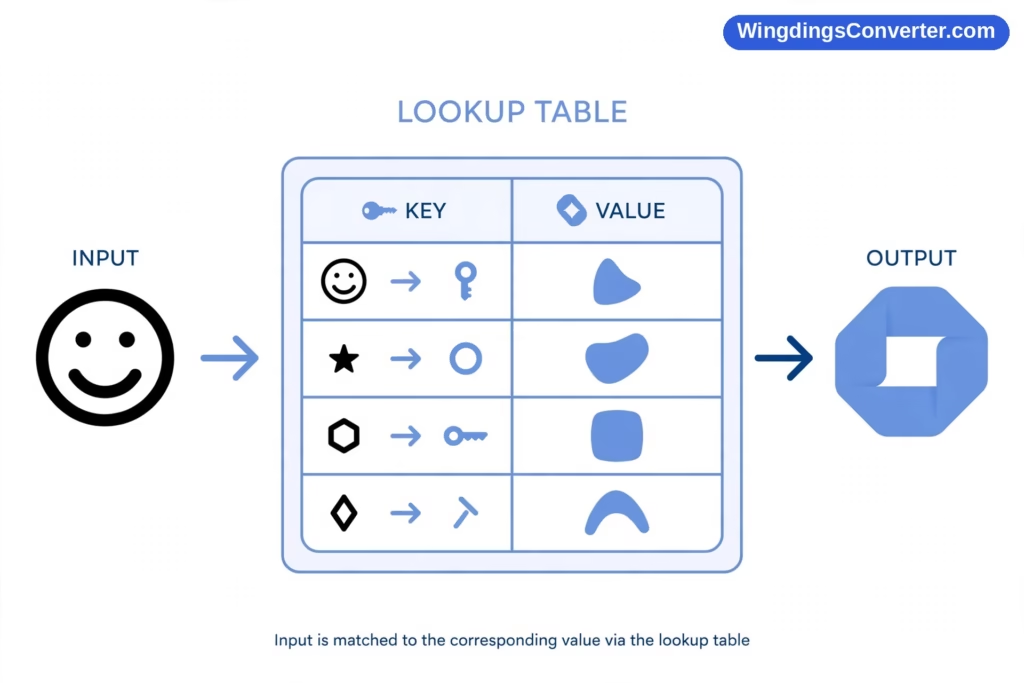
Crucially, that painting job follows a fixed map. J is always the smiling face in Wingdings. It never changes, never improvises. A fixed map can be written down as a table — and anything that can be written down as a table can be reversed by software.
That’s a converter. It’s the table, plus a text box.
Inside the Converter, Step by Step
Here’s what actually happens in the fraction of a second between your paste and the result, whether you’re using the tool on our homepage or any similar site.
Step 1: The converter receives characters, not pictures
This surprises people. When you paste “symbols” into a converter, you are almost never pasting pictures. You’re pasting characters — data. Those characters might be:
- the underlying plain letters, with the symbol look stripped away during copying, or
- actual symbol characters, if the source provided them that way, or
- a mixture, if your source document was itself a mixture.
The converter can’t see your screen. It only knows the characters it received. Keep this in your pocket; it explains nearly every weird result later.
Step 2: Each character is matched against the map
The converter walks through your input one character at a time and consults its stored copy of the Wingdings map. For each character, it asks: in the Wingdings font, what does this slot display as — or, going the other way, which slot displays as this?
- Encoding (text → Wingdings): for each normal character, find its glyph, and output the text in a form that displays as Wingdings.
- Decoding (Wingdings → text): for each incoming character, reverse the map and output the plain character sitting underneath.
This is precisely the reverse-font lookup described in our guide on how to translate Wingdings symbols — the converter is simply doing mechanically, at speed, what a human does slowly with a printed chart. If you’d like the foundations of the font itself, Wikipedia’s Wingdings article covers the design history well.
Step 3: The output is rendered for your screen
Finally the converter shows you the result. In the Wingdings direction, the page typically renders the output using the Wingdings font or an embedded equivalent, which is why you see symbols in the output box even though the characters flowing underneath are ordinary ones. In the text direction, it renders in a normal font, and the “symbols” resolve into letters before your eyes.
No artificial intelligence is involved. No image recognition. It’s a dictionary lookup, repeated per character, and that’s exactly why it’s so fast and so consistent — and, as we’ll see, why it fails in the specific ways it fails.
Why the Converter Sometimes “Does Nothing”
The most common support question for any Wingdings tool is some version of: I pasted my symbols and it just gave me letters / the same thing back. Is it broken?
Almost never. Here’s what’s usually happening.
Imagine you copy Wingdings text from a document. Your clipboard grabs the stored characters — plain letters — and perhaps the font name, perhaps not. By the time you paste into a web page, the font name is commonly gone. The converter receives plain letters.
Now you ask it to decode Wingdings to text. It reverses the map on the characters it received… which are already the plain text. The output looks identical to the input, because in character terms, it is identical. The symbols you saw on your screen existed only as a rendering in your source app; they were never in the clipboard to begin with.
Far from being broken, the converter has quietly shown you the decoded text — the paste itself did the decoding. This quirk is the everyday consequence of Wingdings using ordinary character slots instead of dedicated code points, and it’s also why conversion to Unicode exists as a separate job: if you want symbols that stay symbols through a copy and paste, they need real Unicode identities like ✓ at U+2713 or ★ at U+2605, which is what how to convert Wingdings to Unicode is all about.
Where Converters Hit Their Real Limits
A good explainer should be straight about what the tool can’t do. Wingdings converters have four hard limits, and no amount of clever web design removes them.
Limit 1: The converter must know which font you mean
Wingdings is a family, not a single font. There’s the original, plus Wingdings 2 and Wingdings 3, plus the related-but-different Webdings from 1997. Each uses its own map. A converter decoding with the original Wingdings map will happily — and wrongly — decode Webdings input, producing smooth, confident gibberish.
Well-built converters ask you to pick the source font, or at least default clearly to the original. But the tool cannot reliably detect the font from characters alone, because the same character data underlies all of them. The font identity lived in your document’s formatting, and formatting is the first thing copying throws away. If your decode reads as nonsense, wrong-font is suspect number one. The anchor check helps: in true Wingdings, J, K, and L are the smiling, neutral, and sad faces.
Limit 2: Images are invisible to it
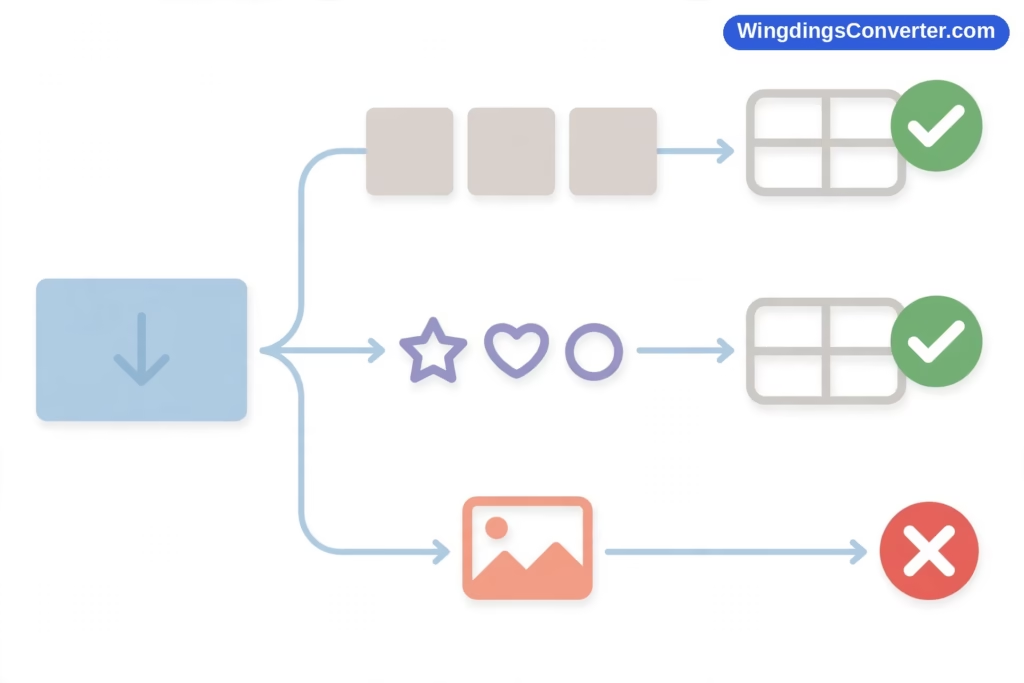
A converter processes characters. A screenshot contains none — just pixels arranged to look like symbols. Paste an image at a text converter and it has literally nothing to look up. Image-based Wingdings has to be transcribed by a human against a chart first. Any tool claiming to decode Wingdings from a photo is doing separate image-recognition work, with separate error rates.
Limit 3: Not every glyph has a Unicode twin
When a converter outputs Unicode symbols, it can only output characters Unicode actually defines. Unicode’s coverage is enormous — you can browse it at the official Unicode charts — and it includes most classic dingbats. But a handful of Wingdings’ quirkier glyphs have no exact standard counterpart. At that point the converter either substitutes the nearest symbol or skips the character, and different converters make different calls. This is a limit of the character universe, not of any particular website.
Limit 4: Mixed input produces mixed output
Feed a converter a line that’s half Wingdings, half genuine Unicode symbols copied from somewhere modern — an emoji here, a real ★ there — and expect uneven results. The Wingdings part decodes fine. The Unicode part was never in the Wingdings map, so the converter must guess, substitute, or pass it through. Emoji in particular belong to a newer world: they’re Unicode characters rendered by colour fonts, a system built decades after Wingdings’ slot-swapping trick. Converters straddle the two worlds; they don’t fully merge them.
So What Is the Converter Actually Good At?
Plenty — within its lane, it’s excellent:
- Decoding symbol text you received as text, especially puzzles, messages, and snippets copied out of documents.
- Encoding text into Wingdings for worksheets, puzzles, and playful documents, far faster than setting fonts character by character.
- Bridging old documents and modern apps, by way of Unicode output that keeps symbols intact where the raw font never would.
What it is not: a security tool (Wingdings hides nothing from anyone with a chart — see can you convert Wingdings to normal text? for why it was never a code), an image reader, or a mind reader that knows which of four similar fonts your text came from. Used with those expectations set correctly, it will very rarely disappoint you.
A Note on Privacy, From How the Tech Works
Because converters are lookup tables, many of them — including straightforward ones — can do the entire job inside your browser, with the map downloaded as part of the page. When that’s the design, your text never leaves your device. Not all tools work that way, though; some send text to a server to convert it. If you’re converting anything sensitive, it’s worth favouring a tool that operates client-side, or converting locally in Word with a font change. It’s a small point, but it’s a direct consequence of how the technology works, and you deserve to know it.
FAQ
Does a Wingdings converter need the Wingdings font installed?
No. The converter carries its own copy of the font’s character map as data, and typically renders symbol output using an embedded font in the page. That’s why converters work fine on phones, Macs without Office, and other devices where Wingdings itself was never installed.
Why did the converter return the exact same text I pasted?
Because what you pasted was already plain characters. The Wingdings appearance existed only in your source app’s rendering and didn’t survive the copy. In effect, the message was already decoded — the letters the converter returned are the message itself.
Can a converter tell Wingdings apart from Webdings automatically?
Not reliably. The underlying characters are the same kind of data in both fonts; only the map differs, and the font name that would disambiguate them is usually lost during copying. If output looks like gibberish, manually selecting the correct source font — Webdings, Wingdings 2, or Wingdings 3 — is the fix.
How does a converter handle the Word check-mark trick?
Carefully, and sometimes imperfectly. The classic Word check mark is the character ü (code 252) displayed in Wingdings. A converter that knows about this special case can map it to a real check; a simpler one may treat the input as the character it literally is. If check marks matter in your document, verify them in the output individually.
Is any of this done by AI?
No. Conversion is a deterministic table lookup: the same input always produces the same output. That predictability is a feature — it means results are verifiable against a chart, and any disagreement between two converters points to a different map or a special-case decision, not to one of them “hallucinating.”
Can a converter decode Wingdings from a photo or screenshot?
A plain text converter cannot, because an image holds pixels rather than characters. You’d first need to transcribe the symbols into characters — by matching them against a chart yourself, or with separate image-recognition software — and only then can the lookup happen.
Conclusion
A Wingdings converter works because Wingdings itself is a fixed, write-down-able map between ordinary characters and pictures. The tool stores that map, walks your pasted characters through it in whichever direction you asked for, and renders the result. Everything people find confusing about converters — the “it did nothing” pastes, the confident gibberish, the screenshots that won’t cooperate — traces back to what characters actually arrived, and which font’s map they truly belonged to.
Understand that, and you don’t just know how the converter works. You know how to make it work for you, first try, nearly every time.