Can You Convert Wingdings to Normal Text?
Short answer: yes. Almost always, and usually in seconds. But the question can you convert Wingdings to normal text comes with a few cousins — can anyone do it, can it be done from a picture, can it be stopped, is Wingdings a secret code at all — and those answers are more interesting. So let’s treat this like what it really is: a bundle of myths that grew up around a humble 1990s font, and sort the true from the almost-true from the flat-out wrong.
The Core Answer, Without the Myths
Yes, Wingdings converts back to normal text, cleanly and completely, whenever you have the text in any workable form. This isn’t a loophole or a hack. It’s how Wingdings was built.
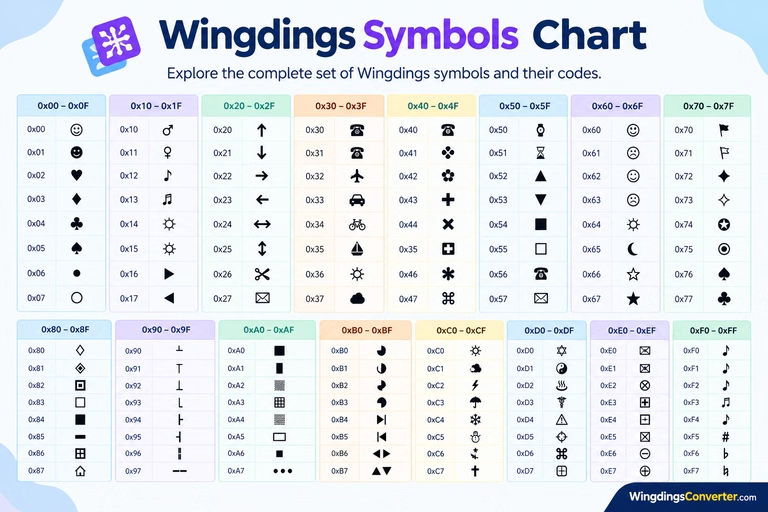
Wingdings — released by Microsoft in 1990, designed by Charles Bigelow and Kris Holmes — never changed your text in the first place. It changed how your text looks, by drawing a small symbol over each ordinary keyboard character. The smiling face is the letter J with the Wingdings font applied. The neutral face is K. The sad face is L. Under every symbol in a Wingdings document sits a completely normal character, patiently waiting for a normal font to reveal it.
Conversion, then, isn’t cracking anything. It’s taking off a costume. Change the font and the text steps out. Run it through the converter on our homepage and the same thing happens via a lookup table. That’s the reality. Now for the myths that gather around it.
Myth 1: “Wingdings Is a Secret Code”
Reality: it’s a font, and fonts aren’t codes.
This is the big one, the myth that launches a thousand schoolyard legends. Wingdings feels secret because a page of it is unreadable at a glance. But a code, properly speaking, transforms the underlying information. Wingdings transforms nothing. The information — the actual characters stored in the file — is ordinary English (or whatever was typed), letter for letter.
Anyone with a chart can read Wingdings. Anyone with the document can read it faster, just by re-fonting it. There is no key to lose, no password protecting it, no cleverness barrier at all. Teachers use it for worksheets and puzzle-makers use it for games precisely because it’s trivially reversible — the fun is in the lookup, not in any real secrecy.
If you take one sentence from this article, take this one: never use Wingdings to hide anything that matters. Not a password reminder, not a private note, nothing. It’s a curtain, not a safe, and the curtain is transparent to anyone who knows it’s there.
Myth 2: “Once It’s Wingdings, the Original Text Is Gone”
Reality: the original text is the only thing that was ever saved.
People imagine conversion like developing a photograph — that the letters were somehow consumed to make the symbols. It’s the opposite. The symbols are a live rendering of the letters, redrawn on screen every time you open the file. Close the document, and what sits on your disk is letters plus a note saying “display these in Wingdings.”
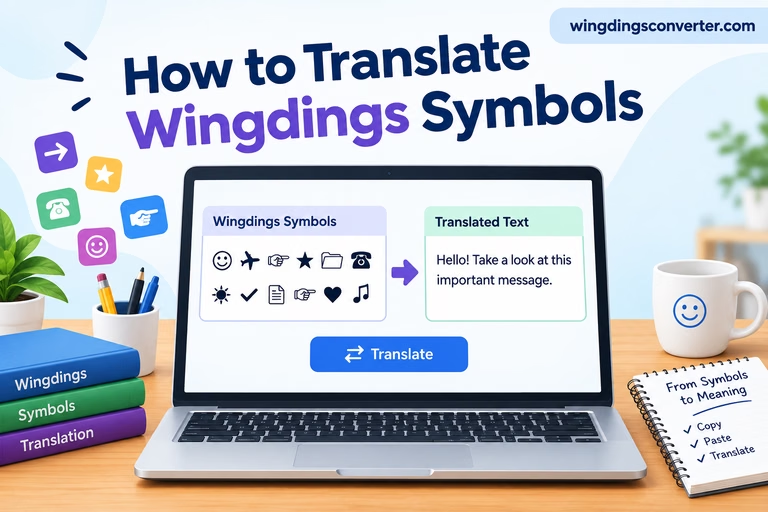
That’s why conversion is lossless in the normal case. You’re not reconstructing the text from clues; you’re just reading it in a font you can understand. The step-by-step methods — font swap, online decoding, charts — are laid out in how to translate Wingdings symbols and how to decode Wingdings online, and in ordinary documents they all recover the text exactly, punctuation, capitals, typos and all.
Where does this myth get its plausibility? From the places conversion genuinely struggles, which brings us to the honest exceptions.
When “Yes” Becomes “Yes, But…” — The Real Edge Cases
A truthful answer has to include the situations where converting Wingdings to normal text is not straightforward. There are four, and none of them contradict the core answer — they’re all about the form the text reaches you in.
Edge case 1: All you have is an image
A screenshot, a photo, a scanned worksheet — these contain pictures of symbols, not characters. There’s nothing to re-font because there’s no font and no text, only pixels. Conversion is still possible, but it becomes manual transcription: match each pictured glyph against a chart, write down its character, repeat. For a word or a sentence, fine. For a page, you’ll want a comfortable chair. No text converter can do this step for you, because there is no text yet.
Edge case 2: It isn’t Wingdings at all
The Wingdings family is bigger than its name. Wingdings 2 and Wingdings 3 use different symbol maps, and Webdings — Microsoft’s other symbol font, from 1997 — is different again. Convert Webdings text using a Wingdings map and you’ll get fluent nonsense: real letters, wrong message.
The tell is that it reads as gibberish rather than language. The fix is identifying the right font (remember the anchor: only original Wingdings puts the smiling, neutral, and sad faces on J, K, and L) and converting with that map. Wrong-font conversion is responsible for most “Wingdings can’t be converted” stories. It can. It just can’t be converted with the wrong key — because, well, even a costume change requires the right costume.
Edge case 3: The symbols were already stripped before you got them
Sometimes someone copies Wingdings text through a plain-text app, a form field, or a chat box that discards fonts. What arrives at your end is… normal text already. There’s nothing left to convert, and nothing lost either — the message survived; only the fancy dress didn’t. People occasionally experience this backwards, pasting symbols that turn into letters and concluding the text was “damaged.” It wasn’t. It was delivered pre-converted.
Edge case 4: You want the pictures preserved as real symbols
Converting Wingdings to normal text gives you letters, full stop. If your actual goal is to keep the symbols but make them robust — so a check mark stays a check mark on any device — then normal text isn’t the destination you want. You want Unicode, where symbols have their own permanent code points (✓ is U+2713, ★ is U+2605) instead of borrowing letter slots. That conversion is very doable, with a few decorative glyphs only matching approximately; how to convert Wingdings to Unicode walks through it. And if you’re curious about the machinery, our explainer on how a Wingdings converter works shows why the distinction matters to the tools themselves.
Notice what all four edge cases have in common: the difficulty is never that Wingdings locked the text away. It’s that the text arrived as a picture, under a cousin’s name, already undressed, or with a different destination in mind. Context problems, not code problems.
Myth 3: “You Need Special Software or Skills to Convert It”
Reality: you need a font menu, or a browser tab, or — worst case — a chart.
Let’s be concrete about how low the barrier is. To convert Wingdings to normal text you can:
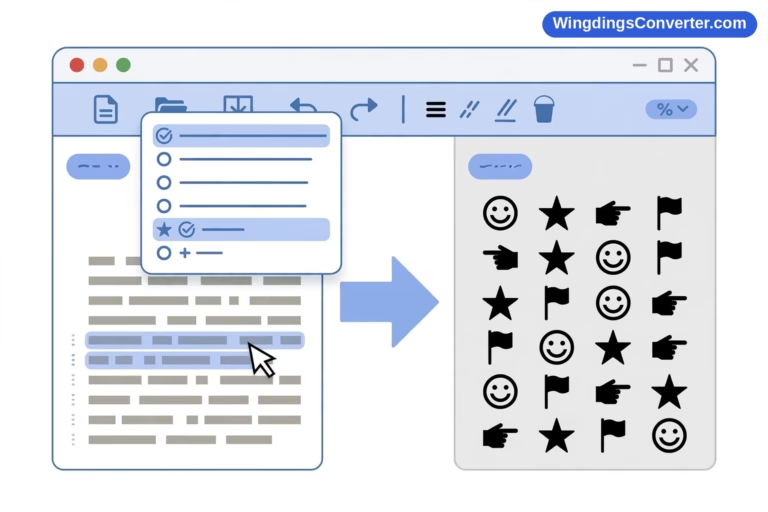
- Select the text in Word and pick a different font. Ten seconds, no skill beyond knowing where the font dropdown lives.
- Paste the symbols into a free online converter and read the result. Under a minute.
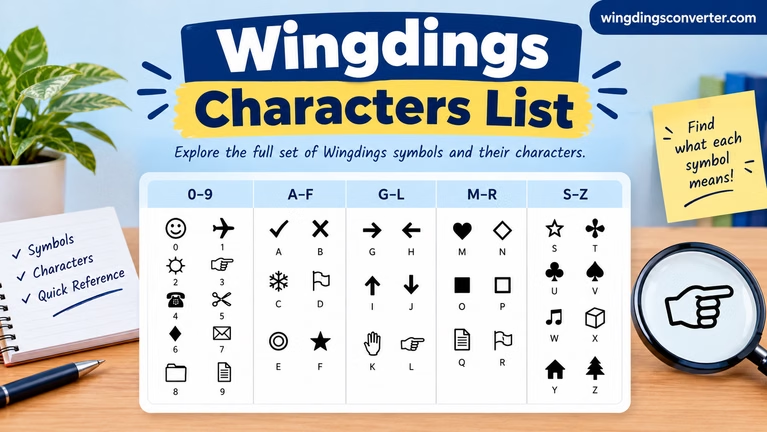
- Look symbols up on a chart, one by one. Slow, but requires nothing except eyesight and patience.
That’s the entire toolkit. There’s no specialist software tier, no programming, no expertise gate. The mythology of difficulty survives mostly because the symbols look intimidating — rows of tiny pictures dare you to believe there’s depth behind them. There isn’t. It’s one of the most honest illusions in computing. The history bears this out, too: Wingdings belongs to the dingbat tradition of picture fonts that existed to put simple graphics into documents, a story told well in the background material on Wikipedia’s Wingdings page and the wider Dingbat article.
Myth 4: “Converted Text Won’t Look Right on My Device”
Reality: normal text is the most portable thing in computing — it’s Wingdings that travels badly.
This myth gets it exactly backwards. Plain text displays everywhere: every phone, every operating system, every ancient laptop. Converting Wingdings to normal text is the fix for display problems, not a cause of them.
The display troubles belong to the symbols’ side of the family:
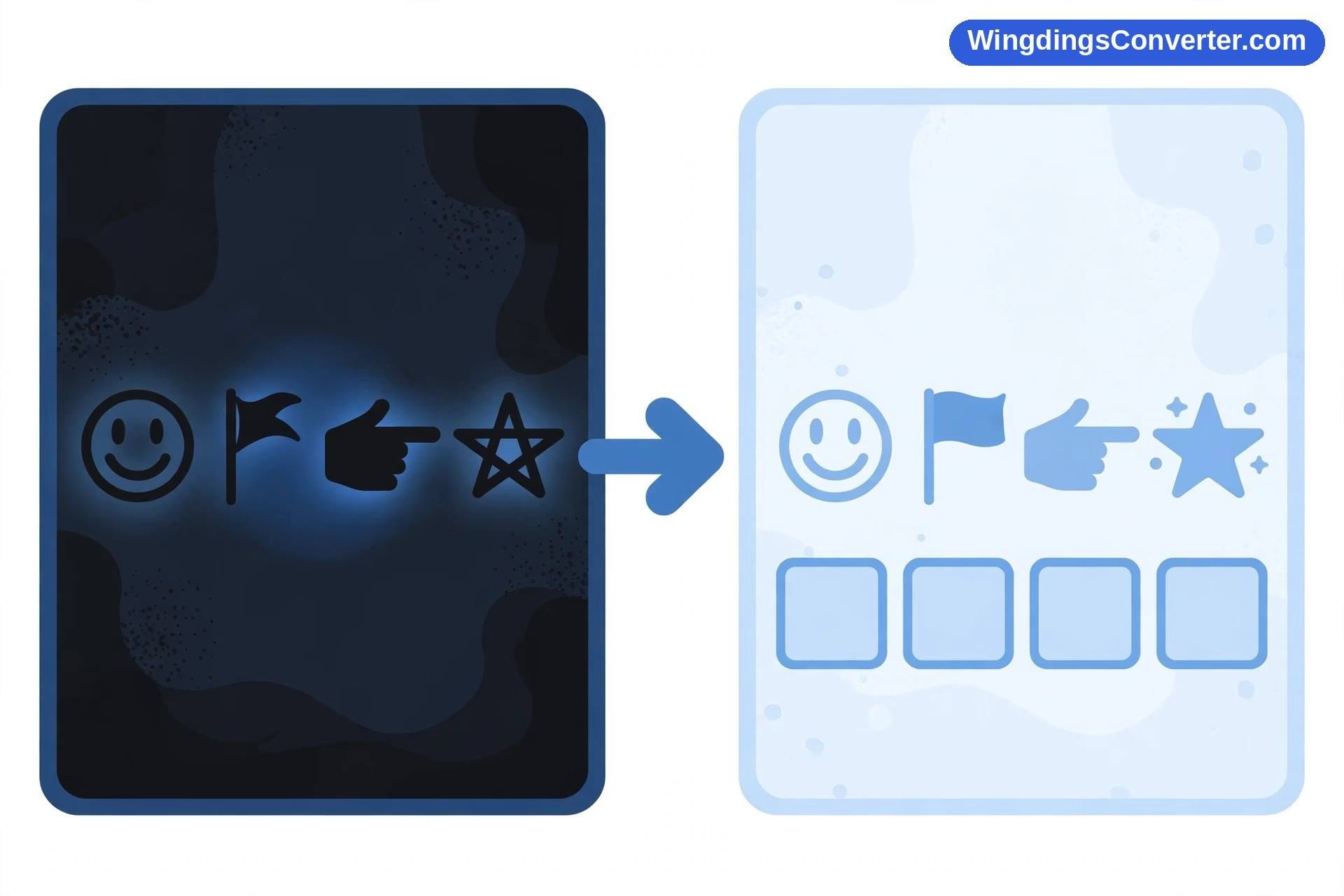
- A device without Wingdings installed can’t draw the glyphs, so Wingdings text may fall back oddly or show the hollow-box placeholder — the .notdef glyph, affectionately called “tofu” — instead.
- Genuine Unicode symbols mostly travel well, but an older device may lack a particular one and show tofu for it. Emoji are the colourful exception you already know: Unicode characters rendered by dedicated colour fonts, which is why they look slightly different on every platform while remaining the same characters underneath.
Once your content is normal text, though? Letters are letters. The conversion ends the portability problem. If anything still shows as boxes afterward, you’re looking at an unconverted symbol that slipped through, not at a failure of the text.
So, Can Anyone Convert Your Wingdings Text?
Yes — and that’s the flip side worth stating plainly, because people ask the title question from both directions. Some readers want to know if they can rescue a document. Others quietly want to know if someone else could read their Wingdings message.
Both answers are yes. If a person has your Wingdings text as text, they can convert it with the same trivial methods you can. If they have it as an image, they can still transcribe it with a chart and enough patience. Wingdings offers the privacy of a glass door. Enjoy it for puzzles, worksheets, invitations, and jokes — it’s genuinely delightful for those — and keep anything truly private in genuinely private places.
FAQ
Can you convert Wingdings to normal text for free?
Yes. Every common method is free: changing the font in a word processor costs nothing, online converters like ours are free to use in a browser, and Wingdings charts are widely published. There’s no paid tier hiding the “real” conversion, because the conversion is just a font map being read in reverse.
Can you convert Wingdings to normal text on a phone?
Yes, with an online converter — phones are actually a good reason to use one, since many phones don’t have the Wingdings font installed and would show symbols poorly or as boxes. Paste the symbols into a browser-based converter and the plain text comes back in a form any phone displays perfectly.
Can Wingdings be converted if I only have a printed copy?
Yes, but manually. A printout is like an image: the symbols exist only as shapes on paper. You’ll match each one against a Wingdings chart and write down the corresponding character. It works for any length, but it’s only practical for short passages — a name, a sentence, a puzzle answer.
Why did my Wingdings convert into gibberish instead of words?
Almost certainly a font mismatch. Your text is probably Webdings, Wingdings 2, or Wingdings 3, and it was converted with the original Wingdings map. Confirm the source font — in original Wingdings, J, K, and L are the smiling, neutral, and sad faces — then convert again with the correct map and the message should snap into readable language.
Is Wingdings a form of encryption?
No. Encryption transforms the stored information so it can’t be read without a key. Wingdings stores plain, ordinary characters and only changes their on-screen appearance via the font. Anyone can reverse it in seconds with a font change or a chart, so it should never be relied on to protect anything sensitive.
Can you convert normal text back into Wingdings after converting it?
Yes, the process is fully reversible. Apply the Wingdings font to normal text in Word, or run it through a converter in the text-to-Wingdings direction, and the symbols return — because the underlying characters never changed in either direction. The one thing to watch is sharing: send it as a document that keeps the font, or as an image, if you need the symbol appearance to survive the trip.
Conclusion
So — can you convert Wingdings to normal text? Yes: quickly, freely, completely, and without special tools, in every normal case. The myths say it’s a code, that the original vanishes, that expertise is required, that the result won’t travel. The reality is friendlier on every count. Wingdings is a beloved old font doing a simple trick — pictures over plain letters — and conversion is just the trick played in reverse.
Respect the edge cases: images need transcribing, cousin fonts need their own maps, and nothing about Wingdings offers secrecy. Keep those straight, and you’ll never be stuck staring at a row of little pictures, wondering what they said, ever again.