Wingdings Characters List: Symbols, Keyboard Mappings, and How to Use Them
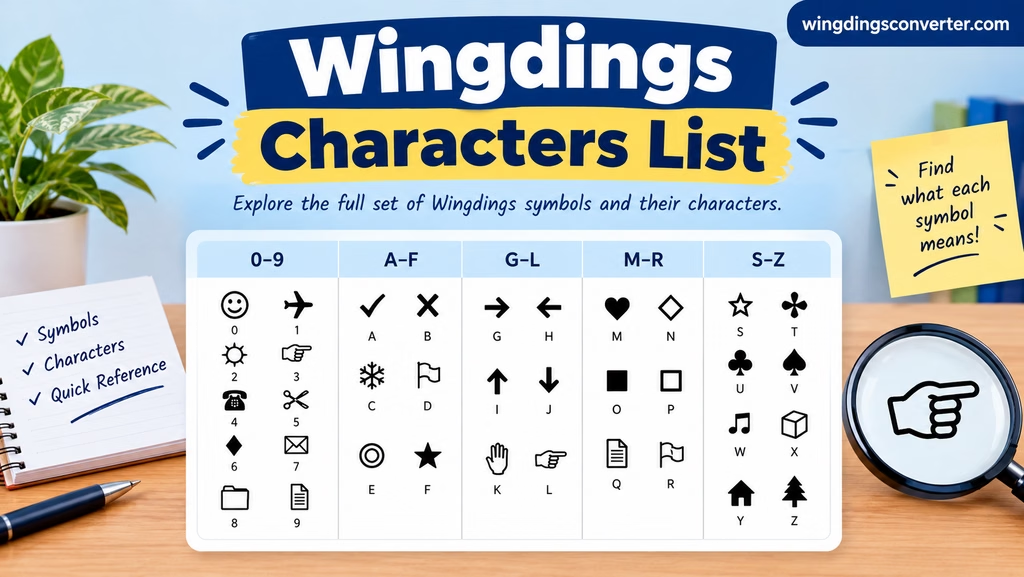
Finding the right Wingdings character can be tricky when you do not know which keyboard key produces the symbol you want. You might be looking for an arrow, a decorative shape, a pointing hand, or another graphic character to use in a document. A Wingdings characters list helps you identify the available symbols and understand how to work with them.
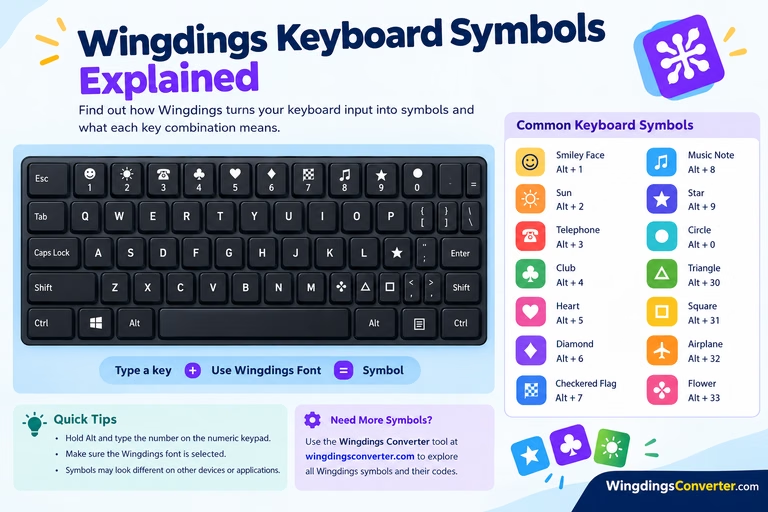
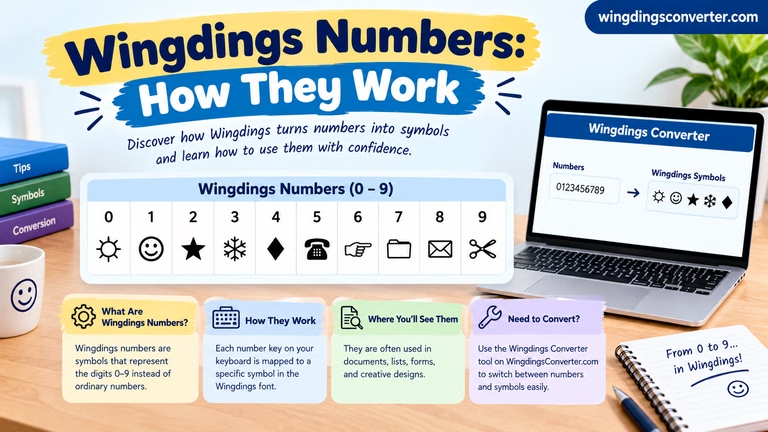
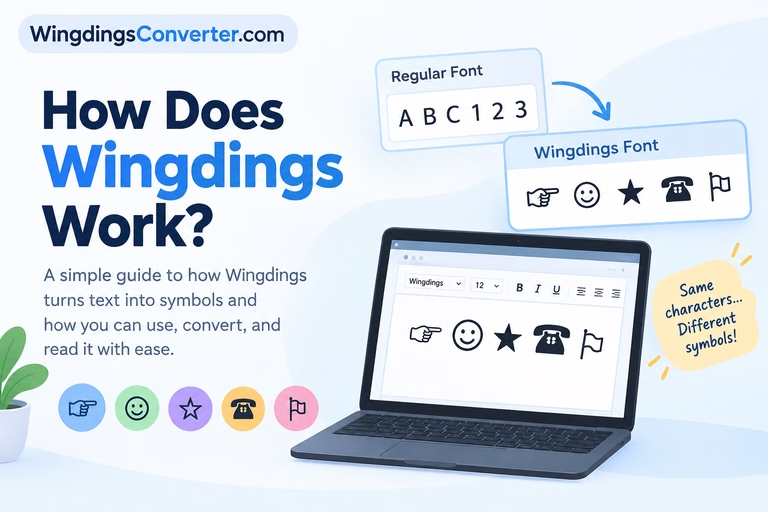
Wingdings is a symbol font rather than a regular typeface. When you type a character using this font, the result can be a picture-like symbol instead of an ordinary letter or number. That is why a character may look completely different when you switch between Wingdings and a standard font.
This guide explains how Wingdings character mappings work, where to find a useful character list, and how to convert text without mixing up the symbols with their underlying keyboard characters.
What Does a Wingdings Characters List Include?
A Wingdings characters list is a reference that connects character positions or keyboard inputs with the symbols displayed by the font.
Unlike a conventional alphabet chart, it is not simply a list of letters from A to Z. Depending on the Wingdings version and the reference being used, the list may include characters associated with:
- Arrows and directional markers
- Pointing hands and attention symbols
- Stars and decorative shapes
- Geometric figures
- Everyday objects and pictograms
- Check marks and other visual indicators
- Miscellaneous graphical symbols
The exact mapping matters. A keyboard character typed in Wingdings may display as a graphical symbol, but the same character can look like an ordinary letter when another font is selected.
There is also an important distinction between the original Wingdings font and related fonts such as Webdings or Wingdings 2 and Wingdings 3. They are separate fonts with different character collections and mappings. A character list for one should not automatically be treated as a reference for another.
Wingdings Characters at a Glance
The following table is a visual guide to common types of symbols you may encounter when working with symbol fonts. It is not a verified key-by-key mapping for the original Wingdings font.
| Symbol example | General meaning | Common application |
|---|---|---|
| ★ | Star, emphasis, or importance | Highlighting a heading |
| ✓ | Completion or approval | Checklists |
| → | Direction or continuation | Instructions |
| ☎ | Telephone or contact | Contact information |
| ✉ | Email or correspondence | Messages and address details |
| ◆ | Decorative marker | Lists and layouts |
| ● | Bullet or visual point | Organized text |
| ☞ | Pointing or drawing attention | Notes and instructions |
These examples illustrate familiar symbol meanings, not a complete Wingdings character set. Some displayed characters are Unicode symbols and may come from other fonts. To identify an exact Wingdings keyboard mapping, use a reference that specifies the font version and its supported character positions.
Why Wingdings Characters Do Not Behave Like Regular Letters
The key to understanding Wingdings is to separate the stored character from the way the font displays it.
Imagine typing the letter A in a document. In a normal font, it appears as A. If a font maps that same character position to a graphic, the document may display a symbol instead.
The underlying character has not necessarily changed. The font changes its visual representation.
This distinction becomes especially important when copying text between applications. If you copy a character from a document using Wingdings and paste it into a plain-text editor, the receiving application may display a letter or another character rather than the original symbol.
Modern Unicode text also contains many symbols directly, but traditional Wingdings mappings do not always correspond to standard Unicode characters one-to-one.
For that reason, a reliable character list should tell you which font it covers and, where relevant, whether it lists keyboard characters, Unicode values, or visual glyphs.
How to Find the Exact Character You Need
There is no single visual chart that should be assumed to cover every version of Wingdings. The best way to find a specific character depends on whether you already have a symbol in front of you or want to discover one to use in a document.
Option 1: Browse Wingdings in Windows Character Map
Windows Character Map lets you inspect the symbols available in an installed font.
- Open the Windows Start menu.
- Type Character Map into the search box.
- Open the application.
- Select Wingdings from the font dropdown, if available.
- Browse the displayed characters.
- Select a symbol to inspect it and use the copy option if you want to insert it elsewhere.
This method is useful when you recognize a symbol visually but do not know how to produce it.
If Wingdings does not appear in the font list, check whether the font is installed on your computer. The available fonts can vary between systems.
Option 2: Check a Character in Microsoft Word
If you are working with a Word document that already contains Wingdings symbols, check the font assigned to the character.
Select the symbol and look at the font name in Word’s toolbar. If the selected character uses Wingdings, you can investigate its mapping using a suitable character reference.
You can also open Word’s Insert menu and look for the Symbol option. The available interface and options may vary by Word version.
Be careful when changing the font of existing content. A character that appears as a symbol in Wingdings may turn into an ordinary letter or punctuation mark when you switch to a standard font.
Option 3: Use the Wingdings Converter
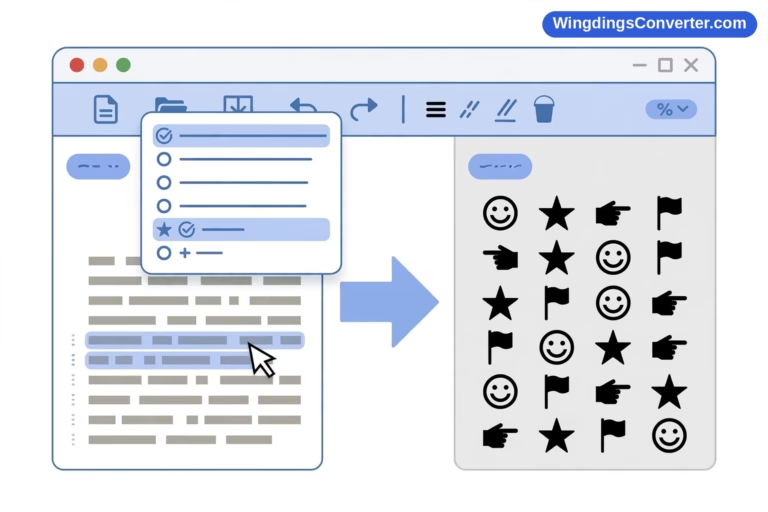
If your goal is to turn ordinary text into Wingdings symbols, the Wingdings Converter on WingdingsConverter.com is a convenient place to start.
A typical workflow is:
- Open the converter.
- Enter the text you want to convert.
- Review the converted output.
- Copy the result if it matches what you need.
- Check the output in your intended application before using it in a finished document.
The converter is particularly useful when you want to experiment with character mappings instead of checking individual keyboard keys manually.
Keep in mind that converting text and decoding an existing symbol sequence are different tasks. If you are trying to recover text from an old document, the original font mapping may be necessary.
Wingdings, Webdings, and Wingdings 2: Which Character List Should You Use?
One common mistake is assuming that every Microsoft symbol font uses the same characters. They do not.
| Font | What to know |
|---|---|
| Wingdings | The original symbol font, containing a range of pictorial characters |
| Wingdings 2 | A separate font with its own character mappings and symbol selection |
| Wingdings 3 | Another related font with a different collection of graphical characters |
| Webdings | A separate symbol font designed around pictorial and web-related imagery |
The distinction matters when following a tutorial or using a character chart found online. A keyboard mapping shown for Wingdings 2 may not produce the same symbol in the original Wingdings font.
Before copying a character mapping, check the font name in the reference. If the source does not identify the font version, treat the mapping cautiously.
For a document that must work across different computers, you should also consider whether the recipient has the same font available.
Can You Copy and Paste Wingdings Characters?
Yes, but the result depends on what you copy and where you paste it.
When a document uses Wingdings to display a character as a symbol, copying the character may preserve its underlying character value rather than convert the graphic into a universal symbol.
For example, a character that looks like a decorative icon in Word may appear as a letter in a plain-text editor if the Wingdings font is no longer applied.
To reduce problems:
- Keep the original font: Use Wingdings in the receiving application when the character depends on that font.
- Check the pasted result: Do not assume the symbol will look identical in every program.
- Use Unicode when appropriate: If a similar standardized symbol exists, it may be more portable.
- Preserve a backup: Keep the original text before converting it.
- Test exported documents: Review PDFs and other exported files to ensure the symbols appear correctly.
If you only need a symbol for a graphic, you may find it more reliable to use a suitable image or icon asset instead of depending on a font being installed.
Common Problems With Wingdings Character Lists
Even a useful character reference can be confusing if the font or encoding does not match your document.
The symbol looks different from the chart. Check whether the chart covers Wingdings, Wingdings 2, Wingdings 3, or Webdings. Also confirm that the same font is selected in your application.
The character appears as a letter. The font may not be applied, or the application may be displaying the underlying character using a regular typeface.
The symbol becomes a square or missing-glyph box. The required font or glyph may be unavailable. Try opening the document in software that supports the font.
Copied symbols stop working on another computer. The receiving system may not have the necessary font, or the pasted content may not preserve its formatting.
An online converter produces a different result. Conversion tools can use different mappings or support different symbol sets. Compare the result with the original font and the tool’s intended functionality.
Understanding these limitations will save time when you are trying to identify a particular symbol or reproduce a character from an older document.
Frequently Asked Questions
Is there a complete Wingdings characters list?
A complete reference needs to identify the specific font version and the character mappings it covers. Online charts may show selected symbols, keyboard mappings, or Unicode equivalents rather than every glyph available in the original font.
Does every letter have a Wingdings symbol?
Not necessarily in the way people expect. Wingdings maps character positions to graphical glyphs, but it is not a conventional alphabet in which every letter has a universally defined picture equivalent. The output depends on the font mapping.
Are Wingdings keyboard shortcuts the same on every computer?
Not always. The displayed result depends on the selected font, character input method, software, and installed font version. A keyboard mapping from one reference may not work as expected in another setup.
Can I use Wingdings characters in HTML?
You can display characters using a web font or another supported method, but relying on a locally installed Wingdings font is not ideal for a public website. Visitors may not have that font installed. Standardized Unicode symbols or properly licensed web-compatible icons are generally safer choices.
What is the difference between a Wingdings character and a Wingdings symbol?
A character refers to the underlying text value or character position, while a symbol usually describes the visual shape displayed by the font. The distinction explains why the same underlying character can look different when you change fonts.
Where can I convert text into Wingdings?
You can use the Wingdings Converter on WingdingsConverter.com to explore text-to-symbol conversion. Check the resulting output carefully, especially if you need the characters to display correctly in a different application.
Final Word
A Wingdings characters list is most useful when it tells you more than what a symbol looks like. It should also help you identify the font, understand the character mapping, and reproduce the result correctly.
If you are exploring symbols for a document, start with Windows Character Map or Microsoft Word. If you want to convert ordinary text into Wingdings, try the converter on WingdingsConverter.com. And whenever an exact character matters, verify the font version before relying on a keyboard chart.