How Does Wingdings Work? A Simple Guide to Symbol Fonts
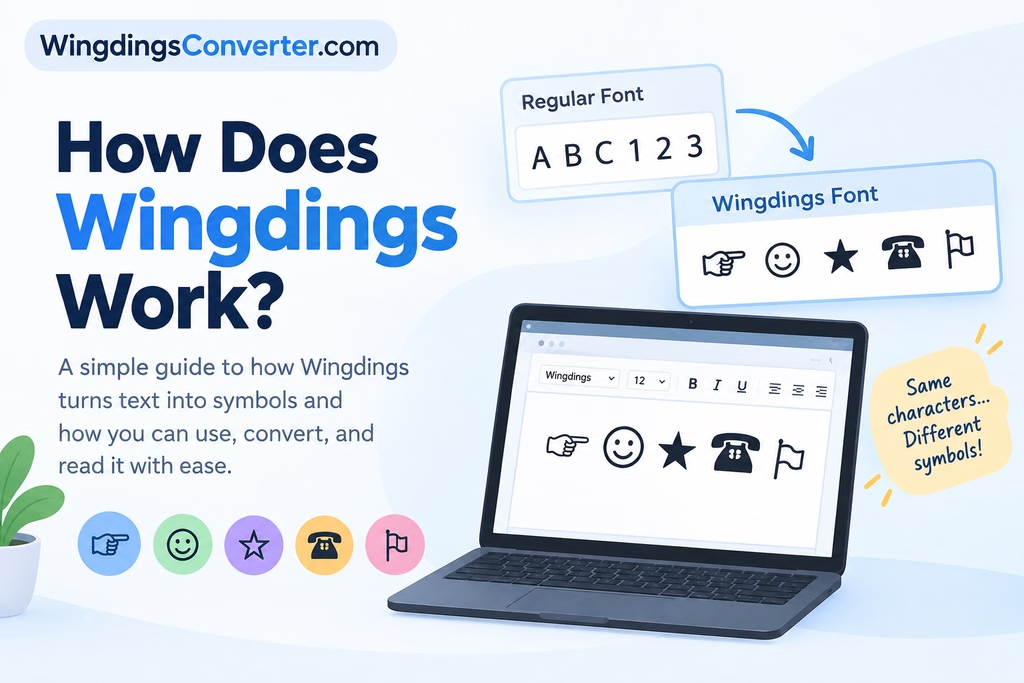
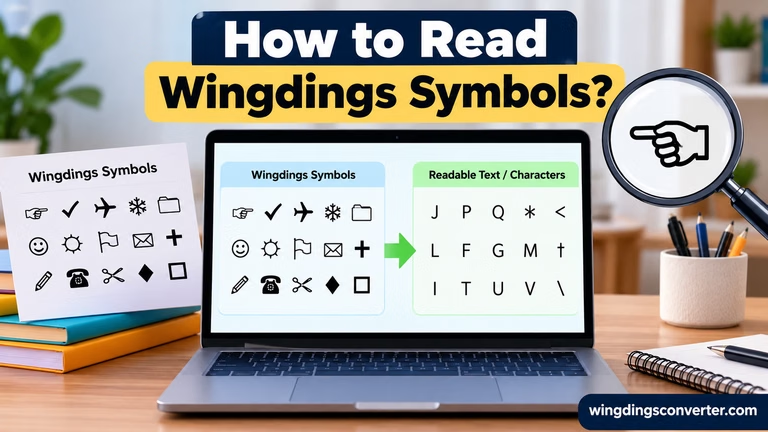
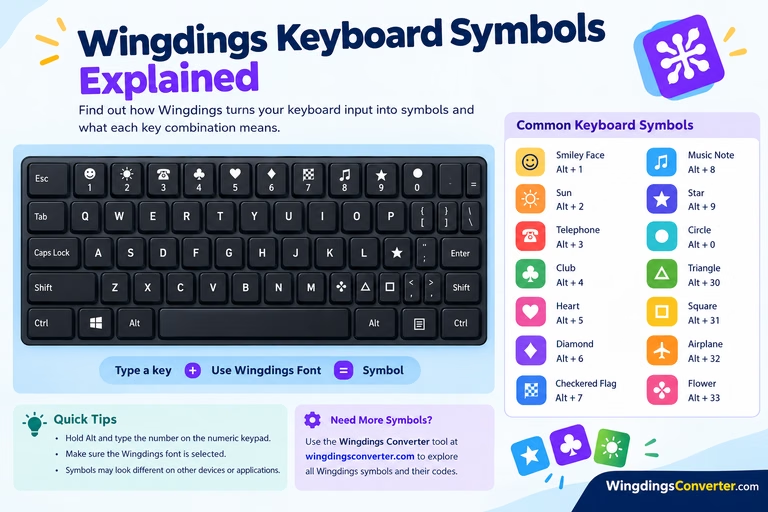
Wingdings works by displaying symbols instead of the usual letters, numbers, and punctuation marks. When you type a character using the Wingdings font, your computer displays a symbol assigned to that character rather than its familiar alphabetic shape. For example, a key that normally produces a letter may display a hand, arrow, telephone, or another pictorial symbol when Wingdings is applied.
This makes Wingdings different from a regular font such as Arial or Times New Roman. Instead of changing how ordinary text looks, it changes the visual appearance of individual characters into a collection of symbols.
Understanding how Wingdings works can help you use it in documents, recognize unfamiliar symbols, and convert Wingdings characters back into readable text. The key is knowing how character mapping works and why the font must be available on the device displaying it.
What Is Wingdings, Exactly?
Wingdings is a symbol font originally developed by Microsoft and introduced in 1990. It contains pictorial characters, including arrows, geometric shapes, hands, household objects, and other illustrations.
Unlike a standard text font, Wingdings is not primarily designed to display readable words. Instead, it assigns visual symbols to character positions that would normally represent letters, digits, or punctuation.
Think of a keyboard as a set of instructions. In a regular font, typing the letter A produces the familiar shape of A. With Wingdings selected, the same underlying character can appear as a symbol instead.
The underlying character has not necessarily changed. What changes is the way the font renders it.
This distinction explains why Wingdings can look like a secret code even though it is essentially a font-based system for displaying symbols.
How Does Wingdings Work Behind the Scenes?
To understand Wingdings, it helps to separate three things: the character you type, the font that interprets it, and the symbol you see on the screen.
1. Your keyboard produces a character
When you press a key, your application receives a character according to your keyboard layout, input settings, and software. For example, typing the letter A in a typical English-language layout produces the character A.
At this point, the character is not a picture of a symbol. It is a text character that an application can display using a selected font.
2. The selected font determines its appearance
A font contains instructions for drawing characters. Arial draws the letter A as a recognizable letter, while Wingdings uses its character mapping to display an associated pictorial symbol.
For example, consider this simplified comparison:
| Typed character | Regular font | Wingdings font |
|---|---|---|
| A | A | A Wingdings-mapped symbol |
| B | B | A Wingdings-mapped symbol |
| C | C | A Wingdings-mapped symbol |
The exact symbols depend on the character mapping in the particular Wingdings font version. The table illustrates the principle rather than identifying specific symbol assignments.
3. The application displays the mapped symbol
When the application renders the text, the font determines which glyph to draw for the character. A glyph is the visual form used to represent a character.
The result is a symbol that appears in place of the expected letter or other character.
This is why changing a line of text from Arial to Wingdings can make it look completely different without requiring you to insert a separate image for every symbol.
Is Wingdings an encryption system?
No. Wingdings is a font, not an encryption method.
A person may use it to create a puzzle or disguise a message, but the symbols are not protected by encryption. Someone who knows the relevant character mapping can often work out the original text.
The distinction matters because Wingdings does not provide confidentiality or secure communication. It changes presentation rather than applying a cryptographic transformation.
Why Does Ordinary Text Turn Into Symbols?
The effect comes from selecting Wingdings as the font for ordinary characters.
Imagine typing a short word in a word processor. With a regular font selected, the word appears as readable text. If you select Wingdings, the same character sequence may appear as a row of unrelated symbols.
The text may still contain the original letters internally, even though the displayed result no longer looks like a word.
This also explains why copying Wingdings text into another application can produce unexpected results. If the destination application does not preserve the Wingdings font, it may display the underlying characters in a regular font instead.
For example, a symbol that looked like a telephone in the original document might become a letter when pasted into a plain-text editor.
The reverse problem can happen, too. A document may preserve its character sequence but fail to display the intended symbols because the necessary font is unavailable or the application handles the font differently.
How to Use Wingdings in Practice
You do not need to understand font technology in detail to start using Wingdings. The process is straightforward in applications that support the font.
Using Wingdings in Microsoft Word
- Open a document in Microsoft Word.
- Type a character or a short sequence of characters.
- Select the text you want to change.
- Open the font selector.
- Choose the Wingdings font, if it is installed and available.
- Review the displayed symbols and adjust the characters as needed.
The result depends on the Wingdings version and the characters you enter. If a particular symbol is not appearing as expected, check the selected font and character mapping.
Finding a specific symbol
Typing random letters can help you explore Wingdings, but it is not the most efficient approach when you need a particular icon.
Instead, use a character map, a suitable symbol reference, or a Wingdings converter to identify the character associated with the symbol you want.
For documents, it is also worth checking how the finished text appears on another device. This can help you catch font compatibility problems before sharing or printing the document.
How Can You Convert Wingdings Back Into Readable Text?
Converting Wingdings can be confusing because the visible symbols do not necessarily represent the actual characters stored in the text.
A reliable conversion depends on understanding what you have copied.
There are two common situations:
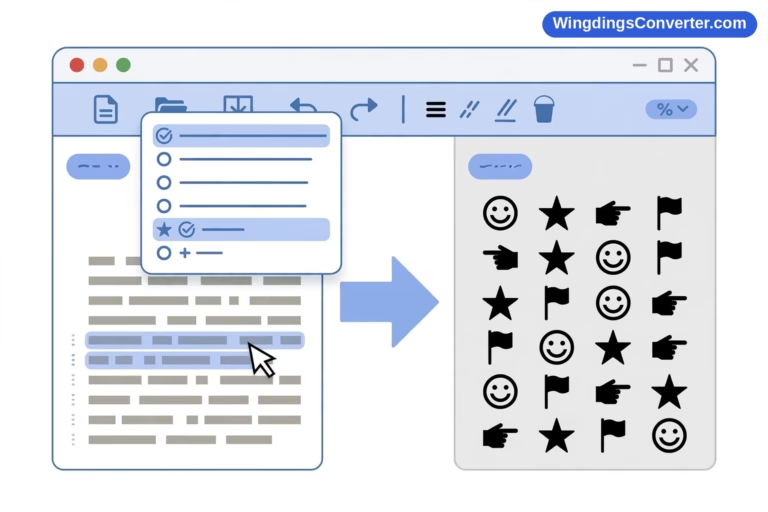
- You have text formatted in Wingdings. The underlying characters may be ordinary letters or punctuation displayed using the Wingdings font. Applying a regular font may reveal those characters, although this does not automatically translate the symbols into their meanings.
- You have copied the visible symbols themselves. The copied content may contain actual symbol characters rather than the original letters. In that case, changing the font alone may not be enough. You need a converter or character reference that recognizes the symbols and their mappings.
Using the Wingdings Converter on WingdingsConverter.com
The Wingdings Converter tool on WingdingsConverter.com can help you work with Wingdings text without manually identifying every character.
A practical approach is to:
- Copy the Wingdings content you want to understand.
- Open the converter on WingdingsConverter.com.
- Enter or paste the content into the appropriate input field.
- Choose the relevant conversion direction, if the tool provides that option.
- Review the output and compare it with the original if any symbols remain unclear.
Keep in mind that conversion results depend on the input, the font version, and the character mapping supported by the tool. If the original text has lost its font formatting or contains symbols from another font, the result may not be a perfect match.
For more help, see: How to Convert Wingdings to Text?
Wingdings vs. Unicode Symbols: What Is the Difference?
Wingdings and Unicode symbols can look similar on screen, but they work differently.
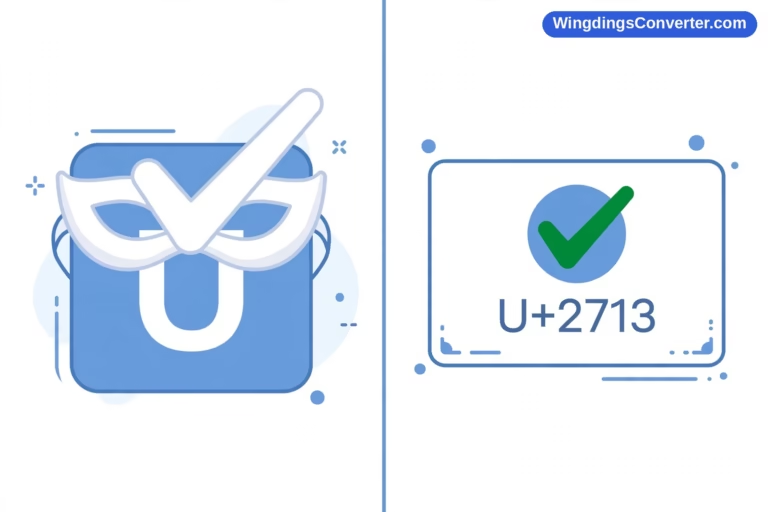
Unicode assigns standardized code points to characters across writing systems and symbol collections. A Unicode character has an identity that is not simply tied to one particular font, although the font still determines how it looks.
Traditional Wingdings, by contrast, relies on a font-specific mapping. The same underlying character can appear as a letter in one font and as a picture in Wingdings.
Here is the practical difference:
| Feature | Wingdings | Unicode symbols |
|---|---|---|
| How symbols are represented | Font-specific character mapping | Standardized character code points |
| Dependence on the font | High for the intended symbol appearance | A compatible font is still needed, but the character identity is standardized |
| Copying between applications | Can change appearance or lose symbol meaning | Often more portable, depending on character and font support |
| Best-known use | Decorative symbols and legacy documents | Text, symbols, emoji, and multilingual content |
Unicode is generally a better choice when you need a symbol to remain recognizable across different applications and devices. However, compatibility still varies, especially for less common characters.
Wingdings remains useful when working with existing documents, recreating a particular visual style, or handling content specifically designed for that font.
Why Wingdings Sometimes Does Not Work as Expected
If your symbols appear as letters, empty boxes, or unexpected characters, the problem may not be the text itself.
The font is missing
If Wingdings is not installed or available to the application, the software may substitute another font. The result can look very different from the original document.
What to do: Check the font list and confirm that the intended font is available.
The font was removed when copying text
Some applications copy only the underlying characters and discard font formatting. When you paste the text elsewhere, the destination application displays those characters using its own font.
What to do: Preserve the formatting when possible, or use a converter if you need to interpret the symbol sequence.
The content uses a different symbol font
Wingdings, Wingdings 2, Wingdings 3, and Webdings are related in purpose, but their character mappings are not interchangeable.
What to do: Identify the font originally used before attempting conversion. Applying the wrong mapping can produce incorrect results.
The application handles the font differently
Font availability and rendering support vary between operating systems, office applications, browsers, and document viewers. Older documents may also behave differently from newly created ones.
What to do: Open the content in an application that supports the original font, or convert it into a more portable format when appropriate.
You can also read: Why Wingdings Symbols Are Not Displaying Correctly
What Is Wingdings Useful For Today?
Although Wingdings is an older font, it still has practical uses.
- Decorative documents: Add visual elements to invitations, worksheets, presentations, and other designs.
- Simple illustrations: Use available symbols as lightweight alternatives to inserting separate image files.
- Educational activities: Create symbol-matching exercises, visual puzzles, and classroom materials.
- Legacy document support: Read or edit older files that rely on Wingdings.
- Font and character experiments: Explore how fonts change the visual representation of text.
For professional documents that need to work across many platforms, consider whether Unicode symbols or image assets would be more reliable. The best option depends on where the content will be viewed and whether readers need to copy, search, or edit the symbols.
Frequently Asked Questions
Does Wingdings replace letters with symbols?
Yes, in the sense that it renders mapped characters as symbols instead of ordinary letters. The underlying character data may remain unchanged when you simply apply the font.
Can Wingdings be read without installing the font?
You may be able to interpret existing content with a suitable converter or character reference, but displaying the original Wingdings appearance generally requires access to the appropriate font or an equivalent rendering method.
Does Wingdings work on mobile devices?
Support varies by application, operating system, and font availability. A mobile device may not display a Wingdings document exactly as it appears on a desktop computer.
Are Wingdings symbols the same in every version?
Not necessarily. Wingdings and related fonts have different mappings, so you should not assume that a character produces the same symbol across every version or font family.
Can I use Wingdings to hide a secret message?
You can make text less immediately readable by displaying it as symbols, but this is only visual concealment. It does not securely encrypt the message.
Is Wingdings the same as an emoji font?
No. Wingdings uses its own symbol mapping, while emoji are generally represented by Unicode characters or sequences. Their appearance and compatibility depend on the fonts and software involved.
The Main Idea
Wingdings works by using a font-specific mapping to display pictorial symbols in place of familiar characters. The characters you type are interpreted through the selected font, which determines the symbols you see.
Once you understand that distinction, the font becomes much easier to use and troubleshoot. You can apply it in compatible applications, recognize why symbols change when text is copied, and choose an appropriate conversion method when you need to recover readable text.
If you have a Wingdings sequence you cannot identify, the Wingdings Converter on WingdingsConverter.com is a practical place to start. Check the font version and the type of content you have when the output does not match what you expected.