What Is Wingdings Font? A Complete Beginner’s Guide
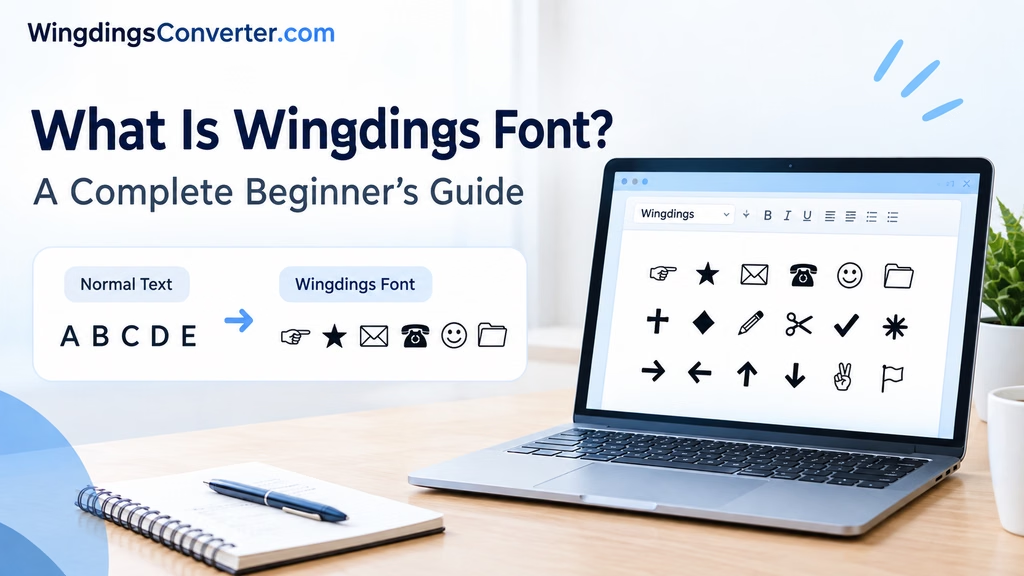
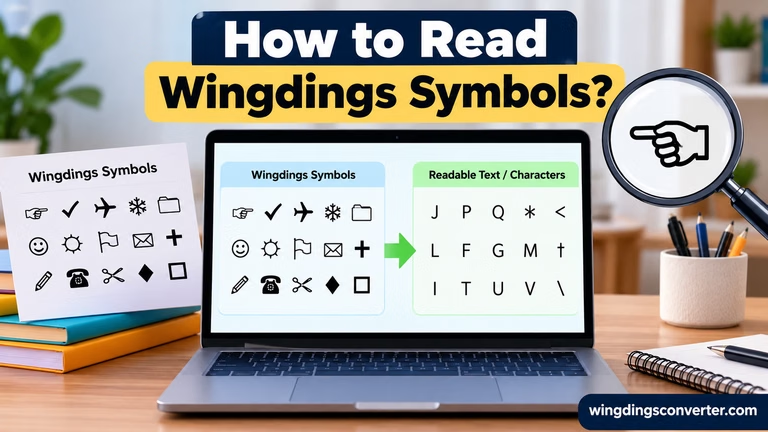
Wingdings is a font that replaces ordinary letters, numbers, and punctuation with symbols. Instead of seeing a normal A, B, or C, you may see an arrow, hand, box, telephone, star, or another small graphic when Wingdings is applied to the text.
That simple idea is what made Wingdings so interesting—and sometimes confusing.
If you have ever opened an old Microsoft Word document and found that ordinary text suddenly looks like a collection of strange symbols, there is a good chance a symbol font such as Wingdings is involved.
This guide explains what Wingdings is, how it works, why people still use it, and what you should know before converting Wingdings text into normal readable text.
What Is Wingdings?
Wingdings is a symbol font originally developed by Microsoft and released in 1992. It was created from work associated with designers Charles Bigelow, Kris Holmes, and Microsoft, and it brought a large collection of pictographic symbols into an ordinary computer font.
The basic concept is different from a normal typeface.
With a conventional font, typing:
A B C D
still gives you the letters A, B, C, and D. The font changes their appearance, but the underlying characters remain letters.
Wingdings works differently. It maps many of those character positions to symbols.
So when the Wingdings font is applied, a character that would normally appear as a letter can display as a completely different symbol.
That’s why a sentence written using Wingdings can look like a secret code to someone who doesn’t know how the font works.
Why Was Wingdings Created?
Before today’s huge collection of Unicode symbols and emoji, using small graphical symbols in documents was not always convenient.
Wingdings provided a simple way to insert useful pictograms without needing to draw each image separately.
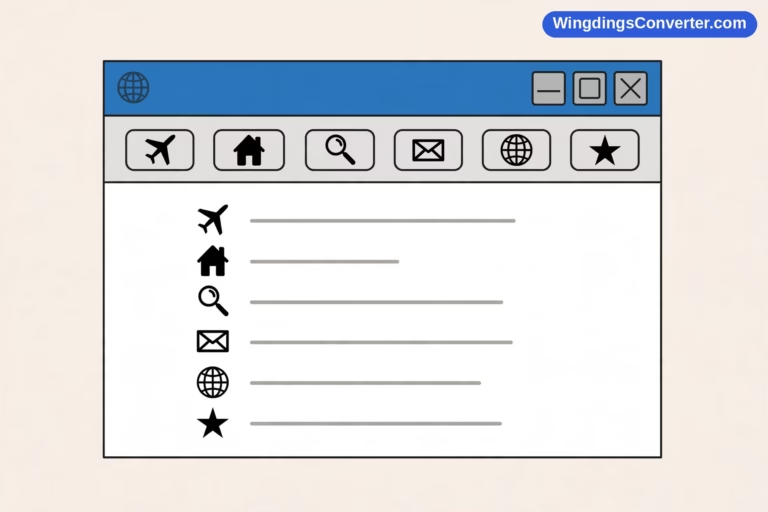
The font contains symbols associated with things such as:
- Arrows
- Hands and gestures
- Telephone and communication symbols
- Check marks
- Crosses
- Stars
- Boxes
- Shapes
- Office-related symbols
- Decorative characters
For someone working in a desktop publishing or word-processing program, having these symbols available through a font could be very convenient.
Instead of inserting an image every time a symbol was needed, a user could simply select Wingdings and type the appropriate character.
How Does Wingdings Actually Work?
This is the part that causes most of the confusion.
A font normally changes the appearance of a character. Wingdings changes what you visually see much more dramatically because its glyphs are symbols rather than ordinary letters.
Imagine that a document contains the character:
A
If the document uses a normal font such as Arial, you see:
A
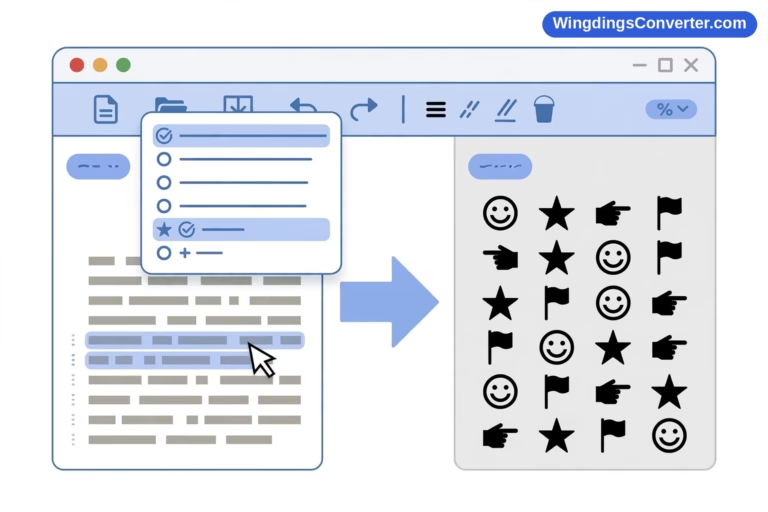
Change the font to Wingdings, and the same underlying character may display as a symbol instead.
The important thing to understand is that the character stored in the document and the symbol you see on screen are not necessarily the same thing.
This is why simply copying what looks like a Wingdings symbol and pasting it somewhere else can sometimes produce an unexpected result.
A simple way to think about it
Think of the underlying character as an instruction and the font as the visual interpretation.
The character says, roughly:
“Display character X.”
A regular font gives you a letter.
Wingdings may give you a picture-like symbol.
Change the font, and the appearance can change again.
That’s also why Wingdings is not really a secret encryption system. It is primarily a font-based way of displaying symbols.
Is Wingdings a Language?
No.
Wingdings is a font, not a language.
This distinction is important.
A language has words, grammar, vocabulary, and rules for communication. Wingdings doesn’t have those things. It is a collection of graphical glyphs associated with character positions.
You can use Wingdings to make text look like symbols, but that doesn’t mean you have created a new written language.
This is also why “translating Wingdings” can be a slightly misleading phrase. In many cases, what is really happening is that someone is converting or interpreting characters according to the font’s character-to-glyph mapping.
For a useful overview of the difference, see: Wingdings vs Unicode
What Does Wingdings Look Like?
Wingdings contains many different kinds of symbols, so there isn’t one single “Wingdings symbol.”
Depending on the character being used, you might encounter:
| Type | Examples of what you may find |
|---|---|
| Arrows | Directional arrows and pointer-style symbols |
| Hands | Hand gestures and pointing symbols |
| Shapes | Boxes, circles, diamonds, and other shapes |
| Communication | Telephone and related symbols |
| Decorative | Stars and ornamental characters |
| Marks | Check marks, crosses, and similar symbols |
| Objects | Various everyday object pictograms |
The exact appearance can also depend on the version of the font and the software being used.
Wingdings Is Not the Same as Unicode
This is one of the most useful distinctions for beginners.
Wingdings is a font. Unicode is a character-encoding standard.
Unicode assigns standardized code points to characters and symbols so that computers can represent and exchange them consistently.
For example, a modern Unicode character can remain the same underlying character even if you change the font used to display it.
Wingdings takes a different approach. Its symbols are largely represented through the font’s glyph mappings.
This difference matters when you copy text between applications or try to convert Wingdings into modern symbols.
If you’re interested in this subject, you may also want to read What Is Unicode? A Simple Explanation.
Why Does Wingdings Sometimes Turn Into Strange Characters?
You may have experienced this situation:
You open an old document and see symbols.
You copy them into another program.
Suddenly they become letters, boxes, question marks, or something completely different.
This can happen because the destination program isn’t displaying the characters with the same font.
For example, if the original document relies on Wingdings to display a particular character as a symbol, opening that character with a different font may reveal the underlying character instead.
Other factors can also affect the result, including:
- The font installed on the computer
- The application being used
- Font substitution
- Character encoding
- Operating system differences
- The particular version of the font
For this reason, a Wingdings document may not always look identical on every computer.
If you’re dealing with missing or incorrect symbols, Why Does Wingdings Look Different on Different Devices? can be a useful next read.
Can Wingdings Be Converted to Normal Text?
Yes, in many cases—but there is an important detail.
The exact result depends on what the original Wingdings text represents and how it was created.
If someone typed ordinary characters and simply changed the font to Wingdings, it may be possible to identify the underlying characters and map them back to readable text.
However, not every symbol should be treated as a direct replacement for a letter.
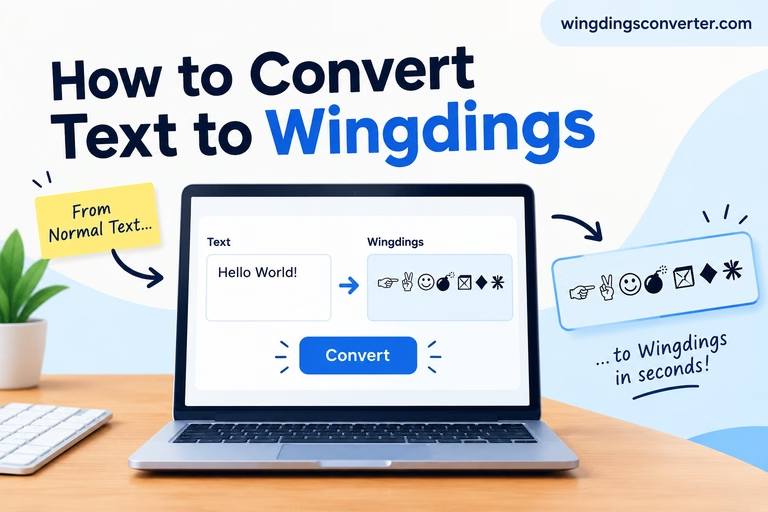
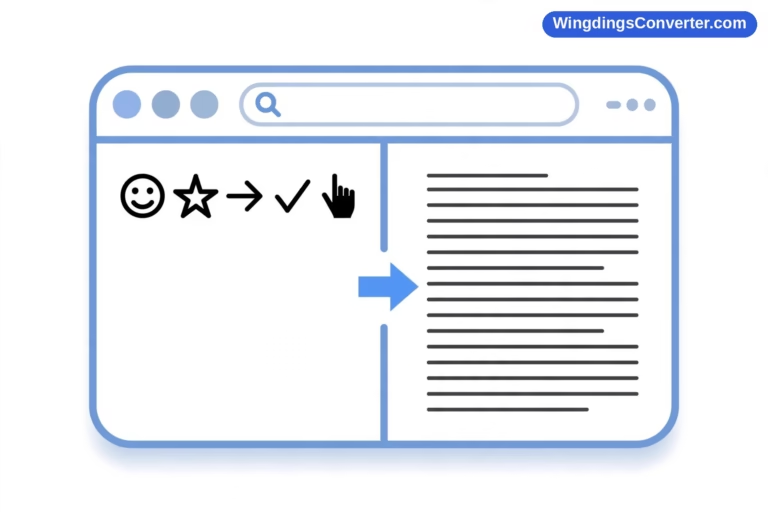
This is where a Wingdings Converter can be useful.
Instead of manually trying to figure out which character corresponds to each symbol, you can use a conversion tool to help interpret the text.
You can try the Wingdings Converter on WingdingsConverter.com when you need to convert or decode Wingdings-related text.
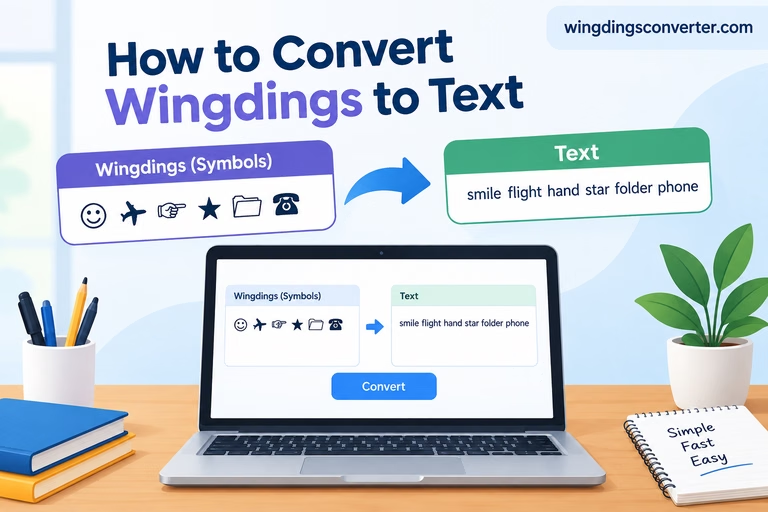
For a more focused explanation, see: How to Convert Wingdings to Text.
What Can Wingdings Be Used For?
Wingdings has historically been useful anywhere small pictographic symbols are needed in documents.
Some common uses include:
1. Decorative Text
Wingdings can be used to add visual symbols to headings, documents, invitations, or other designs.
2. Documents and Office Work
People have used symbol fonts in word processors to add check marks, arrows, boxes, and other visual elements.
3. Lists and Checklists
Some Wingdings characters can work well as visual markers for lists and checkboxes.
4. Design Projects
Before modern icon libraries became widespread, symbol fonts offered a convenient way to include simple graphics in layouts.
5. Fun and Puzzles
Wingdings became especially well known because people sometimes used it to make messages that looked like secret codes.
That doesn’t make Wingdings encryption, but it certainly makes it interesting to experiment with.
Wingdings and the “Secret Code” Myth
One of the reasons Wingdings became famous online is because people discovered that typing certain words in Wingdings produced interesting sequences of symbols.
This led to the idea that Wingdings was some kind of hidden language or secret code.
It isn’t.
The symbols are the result of the font’s character mappings. If you know which underlying characters were typed and which Wingdings font is being used, the mystery becomes much easier to understand.
The confusion mostly comes from the fact that the visual output looks completely unrelated to the original letters.
That’s also why Wingdings can be fun to decode.
Is Wingdings Still Used Today?
Yes, although the way people use symbol fonts has changed.
Modern operating systems, websites, and applications have access to Unicode characters, emoji, icon libraries, SVG graphics, and other ways of displaying symbols.
These technologies often provide better consistency across different devices.
Even so, Wingdings remains relevant for several reasons:
- Older documents still contain Wingdings.
- Microsoft Office users may encounter it.
- Designers and enthusiasts still experiment with symbol fonts.
- People sometimes need to decode old Wingdings text.
- The font remains part of the history of personal computing and desktop publishing.
So while Wingdings isn’t necessarily the first choice for creating new digital interfaces today, it hasn’t disappeared.
Wingdings vs. Modern Symbol Characters
Suppose you want to place a check mark in a document.
With a symbol font, you might use a font such as Wingdings to display a particular character as a check mark.
With Unicode, you can use an actual check-mark character where supported.
The advantage of Unicode is that the character has its own standardized identity rather than relying entirely on a particular font’s glyph mapping.
That generally makes Unicode-based text easier to exchange between different systems.
However, Wingdings can still be useful when you’re working with an older document or specifically need its distinctive symbol collection.
What If You Have Wingdings Text You Can’t Read?
Don’t start guessing character by character.
First, find out how the text was created.
If it is simply ordinary text displayed through a Wingdings font, conversion may be relatively straightforward.
If it has been copied through different applications, converted into images, or affected by character-encoding problems, things can become more complicated.
A practical approach is:
- Copy the Wingdings text.
- Paste it into a Wingdings conversion tool.
- Check the resulting text.
- Compare the result with the original document.
- If something looks wrong, check which Wingdings font or version was used.
You can use WingdingsConverter.com to help with the conversion process rather than manually working through every character.
A Quick Example
Imagine you receive an old document that appears to contain a line of meaningless symbols.
You select the text and discover that the document uses Wingdings.
Changing the font back to a standard typeface may reveal the underlying characters rather than the symbols you were seeing.
This illustrates the main idea behind Wingdings:
The symbols you see are glyphs displayed by the font, while the underlying characters are what the computer is actually storing.
Once you understand that distinction, Wingdings becomes much less mysterious.
Common Questions About Wingdings
Is Wingdings a font or a language?
Wingdings is a font. It is not a language and does not have its own grammar or vocabulary.
Is Wingdings a form of encryption?
No. Wingdings isn’t an encryption system. It changes how characters are displayed through a font’s glyph mappings.
Can I convert Wingdings into normal text?
In many cases, yes. The result depends on how the original text was created and which Wingdings font or version was involved.
Does Wingdings work on every computer?
Not necessarily. Displaying Wingdings correctly can depend on whether the relevant font is installed and supported by the software being used.
Is Wingdings the same as Unicode?
No. Wingdings is a font, while Unicode is a character-encoding standard used to represent characters and symbols across digital systems.
Why do Wingdings symbols sometimes become letters?
Because the underlying characters may still be ordinary character codes. If another font is used to display them, you may see those characters rather than the Wingdings glyphs.
Can I use Wingdings online?
You can use Wingdings in applications and environments that support the font, but web compatibility can vary. For modern web content, Unicode symbols or dedicated graphics are often more portable.
Final Thoughts
Wingdings can seem strange at first because it turns familiar keyboard characters into symbols. Once you understand that it is a symbol font rather than a secret language, the basic idea becomes much easier to grasp.
Its importance goes beyond the symbols themselves. Wingdings is a good example of how computers have traditionally separated the characters stored in a document from the way those characters are visually displayed.
If you’ve found an old document filled with Wingdings symbols, are trying to understand a mysterious message, or simply want to experiment with the font, a conversion tool can save you from figuring everything out manually.
For a quick way to work with Wingdings text, you can use the Wingdings Converter at WingdingsConverter.com.