How to Read Wingdings Symbols: A Simple Guide for Beginners
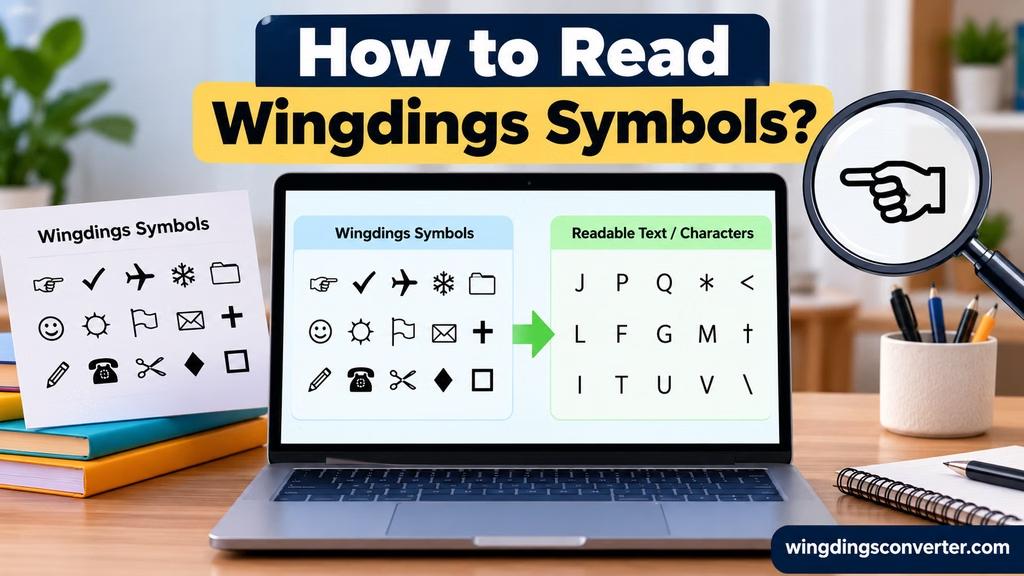
Wingdings symbols can look confusing when you see them in a document, message, or image. A line of symbols might contain a check mark, an arrow, a hand, or another familiar shape, but there may be no readable words in sight. The good news is that you do not need to guess what every symbol means. With the right font information or a Wingdings decoder, you can often work out what the symbols represent.
Learning how to read Wingdings symbols starts with understanding one important detail: Wingdings is a symbol font, not a normal text font. It displays many characters as pictures instead of the letters and numbers you would usually expect.
This guide explains how to identify Wingdings symbols, read them using a converter, handle common problems, and understand why some symbols are difficult to decode.
What Are Wingdings Symbols?
Wingdings is a symbol font developed by Microsoft. Instead of displaying ordinary letters in a familiar alphabet, it uses many character positions to display pictorial symbols.
Depending on the Wingdings font version, these symbols can include:
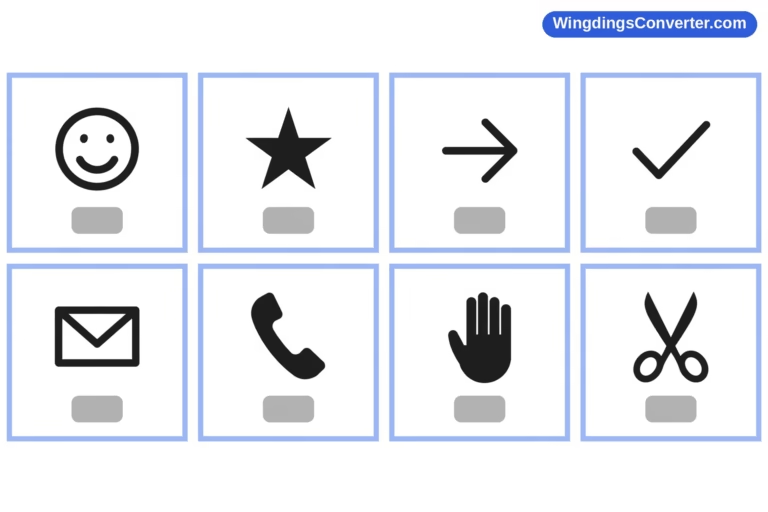
- Arrows and directional signs
- Check marks and crosses
- Hands and pointing fingers
- Geometric shapes
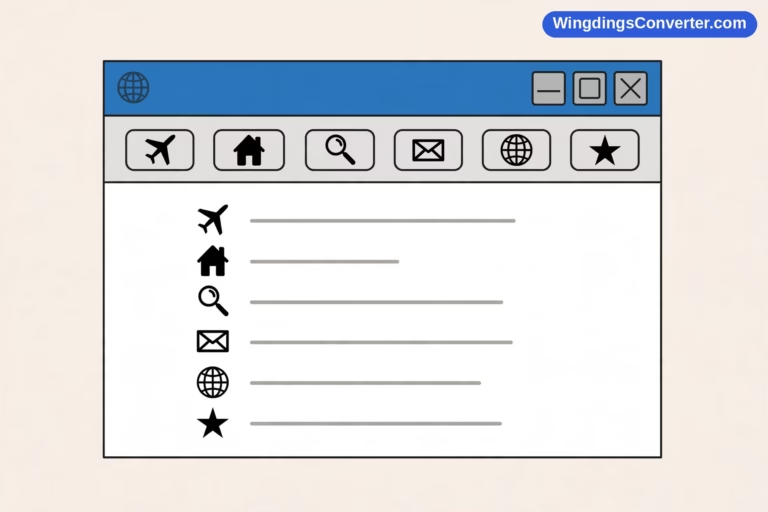
- Objects and everyday items
- Decorative marks and other illustrations
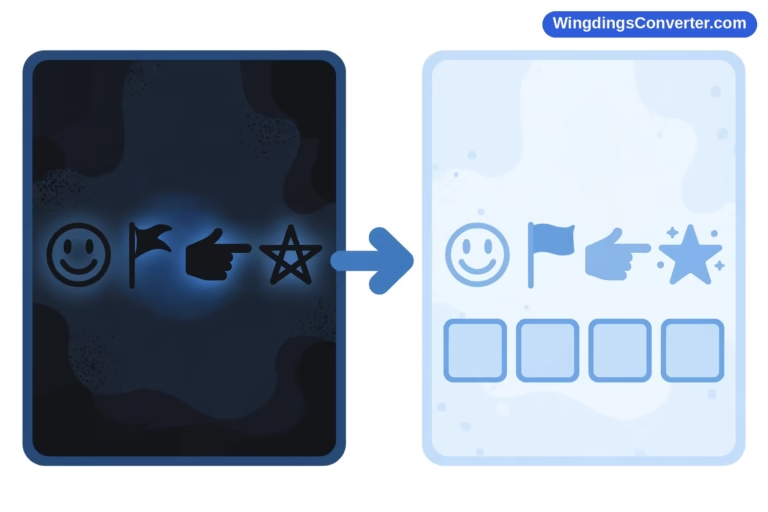
The important distinction is that a Wingdings symbol is not necessarily a picture inserted into a document. It may be a character displayed through the Wingdings font.
For example, someone might type a character while using Wingdings, and the font will display a symbol at that character’s position. If you switch to a regular font, the same underlying character may appear as a letter or another ordinary character instead.
That is why copying Wingdings text into a plain-text message does not always preserve its original appearance.
How to Read Wingdings Symbols Step by Step
The easiest way to understand an unfamiliar Wingdings sequence is to use a converter or decoder that supports the relevant font.
Step 1: Copy the Wingdings text
First, select the symbols you want to understand and copy them.
If the symbols appear in Microsoft Word or another document editor, select only the relevant text. Avoid copying surrounding paragraphs unless you need them for context.
If the symbols are part of a screenshot or photograph, you cannot copy them directly as text. You will need to identify the characters through a suitable text-recognition method or consult the original document if available.
Step 2: Open a Wingdings converter
Visit WingdingsConverter.com and open the Wingdings Converter tool.
Choose the conversion direction that matches your task. If you have a sequence of Wingdings symbols and want to understand the underlying characters, look for a supported Wingdings-to-text or decoding option.
Keep in mind that a converter can only interpret the input correctly when it supports the relevant mapping and receives the appropriate character data.
Step 3: Paste the copied characters
Paste your copied text into the converter’s input area.
Check the result carefully. If the symbols were copied from a properly formatted document, the input may contain the underlying characters rather than the visible pictures you saw on the screen.
This distinction matters because the appearance of a character and its stored value are not always the same thing.
Step 4: Review the output
Examine the decoded output and compare it with the original symbols.
A converter may identify underlying letters or characters, but that does not automatically mean it has recovered a complete sentence. Some Wingdings sequences are simply lists of icons or decorative symbols rather than encoded messages.
If the output seems meaningless, do not assume the original text is corrupted. Check the font version, the conversion direction, and whether the input was copied correctly.
Step 5: Use the surrounding context
Finally, consider where the symbols appeared.
A check mark next to a task may indicate completion. An arrow may show a direction or connection. A pointing hand may draw attention to a particular item.
These are contextual interpretations, not guaranteed translations. A symbol’s intended meaning depends on how it is being used.
Why Wingdings Can Be Difficult to Read
Wingdings can be confusing because the visible symbol and the underlying character are different parts of the same process.
Imagine that a document contains a character that is displayed as a small arrow when the Wingdings font is applied. If the font is removed, the character might appear as an ordinary letter or punctuation mark.
The underlying character has not necessarily changed. Only the way it is displayed has changed.
This explains why a Wingdings sequence may look completely different when you paste it into another application.
There are three common reasons for decoding problems.
1. The original font is missing
If a device or application does not have the appropriate font, it may display substitute characters instead of the expected Wingdings symbols.
A missing font can make a document look different from the way it appeared on the original computer.
2. The characters were copied incorrectly
Some applications preserve the underlying characters when text is copied, while other workflows may convert the content, replace unsupported characters, or lose formatting.
If you copied symbols from a screenshot, a PDF, or a website, the result may not contain the original Wingdings characters at all.
3. The wrong mapping was used
A decoder needs to use a mapping that matches the relevant Wingdings font. Applying an unrelated symbol mapping can produce confusing or incorrect output.
If you are unsure whether the original font is Wingdings, Wingdings 2, Wingdings 3, or another symbol font, identify it before relying on the decoded result.
Can You Read Wingdings Without a Converter?
Yes, in some situations. A converter is convenient, but it is not the only way to identify a Wingdings symbol.
Use the original document
If you have access to the Word document or another source file, check which font is applied to the symbols. Knowing the font can help you understand why the characters look different elsewhere.
You may also be able to select an individual character and inspect its underlying value or character information using the application.
Compare the symbol with a reference chart
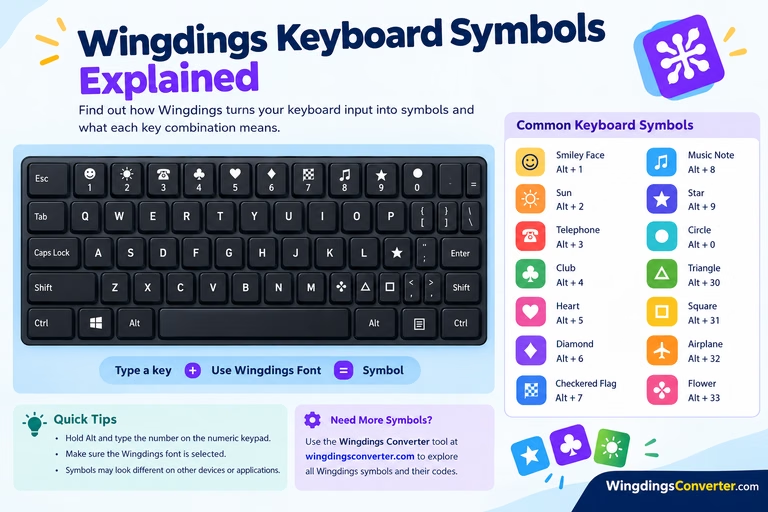
A Wingdings character chart can help you identify a symbol by matching its appearance to a known character position.
This approach works best when you know which version of the font is being used. Different Wingdings-related fonts may contain different symbol sets or mappings.
A reference chart is particularly useful when you only need to identify a few symbols instead of decoding a long sequence.
Wingdings Symbol Chart and Character Guide
Use the symbol’s context
Sometimes the intended meaning is easier to understand than the exact character mapping.
For example, a row of arrows in a diagram may indicate movement or direction, while a check mark in a checklist may show that an item is complete. Context helps you interpret the symbols, although it cannot always tell you which underlying characters were used.
Reading Wingdings Symbols: Examples
Here are a few general examples of how Wingdings symbols can be interpreted in everyday situations.
| Symbol type | Possible meaning | Where you might see it |
|---|---|---|
| Check mark | Completed, selected, or approved | Checklists and forms |
| Arrow | Direction, movement, or connection | Diagrams and instructions |
| Pointing hand | Attention or a reference to nearby text | Notices and documents |
| Cross or X mark | Incorrect, rejected, or marked | Forms and lists |
| Geometric shape | A visual marker or decorative element | Charts and layouts |
These examples describe common uses of the symbol types, not a definitive Wingdings character lookup table. The exact appearance and character mapping depend on the font.
Also, not every Wingdings symbol has a single universal meaning. A symbol that represents an action in one document may be purely decorative in another.
How to Read Wingdings in Microsoft Word
If the symbols appear in Microsoft Word, start by checking the font formatting.
- Open the document containing the symbols.
- Select one of the symbols or a short section of the sequence.
- Look at the font name in Word’s font controls.
- If it identifies a Wingdings font, note the exact font name.
- If you need the original character values, inspect the selected characters using Word’s available character-information tools or a compatible decoding method.
- Compare the result with the original document to confirm that the mapping makes sense.
Be careful when changing the font to Arial, Calibri, or another regular text font. The symbols may turn into ordinary characters, but this does not mean you have translated them into their intended meanings.
If the symbols are important to the document, make a copy before changing their formatting.
How Does Wingdings Work?
What If Wingdings Symbols Turn Into Random Letters?
This is one of the most common problems people encounter.
Suppose you see a document full of recognizable symbols, copy them into a text editor, and end up with letters that appear unrelated to the pictures. This can happen because the copied characters retain their underlying values while losing the font that originally displayed them as symbols.
Try these checks:
- Confirm the font: Make sure the original symbols really use Wingdings or a related font.
- Check the copied input: Compare the pasted characters with the original document.
- Use the matching decoder: The conversion method should support the specific font and character mapping.
- Check for missing characters: If the source was copied from an image or converted PDF, some characters may have been lost or misrecognized.
- Keep the original file: It provides a reliable reference if the converted output looks wrong.
If you still cannot read the symbols, the original document or a clear screenshot may help establish what you are looking at.
How to Convert Wingdings to Text?
Are Wingdings Symbols a Secret Code?
Not necessarily.
Wingdings is primarily a symbol font. It changes how characters appear, rather than automatically encrypting or encoding a private message.
Someone can deliberately use Wingdings to create a puzzle or represent letters through symbols, but ordinary Wingdings formatting is not the same as encryption.
This distinction is useful when you encounter a long sequence of symbols online. It may be a deliberately constructed message, a decorative design, or simply text that was formatted with a symbol font.
Before attempting to translate the entire sequence, find out whether the symbols were created using a font mapping or a separate substitution system.
Is Wingdings a Real Language or a Code?
Frequently Asked Questions
Can I translate Wingdings symbols into English?
You can often recover the underlying characters from Wingdings-formatted text, provided you have the correct character data and mapping. However, converting those characters into meaningful English words is a separate step if the symbols were used as a code or puzzle.
Why do Wingdings symbols look different on another computer?
The other computer may not have the same font installed, or the application may handle the font differently. A substitute font can change the appearance of the characters even when their underlying values remain unchanged.
Can I read Wingdings from a screenshot?
Yes, sometimes, but it is more difficult. A screenshot contains pixels rather than editable text, so you need to identify the visible symbols using a reference chart or an appropriate recognition method. Results depend on image clarity and the symbols involved.
Are Wingdings and Wingdings 2 the same?
No. They are separate symbol fonts and should not automatically be treated as interchangeable. If a decoding attempt produces unexpected results, check which font was used in the original document.
Does every Wingdings symbol have an English translation?
No. Some symbols represent recognizable objects or visual markers rather than words. Others may have several possible interpretations depending on the context. A character decoder identifies character mappings; it does not always provide a complete explanation of the intended message.
The Easiest Way to Start Reading Wingdings
To read Wingdings symbols, first determine whether you are working with editable text or an image. If you have text formatted in Wingdings, identify the font and use a compatible decoder to inspect the underlying characters. If you only have a picture, use a reference chart or a suitable recognition method instead.
When you need to decode copied Wingdings text, the Wingdings Converter on WingdingsConverter.com is a useful place to start. Check the output against the original source, especially when the font version is uncertain or the symbols appear in an unfamiliar sequence.
Once you understand the difference between a symbol’s appearance and its underlying character, reading Wingdings becomes much more straightforward.