Wingdings Numbers: How They Work
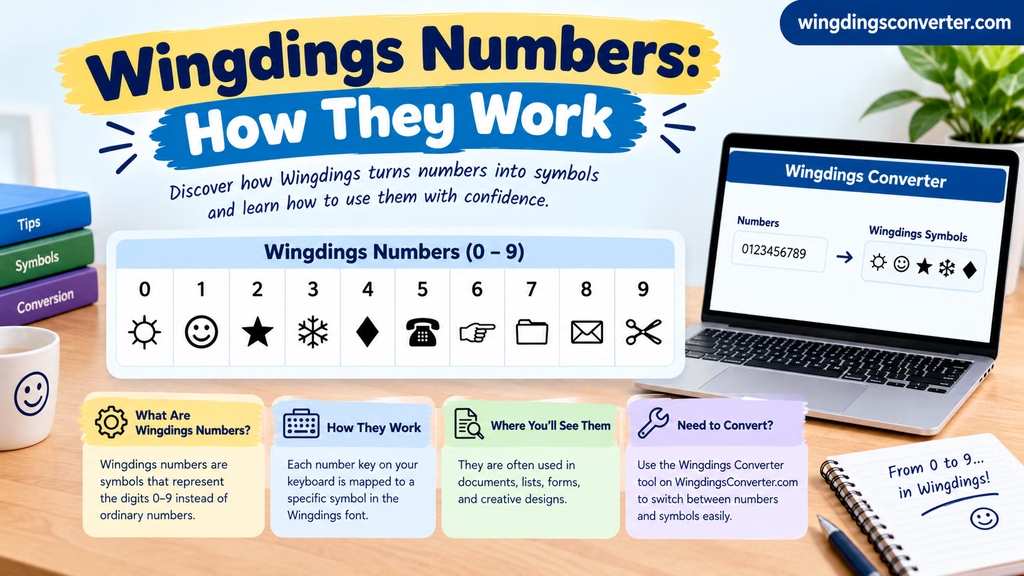
Wingdings numbers can be confusing because the font does not behave like a regular text font. You might type a number in Microsoft Word, change the font to Wingdings, and expect to see a decorative number. Instead, you may get an unfamiliar symbol or a character that looks nothing like the original number.
The reason is simple: Wingdings is a symbol font, not a standard font for displaying ordinary text and numbers. Its characters are designed to represent symbols, icons, and pictorial shapes rather than the usual letters and digits.
Understanding how Wingdings handles numbers makes it easier to work with the font, create decorative text, and convert characters correctly. Whether you want to use Wingdings in a document or figure out what a Wingdings symbol means, the important thing is knowing how the font maps characters to symbols.
You can also visit: Wingdings Symbols Chart: A Guide to Symbols, Characters, and Their Uses
Does Wingdings Have Numbers?
Yes, you can type numbers while using Wingdings, but they do not necessarily appear as ordinary digits.
In a standard font such as Arial or Times New Roman, typing 123 displays the same three numbers. When you apply a symbol font such as Wingdings, the appearance depends on how that font maps the entered characters to its glyphs.
A glyph is the visual shape used to display a character. In Wingdings, many character positions are associated with pictorial symbols instead of familiar letters or numbers.
For example, typing the digit 1 with a regular font displays the number one. Applying Wingdings may display a symbol instead, depending on the font version and how the application handles the character.
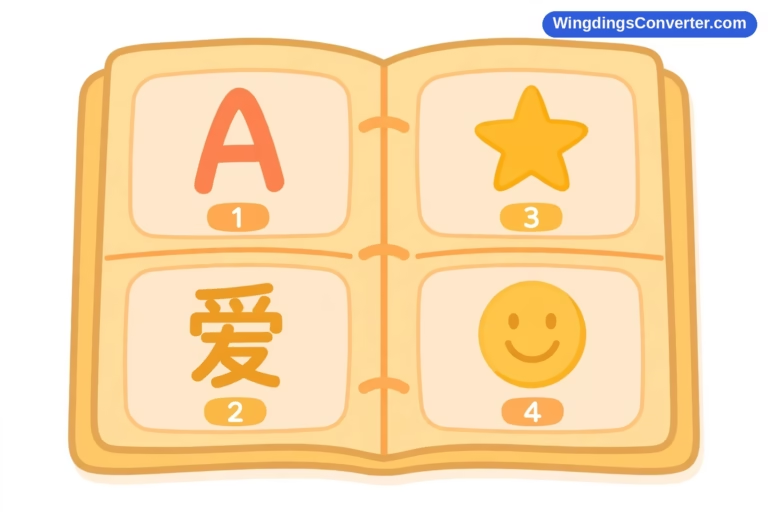
This distinction matters because three different things are involved:
- Character: The underlying text character you enter, such as
1. - Font: The typeface used to display that character.
- Glyph: The visual shape that appears on the screen.
Changing the font can change the appearance of a character without changing the underlying text itself.
How Wingdings Numbers Actually Work
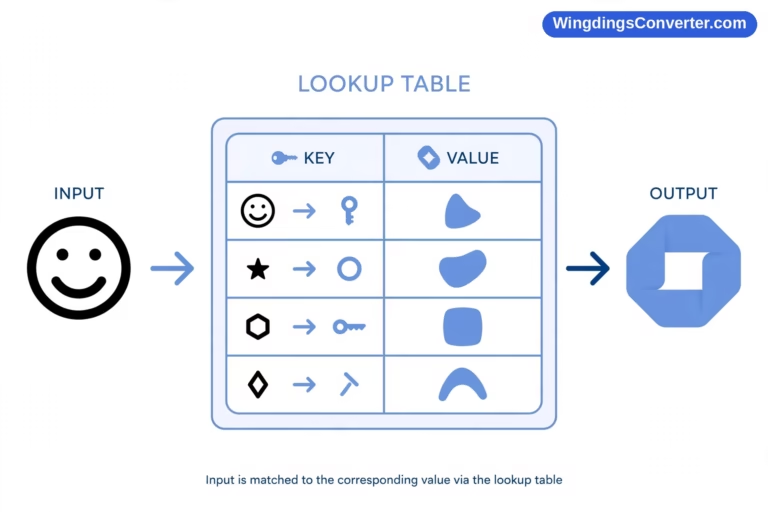
Wingdings uses character positions to display symbols. When you type a character, the software looks up its corresponding visual representation in the selected font.
The process can be understood in three steps.
1. You enter a character
Suppose you type the digit 5 in a word processor. The document contains the character U+0035, which is the standard Unicode character for the digit five.
2. The application applies the font
If you select a regular text font, the digit appears as five. If you select Wingdings, the application attempts to display the character using the glyph associated with that font position.
Depending on the font and software, the result may be a symbol rather than the familiar digit.
3. The character remains different from its appearance
Changing the font does not automatically turn the underlying character into a different Unicode character.
For example, a document might contain the digit 5 but display a Wingdings glyph in its place. Copying that text into another application may reveal the original digit, show a different character, or produce an unexpected result if the receiving application handles the font differently.
This is why font-based symbols sometimes do not transfer reliably between documents, websites, and messaging applications.
Wingdings Numbers Chart: What Should You Look For?
If you are searching for a Wingdings numbers chart, it helps to distinguish between ordinary digits and symbol characters.
The table below explains what to look for when working with numbers in Wingdings.
| Character or format | What it means |
|---|---|
0, 1, 2, 3 | Standard Unicode digits |
| Wingdings glyph | A visual symbol associated with a character position in the font |
| Unicode character | A character identified by a Unicode code point |
| Font character mapping | The relationship between an input character and the glyph displayed by a font |
| Unicode symbol that looks like a number | A separate character that may resemble a digit but has its own code point |
A chart should identify the font or character set it represents. Otherwise, it can be difficult to know whether a displayed shape is an actual Wingdings glyph, a Unicode symbol, or simply a decorative number from another font.
Important: There is no single universal list of decorative Wingdings digits that works identically across every version of the font and every application. Check the specific font mapping rather than assuming that a symbol shown in one chart will appear the same everywhere.
How to Display Numbers in Wingdings
If you want to experiment with numbers in Wingdings, Microsoft Word is a convenient place to start.
Method 1: Change the font in Microsoft Word
- Open Microsoft Word and create a new document.
- Type a few digits, such as
1234567890. - Select the digits.
- Open the font menu and choose the Wingdings font installed on your computer.
- Examine the result.
The appearance will depend on the character mappings available in the installed font. Some digits may produce pictorial glyphs, while other characters may not display as expected.
If the result is not what you wanted, switch back to a standard font. The underlying text may still be the original digits.
Method 2: Use the Character Map in Windows
Windows Character Map lets you inspect characters available in installed fonts.
- Open the Windows Start menu.
- Search for Character Map and launch it.
- Select Wingdings from the font list, if available.
- Browse the displayed characters.
- Select a symbol to view its available character information, then copy it if the application permits.
Character Map is particularly useful when you need a specific symbol rather than a normal digit.
Keep in mind that the available characters and displayed information can vary by font and Windows version. A symbol’s position in a character map is not necessarily the same thing as its Unicode code point.
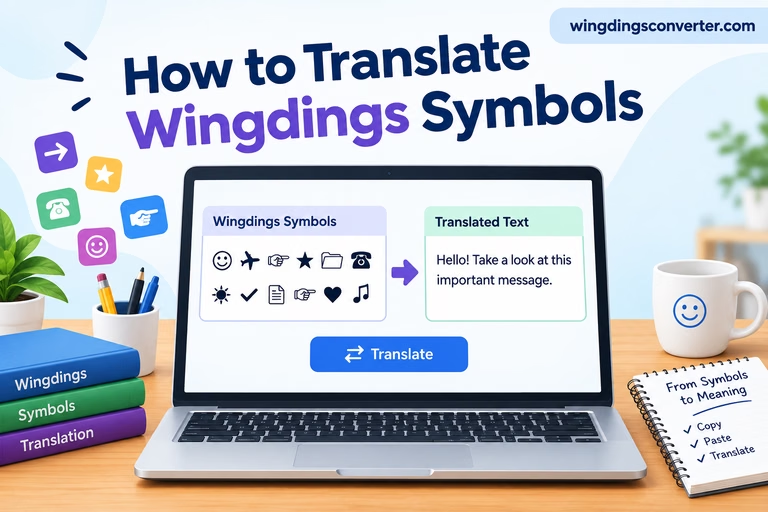
Method 3: Use a Wingdings converter
When you are unsure what a character will look like, a converter can help you explore the relationship between text and Wingdings symbols.
On WingdingsConverter.com, you can use the Wingdings Converter tool to work with text and symbol conversions. Enter the text or symbols you want to examine and review the output provided by the tool.
This is useful when you are preparing a document, investigating a symbol, or trying to understand why a character looks different after a font change.
Remember that font-based conversions can depend on the particular Wingdings mapping and how the receiving application displays the result. Always check the output before using it in a finished document.
Why Wingdings Numbers Sometimes Look Wrong
Several issues can explain why a number or symbol does not appear as expected.
The font is not installed
If Wingdings is missing from the computer, the application may substitute another font. That replacement can make the text look completely different.
What to do: Check the font menu to confirm that the correct Wingdings font is installed and selected.
You are using a different Wingdings version
Wingdings, Wingdings 2, and Wingdings 3 are separate fonts with different symbol mappings. A character that produces one symbol in one font may produce another symbol—or no useful glyph—in a different font.
What to do: Confirm the exact font used by the original document or chart before comparing results.
You copied the text into another application
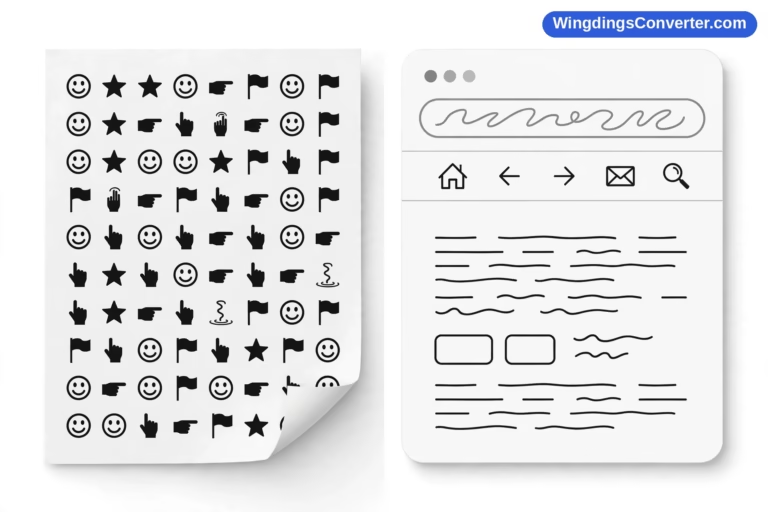
A character that looks like a symbol in Word may appear as a digit or another character in a browser, email, or messaging app. This can happen when the receiving application does not preserve the original font formatting.
What to do: If the symbol must look the same on another device, consider using an appropriate Unicode symbol where one exists, or export the document as a PDF. Check the final output before sharing it.
You are confusing a character code with a symbol
A number typed on the keyboard, a Unicode code point, and a position in a font’s character map are not interchangeable.
For instance, Unicode U+0035 identifies the digit five. It does not mean that every symbol displayed at the fifth position of a font is the number five.
What to do: Identify the character encoding or mapping you are using before attempting to convert a number into a symbol.
Can You Convert Regular Numbers into Wingdings Symbols?
You can change how digits appear by applying a suitable font mapping, but this is not the same as converting every number into a special symbol.
There are three common situations:
- You want ordinary digits: Keep the numbers in a standard text font.
- You want a Wingdings symbol: Find the appropriate glyph in the relevant Wingdings font or character chart.
- You want decorative numbers for a design: Consider Unicode enclosed numbers, circled digits, or another decorative font if the style you need is available.
For example, Unicode includes characters such as ①, ②, and ③. These are separate Unicode characters that resemble numbers enclosed in circles. They are not automatically Wingdings symbols.
The right choice depends on your goal. If you are formatting a document that will remain in a controlled environment, using Wingdings may be sufficient. If you are creating text for a website or social media post, a suitable Unicode character may be more portable.
Are Wingdings Numbers the Same as Unicode Numbers?
No. This is one of the most important distinctions to understand.
Unicode assigns standardized code points to characters, including ordinary digits and thousands of other symbols. Wingdings is a font that determines how supported character positions are drawn.
Some legacy symbol fonts use specialized mappings that do not correspond directly to the Unicode meaning of the displayed symbol. As a result, the visual appearance of a Wingdings glyph does not always tell you what character is stored in the document.
Consider these examples:
- The character
7is the ordinary Unicode digit seven. - The character
⑦is a circled digit seven, represented by a different Unicode code point. - A Wingdings glyph may visually resemble a number or another symbol, depending on the font mapping.
These characters may look related, but they are not interchangeable in every application.
If you are building a website, encoding text for a database, or copying symbols between programs, this distinction is especially important. A character that looks correct on your computer may not retain its appearance on another system.
Practical Uses for Wingdings Numbers and Symbols
Although Wingdings is not the best choice for ordinary numeric text, it can still be useful in documents and visual layouts.
Decorative documents: You can use symbol fonts for visual accents, labels, or other design elements when the font is available to the recipient.
Symbol references: A Wingdings chart can help you identify a particular glyph and understand which font character produces it.
Educational examples: Comparing ordinary digits, Unicode symbols, and Wingdings glyphs can help explain how fonts affect the appearance of text.
Legacy documents: Older Word documents may use Wingdings to represent symbols. Understanding the font mapping can help when editing or converting these files.
For important documents, avoid relying on a symbol font for information that must remain readable on every device. A standard Unicode character or an embedded graphic may be a better option, depending on the situation.
Frequently Asked Questions
Does Wingdings have a number font?
Wingdings is a symbol font rather than a dedicated decorative-number font. Typing digits while it is selected may display glyphs according to its character mapping, but it is not designed to provide a conventional set of readable numbers.
Why does the number 1 look different in Wingdings?
The selected font controls the glyph used to display a character. If Wingdings maps the relevant character position to a symbol, the displayed shape can differ from the familiar digit one.
Are Wingdings 2 and Wingdings 3 the same as Wingdings?
No. They are separate fonts with different character mappings. Always check which version a chart or document uses before copying its symbols.
Can I copy Wingdings numbers into a website?
You can copy text formatted with Wingdings, but the visual result may not survive when pasted into a website. Browsers and other applications may not have the same font or preserve the original formatting. For web content, consider a suitable Unicode character or image when consistent appearance is important.
How can I find a particular Wingdings symbol?
Use a chart for the specific Wingdings font, inspect the font in Windows Character Map, or use the Wingdings Converter tool on WingdingsConverter.com to explore text and symbol conversions.
Can I use Wingdings symbols on mobile devices?
Some devices may display a symbol if the required font or an appropriate character mapping is available, but font-based Wingdings symbols are not guaranteed to appear correctly on mobile devices. Unicode symbols generally offer better cross-platform support when an equivalent character exists.
Final Thoughts
Wingdings numbers work differently from ordinary digits because the font is designed to display symbols rather than conventional text. Typing a number, changing its font, and converting it into a separate symbol are three different operations.
If you only need regular numbers, use a standard text font. If you want a particular Wingdings glyph, check the correct font mapping and test it in the application where it will appear. For help exploring text and symbol conversions, the Wingdings Converter on WingdingsConverter.com is a useful place to start.
Understanding the difference between characters and their visual representations will save you time and help prevent unexpected results when copying, sharing, or publishing Wingdings text.