What Is Wingdings Used For? Common Uses, Examples, and Limitations
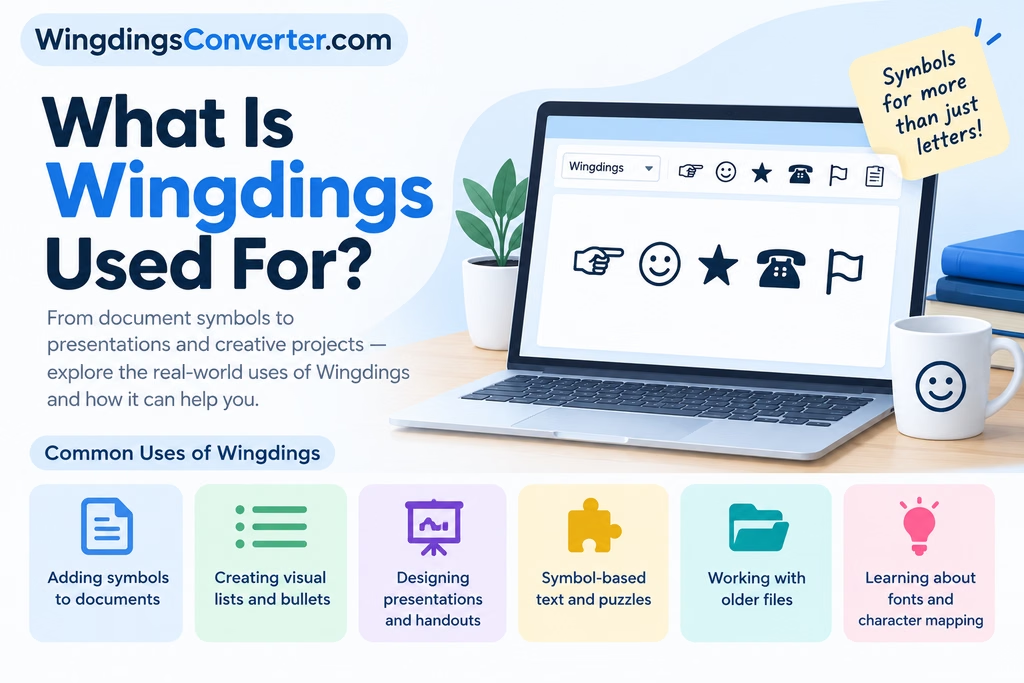
Wingdings is a symbol font that turns ordinary keyboard characters into pictures and symbols. Instead of displaying a familiar letter such as A or B, the font may show a hand, an arrow, a check mark, a geometric shape, or another small graphic. This makes Wingdings useful when you want to add visual elements to a document without inserting separate image files.
Although Wingdings is less common in everyday writing than it once was, it still has practical uses in documents, presentations, decorative text, and symbol-based designs. It can also be interesting to explore when you come across a line of Wingdings characters and want to understand what they mean.
So, what is Wingdings used for today? The answer depends on whether you want to decorate a document, communicate an idea with a symbol, or work with text that has been converted into Wingdings.
What Is Wingdings?
Wingdings is a typeface made up of symbols rather than conventional letters and numbers. It became widely known through Microsoft software, where users could select Wingdings from the font menu and type characters to display different symbols.
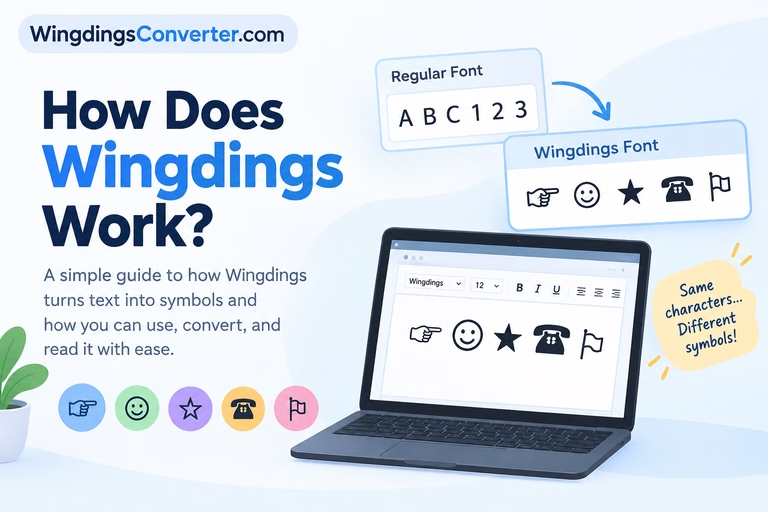
The important distinction is that Wingdings does not work like a normal text font. In a standard font, typing a letter generally displays that letter in a different style. With Wingdings, the same keyboard input can display a picture-like symbol instead.
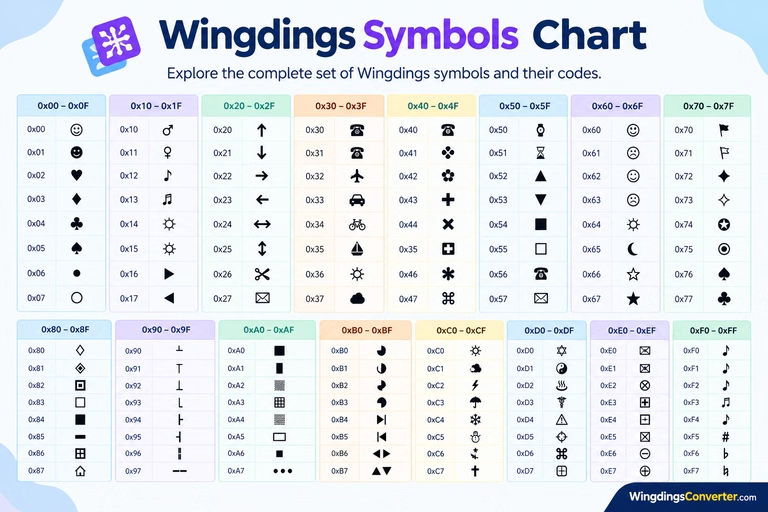
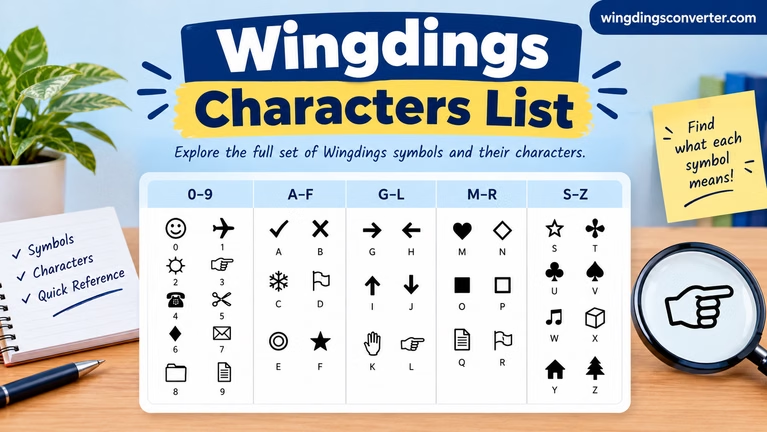
For example, typing a character while Wingdings is selected may produce a symbol instead of the letter you would expect. The exact symbol depends on the character, the Wingdings font version, and the application displaying it.
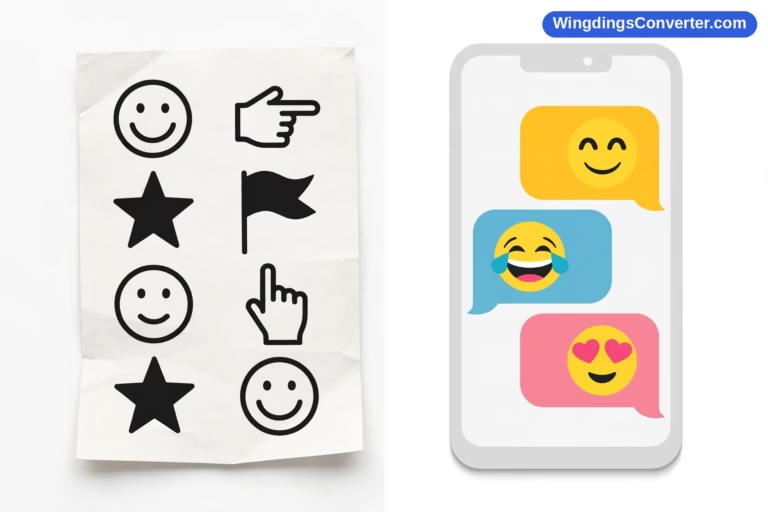
Wingdings is also different from emoji. Emoji are handled through Unicode characters and may look different across platforms. Traditional Wingdings symbols are tied to a particular font mapping, which means the correct font is often needed to display them as intended.
6 Practical Uses of Wingdings
1. Adding symbols to documents
One of the most straightforward uses of Wingdings is adding small visual elements to documents.
You might use a symbol to draw attention to an important point, distinguish one section from another, or make a printed handout easier to scan. Depending on the available symbols and font version, Wingdings can provide arrows, hands, shapes, and other decorative elements.
For example, a document might use:
- An arrow to direct attention to a note.
- A check-style symbol to mark a completed item.
- A geometric shape as a simple visual divider.
- A decorative symbol beside a heading.
These examples describe common purposes for symbol fonts; the exact Wingdings character that produces each symbol should be checked in the font you are using.
For everyday documents, Wingdings is most useful when you need a small symbol rather than a detailed illustration.
2. Creating visual bullet points and lists
Standard round bullets work well in most documents, but sometimes a different symbol fits the design better. Wingdings can provide an alternative for lists, checklists, notices, and short instructions.
Imagine preparing a printed classroom worksheet or an event checklist. You could use a suitable symbol at the beginning of each item to help readers distinguish tasks or important reminders.
However, there is a practical limitation: the symbol may not display correctly on another computer if the required font is unavailable. If you share a document with other people, check how it looks on their devices or export it to PDF when appropriate.
For documents that need to remain editable across different systems, standard Unicode bullets and symbols may be a more dependable option.
3. Designing presentations and handouts
Wingdings can add simple visual accents to presentation slides, worksheets, flyers, and internal business documents.
For instance, a presentation might use a small symbol beside a section title or a visual marker next to a key takeaway. A handout could use different symbols to separate instructions from examples.
The benefit is convenience. You can insert a symbol through the font system without searching for a separate image file.
Still, Wingdings is not a substitute for a full icon library. Its symbols have a fixed appearance, and you have limited control over their shape compared with scalable vector icons or custom illustrations. If a presentation needs a consistent, modern visual style, a dedicated icon set may be easier to manage.
4. Exploring symbol-based text and puzzles
Wingdings is also used for playful or creative purposes. People sometimes turn ordinary text into a row of symbols to create a visual puzzle, decorate a message, or make a design that is not immediately readable.
This is one reason people search for Wingdings converters. A sequence of symbols may look like a secret code, but that does not necessarily mean it was designed as encryption.
The font maps characters to symbols. Anyone who knows the mapping—or has a compatible conversion tool—may be able to interpret the original character sequence. Wingdings should therefore not be treated as a secure way to hide passwords, confidential messages, or private information.
If you want to understand how the font mapping works, read [How Does Wingdings Work?].
5. Working with older documents
You may encounter Wingdings in an older Word document, presentation, spreadsheet, or other file created years ago.
The original author may have used the font for bullets, symbols, labels, or decorative details. When you open the file on a different computer, those symbols may appear incorrectly if the expected font is missing or the character mapping is handled differently.
This can make a document look confusing even when its underlying text is still present.
If you need to preserve an older document, try opening it in software that supports the relevant font and check whether Wingdings is installed. If the document must be shared widely, consider replacing essential symbols with more portable alternatives or exporting a verified copy to PDF.
This is especially important for forms and instructions where a missing symbol could change the meaning.
6. Learning about fonts and character mapping
Wingdings can also help beginners understand how fonts affect the way text appears.
In an ordinary font, a typed character usually looks like a recognizable letter. In a symbol font, a character position may instead display a picture-like glyph. This demonstrates that the visible appearance of text depends not only on what was typed, but also on the font used to display it.
It is a useful example when learning about typography, digital documents, and the difference between a character and its visual representation.
It also explains why copying Wingdings symbols into a plain-text message may not preserve their appearance. The receiving application may no longer have the font information needed to display the original symbols.
How to Use Wingdings in a Document
If you want to try Wingdings yourself, the general process is simple. The exact steps depend on your software and operating system.
- Open a document in an application that supports font selection, such as a compatible version of Microsoft Word.
- Place the cursor where you want the symbol to appear.
- Select the Wingdings font from the font menu, if it is installed.
- Type a character or use the application’s symbol-insertion feature to choose a glyph.
- Check the result and make sure the symbol is the one you intended to use.
A useful tip: Do not assume that typing a familiar letter will produce the same symbol in every symbol font. Wingdings, Wingdings 2, Wingdings 3, and Webdings are different fonts with different mappings.
If you need a particular symbol, use a character map or symbol-selection interface to identify it instead of guessing.
Can You Convert Wingdings Back to Regular Text?
Yes, in many cases, Wingdings can be converted back to ordinary characters—but the result depends on what information you have.
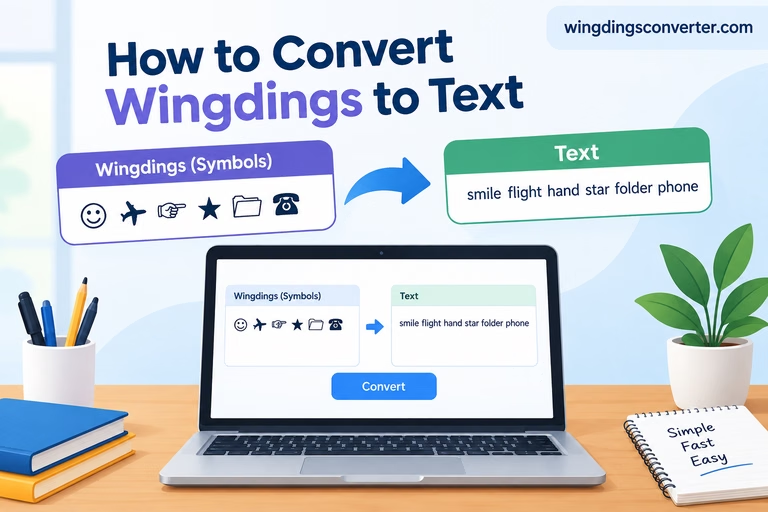
If you have the original character sequence and know which Wingdings mapping was used, a compatible converter may be able to display the corresponding text. If you only have a screenshot of the symbols, the task may be more difficult because the original character codes and font information may be missing.
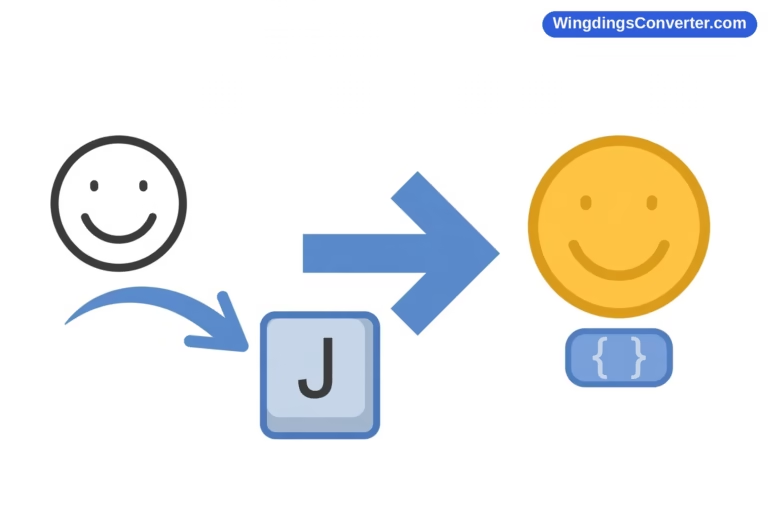
You can use the Wingdings Converter tool on WingdingsConverter.com to help convert supported Wingdings text and inspect the corresponding characters. This is useful when you receive a symbol-filled string or want to experiment with how Wingdings represents keyboard input.
Keep in mind that conversion is not always perfect. Results may vary if the text was copied from a different font version, passed through an application that changed the characters, or taken from an image rather than actual text.
For more guidance, see: How to Convert Wingdings to Text.
Wingdings vs. Unicode Symbols and Emoji
Wingdings is not the only way to add symbols to digital text. Unicode symbols and emoji offer alternatives, and each approach has advantages.
| Feature | Wingdings | Unicode symbols | Emoji |
|---|---|---|---|
| Main purpose | Displays symbols through a specific font mapping | Represents characters and symbols using standardized code points | Represents pictorial characters, often used in informal communication |
| Font dependency | Usually needs a compatible Wingdings font for the intended appearance | Needs a font that supports the character | Needs emoji support and a suitable rendering system |
| Appearance across devices | Can vary or fail when the font is unavailable | Glyph design can vary by font | Appearance can vary substantially by platform |
| Common uses | Legacy documents, decorative symbols, symbol-based text | Documents, technical text, labels, and general writing | Messages, social posts, and informal visual communication |
| Easy to understand as plain text | Often not without the correct font mapping | Usually easier when the character is supported | Usually easier when emoji support is available |
For a document you plan to share with many people, Unicode symbols are often a practical starting point. Emoji may be suitable for informal content, while Wingdings can be useful when you specifically need its symbol set or are working with an existing document that uses it.
The best choice depends on the audience, the application, and whether consistent appearance matters more than the particular visual style.
Why Wingdings Symbols Sometimes Display Incorrectly
A common problem occurs when Wingdings characters appear as ordinary letters, empty boxes, or unexpected symbols.
This usually happens because the font or character mapping is not being applied as expected. Possible reasons include:
- The font is missing: The application substitutes another font.
- The wrong font is selected: A character intended for Wingdings may display differently in a standard font or another symbol font.
- The text was copied between applications: Some applications preserve the characters but not the original formatting.
- The content is an image: A screenshot does not contain the original editable character sequence.
- A different font version was used: The mapping may not match the one expected by the person viewing the text.
If you run into this issue, first check the font applied to the text. If you are trying to decode a string, identify which Wingdings font was used before relying on a conversion result.
For additional troubleshooting, see: Why Wingdings Symbols Are Not Displaying Correctly
Is Wingdings Still Useful Today?
Wingdings is less essential than it was when symbol fonts were a convenient way to add graphics to office documents. Modern software offers Unicode symbols, emoji, built-in icons, and image libraries, often with better compatibility.
That does not make Wingdings useless.
It remains relevant when you need to work with an existing document, reproduce a particular symbol style, explore older typography, or convert text associated with the font. It can also be a fun way to experiment with the relationship between keyboard characters and displayed symbols.
The main thing to remember is that Wingdings is a font-based symbol system, not a universal language. Its usefulness depends on having the right mapping and a way to display or interpret it correctly.
Frequently Asked Questions
What is the main purpose of Wingdings?
Wingdings is designed to display symbols and small graphics in place of ordinary letters and characters. It has been used in documents, lists, presentations, and decorative layouts.
Is Wingdings a secret code?
Not inherently. Wingdings maps character positions to symbols, which can make text look like a code. However, it is not encryption and should not be used to protect confidential information.
Can I use Wingdings on a website?
You can use symbol fonts in web projects when the relevant font is available and properly supported, but compatibility and licensing should be considered. For many websites, Unicode symbols, SVG icons, or a web-compatible icon library are easier to maintain.
Why does Wingdings look different on another computer?
The other computer may not have the same font installed, or the document may be using a different font or character mapping. The software may substitute another font, changing how the characters appear.
Is Wingdings the same as Webdings?
No. Wingdings and Webdings are separate symbol fonts. Their glyph sets and character mappings differ, so a character that displays one symbol in Wingdings may display something else—or nothing useful—in Webdings.
Can Wingdings be converted into normal text?
Often, yes, if the original characters and the correct font mapping are available. A converter can help interpret supported text, but screenshots, altered character sequences, and unknown font versions may limit the accuracy of the result.
Final Thoughts
Wingdings is useful whenever a symbol font solves a specific problem: adding a visual marker, styling a document, working with older files, or exploring symbol-based text. It is not always the best choice for modern cross-platform documents, but it still has a place in typography and digital document work.
If you have a string of Wingdings symbols and want to understand the characters behind it, try the Wingdings Converter on WingdingsConverter.com. It can help you explore the mapping and make unfamiliar symbol text easier to work with.