How to Use Wingdings in Google Docs
Let’s get the awkward part out of the way immediately, because it will save you twenty minutes of searching a menu that doesn’t contain what you’re looking for: you can’t select Wingdings in Google Docs. It isn’t in the Docs font list, you can’t add it through “More fonts,” and no setting unlocks it. Anyone who wants to know how to use Wingdings in Google Docs first needs to hear that plainly — and then, just as plainly, hear that it doesn’t actually stop you getting the symbols you want into your document. You just have to get them in a different, and frankly more reliable, way.
Google Docs is built around Google Fonts and web-safe text. Wingdings, a Microsoft font from 1990 designed by Charles Bigelow and Kris Holmes of Type Solutions, lives in the Windows and Office world. Docs lives in the browser world. Those worlds handle symbols differently, and Docs chose the browser way: real Unicode symbols that look the same for every reader, on every device, whether or not they’ve ever heard of Wingdings. Once you accept that trade — no Wingdings font, but symbols that never break for your readers — Docs becomes quite good at this. This guide shows you the three methods that actually work, when to use each, and the pitfalls to avoid when sharing Docs full of symbols.
Why Wingdings isn’t in the Google Docs font menu
It helps to understand why, because the reason predicts what will and won’t work elsewhere too.
When you open the font dropdown in Docs, you’re seeing fonts Google serves to your browser, plus — depending on your setup — a limited relationship with fonts on your computer. Google hosts and standardises that list so a document looks consistent for everyone who opens it. Wingdings is a licensed Microsoft font tied to Windows and Office installations; Google doesn’t license or serve it, so it simply isn’t offered. Installing Wingdings on your own computer doesn’t fix this either. Docs isn’t Word: it doesn’t just borrow every font on your machine and embed it in a shared web document. A font that only you have would defeat the point of a document that ten collaborators open at once.
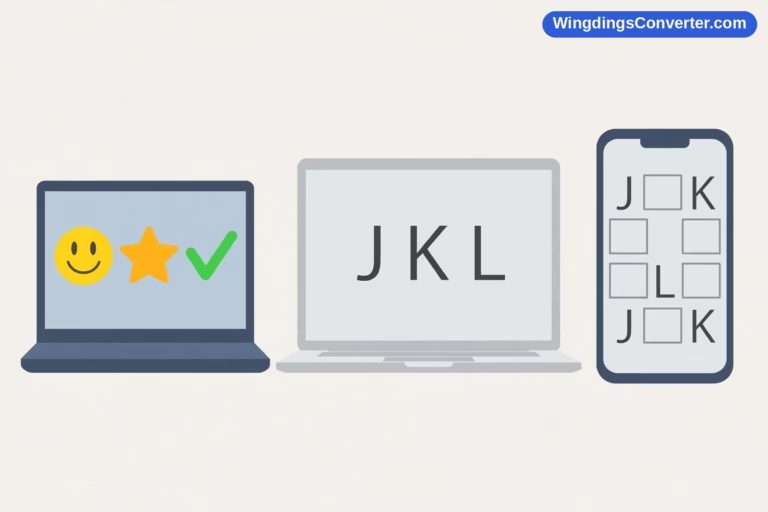
There’s a deeper reason too. Wingdings works by showing ordinary letters as pictures — type J in Wingdings and you see a smiling face, but the document still contains the letter J. Web documents are built on Unicode, where a symbol is stored as itself. Google built Docs on the Unicode model, and for shared documents that model is better: a check mark in your doc is a check mark for your reader in another country, on a Chromebook, on a phone, everywhere. The Wingdings entry on Wikipedia gives good background on how the older font-based approach came about, if you want the history behind the mismatch you’re bumping into.
So: don’t hunt for the font. Hunt for the symbols — using the tools Docs actually gives you.
Method 1: Insert > Special characters (the built-in way)
This is the method to learn first, because it needs nothing outside Docs and produces symbols that are guaranteed to behave.
- Click in your document where the symbol should go.
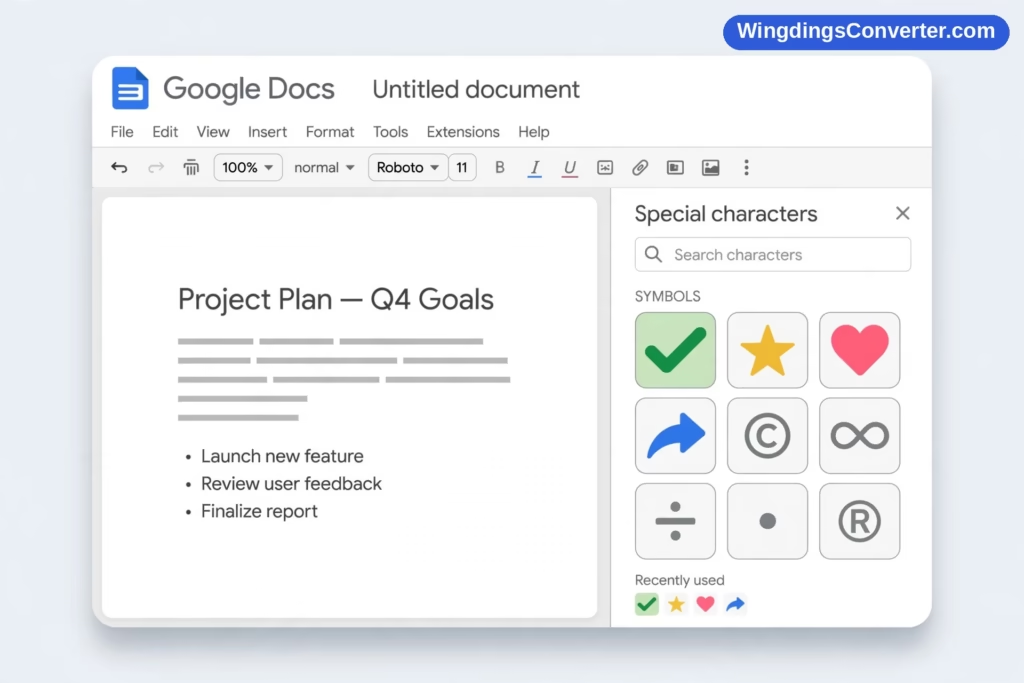
- Go to Insert > Special characters.
- A panel opens with a search box and a drawing box. Search is fastest: type what you want — “check,” “arrow,” “star,” “heart,” “cross” — and matching symbols appear.
- Or draw it. In the box on the right, sketch the rough shape with your mouse or trackpad. Docs suggests symbols that resemble your drawing. It’s surprisingly useful when you know what a symbol looks like but not what it’s called.
- Click a symbol to insert it at your cursor. You can insert several in a row before closing the panel.
- Carry on typing. Your normal font resumes after the symbol.
What you’ve inserted is a genuine Unicode character, displayed in a font Docs supports. It will copy, paste, print, and share correctly. It will also survive being downloaded as a Word file or PDF far better than font-styled letters would.
A few practical notes from real use. The panel remembers nothing much between sessions, so if you’re inserting the same symbol forty times in a long document, don’t — insert it once, copy it, and paste it where needed, or finish the document and use Find and Replace thinking instead. Also, browse the categories in the panel’s dropdown when search fails you: symbols are grouped (arrows, currency, math, and so on), and browsing often surfaces a better-fitting symbol than the first search result you grabbed. If you’re new to this whole category, our explainer on what special characters are will make the panel feel much less like a wall of random glyphs.
And do resize and colour symbols like ordinary text, because in Docs they are ordinary text: select the symbol and change its font size or text colour from the toolbar. A check mark at 24pt in green is still the same character — just bigger and greener.
Method 2: Build it with a converter, paste it as Unicode
Sometimes the starting point isn’t “I need a star in this doc.” It’s “I have Wingdings text” — a message, a puzzle, a snippet from an old Word document — or “I want text styled as symbols.” That’s converter work, and Docs is a perfectly good destination for the result as long as you paste Unicode, not font styling.
Here’s the reliable flow:
- Open the Wingdings converter tool in another tab.
- Decode or create what you need there. If someone gave you Wingdings letters, translate them back to readable text first so you know what you’re actually putting in your document.
- For symbols you want to display, copy the Unicode versions — the actual check marks, arrows, stars, and hearts.
- Paste them into Docs with a normal paste. They’ll arrive as characters and settle into your document’s font styling for size and colour, while keeping their identity.
What not to do: copy text directly from Word with the Wingdings font applied and paste it into Docs expecting the symbols to survive. Docs will keep the letters and drop or substitute the font — exactly the failure described in detail in our guide to how to copy and paste Wingdings symbols. You’ll see ordinary letters and assume the copy failed. It didn’t fail; it translated your request into the only form Docs accepts, and letters are what Wingdings text really is underneath.
If that letter result is what you received from someone else, don’t panic and don’t delete it. Those letters are the encoded form. Paste them into the converter, read the translation, then bring proper symbols or plain text back into Docs as above.
Method 3: Add-ons and pasted images — use with care
Search the Google Workspace Marketplace and you’ll find add-ons promising symbol libraries, icon inserters, and occasionally something that name-drops Wingdings. Judge them by what they actually insert:
- Good add-ons insert Unicode characters or clean vector-style images. Those behave well in Docs.
- Be wary of anything that claims to “enable the Wingdings font” in Docs. It can’t change Google’s font serving. At best it’s inserting images of symbols or Unicode lookalikes under a catchy name.
- Check permissions before installing any add-on. A symbol picker does not need access to all your Drive files or your email. If the permission request is broader than the job, walk away — there is always another picker, and the built-in Special characters panel needs no permissions at all.
Pasting symbols as images is the other workaround you’ll see suggested. It works visually — screenshot a Wingdings symbol from Word, paste the picture into Docs — and for a poster-style document it may be acceptable. But images of symbols can’t be searched, can’t be read by screen readers unless you add alt text, don’t resize with text, and look fuzzy when printed or zoomed. Use images only when appearance in one fixed place is all that matters. For anything textual, Unicode wins on every count except nostalgia.
Fonts in Docs that cover a lot of symbols: meet Noto
When people say “I need Wingdings in Docs,” they usually mean “I need a symbol I can’t find on my keyboard.” Google’s answer to that need, beyond the Special characters panel, is coverage: Docs includes fonts from the Noto family and other Google Fonts chosen partly because they contain wide ranges of characters and symbols. No Noto font is Wingdings and none will reproduce Wingdings’ specific pictures, but between the Special characters browser — which draws on this broad coverage — and simply typing, the overwhelming majority of everyday symbols Docs users ask for (checks, crosses, arrows, stars, hearts, currency signs, math symbols) are available without any add-on at all.
So reframe the task in your head. In Word, you’d think “which font has this symbol?” In Docs, think “insert the character itself.” That single shift — from choosing a font to inserting a character — is the whole skill. Everything else in this article is detail hanging off it. For general help beyond symbols, Google Docs Help is the authoritative reference, and it’s the right place to check current menu names if Google tweaks the interface after this guide was written.
Sharing, downloading, and printing symbol-heavy Docs
This is where the Unicode approach quietly pays you back.
Sharing: Because your symbols are real characters in Google-served fonts, collaborators see the same document you see. No “it looked different on my machine,” no missing-font substitutions. Compare that with a Word file built on a locally installed font, and the Docs way suddenly looks less like a limitation and more like a design decision you benefit from.
Downloading as Word (.docx): Your Unicode symbols download as themselves and Word displays them in fonts that contain them. Occasionally Word substitutes a slightly different-looking glyph for an unusual symbol — the character is still correct, its outfit has changed. Check any downloaded copy once, especially before sending it outside your team.
Downloading as PDF / printing: This is the most faithful output. What you see in Docs is what the PDF shows. If a symbol absolutely must look a precise way — a branded checklist, a handout — PDF is your safest delivery format.
On phones: The Docs mobile apps display Unicode symbols well, but inserting them is clunkier than on desktop. If you’re drafting on your phone, leave a placeholder like [CHECK] and swap in the real symbols when you’re back at a keyboard. It’s faster than fighting a mobile symbol picker, and Find will take you straight to each placeholder.
A quick decision guide
- You need one or two standard symbols: Insert > Special characters. Done in seconds.
- You’re decoding or creating Wingdings-style text: Use the converter, bring Unicode (or plain translated text) into Docs.
- A template demands actual Wingdings formatting: Docs is the wrong tool for that file. Keep that template in Word, where the font exists, and use Docs for documents that don’t depend on it. Forcing it helps nobody.
- You need a decorative picture, once, in a fixed spot: An image is acceptable — add alt text if anyone might use a screen reader.
Frequently Asked Questions
Can I add Wingdings to Google Docs through “More fonts”?
No. The “More fonts” dialog only offers fonts from Google’s own library, and Wingdings — a licensed Microsoft font — isn’t in it. No font you install on your computer gets added to Docs that way either. Use Insert > Special characters for symbols instead.
Why did my Wingdings text paste into Docs as normal letters?
Because that’s what it is underneath: ordinary letters that were displayed as symbols by the Wingdings font in Word. Docs doesn’t apply that font, so you see the letters themselves. Decode the letters with a converter, then paste readable text or true Unicode symbols into your doc.
Is there a Google Docs add-on that gives me real Wingdings?
No add-on can add Microsoft’s font to Google’s editor. Some add-ons provide useful symbol pickers that insert Unicode characters, which is usually what people actually need — just check an add-on’s permissions carefully before installing, and remember the built-in Special characters panel already does this job for free.
Will symbols I insert in Docs show correctly for other people?
Yes — that’s the main advantage of this approach. Inserted special characters are Unicode characters rendered with Google’s fonts, so collaborators on Windows, Mac, Chromebooks, and phones all see the same symbols without needing any particular font installed.
Can I use Wingdings in Google Sheets or Slides instead?
They work like Docs in this respect: no Wingdings font in the list, but the same Unicode approach applies. Insert special characters where the app offers it, or paste Unicode symbols in. Our companion guides for the Office apps explain the font-based workflow if you’re moving a file between the two ecosystems.
What’s the fastest way to insert a check mark in Google Docs?
Go to Insert > Special characters, search “check,” and click the check mark. Afterwards, copy that inserted character and paste it wherever else it’s needed in the document instead of reopening the panel each time. Size and colour it with the normal text tools.
Conclusion
You can’t use the Wingdings font in Google Docs — and once you’ve worked the Docs way for a while, you may stop missing it. Insert > Special characters gives you searchable, drawable access to real symbols; converters handle any genuine Wingdings text you meet; and everything you produce shares, downloads, and prints without the missing-font surprises that font-styled symbols are famous for. Work with Docs’ Unicode model instead of against it, and symbols become one of the least troublesome parts of your document.