Wingdings Keyboard Symbols Explained: How to Find, Type, and Understand Them
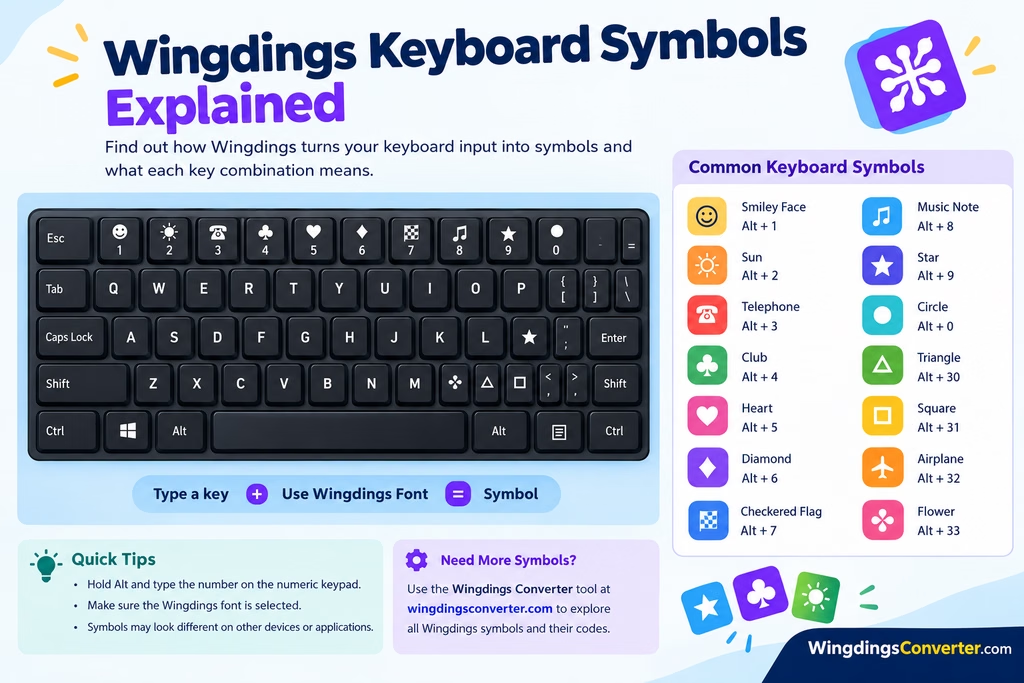
Wingdings keyboard symbols can be confusing when you type a letter on your keyboard and see a picture or symbol appear instead of the character you expected. You might be looking for an arrow, check mark, pointing hand, telephone, or another decorative symbol and wondering which key produces it.
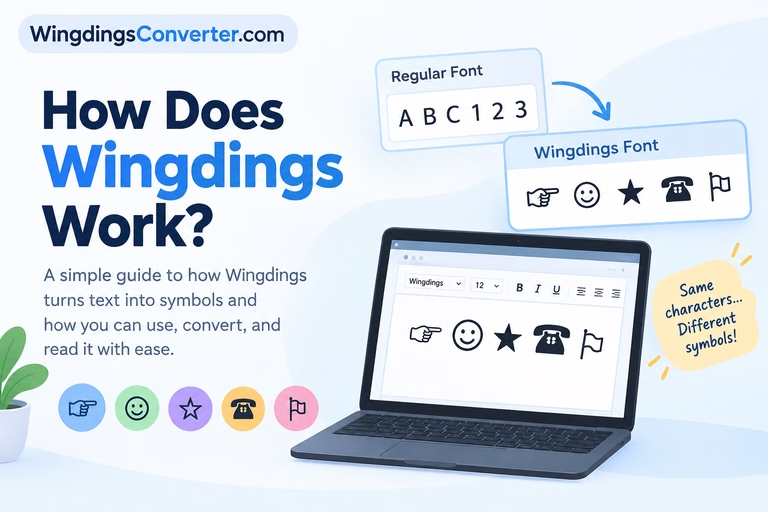
The reason is simple: Wingdings is a symbol font, not a regular text font. When you use it, certain keyboard characters are displayed as graphical symbols rather than their usual letters or punctuation marks.
Understanding this relationship makes Wingdings much easier to use. You can find symbols in Microsoft Word, work with them in other compatible applications, and convert Wingdings text when you need to understand what a symbol sequence represents.
You can also read: Wingdings Numbers: How They Work
What Are Wingdings Keyboard Symbols?
Wingdings keyboard symbols are graphical characters displayed by the Wingdings font. Instead of showing ordinary letters and numbers in their familiar forms, the font uses character positions to display symbols.
For example, a character typed while Wingdings is selected might appear as an arrow, a hand, a geometric shape, or another pictorial symbol.
This is different from typing a standard Unicode symbol, such as ✓ or ★, which is represented by a specific character independently of a particular font’s private symbol mapping.
With Wingdings, the font matters. A character that looks like a picture in Wingdings may appear as an ordinary letter or a different glyph when displayed using another font.
That is why a Wingdings message may look perfectly understandable on one computer but appear strange on another if the required font is unavailable or the text is interpreted differently.
Common Types of Wingdings Keyboard Symbols
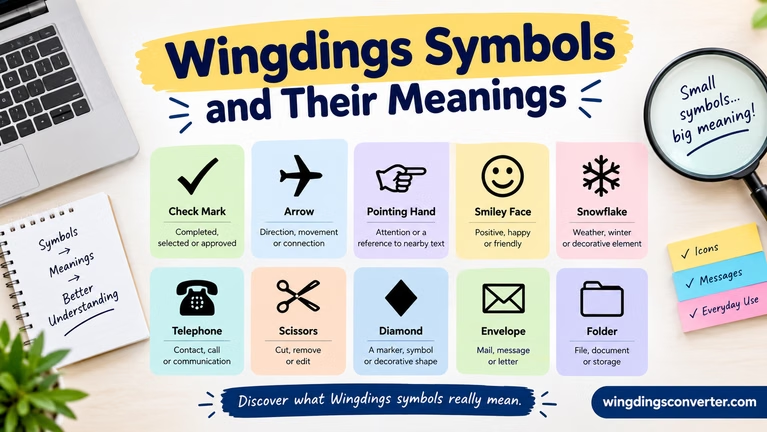
Wingdings contains several categories of pictorial symbols. Knowing the general categories can help you identify the kind of character you need before searching for its exact keyboard position.
<AsyncImage query=”Wingdings font symbol chart arrows hands check marks stars geometric shapes telephone scissors envelope computer typography reference” aspectRatio=”16:9″ width=”100%” />
1. Arrows and directional symbols
Arrow symbols are useful when you want to guide attention or indicate direction.
Common arrow styles include:
- Left- and right-pointing arrows
- Upward- and downward-pointing arrows
- Directional markers
- Curved or decorative arrows
They can be useful in diagrams, presentations, instructions, and simple visual layouts.
2. Check marks and selection symbols
Check marks and similar symbols can help distinguish completed tasks, selected options, or important items in a document.
Depending on the symbol and font version, you may find marks suitable for lists, forms, or visual labels.
However, Wingdings symbols should not automatically be treated as interactive checkboxes. They are visual characters, not form controls.
3. Hands and pointing fingers
Pointing-hand symbols can draw attention to a sentence, instruction, or important note.
For example, a hand symbol may be used beside a short instruction in a flyer or presentation. The exact appearance and available character depend on the Wingdings font and version being used.
4. Stars, shapes, and decorative marks
Wingdings includes decorative and geometric symbols that can add visual interest to a page.
These may be useful for:
- Section dividers
- Decorative headings
- Lists and labels
- Simple visual accents
- Informal designs
Use decorative symbols selectively. Too many symbols can make a document harder to scan, particularly when readers are unfamiliar with the font.
5. Objects and everyday items
Some Wingdings character sets contain illustrations of familiar objects and activities. Depending on the font set, these can include items such as telephones, envelopes, scissors, or other pictorial marks.
These symbols can be useful in printed materials and simple layouts, but they should not replace clear text when an instruction needs to be understood by everyone.
How to Find the Symbol for a Keyboard Key
There is no reliable way to identify every Wingdings symbol from the ordinary keyboard alone. The result depends on the font’s character mapping, and Wingdings versions do not all contain identical mappings.
Instead of guessing, use a symbol chart or the character-selection features in your application.
Method 1: Use the Symbol menu in Microsoft Word
Microsoft Word provides a built-in way to browse symbols from installed fonts.
- Open Microsoft Word and place the cursor where you want the symbol.
- Open the Insert tab.
- Select Symbol, then choose More Symbols if that option is available in your version.
- Find Wingdings in the font dropdown.
- Browse the available characters and select the symbol you need.
- Choose Insert to add it to the document.
The exact menu labels may differ between Word versions and platforms. Wingdings must also be available on your system for its symbols to appear as intended.
This method is especially helpful when you want to see a symbol before inserting it rather than trying random keys.
Method 2: Use a Wingdings character chart
A character chart lets you compare symbols and their corresponding character positions.
When using a chart, check that it matches the specific Wingdings font version you have. A chart for one font or version may not correctly describe another.
Pay attention to the chart’s labels. It may show a keyboard character, a character code, a symbol preview, or a Unicode value. These are related concepts, but they are not interchangeable.
Method 3: Use a Wingdings converter
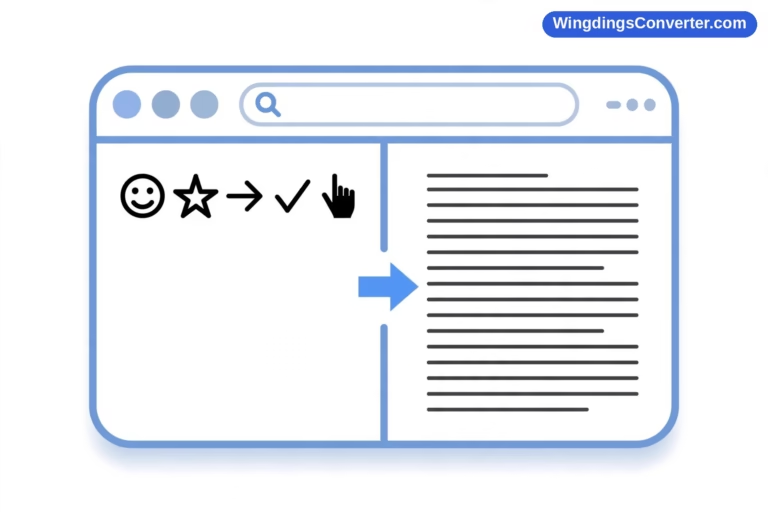
If you have a string of Wingdings characters and want to understand or convert it, a converter can be more convenient than manually checking each character.
On WingdingsConverter.com, you can use the Wingdings Converter tool to help with compatible Wingdings conversion tasks. This is useful when you are working with a sequence of symbols rather than inserting one character into a document.
Keep in mind that conversion depends on the input format and the mapping supported by the tool. If the original text has been copied incorrectly or the font information has been lost, the result may not reproduce the original message exactly.
Why Does Typing a Letter Produce a Symbol?
The keyboard itself usually sends a character, not a picture. The selected font determines how that character is displayed.
Imagine that you type a lowercase letter while using a normal text font. The program displays the familiar letter. If you switch the same text to Wingdings, the font may display a symbol at that character position instead.
This explains three common situations:
The text changes when you switch fonts. The underlying characters may still be the same, even though their appearance changes.
The symbol turns into a letter on another computer. The other computer may be displaying the text in a different font or may not have the same Wingdings font available.
Copying the symbol produces unexpected results. Some applications preserve the original character and font formatting, while others may retain only part of the information. The outcome depends on how the text is copied and pasted.
The important distinction is that a Wingdings symbol’s visual appearance is tied to the font’s character mapping. It is not necessarily a standalone Unicode symbol that will look identical everywhere.
Can You Copy and Paste Wingdings Keyboard Symbols?
Yes, but the result depends on what you copy and where you paste it.
If you copy a symbol from a document that uses Wingdings, the receiving application may preserve the character and font formatting, or it may paste the underlying character without the original font.
If the font is not applied, you might see a letter or another character instead of the expected picture.
For more reliable results, consider these options:
- For a Word document: Insert the symbol through Word’s Symbol menu and check the font formatting.
- For a design or presentation: Confirm that the symbol looks correct in the destination application.
- For a website: Prefer standard Unicode symbols or suitable icons when consistent cross-device appearance is important.
- For sharing a document: Check the document on another device or export it to PDF when preserving the appearance is important.
A PDF can help preserve a document’s visual layout, although font embedding and export settings still matter.
Wingdings vs. Standard Keyboard Symbols
Wingdings symbols and standard text symbols can look similar, but they work differently.
| Feature | Wingdings symbols | Standard Unicode symbols |
|---|---|---|
| How they display | Depend on the Wingdings font mapping | Depend on Unicode support and the available font |
| Font requirement | The correct Wingdings font is important | A compatible font is needed, but not specifically Wingdings |
| Cross-device consistency | Can vary if the font or formatting is missing | Often more portable when supported |
| Best use | Documents and layouts designed around Wingdings | General text, websites, messages, and broadly shared content |
For example, a standard check mark such as ✓ is a Unicode character. A check-mark-like picture displayed through Wingdings may instead be a different underlying character rendered by that font.
They can look similar on screen while behaving differently when copied, searched, or displayed elsewhere.
Common Problems With Wingdings Keyboard Symbols
Symbols appear as ordinary letters
Check whether the text is still formatted with Wingdings. If the font has changed, the underlying characters may appear as letters or punctuation.
Symbols appear as empty boxes
The application may not have access to the required font or may not support the character as expected. Check font availability and try opening the document in compatible software.
The wrong symbol appears
You may be using a chart for a different Wingdings version or reading a character code incorrectly. Confirm the font name and compare the symbol in the application’s own character selector.
A symbol looks different after copying
The destination application may not preserve the original font formatting. Apply the correct font again or use a standard Unicode alternative if you need a symbol that travels reliably between applications.
A Wingdings message is difficult to decode
Do not assume that every displayed picture represents a universal letter or word. The meaning depends on the original character sequence, the font mapping, and how the text was created. Use a compatible conversion tool or the original document when possible.
When Should You Use Wingdings?
Wingdings can be useful when you want a particular set of decorative symbols in a document and can control the font used to display them.
Good situations include:
- Creating symbol-based lists in a Word document
- Adding decorative marks to printed material
- Working with legacy documents that already use Wingdings
- Building simple visual layouts in compatible applications
For website interfaces, mobile apps, and documents shared across many systems, standard Unicode symbols or dedicated icon libraries may be a better choice. They can be easier to maintain and more predictable across different environments.
Accessibility matters, too. A symbol may not communicate its meaning clearly to every reader, and assistive technologies may not interpret a font-dependent character as intended. Add descriptive text wherever the symbol carries important information.
Frequently Asked Questions
Are Wingdings symbols assigned to normal keyboard letters?
Wingdings maps character positions to graphical symbols. Typing a regular keyboard character while the font is active can display a symbol, but the exact mapping depends on the font version and character position.
How can I find a specific Wingdings symbol?
Use the Symbol menu in Microsoft Word or a character chart that matches your Wingdings version. Browsing symbol previews is generally more reliable than guessing which key to press.
Why do Wingdings symbols turn into letters?
The text may be displayed in a normal font instead of Wingdings. Since the underlying characters may remain unchanged, applying the correct font can restore the expected symbols.
Can I use Wingdings symbols on a website?
You can use font-dependent symbols in some web setups, but relying on Wingdings requires the appropriate font and correct rendering. Standard Unicode characters or web-compatible icons are often more practical for content that needs to display consistently across devices.
Can Wingdings symbols be converted back into readable text?
Sometimes. If the original character sequence and the relevant mapping are available, a compatible converter may help. Conversion may be incomplete if the text has lost its original formatting, uses an unsupported version, or was copied in a way that changed the characters.
Final Thoughts
Wingdings keyboard symbols become much easier to work with once you understand that the font changes how characters look. Rather than guessing at keys, use a symbol selector or a matching character chart to find the symbol you need.
If you already have Wingdings text and want help interpreting or converting it, the Wingdings Converter tool at WingdingsConverter.com is a useful place to start. For documents that will be shared widely, always check the result in the destination application so the symbols appear as expected.