How to Convert Wingdings to Unicode
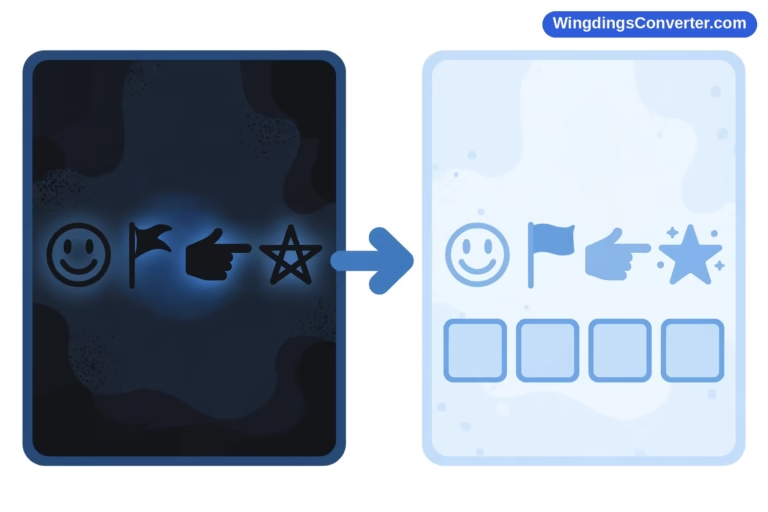
There’s a moment every Wingdings user hits eventually. The symbols looked fine in Word. Then you pasted them into a website, an email, or another app — and they turned into plain letters, boxes, or something completely different. If you want to know how to convert Wingdings to Unicode so your symbols actually survive the journey, that moment is exactly what this guide is about.
The short version: Wingdings and Unicode solve the same problem in opposite ways, and converting between them means swapping a font trick for a permanent character identity. Let’s unpack that properly, because the details decide whether your conversion works or quietly fails.
First, What Are You Actually Converting?
This is worth slowing down for, because most failed conversions trace back to a misunderstanding right here.
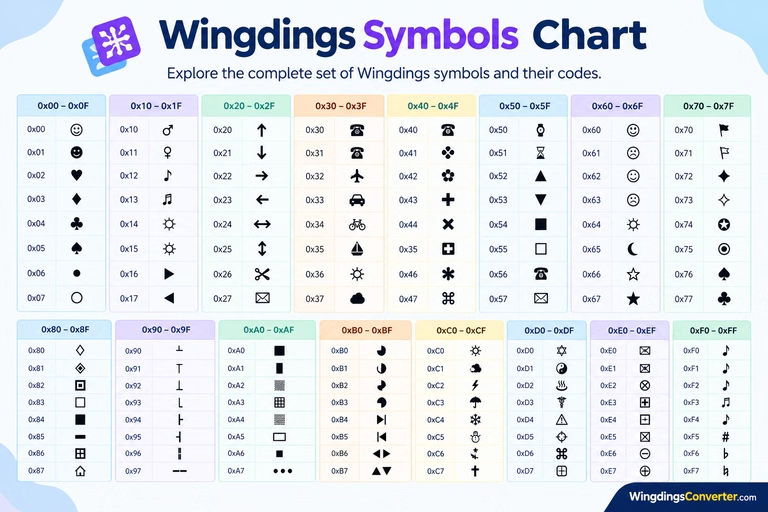
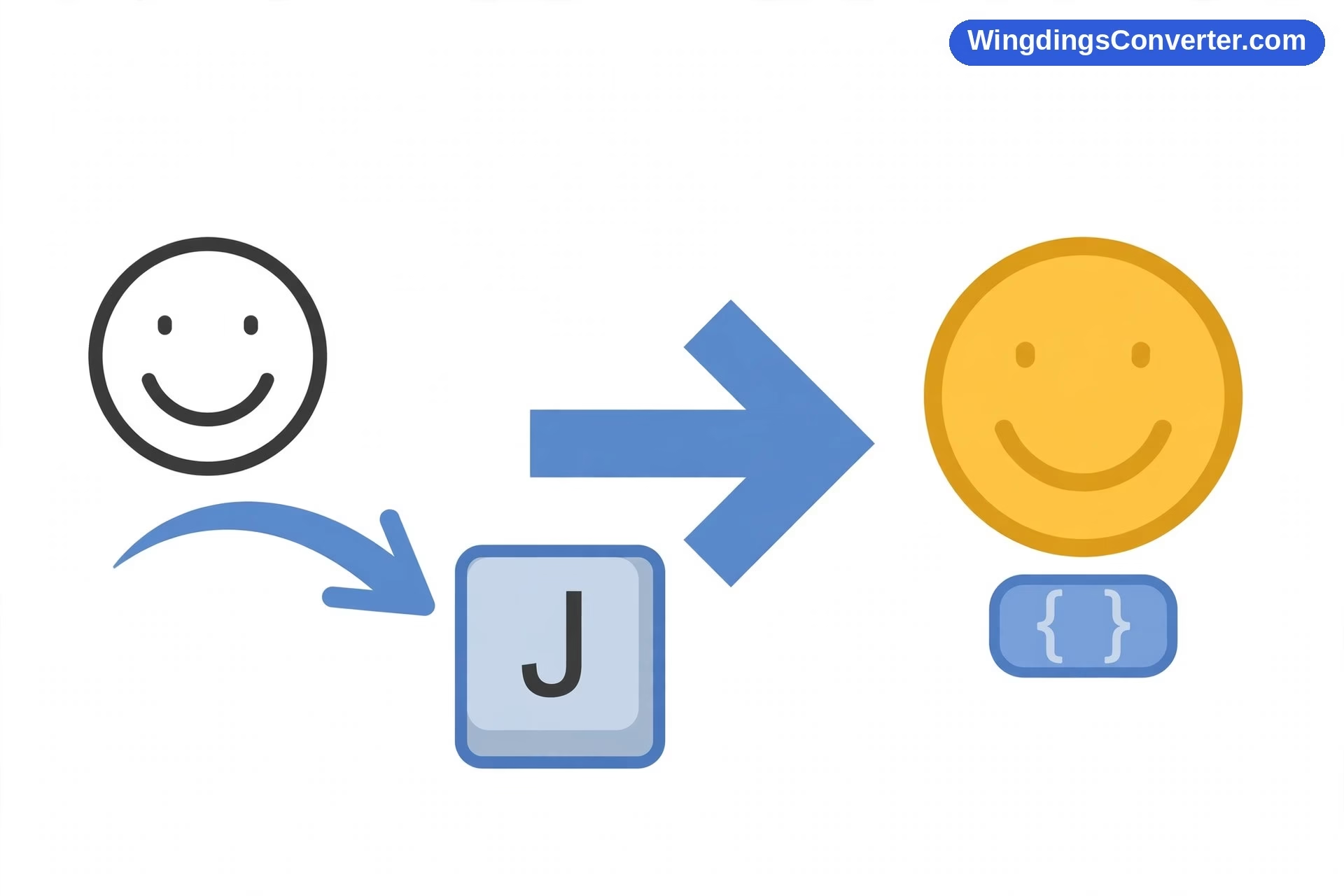
Wingdings, released by Microsoft in 1990 and designed by Charles Bigelow and Kris Holmes, does not give its symbols their own identities. It borrows the identities of normal keyboard characters. The smiling face is the letter J, just drawn differently when the Wingdings font is applied. Take the font away and the face disappears, leaving a plain J.
Unicode does the reverse. It’s a universal standard that assigns every character — letters, symbols, emoji, characters from every writing system — its own unique code point. A check mark is U+2713 (✓) no matter what font you use, what device you’re on, or what app you open it in. A black star is U+2605 (★), full stop.
You can read more about the standard itself on the Unicode Consortium’s home site, but the practical takeaway is simple:
| Wingdings | Unicode | |
|---|---|---|
| How a symbol is stored | As a normal letter, drawn as a symbol by the font | As its own dedicated character |
| Depends on a specific font? | Yes, completely | No — any font with that glyph can show it |
| Survives copy/paste? | Often not | Usually yes |
| Example | J displayed as a smiling face | U+2713 displayed as ✓ |
So “converting Wingdings to Unicode” really means: look at each Wingdings glyph, work out which real symbol it’s supposed to be, and replace the borrowed letter with that symbol’s genuine Unicode character.
Once you see it that way, the methods below make a lot more sense.
How to Convert Wingdings to Unicode: The Practical Methods
There’s no single button labelled “convert” in most apps — including Word — so you have a few routes depending on how much text you’re dealing with and how precise you need to be. Here’s how to convert Wingdings to Unicode using each of them, in the order I’d actually try them.
Method 1: Use a converter tool (best for most people)
For a paragraph, a list, or even a few symbols, a converter is the fastest path. A good converter holds a mapping table: for every slot in the Wingdings font, it knows the closest Unicode equivalent and swaps it in automatically.
The workflow looks like this:
- Copy your Wingdings text or symbols from the source document.
- Paste them into a converter such as the tool on our homepage.
- Copy the Unicode output and paste it where you actually need it.
What you get back is real Unicode text. Paste it into a browser form, a phone, a Mac, a Linux machine — anywhere with a decent modern font — and the symbols hold together instead of collapsing back into letters.
That said, be aware of one subtlety. If your source text was copied through an app that already stripped the Wingdings appearance, you may be pasting plain letters into the converter. The converter can still map “letter shown as Wingdings” to Unicode if you tell it the input is Wingdings, but if the symbols never reached your clipboard as symbols, no tool can guess what font your source was using. Garbage in, garbage out — it’s worth checking your source first. Our companion guide on how to translate Wingdings symbols covers how to tell what you’re really holding.
Method 2: Replace symbols one by one in Word
If you only have two or three symbols — a check mark in a form, a star in a heading — manual replacement inside Word is clean and gives you total control.
Word’s built-in route is Insert > Symbol > More Symbols. In that dialog you can browse by font and by Unicode character set. The practical approach:
- Note what your Wingdings symbol is meant to represent (a check, a star, an arrow, a face).
- Delete the Wingdings character.
- Use Insert > Symbol to insert the genuine Unicode version of that symbol from a standard font.
The famous example here is the old check-mark trick. For years, people have typed the character ü (code 252) in Word and switched it to Wingdings to get a check mark for forms and lists. That check mark looks fine in Word, but it’s really a ü in a costume. Replacing it with the true Unicode ✓ (U+2713) means the check survives everywhere — in PDFs, on the web, on someone else’s phone — without Wingdings needing to be installed at all.
Manual replacement is slow for long passages, but for a document you’re preparing to publish or share widely, it’s the most reliable way to be sure every single symbol landed correctly.
Method 3: Decode to plain text first, then rebuild with Unicode
This sounds backwards, but it works well for messy documents — especially ones that mix Wingdings with Wingdings 2, Wingdings 3, or Webdings.
First, decode the Wingdings back to its underlying plain letters (change the font to a normal one, or run it through a decoder). Now you have readable, honest text. Then go through and deliberately insert Unicode symbols only where symbols genuinely belong.
Why bother? Because mixed-font documents are where automatic converters stumble. A converter assuming plain Wingdings will misread a Webdings character every time, since Webdings — which arrived in 1997 with Internet Explorer 4 — uses an entirely different map. Separating the decode step from the rebuild step lets you catch those cases instead of baking a wrong symbol into Unicode permanently.
If you run into variant confusion, our explainer on how to convert Wingdings characters goes further into telling the family of fonts apart.
Not Every Wingdings Symbol Has a Perfect Unicode Twin
Here’s the honest limitation nobody puts in bold: the mapping isn’t always one-to-one.
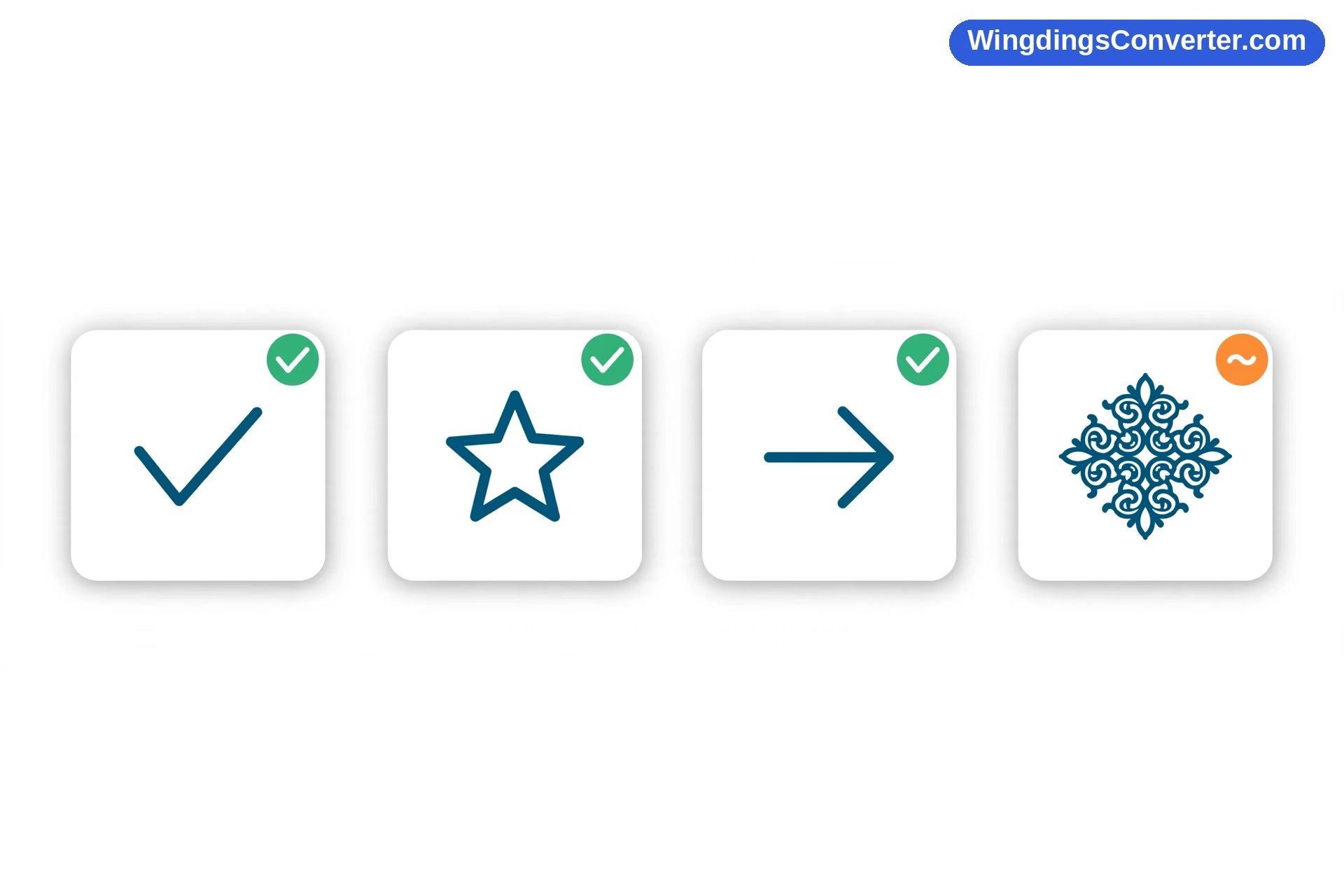
Many Wingdings glyphs have obvious Unicode equivalents. Faces, stars, check marks, common arrows, envelopes, telephones — Unicode covers all of that territory comfortably, often because Unicode deliberately absorbed popular dingbat symbols over the years. Dingbats as a category are much older than Wingdings, as the history on Wikipedia’s Dingbat page makes clear.
But some Wingdings glyphs are quirky, decorative, or oddly specific. For those, a converter has three choices, and different tools choose differently:
- Nearest equivalent — a similar Unicode symbol takes its place. Close, but not pixel-identical.
- A related symbol from a block like Dingbats or Miscellaneous Symbols — often a very good match.
- No match at all — the symbol simply has no standard Unicode counterpart, and the honest output is to flag it rather than invent one.
This is why you should always eyeball a converted result before you ship it, especially for anything legal, instructional, or customer-facing. Run your eye down the output and compare it against the original side by side. Conversion is fast; verification is what makes it trustworthy.
Also keep the reverse problem in mind: Unicode symbols that never came from Wingdings at all — say an emoji or a ★ you copied from a website — won’t necessarily convert back into Wingdings cleanly. Emoji, remember, are Unicode characters rendered by colour fonts, which is a whole newer layer on top of the system. The road between the two worlds is well travelled in one direction and patchy in the other.
What Happens After You Convert (And What to Check)
You’ve run the conversion. Before you celebrate, do these checks — they take a minute and catch nearly every lingering problem:
- Paste the result into a plain, boring place. A notes app, a browser address bar, a plain-text editor. If the symbols still look right there, with no Wingdings font anywhere in the chain, your conversion is real Unicode.
- Check on another device if you can. Send it to your phone. Boxes on the phone (the hollow rectangles nicknamed “tofu,” formally the .notdef glyph) mean that particular device or font lacks that specific Unicode glyph — a font coverage issue, not a failed conversion. Pick a more common symbol if broad compatibility matters.
- Watch for the smiling-face test. In Wingdings, J, K, and L are the smiling, neutral, and sad faces. If your original had those faces and your converted output now shows actual face-like Unicode symbols instead of the letters J, K, L, you’ve converted correctly. If it still shows J, K, L, the conversion didn’t touch them.
- Keep the original file. Always. Conversion is a transformation, and if you later discover a symbol was mismatched, you’ll want the source to re-check against.
One more thing: converting to Unicode changes the characters, which means line breaks and spacing can shift slightly. Symbols in Unicode fonts are often a different width than they were in Wingdings. Give the document a quick visual once-over for layout surprises, particularly in tables and forms.
Which Method Should You Choose?
It really comes down to volume and stakes:
- A few symbols, high importance (a form, a contract, a published page): manual replacement in Word. Slow, certain.
- A paragraph or page, everyday importance (notes, messages, web content): a converter tool, followed by a visual check.
- A messy, mixed, or mystery document: decode to plain text first, untangle which font each part really is, then rebuild with Unicode deliberately.
And if your goal is actually the opposite — you have Unicode or normal text and want the Wingdings look — that’s a font application job, not a conversion. The guide on how to decode Wingdings online and the converter tool handle the everyday back-and-forth without touching code points at all.
FAQ
Does Microsoft Word have a built-in Wingdings to Unicode converter?
Not as a one-click feature, no. Word lets you change fonts and insert Unicode symbols via Insert > Symbol, and it displays each symbol’s character code in that dialog, which helps you replace characters manually. But bulk conversion of a whole Wingdings passage to Unicode is a job for a dedicated converter tool or a careful find-and-replace pass.
Will converting to Unicode change how my symbols look?
Slightly, sometimes. You’ll be swapping a glyph drawn by the Wingdings designers for a glyph drawn by whatever Unicode font renders it, so shapes can differ in small ways — a star a touch pointier, a check mark a touch bolder. The meaning stays the same; the handwriting, so to speak, changes.
Why do some symbols become boxes after conversion?
Boxes mean the font or device displaying your text doesn’t include that particular Unicode character, so it shows the placeholder .notdef glyph instead. The conversion itself likely succeeded. To fix it, display the text in a font with broader symbol coverage, or choose a more common Unicode equivalent for that symbol.
Can I convert Wingdings 2 and Wingdings 3 the same way?
In principle, yes — the same idea applies. In practice, you must be sure which variant you’re holding, because each has its own map. Tell your converter the correct source font if it offers the choice, and spot-check the output. Converting Wingdings 3 text with a Wingdings map will produce confident-looking, wrong results.
Is a converted Unicode symbol safe to use on a website?
Yes — in fact it’s far safer than leaving it as Wingdings. Web pages can’t rely on visitors having Wingdings, and browsers don’t apply it the way Word does. Real Unicode characters are the standard, expected way to put symbols in web content, and they’re what search engines, screen readers, and phones understand best.
Can I convert Unicode symbols back into Wingdings?
Sometimes. Common symbols often have a Wingdings counterpart you can look up, but there’s no guarantee of a match, and you’ll be re-introducing the same fragility you just escaped. Unless you specifically need the Wingdings look inside a Word document, there’s rarely a good reason to go back.
Conclusion
Converting Wingdings to Unicode is really about giving your symbols a permanent identity instead of a borrowed one. Wingdings letters only pretend to be symbols while one specific font is applied; Unicode characters are symbols, everywhere, on their own merits.
Use a converter for volume, manual replacement for precision, and the decode-then-rebuild route for messy files. Verify the result in a plain environment, keep your original, and accept that a rare decorative glyph may only have a nearest match. Do that, and your symbols will finally travel as well as your words do.