How to Fix Missing Wingdings Characters
You’ve got the document open, you know the symbols should be there, and instead you’re looking at letters, blanks, or little squares. Learning how to fix missing Wingdings characters is mostly about resisting the urge to retype everything. In the large majority of cases the characters are still in the file — they’re just not being displayed as pictures right now — and a display problem gets a display fix, which is faster and safer than rebuilding content.
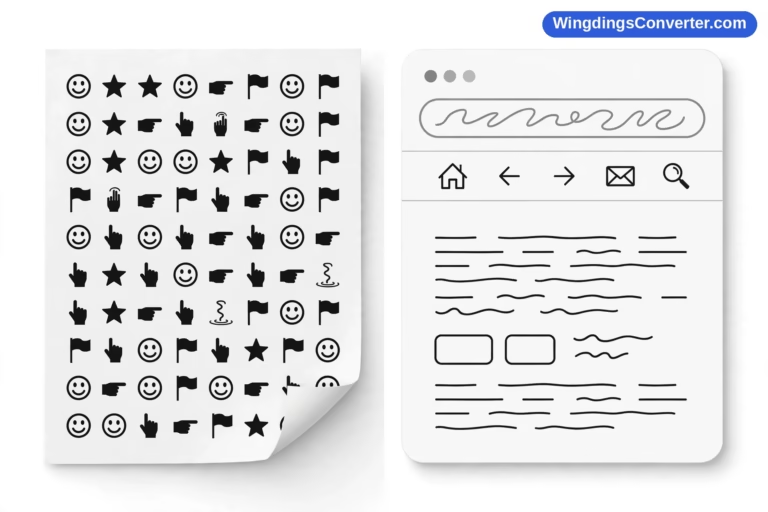
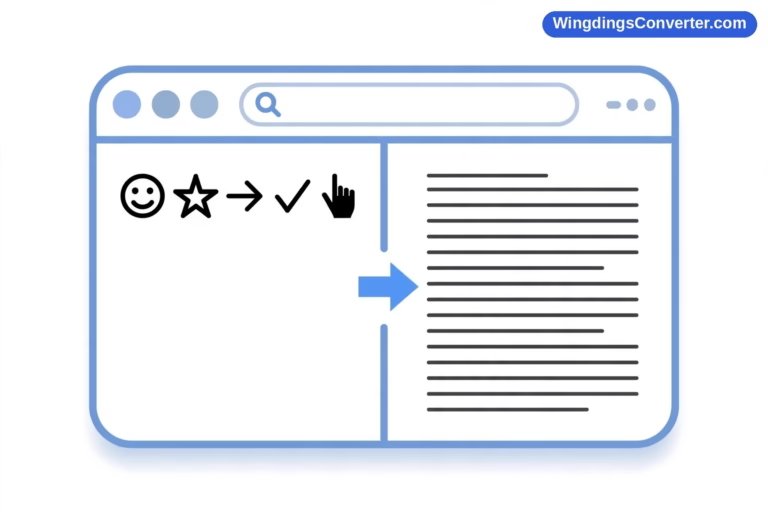
Let’s set the foundation in one breath, because every step below follows from it. Wingdings, the Microsoft symbol font from 1990 by Charles Bigelow and Kris Holmes, draws a picture for each ordinary keyboard character. Your file stores the letter plus the Wingdings font name. Type J, format it in Wingdings, and it displays as a smiling face; K is neutral, L is sad. If the font is missing on the machine, an app substitutes another font and you see the letters. If a character code has no glyph in the font doing the rendering, you see the square .notdef box instead. Letters and squares, two different failures — and this guide works through the repairs in the order you should actually try them: cheapest and most likely first.
Fix 1: Reapply Wingdings to the Characters That Lost It
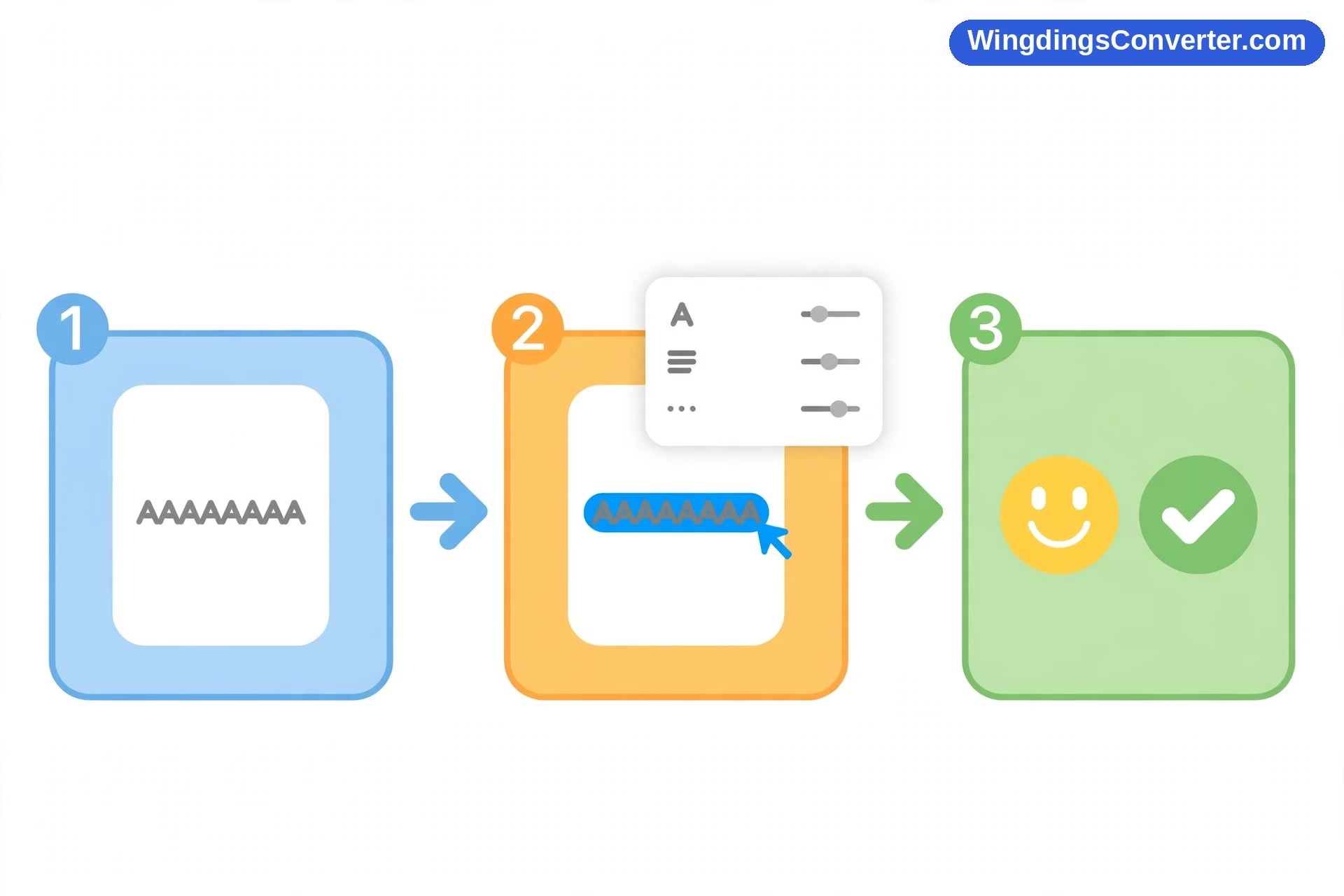
Try this before anything else, because it solves an astonishing share of cases in about ten seconds.
Select the stretch of text where symbols should be — drag across the plain letters, including a little margin on either side so you don’t miss a character formatted separately. Then set the font to Wingdings using the font box on Word’s Home tab.
If the letters instantly turn into the symbols you remember, you are done, and you also have your diagnosis: that section had lost its Wingdings formatting, most likely because it was pasted as plain text at some point or edited in an app that dropped the formatting. The letters underneath were correct the whole time; they had just lost their costume.
If only some characters snap back, the section was probably assembled from more than one paste or edit, with formatting surviving in patches. Work through it selection by selection rather than selecting the whole document — you do not want to apply Wingdings to your normal paragraphs in the process. And if the characters turn into the wrong symbols, the underlying letters themselves were changed somewhere along the way, which is a different, rarer problem; compare against a printed copy, an exported PDF, or your memory of the content, and re-insert the correct glyphs from Insert > Symbol > More Symbols as described in how to find Wingdings symbols in Word.
Fix 2: Check for Font Substitution and Install or Repair Wingdings
If reapplying the font does nothing — you select the text, the font box says Wingdings, and it still shows letters — look closer at that font box. Is the word Wingdings in italics? In Word, an italic font name in that box means the document is requesting a font that isn’t available on this machine, and Word is quietly substituting something else. That’s the smoking gun for a missing-font problem.
Confirm it outside Word: on Windows, open Settings > Personalisation > Fonts and search for Wingdings. You should find Wingdings, and ideally Wingdings 2 and Wingdings 3 beside it. If they’re absent or look damaged:
- Repair Office first. Wingdings ships with Microsoft Office, so the cleanest restoration is Settings > Apps > Microsoft Office (or Microsoft 365) > Modify > Quick Repair. If Quick Repair doesn’t bring the font back, the Online Repair option is the heavier follow-up.
- Reinstall the font properly if repair isn’t an option. Follow a trusted route rather than downloading font files from random sites — how to install Wingdings font on Windows lays out the safe methods, including our Wingdings font download page for guidance.
- Restart Word after any font change. Apps often cache their font lists at launch, so a newly restored font may not appear until you close and reopen the program — and occasionally until you restart the machine.
On a Mac, recalibrate expectations: Wingdings isn’t built into macOS. It comes with Office for Mac. If this Mac has no Office, the font isn’t missing due to a fault — it was never there — and your choices are installing Office, working on a machine that has it, or using the Unicode replacement route in Fix 5. How to use Wingdings on Mac covers those paths without the guesswork.
And if this document arrived from someone else and it looks fine on their machine, the repair belongs on yours — or they should resend it in a friendlier format, which is Fix 4 and Fix 5 territory. The fuller background on this scenario is in why are my Wingdings symbols missing.
Fix 3: Fix Characters Showing as Squares
Squares need a different toolkit, because a square — the .notdef “tofu” box — means the font rendering the text has no glyph for that character code at all. Reapplying Wingdings won’t cure a character that was never a Wingdings character. Instead:
- Test the font swap. Select one squared character and change its font to Calibri or Segoe UI Symbol. If a proper symbol appears, congratulations: that character is a genuine Unicode symbol that had been forced into Wingdings, which has no drawing for its code point. Leave it in the normal font. Repeat for its siblings.
- Question copied text. If an entire pasted block is squares, the source likely encoded it with private or unusual code points that only its own font understood. That content can’t be reformatted back to life, because your fonts never had those assignments. Decode what it was supposed to say — the converter on our homepage can help you translate genuine Wingdings — then re-insert clean symbols yourself.
- Repair the font if genuine Wingdings characters square inconsistently. A healthy Wingdings renders J as a face every time. If known-good characters box out in patches, suspect a damaged font file and repair Office as in Fix 2.
For the deep dive on this failure mode, why does Wingdings show as squares explains the mechanism in full, and our repair checklist in why is Wingdings not working helps when several symptoms are tangled together.
Fix 4: Embed Fonts Before You Share the Document Again
If your document is fixed on your screen but the whole point of it is to be opened on someone else’s computer, bake in some protection before it leaves.
In Word for Windows: File > Options > Save, scroll to the “Preserve fidelity when sharing this document” section, and tick Embed fonts in the file. Save. Now the fonts used in the document travel inside the .docx itself, so a recipient with Word but no Wingdings installed has a much better chance of seeing your symbols as intended.
Be clear-eyed about the limits, because overselling this step causes the next round of confusion:
- Embedding only helps if you enable it and re-save before sending. It does nothing for copies already sent.
- Font licensing can restrict embedding, and symbol fonts may not embed at all. Word won’t always warn you loudly when a font refuses.
- Recipients opening the file in a phone app, a browser viewer, or Google Docs may ignore embedded fonts entirely.
So: embedding is a solid extra layer for Word-to-Word sharing inside the Windows/Office world. It is not a universal shield, which is why the next two fixes exist.
Fix 5: Replace Wingdings Characters With Unicode Equivalents
This is the permanent fix, and for documents that live a travelling life — emailed, opened on phones, edited by a team on mixed systems — it’s often the right endgame even though it takes a little longer.
Replace each Wingdings glyph with the equivalent real Unicode symbol: a true check mark character instead of Wingdings’ ü, a true arrow character instead of a Wingdings letter, a true star. A Unicode symbol is a character in its own right. It doesn’t borrow a font’s drawing of a letter, so it displays as itself on Windows, Mac, phones, and the web, using whatever broad-coverage font the device already has. The fragility is designed out.
Practical way to do it: work symbol by symbol through the document. Where a Wingdings glyph appears (or should appear), delete it, and insert the Unicode equivalent from Word’s Symbol dialog with a normal font like Calibri or Segoe UI Symbol selected — those symbol sets are organized and searchable by code in a way Wingdings isn’t. For identifying what a Wingdings character was meant to be, our guides to how to convert Wingdings to Unicode and how to translate Wingdings symbols walk the conversion in both directions.
Keep the scope sane: you don’t have to convert a forty-page document’s worth of decorative glyphs nobody edits. Convert the load-bearing symbols — the check marks in the checklist, the arrows in the instructions, the markers people will copy onward. Decorative flourishes on a title page can stay Wingdings if the file mostly lives on your own PC, or they can be handled by Fix 6.
Fix 6: Freeze the Appearance With PDF When Editing Isn’t Needed
Ask what the document is for. If the recipients need to read it, print it, fill it in by hand, or post it — but not edit the text — then the most reliable “fix” is to stop sending an editable font-dependent file at all.
Open the document on the machine where the symbols display correctly. Fix anything that’s still off using Fixes 1–3. Then File > Save As (or Export) and choose PDF. A PDF records the rendered appearance rather than hoping the viewer’s fonts cooperate, so your check marks and faces arrive exactly as you saw them, on a phone, a Mac, a library computer, anything.
This is also the rescue move for a deadline: symbols missing on a colleague’s machine ten minutes before a meeting? Don’t troubleshoot their laptop over chat. Export the PDF from yours and send that. You can do the forensic work later, or never.
A Short Repair Order to Keep
If you remember nothing else, remember the sequence, because order is what makes this quick: reapply the font to the affected selection; check for the italic font name that betrays substitution; install or repair the font if it’s missing; font-swap squared characters to test for Unicode symbols in disguise; then, for sharing, embed fonts, convert to Unicode, or export as PDF depending on what the recipient needs. Each step rules out a whole class of causes, so even when a step doesn’t fix the problem, it tells you something. The only case this sequence won’t save is text whose underlying letters were themselves altered or privately encoded at the source — and even then, it tells you quickly that re-inserting clean symbols is the honest repair, not more formatting tweaks.
Frequently Asked Questions
What’s the fastest fix for missing Wingdings characters?
Select the affected text and reapply the Wingdings font. Most “missing” symbols are actually correct letters that lost their font formatting — often through a plain-text paste — and this restores them in seconds. If nothing changes and the font name shows in italics, the font itself is missing on that machine.
How do I know whether to fix letters or squares?
They’re different problems. Letters mean the font or its formatting was lost and a text font is drawing the characters plainly. Squares mean the rendering font has no glyph for that character code — often a real Unicode symbol stuck in Wingdings, cured by changing that character to a normal font like Calibri.
Where is the “Embed fonts” setting in Word?
File > Options > Save, under “Preserve fidelity when sharing this document”: tick “Embed fonts in the file,” then save before sharing. It helps Word-to-Word sharing, but licensing can restrict embedding, symbol fonts may not embed, and phone or browser viewers may ignore embedded fonts.
Will converting to Unicode change how my symbols look?
Slightly, sometimes — a Unicode check mark from Calibri won’t be pixel-identical to the Wingdings one drawn from ü (character code 252). What you gain is portability: the symbol displays correctly on Macs, phones, and browsers that have no Wingdings at all. For shared documents, that trade is usually worth it.
I repaired Office but Wingdings characters are still missing. Now what?
Restart Word (font lists are cached at launch), then run a fresh-document test: type J K L, apply Wingdings, and look for the smiling, neutral, and sad faces. If the test fails, the font install itself is still unhealthy. If the test passes, your original document’s formatting or content is the remaining suspect — rebuild the affected symbols in a fresh file.
Can I fix missing Wingdings characters on a phone?
Not by installing anything — Wingdings isn’t built into iOS or Android, and phone apps won’t add it. View a PDF version instead, or have the document’s symbols converted to Unicode on a computer before it’s shared with phone users.
Conclusion
Fixing missing Wingdings characters is rarely about heroics. It’s about diagnosing which link broke — formatting, font, encoding, or audience — and applying the one repair that matches. Reapply first, check for substitution, repair the font if needed, untangle squares with a font swap, and then choose a sharing strategy that fits where the document is actually going: embedding for Office circles, Unicode for everywhere, PDF when it just needs to look right. Do that, and the next time symbols vanish, you’ll have them back before your coffee cools.