How to Use Wingdings in Excel
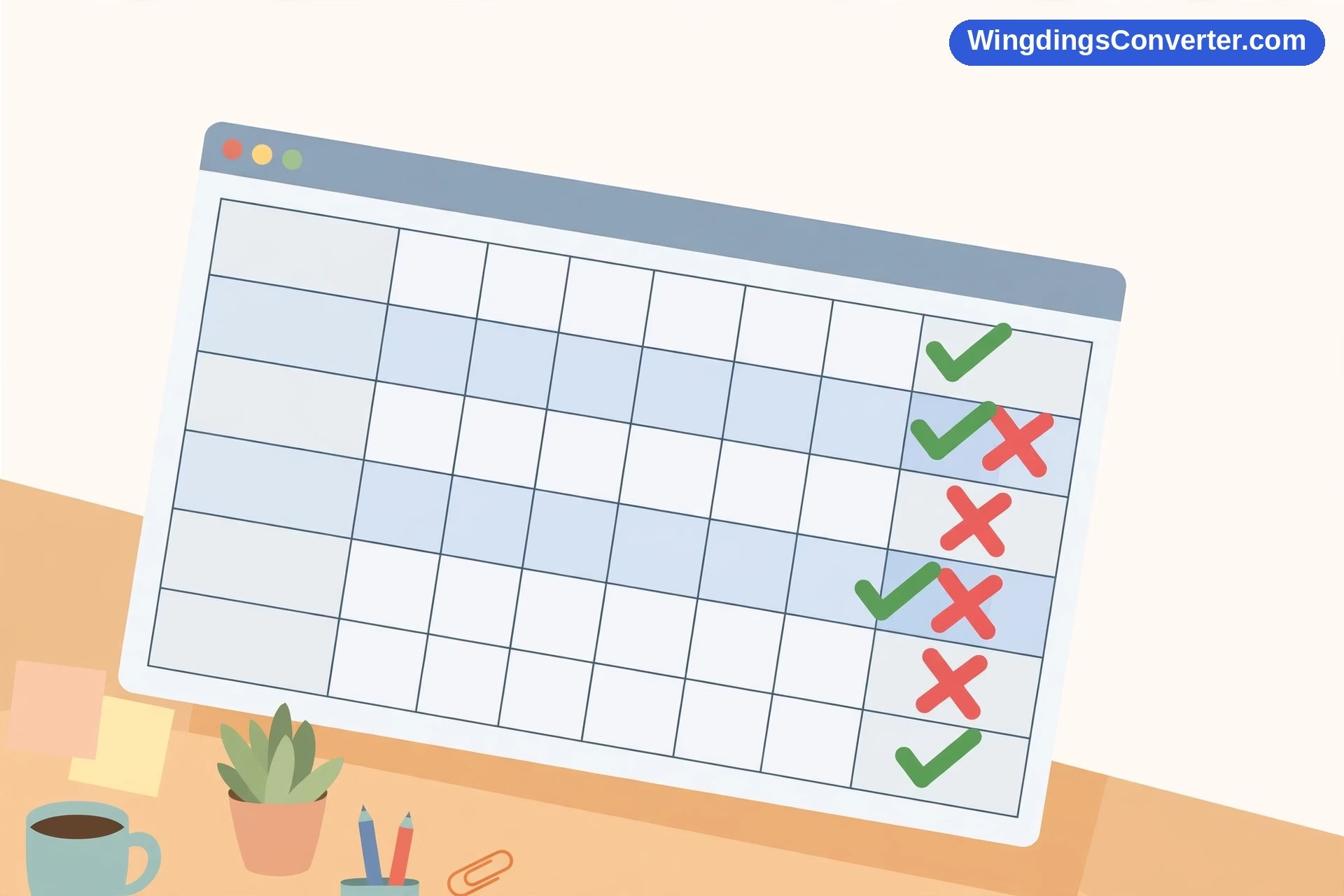
Every long-running spreadsheet eventually grows a column nobody planned: the one where someone needs to say “done,” “check this,” or “problem here” at a glance, without typing a paragraph in a cell. That’s where learning how to use Wingdings in Excel stops being a curiosity and starts being genuinely practical. Excel — as part of Microsoft Office — includes Wingdings, and generations of spreadsheet users have quietly relied on it for one famous job above all others: turning cells into tidy checklists with proper check marks and crosses, using a trick so established it’s practically folklore. This guide covers that trick properly, plus the other honest uses for Wingdings in a workbook, and the traps that catch people when a sheet full of symbols changes hands.
We’ll go in a sensible order: how to put a Wingdings symbol in a cell, the check mark method (including the well-known CHAR formula version), how to build a checklist that stays maintainable, and what to check before you share a workbook whose meaning lives in its symbols. No advanced programming, no add-ins to buy — just the features Excel already gives you.
The short version: symbols live in cells, fonts live on cells
First, the one idea that makes everything else in Excel click. A cell holds a value — a letter, a number, a formula result. The font is formatting applied on top of that value. Wingdings, released by Microsoft in 1990 and designed by Charles Bigelow and Kris Holmes of Type Solutions, displays ordinary characters as symbols. So a cell can contain the character ü while looking like a check mark, purely because the cell’s font is set to Wingdings.
That split — value underneath, appearance on top — is a blessing and a hazard. Blessing: you can build status columns that read visually while staying simple underneath. Hazard: sort, filter, export, or open the file somewhere without the font, and the appearance can fall away, leaving the raw characters. Keep that in mind throughout; we’ll return to it when we talk about sharing.
Quick test before anything else: click an empty cell, type a capital J, and set the cell’s font to Wingdings from the font dropdown on the Home tab. You should see a smiling face. K gives a neutral face and L a sad face in Wingdings. If the test works, your Excel has the font and you’re ready. If it doesn’t, confirm Wingdings appears in other Office apps — the issue is then Excel- or file-specific, not your whole installation.
How to use Wingdings in Excel, cell by cell
Type the character, then apply the font
For a symbol you already know, this is the fastest route:
- Click the cell and type the character.
- Press Enter, then select the cell again — or stay in edit mode and select just the character in the formula bar if the cell mixes symbols with words.
- On the Home tab, set the font to Wingdings.
- Set size and font colour as needed. Centre the cell’s alignment both ways for status columns; symbols look dramatically neater centred than rattling around at the bottom-left of a wide cell.
Mixing symbols and ordinary text in one cell is possible — format just part of a cell’s text by editing the cell (double-click or F2), highlighting the characters, and applying Wingdings to that selection only — but in spreadsheets, one symbol per cell in a dedicated column is almost always cleaner than symbols embedded in sentences. Columns can be filtered, counted, and standardised. Sentences can’t.
Browse with Insert > Symbol when you don’t know the character
For everything you haven’t memorised (which, for most of us, is nearly the entire font):
- Select the target cell and start editing it (double-click the cell, or click in the formula bar) — Symbol inserts at your cursor, so you need to be in the cell, not just parked on it.
- Go to Insert > Symbol.
- In the dialog, choose Wingdings in the Font dropdown, scroll to the symbol you want, and double-click it (or click Insert), then close the dialog.
- Finish the cell entry. Afterwards, make sure the cell (or the inserted character) actually carries the Wingdings font — if it displays as an unrelated character, the formatting didn’t stick, and setting the font explicitly fixes it.
Microsoft’s reference on inserting symbols and characters in Office documents this dialog, including character codes, and it works the same way here as in the slide workflow in our guide to how to use Wingdings in PowerPoint. The dialog also shows each symbol’s character code, which matters for the next section — write down the codes for symbols you adopt as standards, and keep that note with the workbook’s documentation.
The famous one: Wingdings check marks in Excel checklists
Here it is, stated carefully, because this is the part of the article most readers came for.
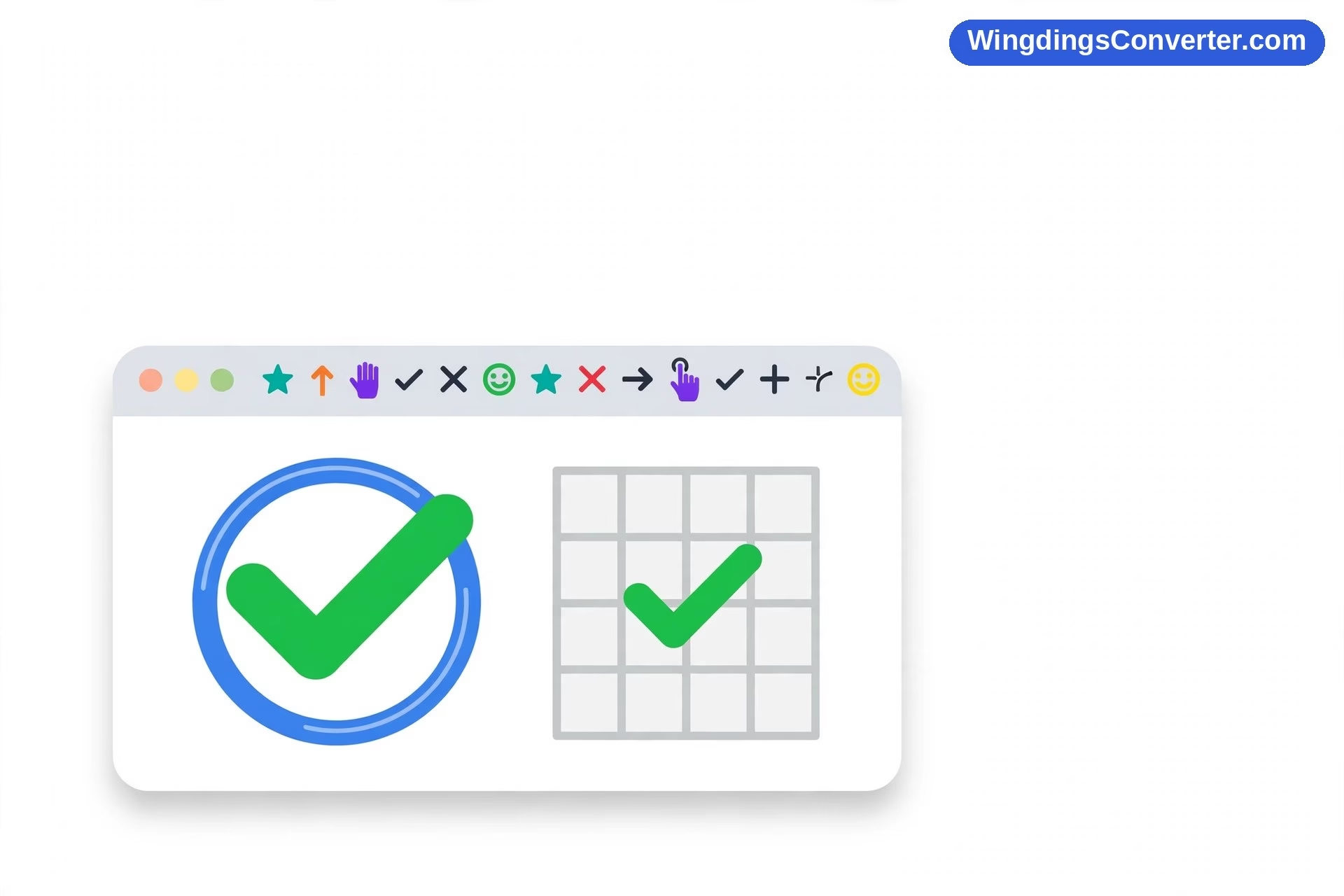
In Wingdings, the character ü — character code 252 in the Symbol dialog — displays as a check mark (tick). That single fact powers thousands of homemade checklists, inspection sheets, and task trackers. There are two equivalent ways to get it into a cell:
Typing it directly. Entering ü on many keyboards is fiddly, which is why most people don’t type it by hand — they insert it once via Insert > Symbol (font: Wingdings, code 252), then copy that cell wherever else it’s needed. Copying a finished cell is nearly always more reliable than re-typing an awkward character twenty times.
Using the CHAR function. Excel’s CHAR function returns the character for a code number, so the formula:
=CHAR(252)
returns ü. On its own, in a normal font, you’ll see ü (or something similar). Apply the Wingdings font to that cell, and the same formula result displays as a check mark. This is a documented, widely used technique — you’ll find it in years of spreadsheet tutorials — and it becomes powerful combined with a condition, in the common pattern:
=IF(A2="Done",CHAR(252),"")
Read that as: if cell A2 says “Done,” show the character that Wingdings renders as a check; otherwise show nothing. Set the whole status column’s font to Wingdings once, and the column updates itself as the words in column A change. Do double-check the formula in your own Excel version and locale — in some regional settings, formula argument separators differ (a semicolon instead of a comma), which is a general Excel quirk, not a Wingdings problem. And test with one row before filling a thousand: if your code or font is wrong, you want to discover it in row 2, not after printing the workbook.
A companion convention pairs the check with a cross for “failed / not done” items, inserted the same way via the Symbol dialog in Wingdings. Whatever pairing you choose, document it at the top of the sheet or in a small legend. A checklist only you can read is a diary, not a tool.
For the broader family of ticks — including the true Unicode check marks that behave differently and travel better between apps — see our dedicated guide to check mark symbols, their meanings, and how to type them.
Building a checklist that won’t fall apart
A good Wingdings checklist in Excel is mostly good spreadsheet hygiene:
- One status column, one meaning. Checks mean one thing (“verified,” say — not sometimes “done,” sometimes “seen,” depending on who filled it in). Write the meaning in the header or a legend.
- Standardise by copying, not re-creating. Get one check cell and one cross cell perfect — font, size, colour, alignment — then copy them. Hand-rebuilt symbols drift: slightly different sizes, a cell where someone used a different font entirely and nobody noticed until the printout.
- Colour helps, carefully. Green checks and red crosses are instantly readable, and font colour is all it takes. But never let colour be the only difference between two states — printing in black and white, or a colour-blind reader, will erase it. Pair colour with a different symbol shape, which you’re doing anyway.
- Lock the formatting if others edit the sheet. If colleagues type in your workbook, they can accidentally change fonts or paste over your status cells with their own formatting (pasting from elsewhere is the usual culprit — plain values arrive with the source’s font, and suddenly a check is a ü again). Protecting the status column, or instructing editors to paste values only, keeps the system intact.
- Count with the underlying values in mind. If you need “how many checks?”, remember the cells contain characters or formula results, not the word “yes.” Counting formulas should target what the cells actually contain or the condition that drives them (count the “Done” entries in the source column) — not what the cells happen to look like. This is the value-versus-appearance split from earlier, arriving exactly where it matters most.
Other sensible uses (and one to avoid)
Beyond checklists, Wingdings symbols work well as compact status flags in project trackers (a star for priority items), direction cues in instruction sheets printed from Excel (an arrow in the cell beside “start here”), and simple visual dividers in formatted report sheets that will be printed or exported to PDF from Excel itself. In all of these, the pattern is the same: short visual meaning, controlled environment, output rendered by Excel where the font is guaranteed present.
The use to avoid is building data out of symbols. If a symbol’s presence will later be sorted, filtered, exported to CSV, imported into another system, or analysed, store real words or codes in the cell (“Done”, “Pending”, “Failed”) and let conditional formatting or a separate display column handle the visuals. CSV export, in particular, carries values without fonts — your check marks will arrive in the next system as their underlying characters, and whoever inherits that file will have questions you won’t enjoy answering. Our explainer on how to copy and paste Wingdings symbols covers this value-versus-appearance problem in depth; it’s the same physics, whether the destination is a CSV or a chat window. And for general background on the font itself, the Wikipedia Wingdings article remains a solid reference.
Frequently Asked Questions
How do I insert a check mark in Excel using Wingdings?
Insert the character ü — character code 252 — via Insert > Symbol with the font set to Wingdings, or enter the formula =CHAR(252) in a cell and apply the Wingdings font to that cell. Either way, the cell displays as a check mark while Wingdings formatting is applied.
Why does my check mark show as ü?
Because ü is what the cell actually contains; the check mark is how Wingdings displays it. The cell’s font isn’t set to Wingdings (or the formatting was overwritten, often by pasting). Select the cell and set its font to Wingdings and the check mark returns. Nothing about the value needs to change.
Can I make check marks appear automatically when a task is done?
Yes — that’s the classic pattern. Use a formula such as =IF(A2="Done",CHAR(252),"") in a Wingdings-formatted column, so a check appears whenever the status word in the referenced cell changes to “Done.” Test it on one row first, and note that some locales use a semicolon instead of a comma in formulas.
Will Wingdings symbols survive if I share the workbook?
If the other person opens it in Excel (Windows or Mac Office), Wingdings is included and symbols should display. If the file is opened in a non-Office app, converted to CSV, or pasted elsewhere as plain values, expect symbols to revert to their underlying characters. For wide sharing, export a PDF for the visual record, and consider Unicode check marks for files that must survive everywhere.
What’s the difference between a Wingdings check and a Unicode check mark in Excel?
A Wingdings check is the character ü styled by a font; remove the font and it stops being a check. A Unicode check mark is a character that is a check mark, whichever font displays it. Unicode marks are more portable between apps and systems; Wingdings marks are a long-established convention inside Office workbooks, especially with the CHAR formula pattern.
Can I use Wingdings in Excel Online and Google Sheets?
Excel Online, running in the browser, has more limited font support than desktop Excel — check how your specific workbook renders there before relying on it. Google Sheets does not offer Wingdings in its font list at all; use Unicode symbols there instead. Desktop Excel remains the dependable home for Wingdings-based checklists.
Conclusion
Wingdings earns its keep in Excel in one main way — fast, visual status, above all the check mark — and it does that job well as long as you respect how it works: characters underneath, font on top. Insert symbols deliberately, build your checklist around the ü / CHAR(252) check with Wingdings applied, standardise by copying finished cells, and think twice before letting meaning live only in a font when a file has to travel. Respect that one rule, and your spreadsheets will read at a glance — without surprising whoever opens them next.