Check Mark Symbols: Meanings and How to Type Them
A small tick can carry a lot of weight. Check mark symbols mean done, correct, approved, verified, included — and once you start looking, you see them everywhere: on homework, forms, to-do apps, ballot papers, and those little “verified” badges online. But there isn’t just one check mark. There’s a whole family, from a light handwritten tick to a heavy bold ✔, and they don’t all mean quite the same thing.
This guide walks through each one — what it means, when to use it, and exactly how to type it on Windows, in Word, and on a Mac. No hunting through symbol menus blindfolded.

The Main Check Mark Symbols at a Glance
Before the detail, here’s the short version. These are the marks you’ll actually meet in documents and apps.
| Symbol | Name | Unicode | Typical use |
|---|---|---|---|
| ✓ | Check Mark | U+2713 | Correct, done, included |
| ✔ | Heavy Check Mark | U+2714 | Emphasis, confirmation |
| ☑ | Ballot Box with Check | U+2611 | Forms, selected option |
| ☐ | Ballot Box | U+2610 | Empty checkbox on a form |
| ✗ | Ballot X | U+2717 | Incorrect, not selected |
| ✘ | Heavy Ballot X | U+2718 | Strong “wrong / no” |
| × | Multiplication Sign | U+00D7 | Maths; close buttons |
Notice the pattern: checks say yes, X marks usually say no. That pairing comes from paper ballots, where voters marked their choice — a system so familiar that software copied it wholesale.
✓ Check Mark (U+2713) — The Standard Tick
The plain check mark ✓ (U+2713) is the one most people mean when they say “tick.” Its shape — a short stroke down, then a longer stroke sweeping up — is said to come from handwriting speed: when you tick boxes quickly all day, the mark naturally stretches into that familiar flick.
Use ✓ for:
- Marking an answer correct
- Crossing items off a list as completed
- Showing a feature is included (“Free shipping ✓”)
- Indicating something has been verified or reviewed
It’s light and neutral, which is why it works in professional documents. In a report or a formal form, ✓ is almost always the right choice over its heavier cousin.
How to type ✓
- In Word (any recent version): type
2713then press Alt+X. The code converts instantly into ✓. - In Office generally: Insert > Symbol, set the font to a standard text font, and search for “check.”
- On Mac: press Ctrl+Cmd+Space to open the Character Viewer, search “check mark,” and double-click to insert.
- Copy and paste: if you only need it once, copy ✓ from this page — it will paste as a real character, not an image.
If you like copying symbols rather than memorising codes, the general technique is covered in the guide to how to copy and paste Wingdings symbols — the same copy-paste habit works for Unicode ticks, and they travel between apps more reliably.
✔ Heavy Check Mark (U+2714) — The Emphatic One
The heavy check mark ✔ (U+2714) is the same idea, drawn bolder and thicker. That extra weight makes it feel more final — less “noted” and more “DONE.”
You’ll see ✔ in marketing pages, comparison tables, and social posts, where visibility matters more than understatement. In a feature table — Basic vs. Pro plans, for instance — heavy checks in the Pro column quietly nudge you to upgrade. Designers know exactly what they’re doing there.
A word of caution: in dense documents, heavy checks everywhere can look shouty. Reserve ✔ for moments where you really want the yes to land.
Typing it is identical in method to ✓ — use 2714 then Alt+X in Word, or search “heavy check” in the Mac Character Viewer.
☑ Ballot Box with Check (U+2611) — The Form Filler
The ballot box with check ☑ (U+2611) combines an empty square and a tick, and it’s the symbol of forms, surveys, and settings screens. It says “this option is selected” in a way everyone understands without a legend.
Its partner is the empty ballot box ☐ (U+2610). Together they let you build a printable checklist without drawing anything:
- ☐ Book flights
- ☑ Renew passport
- ☐ Pack chargers
In Word you can also insert clickable checkboxes through the Developer tab, but for printed documents and simple shared files, ☐ and ☑ are faster and they survive being copied into other apps — which clickable controls sometimes don’t.
✗ and ✘ — The X Marks That Mean “No”
Every yes needs a no. The ballot X ✗ (U+2717) and heavy ballot X ✘ (U+2718) are the traditional partners to the check marks. Where a check confirms, these cancel: wrong answer, not included, not selected, failed.
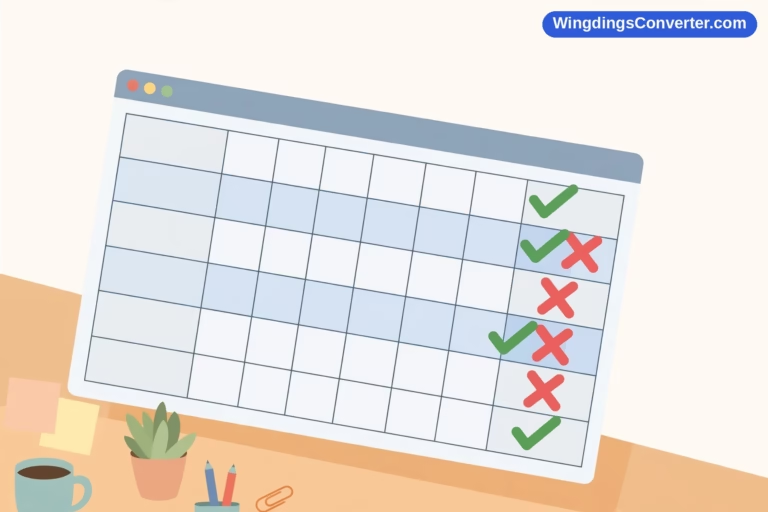
In comparison tables, the ✗ is often kinder than leaving a blank cell. A blank could mean “we forgot to fill this in.” An ✗ clearly means “no, this plan doesn’t have that.” Clarity beats ambiguity, even when the answer is no.
Don’t confuse these with the letter x typed on your keyboard. A typed x is just a letter — in some fonts it looks close enough, in others obviously wrong. The ballot X characters are balanced, centred symbols designed to sit neatly beside checks.
There’s a fuller historical look at this symbol on Wikipedia’s check mark page, including how different countries mark correct and incorrect answers — in some school systems, interestingly, a check alone can mean wrong, with correct answers getting a circle or a second mark. Context really does rule.
× Multiplication Sign (U+00D7) — Not an X, Not a Letter
While we’re clearing up lookalikes: the multiplication sign × (U+00D7) is its own character. Use it for maths (3 × 4), for dimensions (a 10 × 12 room), and you’ll recognise it as the close icon in the corner of windows and pop-ups.
Typing a letter x instead is common in casual writing — “3 x 4” — and nobody will misunderstand you. But in anything published or professional, × looks noticeably better: it’s centred vertically and evenly spaced. Type it in Word with 00D7 then Alt+X.

The Wingdings Trick: The Check Mark Hiding in a Font
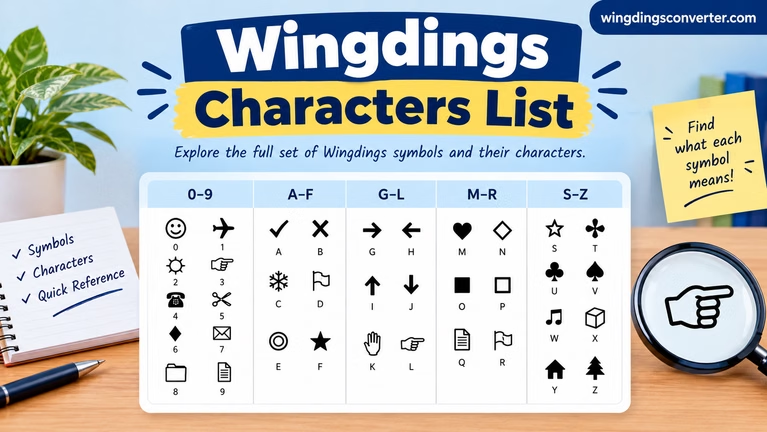
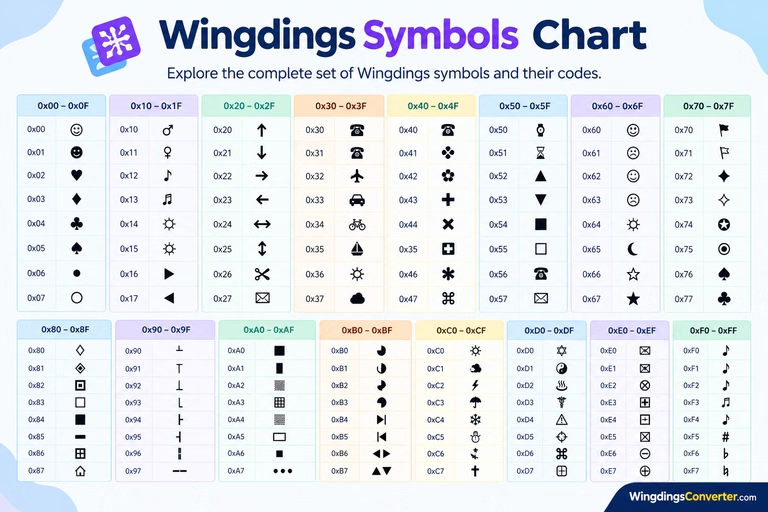
Here’s where check marks meet this site’s home turf. Long before Unicode ticks were easy to insert, Word users had a shortcut: type the character ü and change its font to Wingdings, and it appears as a check mark. The ü itself hasn’t changed — only the font drawing it has. That’s how symbol fonts work: the underlying letter stays the same, the picture changes.
That’s also the trap. Send that document to someone without the font, or copy the tick into another program, and your neat ✓ can turn back into a ü. If you’ve ever received a document full of odd letters where ticks should be, that’s exactly what happened. The guide to why Wingdings symbols change when copied explains the mechanism in detail.
For anything that needs to survive copying, emailing, or publishing online, prefer the real Unicode check marks from the sections above. Wingdings ticks are fine inside a controlled Word document — and if you need to decode someone else’s, the Wingdings converter tool will show you what those characters are underneath.
Check Marks in Everyday Digital Life
Beyond documents, checks have picked up social meanings. In messaging apps, one tick often means “sent” and two mean “delivered” — and in some apps they turn blue for “read,” which has caused more real-world arguments than any symbol probably should. On social platforms, a check beside a name signals a verified account, though the rules for earning one have changed repeatedly.
In project tools, the check is the universal “task complete.” There’s a small, genuine satisfaction in clicking a box and watching an item get struck through. Designers lean on that feeling deliberately: the check mark is positive feedback in a single stroke.
If you enjoy symbol families like this one, the neighbouring guides work the same way — arrow symbols for direction, and the keyboard-wide tour of common keyboard symbols and their meanings for everything else on your keys.
Quick Methods Summary: How to Type Check Mark Symbols
Different situations call for different methods. Here’s the honest breakdown:
- Fastest for repeated use in Word: learn
2713+ Alt+X (and2714for heavy). Two seconds, no menus. - Fastest for one-off use anywhere: copy and paste the character itself.
- Best on Mac: Character Viewer (Ctrl+Cmd+Space), then add favourites you use often.
- Best in Office apps generally: Insert > Symbol — slower, but you can browse related marks at the same time.
- In legacy Windows contexts: Alt codes on a numeric keypad exist for many symbols (for example Alt+0169 gives ©), but they depend on the system code page, so for check marks the Alt+X and Insert methods are more dependable.
For the official character charts — names, code points, and every related tick and cross — the Unicode character charts are the definitive reference.
Frequently Asked Questions
What is the difference between ✓ and ✔?
✓ (U+2713) is the standard, lighter check mark. ✔ (U+2714) is the heavy version — bolder and more emphatic. Use ✓ in formal documents and ✔ where you need the confirmation to stand out, like marketing tables.
How do I type a check mark in Word without the Symbol menu?
Type 2713 and press Alt+X. Word converts the code into ✓ immediately. The same trick works for other symbols if you know their hex code — 2714 Alt+X gives ✔, and 2611 Alt+X gives ☑.
Why does my Wingdings check mark turn into ü when I copy it?
Because in Wingdings the check mark is the character ü, just drawn as a tick. Copy it into a program using a normal font and you see the underlying letter again. Unicode check marks don’t have this problem, which is why they’re better for sharing.
Is a check mark the same in every country?
Not quite. In much of the world a tick means correct, but in some countries — parts of Scandinavia and Japan, for example — school marking traditions differ, and a tick can mean an error while circles mark correct work. In international documents, pairing a check with a word like “Yes” or “Included” removes any doubt.
Can I use check marks in file names or passwords?
Usually not a good idea. Many systems restrict special characters in file names, and a symbol that one device can’t display may show as a box or break a sync. Keep checks for document content, not file names. If a symbol ever shows as an empty square, that’s a missing-glyph problem — see why symbols show as boxes for the fix.
A Note on Colour and Emoji-Style Checks
You may also see coloured versions — a green tick in a white box, or a blue verification badge. Those are usually emoji presentations or app-specific icons, not plain text characters. They look friendly in chat, but in documents they can change size, break alignment, or vanish when exported to PDF. For anything you plan to print, file, or send to a client, stick with the plain Unicode marks above: they scale with your font, match your text colour, and behave predictably everywhere.
Conclusion
Check mark symbols are simple, but choosing the right one — light or heavy, boxed or bare, check or X — makes forms clearer and documents look deliberate instead of accidental. Learn the Alt+X codes for the two or three you use most, switch any Wingdings ticks you share with others to real Unicode characters, and you’ll never dig through a symbol menu in a panic again.