Common Keyboard Symbols and Their Meanings
You use them every day, often without thinking about what they’re actually called. The common keyboard symbols and their meanings sit right under your fingers — above the numbers, tucked beside the letters, hiding in plain sight on the punctuation keys. Everyone knows how to type an email address, but far fewer people can confidently tell you the difference between a hyphen and an en dash, or why the # key has three different names depending on who you ask.
This guide is a plain-English reference for those symbols, based on a standard US keyboard layout. Other layouts move a few around — the UK layout swaps the @ and ” positions, for example — but the names and meanings stay largely the same.

The Number Row: Common Keyboard Symbols and Their Meanings
Hold Shift and press the numbers across the top of your keyboard and you get a row of symbols that do a surprising amount of heavy lifting in writing, maths, coding, and social media. Learning them in order is a good way to remember where they live.
` — Grave Accent (Backtick) and ~ — Tilde
The key at the top-left, just left of the 1, gives you two relatives. Unshifted, it’s the grave accent (`), also called a backtick in computing. You’ll rarely use it in normal English prose, but programmers use it constantly — in Markdown to mark inline code, and in some languages to build template strings.
Shifted, it becomes the tilde (~). In everyday writing the tilde means “approximately” — ~30 people means roughly thirty. In chat and fan communities, a trailing ~ can soften a sentence or make it feel playful or drawn out. In web addresses, a tilde historically appeared in personal homepage URLs, and in computing it often stands in for a user’s home folder.
! — Exclamation Mark
Shift+1 is the exclamation mark. Its job in sentences is straightforward: emphasis, surprise, commands, excitement. In computing it picks up extra meanings. In many programming languages ! means “not,” so != means “not equal to.” In chats and game interfaces, a floating ! above a character often signals an alert or an available quest. One mark, very different jobs depending on context.
@ — At Sign
Shift+2 is the at sign, and it’s probably the symbol whose everyday use has changed the most in thirty years. Originally it was shorthand in accounting — 10 widgets @ $1 meant ten at a dollar each. Email turned it into the separator between a username and a domain. Social media then made it the symbol for mentioning someone directly.
When you type @ followed by a name, you’re not just writing a word, you’re linking to a person. That’s why, if you’re moving between plain text and symbol fonts, it’s worth understanding what special characters actually are — the @ looks simple, but systems treat it as a functional character, not decoration.
# — Number Sign, Hash, or Pound?
Shift+3 causes the most arguments. This symbol is properly the number sign — as in #1, meaning number one. In North America it’s also called the pound sign, which is why a phone keypad calls it the pound key (nothing to do with British money, which uses £).
Online, most people now call it a hash, and a hash followed by a word becomes a hashtag — a clickable label that groups posts by topic. In music, a similar-looking sharp sign (♯) raises a note by a semitone, though that’s technically a different character. If you remember just this: # before a number = number, # before a word on social media = hashtag.
$ — Dollar Sign
Shift+4 is the dollar sign, used for US dollars and many other currencies also called dollars or pesos. In spreadsheets, a $ in a formula locks a row or column when you copy it — $A$1 won’t budge. Its core meaning is still money, and everyone reads it that way instantly.
% — Percent Sign
Shift+5 is the percent sign, meaning “per hundred.” 50% is fifty out of a hundred. You see it in discounts, battery icons, exam scores, and statistics. In URLs, % followed by two characters is an escape code for a character that can’t be typed directly in an address — %20, for example, is a space. In some programming languages it’s also a remainder operator, but in daily life, percent is all you need.
^ — Caret
Shift+6 gives you the caret (^). Proofreaders used to insert it in margins to show where something should be added. Online, its most common use is much simpler: someone replies with just ^ or ^^^ to mean “what’s above” — they agree with the message above theirs.
In maths, ^ often shows an exponent when superscripts aren’t available, so 2^3 means 2³. In spreadsheets like Excel, ^ is literally the power operator. It’s a small symbol with a very “pointing upward” personality, which fits most of its jobs.
& — Ampersand
Shift+7 is the ampersand, and it has the best backstory on the keyboard. It’s a ligature — a squashed-together version of the Latin letters e and t in et, meaning “and.” For centuries it was even recited as the 27th letter of the alphabet in some schools.
Today & is mostly stylistic. It shows up in company names (Johnson & Johnson), film titles, and formal pairings where it feels a touch more designed than the word “and.” Don’t overuse it in essays — in academic writing, “and” is usually expected — but in headings and branding, the ampersand is perfectly at home.
* — Asterisk
Shift+8 is the asterisk, from a Greek word meaning “little star.” Its classic job is to point to a footnote: you see a * in the text, and the matching * at the bottom explains the catch. All those “terms and conditions apply” ads live on asterisks.
Computing gave it a second life as a wildcard — in a search, *.pdf means “anything ending in .pdf.” In chat, people wrap actions in asterisks, like waves, or use them for emphasis like this in apps that don’t support bold. In passwords, asterisks (or dots) hide what you’re typing. If you want to compare star-shaped symbols more broadly, the companion guide to star symbols and how to type them goes much deeper.
( ) — Parentheses, and the Rest of the Row
Shift+9 and Shift+0 are the parentheses (singular: parenthesis). They tuck extra information into a sentence (like this) without breaking its flow. In maths they control the order of operations — do the brackets first. Smileys borrowed them too, which is why 🙂 ends with a closing parenthesis doing double duty as a smile.
The unshifted row also matters: the hyphen (-) on the key after 0 is for joining words like well-known and for minus in simple maths. Shift that key and you get the underscore (_), the workhorse of filenames and usernames where spaces aren’t allowed. Next door, = is the equals sign, and Shift gives you +, the plus sign. Two equals signs (==) mean a comparison in many programming languages, which confuses plenty of beginners.
Punctuation Keys to the Right of the Letters
Move down and to the right and you hit the punctuation cluster. These keys control how sentences hang together — and, again, several have second jobs online.
– Hyphen vs. – En Dash vs. — Em Dash
This trio trips up almost everyone. The hyphen (-) is the shortest: use it for compound words (mother-in-law) and phone numbers. The en dash (–, U+2013) is slightly longer, about the width of the letter N, and it’s used for ranges: pages 10–20, the years 1998–2004. The em dash (—, U+2014) is the longest, about the width of an M, and it sets off a sharp break in thought — like this — or replaces parentheses for a more dramatic pause.
Your keyboard only has the hyphen key. The dashes have to be inserted, or typed with a code. That’s a common theme with symbols in general, and it’s why tools that explain Unicode symbols in plain language are so useful once you go beyond the printed keys.
[ ] { } — Brackets, Braces, and Their Cousins
Square brackets [ ] are for editorial insertions — adding a clarifying word inside a quote — and for technical notation. Their shifted partners, curly brackets { } (braces), are everywhere in coding, where they group blocks of instructions.
\ — Backslash and | — Vertical Bar (Pipe)
The backslash (\) leans backward, toward the left. Its main home is Windows file paths: C:\Users\Documents. Don’t confuse it with the forward slash (/), which leans forward and separates web addresses, dates (21/10/2026), fractions, and alternatives like and/or.
Shift the backslash key and you get the vertical bar (|), called a pipe in computing because it pipes output from one command into another. In everyday writing it sometimes separates items in menus or footers — Home | About | Contact — a clean, modern-looking divider.

; Semicolon and : Colon
The semicolon (;) joins two closely related complete sentences; it sits halfway between a comma and a full stop in strength. Many writers avoid it out of nervousness, but used sparingly it’s elegant. The colon (:) introduces things: lists, explanations, ratios (2:1), and times (10:30). In computing, colons also show up in drive letters (C:) and in the middle of web addresses after the https.
‘ Apostrophe and ” Quotation Mark
The apostrophe (‘) does two jobs: it shows possession (the cat’s bowl) and it marks missing letters in contractions (don’t, it’s). The most common mistake in English is swapping its and it’s — remember, it’s always means “it is.” Shift the same key for the quotation mark (“), used for direct speech and quoted text. On a US layout, the double quote sits above the apostrophe on the same key.
, Comma, . Full Stop, and < > Angle Brackets
The comma (,) and full stop / period (.) need little introduction, though the period moonlights in decimal numbers (3.14), web addresses, and file extensions (.pdf, .jpg). Shift the comma and period keys and you get < and >, the less-than and greater-than signs. Together they’re often called angle brackets. In maths they compare values; in HTML they wrap every tag, <like this>; in chat, > at the start of a line historically marked a quote, and >>> means “much greater than” for emphasis.
/ Forward Slash and ? Question Mark
We covered the forward slash above, but it’s worth repeating: / is forwards, \ is backwards, and web addresses always use forward slashes. Shift the slash key for the question mark (?), which ends direct questions and, in computing, often stands for a single unknown character in a search — a cousin of the asterisk wildcard.
A Quick-Reference Table
Here’s the whole keyboard in one place. Keep this table bookmarked — it’s the part of the guide most people come back for.
| Symbol | Name(s) | Main everyday meaning / use | Unicode |
|---|---|---|---|
| ~ | Tilde | Approximately; home folder | U+007E |
| ` | Grave accent / backtick | Code formatting | U+0060 |
| ! | Exclamation mark | Emphasis; “not” in code | U+0021 |
| @ | At sign | Email addresses; mentions | U+0040 |
| # | Number sign / hash | Number; hashtag | U+0023 |
| $ | Dollar sign | Money; locked cell in Excel | U+0024 |
| % | Percent sign | Per hundred | U+0025 |
| ^ | Caret | “Above” in chat; powers | U+005E |
| & | Ampersand | “And” (stylised) | U+0026 |
| * | Asterisk | Footnotes; wildcard | U+002A |
| _ | Underscore | Spaces substitute in names | U+005F |
| – | Hyphen | Joins words; minus | U+002D |
| + | Plus sign | Addition; positive | U+002B |
| = | Equals sign | Equality; assignments | U+003D |
| | | Vertical bar / pipe | Separates items; piping | U+007C |
| \ | Backslash | Windows file paths | U+005C |
| / | Forward slash | URLs, dates, alternatives | U+002F |
| : | Colon | Introduces lists; time | U+003A |
| ; | Semicolon | Links related sentences | U+003B |
| ‘ | Apostrophe | Possession; contractions | U+0027 |
| “ | Quotation mark | Speech; quotes | U+0022 |
| < > | Angle brackets | Less/greater than; HTML | U+003C / U+003E |
| ? | Question mark | Questions; unknown character | U+003F |
| © | Copyright sign | Copyright ownership | U+00A9 |
| ® | Registered sign | Registered trademark | U+00AE |
| ™ | Trade mark sign | Unregistered trademark claim | U+2122 |
| ° | Degree sign | Temperature; angles | U+00B0 |
| § | Section sign | Legal/document sections | U+00A7 |
| ¶ | Pilcrow | Paragraph mark | U+00B6 |
| • | Bullet | List items | U+2022 |
Those last seven aren’t printed on standard keys at all — they’re bonus symbols you insert. The copyright sign © (U+00A9), registered sign ® (U+00AE), and trade mark sign ™ (U+2122) appear in branding and legal text. The degree sign ° (U+00B0) belongs with temperatures and angles. The section sign § (U+00A7) and pilcrow ¶ (U+00B6) are the traditional marks for sections and paragraphs in legal and editorial work, and the bullet • (U+2022) starts a million list items a day. On Windows you can type many of them with Alt codes — Alt+0169 gives © and Alt+0153 gives ™, for instance — and in Word you can type the hex code followed by Alt+X.
Why Some Symbols Look Different Everywhere
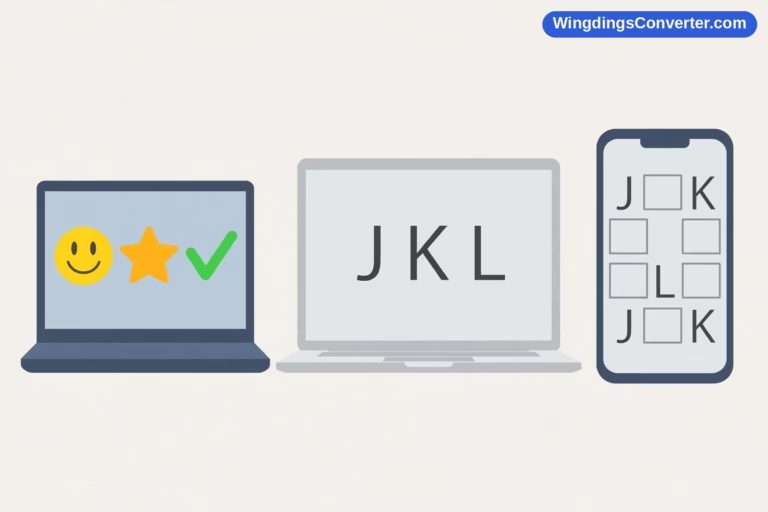
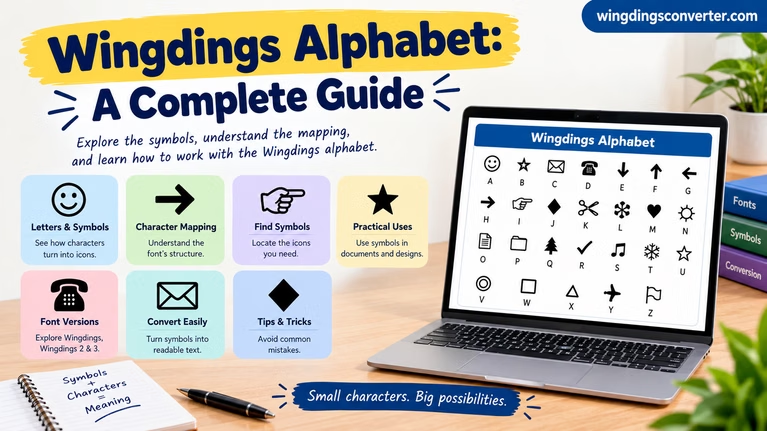
If a symbol you’ve typed sometimes appears as a square box, or changes style between your phone and your laptop, that’s not you doing something wrong. Fonts decide how a symbol is drawn, and not every font contains every symbol. This is the same reason symbol fonts like Wingdings can surprise you — type a normal letter, apply a picture font, and you see a picture instead. If that behaviour has ever confused you, try pasting a few characters into the Wingdings converter on the homepage and watch what they become; it’s the fastest way to see how much the font, not the letter, controls what you see.
It also explains why a symbol copied from a fancy website can turn plain, or vanish, in another app. The character travels; the drawing of it may not.
Frequently Asked Questions
What is the proper name for the # symbol?
Its formal name is the number sign. Hash is common in the UK and online (hence hashtag), pound is common in North America, especially for phone keypads, and octothorpe is a fun piece of trivia you’ll almost never need. All refer to the same key.
What’s the difference between a hyphen, an en dash, and an em dash?
Length and job. A hyphen (-) joins compound words. An en dash (–) connects ranges like 10–20. An em dash (—) creates a strong break in a sentence. Only the hyphen has its own key; the dashes are inserted characters.
Why is the @ sign used in email addresses?
Because it reads naturally as “at.” An address like name@example.com says, in effect, this person at this domain. The convention dates to the early 1970s and early networked email, and social media later borrowed the same @ for mentions.
What does ^ mean when someone replies with just that?
It means “see above” or “I agree with the comment above.” It’s quick chat shorthand pointing up the thread. In maths and spreadsheets, the same caret means raising to a power, as in 2^3 = 8.
How do I type symbols that aren’t on my keyboard, like © or ™?
On Windows, hold Alt and type the code on a numeric keypad (Alt+0169 for ©, Alt+0153 for ™). In Microsoft Word, type the Unicode hex code and press Alt+X — 00A9 Alt+X gives ©. On a Mac, press Ctrl+Cmd+Space to open the Character Viewer and search by name. In Office apps generally, Insert > Symbol also works — Microsoft’s guide to inserting symbols and characters walks through that dialog step by step.
Is a slash the same as a backslash?
No. A forward slash (/) leans right and is used in web addresses, dates, and fractions. A backslash (\) leans left and is mainly used in Windows file paths. Mixing them up in a web address will break the link.
Conclusion
None of these symbols is complicated on its own. The confusion comes from the pile-up: three names for #, three lengths of dash, two slashes leaning opposite ways. Now you’ve got a name and a job for each one, and a table to check when memory fails. Keep this guide handy, use the right dash, and you’ll already be ahead of most of the internet. And when a symbol behaves strangely — changing shape or turning into a box — remember it’s almost always the font, not your typing.