Why Do Wingdings Symbols Change When Copied?
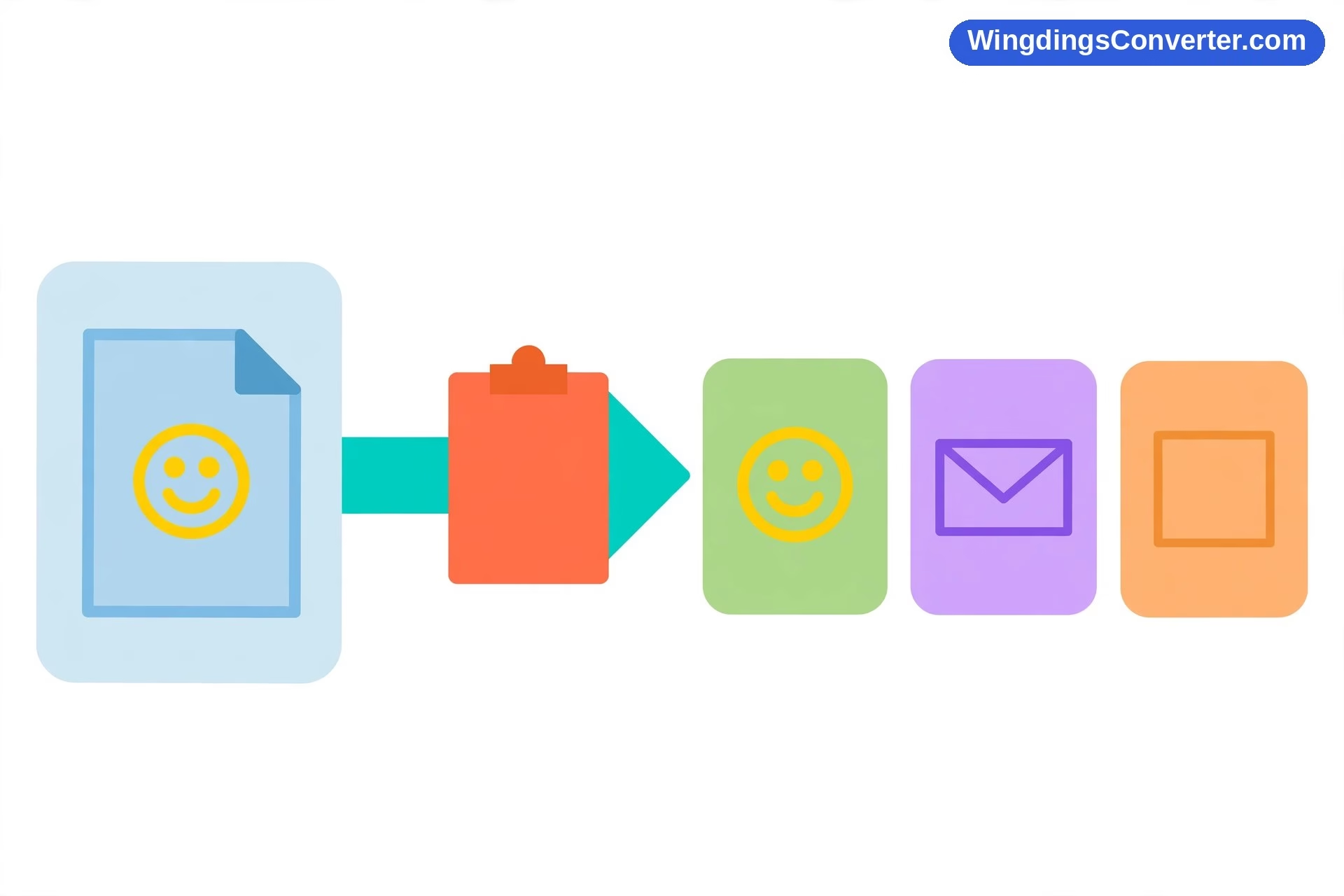
You copied a perfect little row of symbols — a smiley, a check mark, a couple of arrows — pasted it somewhere new, and got… letters. Or boxes. Or, most confusing of all, completely different symbols. If you’ve found yourself asking why do Wingdings symbols change when copied, here’s the short version: when you copy Wingdings text, the symbols themselves aren’t really what travels. What travels is ordinary letters plus a font instruction, and whether your symbols survive the trip depends entirely on whether that instruction makes it — and whether the place you pasted into can honour it.
Let’s slow that down, because once this clicks, a whole category of everyday annoyances stops being mysterious. Wingdings, Microsoft’s symbol font from 1990, designed by Charles Bigelow and Kris Holmes, doesn’t contain letters in the normal sense. It contains pictures assigned to letters. A capital J formatted in Wingdings displays as a smiling face. K displays as a neutral face. L as a sad face. The check mark so many people use is the picture Wingdings assigns to ü, character code 252. Underneath all of those, in the file, on the clipboard, the characters are just J, K, L, and ü. The picture only exists at display time, when an app reads the letter, sees “font: Wingdings,” and draws the glyph.
Copying and pasting moves the letter easily. Moving the instruction — and finding an app that obeys it — is where things fall apart.
What the Clipboard Actually Carries
Think of copying as packing a suitcase, and different paste destinations as different border controls deciding what gets in.
When you copy formatted text from Word, the clipboard usually holds several versions of your content at once: a rich version with fonts, sizes, and colours; a plainer version; and a pure plain-text version with nothing but the raw characters. The app you paste into chooses which version to accept.
- A rich-text paste into a capable app takes the rich version. The letter arrives with its “display in Wingdings” instruction. If that app also has the Wingdings font available, your symbol reappears exactly as it looked. This is why pasting from one Word document to another on the same Windows PC usually works flawlessly.
- A plain-text paste takes only the raw characters. The instruction is thrown away at the border. J arrives as J, ü arrives as ü, and since nothing tells the destination to dress them up, letters are what you see. No amount of staring will bring the pictures back — the formatting genuinely isn’t there. You’d have to select the pasted text and apply Wingdings again, which does work, because the letters themselves survived.
That second bullet is not a malfunction. Plain-text paste exists precisely to strip formatting — people use it to escape unwanted fonts when copying from web pages into documents, for example. The shortcut Ctrl+Shift+V triggers it in many apps (“Paste special” or “Paste as plain text” menus do the same), and entire categories of fields — search boxes, code editors, many web forms, filename fields — accept nothing but plain text. Paste Wingdings into any of them and letters are guaranteed, by design.
Why the Destination App Changes the Outcome
Even a rich-text paste is only half the journey. The receiving app still has to have Wingdings and be willing to use it.
Word to Word, PowerPoint, or Excel on Windows: the friendliest route. Wingdings ships with Windows and Office, these apps respect font formatting, so symbols nearly always survive. If they don’t, suspect a plain-text paste happened — see how to copy and paste Wingdings symbols for the exact paste options to choose in each Office app.
Into an email: it depends on the client and the format of the message. A rich HTML email composed in desktop Outlook may preserve the font instruction, but the recipient’s client then has to render it — and their phone or webmail may substitute fonts anyway. Your sent folder showing perfect symbols proves nothing about what arrived.
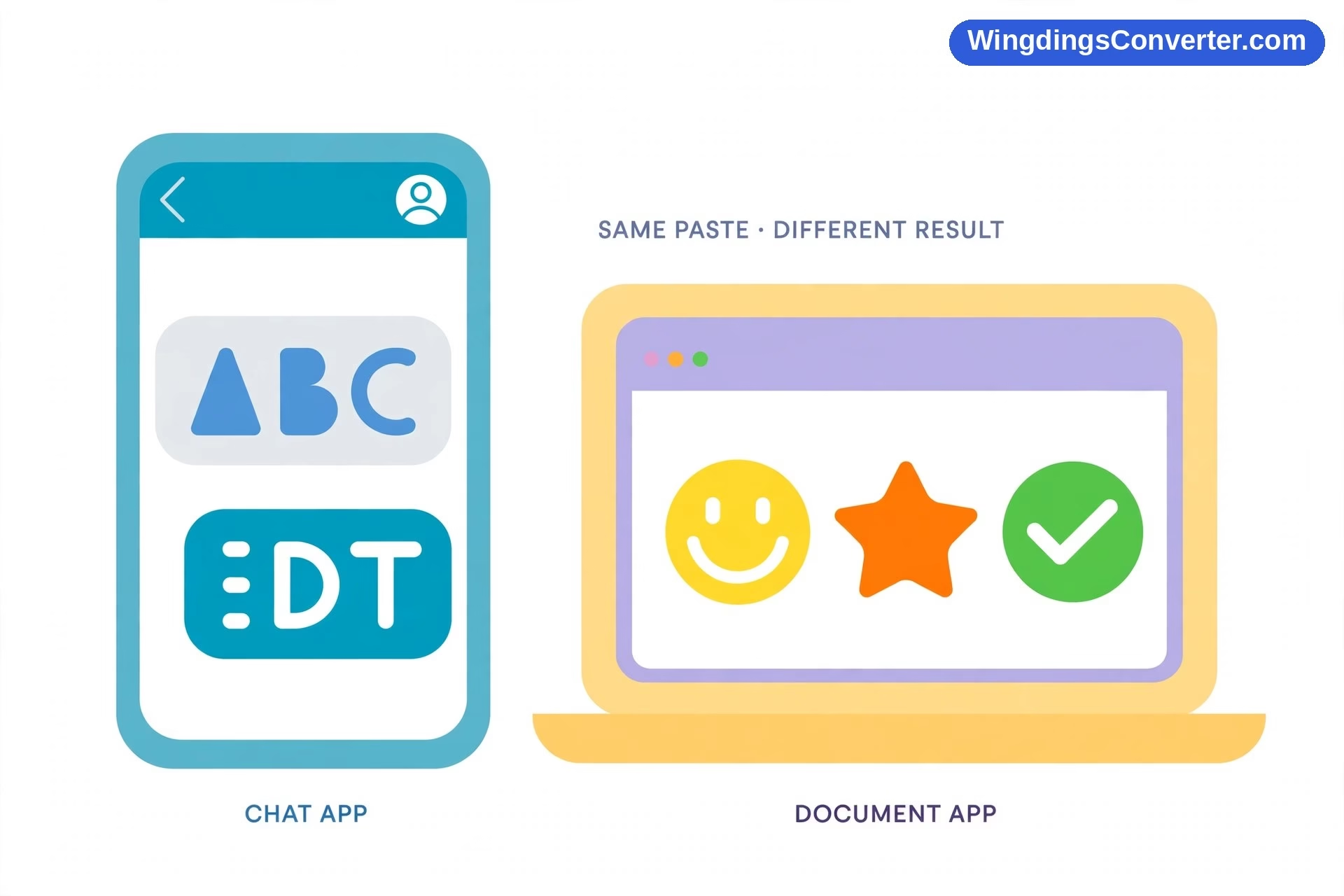
Into WhatsApp, Messenger, and other chat apps: expect letters. These apps use their own text systems and fonts; they don’t load Wingdings from your system to render your messages. Someone pasting a Wingdings “secret message” into WhatsApp discovers this in about four seconds. The text isn’t broken — the stage it was performed on doesn’t have the costume.
Into a browser or web editor like Google Docs: web apps render with web-safe approaches and their own font libraries. Wingdings isn’t a standard part of that world. Some editors strip the unknown font on paste; others keep the name but can’t display it and substitute something else. Either way, symbols are unlikely to survive the move intact, which is why how to use Wingdings in Google Docs recommends image or Unicode workarounds instead of paste-and-pray.
Onto a phone: Wingdings isn’t built into iOS or Android, and not into macOS either without Office. Text that depends on it gets substituted wherever it lands. Sometimes substitution yields plain letters (a font drew the characters as text); sometimes it yields squares, when the character code requested has no glyph in the substitute — the two different failure modes we compare in why does Wingdings show as squares.
The Weirdest Case: Symbols That Change Into Different Symbols
Occasionally a paste doesn’t produce letters or boxes but a third, stranger result: symbols, plural, present, but wrong. A star where your arrow was. A different face entirely.
That happens when the destination doesn’t have Wingdings but substitutes another symbol font with its own assignments — or when text passes through a tool that maps characters according to a different symbol font, such as Webdings (Microsoft’s 1997 companion font) or a generic dingbat font. Remember, the letter stays constant while fonts disagree about which picture that letter means. Font A draws J as a face; a different symbol font may draw the same code as something else entirely. The text hasn’t changed at all — the interpreter has. This is the purest demonstration that Wingdings “text” was never pictures: it’s letters all the way down, and pictures only by agreement with one specific font. We dig into the neighbouring fonts in Wingdings vs Webdings: what’s the difference, and the whole category in dingbat fonts explained.
A related mix-up involves Wingdings 2 and Wingdings 3, the sibling fonts with different glyph sets. Text formatted in Wingdings 3 — mostly arrows — pasted somewhere the “3” gets dropped or the font substituted can resurface wearing the original Wingdings’ pictures for those letters. If a pasted block looks like a themed set of wrong symbols rather than random ones, check which exact font name the paste is carrying.
Why Unicode Symbols Don’t Have This Problem
It’s worth pausing on the contrast, because it explains the modern fix.
A genuine Unicode check mark is not a letter in a costume. The character itself is the check mark — it has its own code point in the Unicode standard, and any device with a normal text font draws that character as a check mark, in that font’s style. Copy it, paste it as plain text into a chat app on a phone, and it’s still a check mark, because there was never separate formatting to lose. The symbol and the character are one thing.
Wingdings characters are two things — letter plus font instruction — and copying has to move both, through an app that respects both, onto a device that owns the font. Every extra link in that chain is a chance to break. That’s not a flaw in how you copied; it’s the architecture of a clever 1990 solution meeting a world of phones, browsers, and chat apps it never anticipated. The history of Wingdings is full of this tension: a font designed when “sharing a document” meant handing someone a printout from the same office.
For a side-by-side of the two systems, see Wingdings vs Unicode: what’s the difference.
How to Copy Wingdings So the Symbols Survive
Knowing the mechanics, the survival rules write themselves:
- Paste rich, not plain. Use Ctrl+V, not Ctrl+Shift+V, and if a “Paste Special” dialog appears, choose the formatted/HTML/RTF option rather than “Unformatted text.” If symbols still arrive as letters, you at least know the formatting was stripped — select the pasted text and reapply Wingdings manually. The letters are intact, so this genuinely fixes it in Word, PowerPoint (how to use Wingdings in PowerPoint), and Excel.
- Stay inside font-supporting destinations. Office apps on a machine with the font installed are safe territory. The moment the destination is a browser form, chat app, or phone, change strategy instead of retrying the same paste harder.
- Convert to Unicode before copying to fragile places. If the symbols are headed for the web, a phone, or anyone else’s screen, turn them into real Unicode symbols first, then copy those. They’ll survive plain-text paste, because there’s no formatting left to lose. Our walkthrough on how to convert Wingdings to Unicode handles the translation, and the tool on our homepage plus how to decode Wingdings online help you identify what a string of Wingdings was meant to say.
- Send a file, not a paste, when appearance matters. If the recipient needs the document exactly as designed, share the .docx (ideally with fonts embedded via File > Options > Save > “Embed fonts in the file” — noting that licensing can restrict this and symbol fonts may not embed) or, better for view-only purposes, a PDF exported while the symbols look right. A PDF doesn’t ask the other machine to perform the trick at all.
- Test with the simplest case. Before sending an important document, copy one smiley — a Wingdings J — to the destination and see what lands. Ten seconds of testing beats discovering, after the fact, that your entire handout arrived as alphabet soup. When things do arrive broken, how to fix missing Wingdings characters is the repair manual.
Frequently Asked Questions
Why do my Wingdings symbols become letters when I paste them?
Because a Wingdings character is a letter plus font formatting. A plain-text paste — or pasting into a plain-text field or an app that ignores the font — keeps the letter and discards the formatting, so you see J instead of a smiling face, or ü instead of a check mark. In Word you can select the pasted letters and reapply Wingdings to restore them.
What’s the difference between Ctrl+V and Ctrl+Shift+V for Wingdings?
In many apps, Ctrl+V pastes with formatting, carrying the Wingdings font instruction along, so symbols survive if the destination supports the font. Ctrl+Shift+V pastes as plain text, deliberately stripping all formatting — Wingdings included — so only letters arrive.
Why do Wingdings symbols change in WhatsApp and other chat apps?
Chat apps render messages in their own fonts and don’t load Wingdings from your device — and Wingdings isn’t built into phones anyway. Without the font, the underlying letters are all there is to show. Use Unicode symbols or emoji in chat instead; they display natively.
Why did my symbols turn into different symbols, not letters?
The destination substituted a different symbol font, such as Webdings or another dingbat font. The letters never changed, but each symbol font assigns different pictures to the same letters, so the same text renders as a different set of glyphs. Check the font name attached to the pasted text.
Do Wingdings symbols survive being copied into Google Docs?
Usually not. Google Docs uses its own font library, where Wingdings isn’t a standard option, so pasted Wingdings typically degrades to letters. Convert the symbols to Unicode equivalents first, and they’ll paste into Docs — and everywhere else — as themselves.
How can I send Wingdings so the other person sees the real symbols?
For editing in Word on Windows, share the .docx with fonts embedded where possible. For viewing or printing, export a PDF while the symbols display correctly on your machine. For anything involving phones, browsers, or chat, convert the glyphs to Unicode symbols before sending.
Conclusion
Wingdings symbols change when copied because, in a sense, the symbols were never the thing being copied. Letters travel; pictures are a local performance staged by one specific font, and the performance only happens if the formatting ticket survives the paste and the destination owns the font and agrees to stage it. That’s why the same copy can land perfectly in Word, as letters in WhatsApp, and as boxes on a phone. Once you see the mechanism, you stop fighting it: paste rich inside Office, convert to Unicode for everywhere else, and reach for PDF when the picture absolutely has to arrive intact.