Wingdings Symbols and Their Meanings: A Practical Guide
Wingdings symbols can look confusing when you first encounter them. You might see a small envelope, pointing hand, star, telephone, or other unusual character in a document and wonder what it represents. These symbols are part of Wingdings, a special font that turns certain keyboard characters into pictures instead of ordinary letters.
Understanding Wingdings symbols and their meanings makes it easier to read old documents, create decorative text, and choose the right symbols for your own projects. However, one important detail is worth knowing: Wingdings is not a universal picture language. The meaning of a symbol often depends on how it is used, and the character that produces it depends on the font version and software.
This guide explains common Wingdings symbol categories, how to interpret them, and how to find the symbol you need without guessing.
What Is Wingdings?
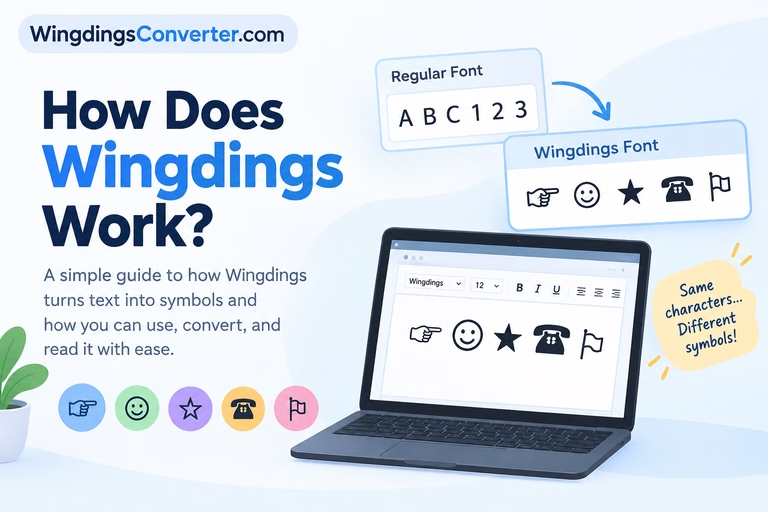
Wingdings is a symbol font developed by Microsoft and introduced in 1990. Instead of displaying the usual letters and numbers, it maps many character positions to graphical symbols.
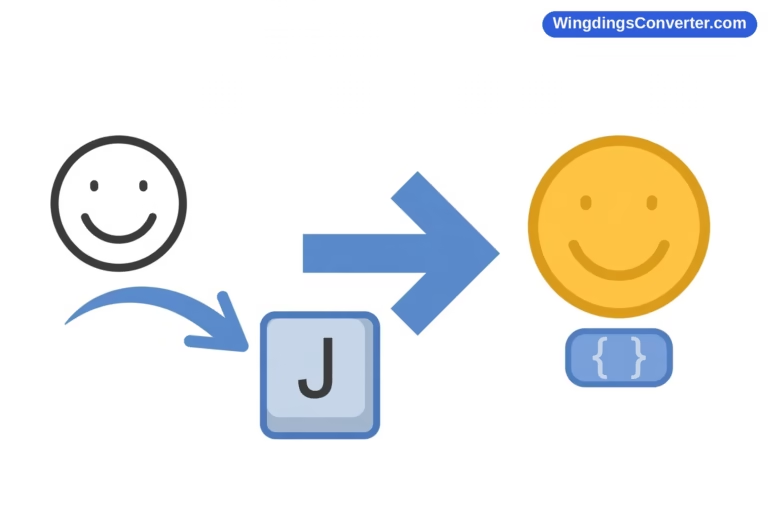
For example, typing a particular keyboard character while using a Wingdings font may display a decorative shape rather than the letter you would normally expect. Switch back to a standard font, and the underlying character becomes visible again.
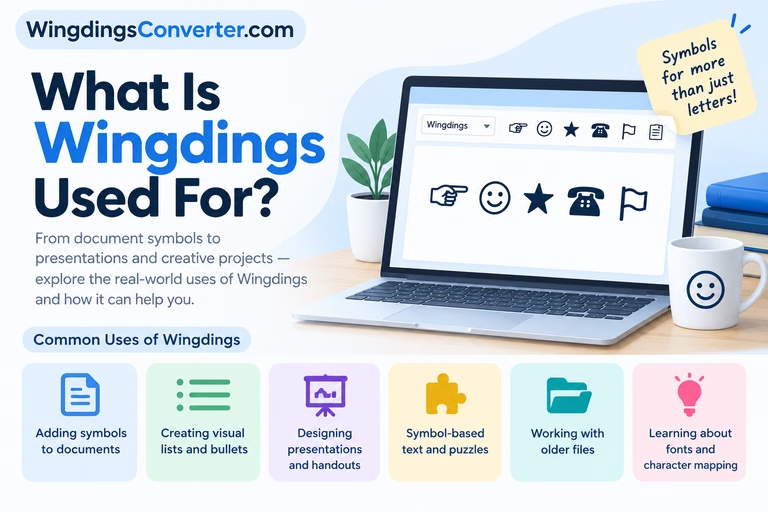
Wingdings includes several types of symbols, such as:
- Arrows and pointing hands
- Stars and decorative shapes
- Everyday objects
- Communication-related icons
- Check marks and other simple markings
- Geometric shapes and visual indicators
People have used these symbols in documents, presentations, invitations, labels, and other designs. Although modern emoji and icon libraries have replaced Wingdings in many situations, the font remains useful when working with older files or creating a particular visual style.
Common Wingdings Symbols and What They Represent
Wingdings contains a wide selection of graphical characters. Their meanings are not always fixed, but many symbols are easy to interpret from their appearance.
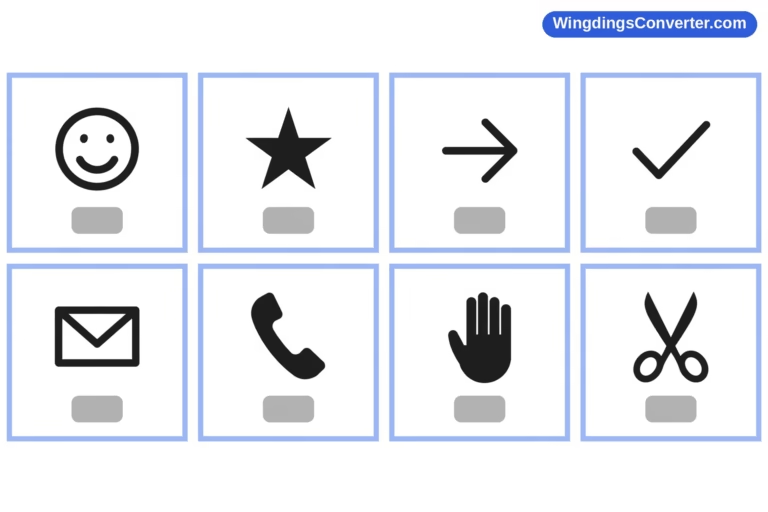
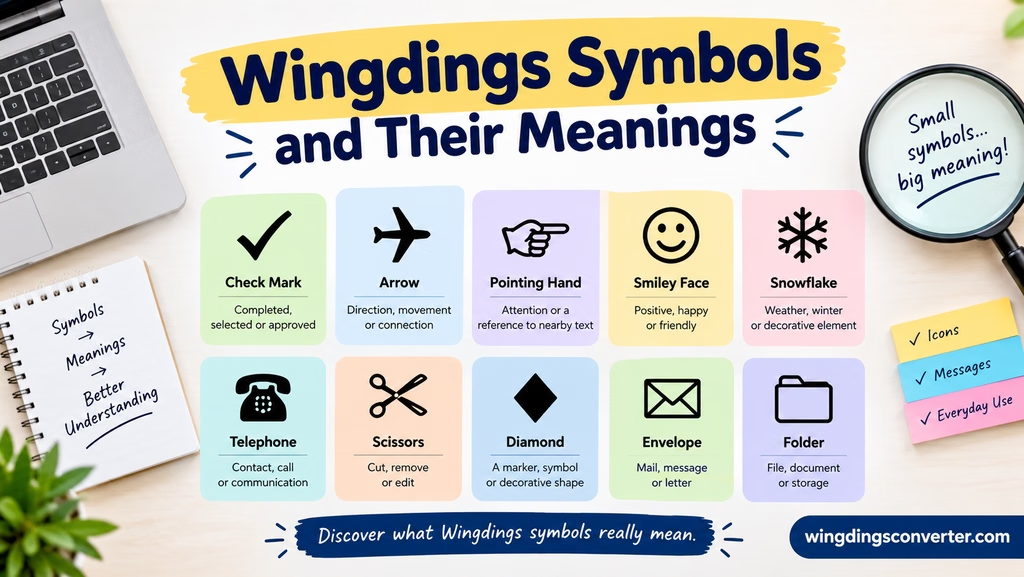
The following table describes common symbol types and their usual interpretations. These are visual descriptions, not a guaranteed character-by-character Wingdings mapping.
| Symbol type | Common interpretation | Possible use |
|---|---|---|
| ★ Star | Importance, achievement, or emphasis | Highlighting a key point |
| ✓ Check mark | Completion, approval, or confirmation | Checklists and status indicators |
| → Right arrow | Direction, movement, or next step | Instructions and diagrams |
| ☎ Telephone | Calling or contact information | Contact sections |
| ✉ Envelope | Email or written communication | Email addresses and messages |
| ☞ Pointing hand | Directing attention | Notes and important instructions |
| ◆ Diamond | A visual marker or decorative accent | Lists and headings |
| ● Filled circle | A point, bullet, or marker | Lists and simple diagrams |
| ✦ Decorative star | Emphasis or ornamentation | Invitations and creative layouts |
Important: The examples above illustrate familiar symbol meanings. They should not be treated as a verified list of Wingdings keyboard mappings. Some of these characters may come from Unicode or other symbol fonts rather than the original Wingdings font.
If you need the exact Wingdings character behind a symbol, use a converter or character reference that identifies the relevant font and character mapping.
Understanding Different Categories of Wingdings Symbols
Rather than memorizing every symbol, it helps to understand the main groups and what they are generally used for.
1. Arrows and Directional Symbols
Arrows communicate movement, direction, sequence, or a relationship between two things. In Wingdings, directional symbols can help make instructions and diagrams easier to follow.
Depending on the design, an arrow might indicate:
- The next step in a process
- A direction someone should follow
- A connection between two ideas
- A return or continuation
- A point that deserves attention
For example, an arrow placed beside a heading can draw the reader toward a particular section. In a process diagram, arrows can show the order in which tasks should happen.
When choosing a directional symbol, pay attention to its shape. A left-facing arrow and a right-facing arrow may look similar at a glance but communicate different instructions.
2. Stars and Decorative Symbols
Stars and ornamental shapes are useful when you want to make a document more visually interesting.
Depending on their appearance and context, these symbols can represent importance, celebration, quality, or decoration. A star beside a sentence might highlight a recommendation, while a decorative shape can make an invitation or heading stand out.
However, a star does not automatically mean a product is highly rated, nor does every decorative mark carry a special message. Its meaning depends on the surrounding text and the way the symbol is presented.
For a professional document, use decorative symbols sparingly. Too many different shapes can make a page look cluttered and distract readers from the information.
3. Hands and Attention Symbols
Pointing hands are among the more recognizable types of symbols found in classic symbol fonts. Their main purpose is to direct attention toward something important.
You might use a pointing hand to emphasize a note, identify a particular line, or introduce a short instruction.
For example, a hand symbol beside a heading could draw attention to a section explaining an important requirement. In a printed flyer, it might point toward contact details or an event announcement.
The direction matters, especially when the symbol is being used as a visual instruction. Always check how it appears in the final document rather than assuming it points in the intended direction.
4. Communication and Everyday Objects
Wingdings includes graphical symbols representing objects and familiar concepts. Depending on the character set, these can include items associated with communication, tools, activities, and daily life.
An envelope-shaped icon is commonly associated with email or correspondence. A telephone-shaped icon suggests calling or contact information. Other object symbols may help illustrate a topic without requiring a full image.
These symbols can be useful in:
- Contact cards and information sheets
- Invitations and announcements
- Office documents
- Educational materials
- Simple visual guides
Be careful not to confuse the appearance of an icon with a guaranteed technical function. A telephone symbol printed beside a number does not create a clickable phone link, and an envelope symbol does not send an email.
5. Checks, Crosses, and Simple Markings
Check marks, crosses, circles, and similar shapes can help communicate status or organize information.
A check mark often indicates completion or approval. A cross might indicate an incorrect answer, a missing item, or something that should not be selected. A circle can serve as a marker or highlight.
These interpretations are common conventions rather than fixed Wingdings definitions. For instance, a cross may mean multiplication in a mathematical context, while the same shape might indicate a negative response on a checklist.
If you are preparing instructions for other people, include a text label when the symbol’s meaning could be misunderstood.
Why Wingdings Symbols Sometimes Look Different
One of the most common sources of confusion is that a Wingdings symbol may not appear the same way in every application.
Several factors can affect the result.
The font being used: A character typed in Wingdings may display as a picture, while the same character in Arial or another regular font displays as a letter, number, or punctuation mark.
The font version: Different versions or related symbol fonts may not use identical character mappings.
The application: Microsoft Word, a web browser, a PDF viewer, and other applications may handle fonts differently. If a font is missing, an application may substitute another font, causing the expected symbol to disappear or change.
The character encoding: Modern text systems use Unicode to represent characters consistently across many platforms. Traditional Wingdings mappings do not always behave like ordinary Unicode text, so copying and pasting can produce unexpected results.
The operating system: A document opened on another computer may display differently if the required font is unavailable or embedded incorrectly.
These differences explain why an online image of a Wingdings symbol is not always enough to identify the keyboard character that produces it.
How to Find the Meaning of a Wingdings Symbol
If you have found an unfamiliar symbol in a document, there are several ways to identify it.
Method 1: Use the Wingdings Converter
The Wingdings Converter on WingdingsConverter.com can help you work with text and Wingdings symbols.
A practical approach is to:
- Open the Wingdings Converter on WingdingsConverter.com.
- Enter or paste the text you want to convert, if the tool’s current interface supports that operation.
- Review the resulting symbols.
- Compare the output with the symbol you are trying to identify.
- Copy the result into your document if it matches your intended use.
A converter is particularly helpful when you want to explore how ordinary characters correspond to Wingdings output.
Keep in mind that conversion tools can use different mappings. If you are decoding an old document, the original font and application may matter.
Method 2: Check the Font in Microsoft Word
If the symbol appears in a Word document, first check which font is assigned to the character.
- Open the document in Microsoft Word.
- Select the unfamiliar symbol.
- Look at the font name in the toolbar.
- If it is Wingdings, note the character’s position or copy it into a separate test document.
- Change the font only in the test copy to see what underlying character is stored.
This can help distinguish a Wingdings character from a standard Unicode symbol. However, changing fonts alone will not always reveal the symbol’s intended meaning.
Method 3: Use Character Map on Windows
Windows Character Map provides a visual way to inspect characters available in installed fonts.
- Open the Windows Start menu.
- Search for Character Map.
- Launch the application.
- Choose Wingdings from the font list if it is installed.
- Browse the available symbols.
- Select a symbol to inspect it and use the application’s copy function where available.
Character Map is useful when you recognize a symbol visually but do not know which keyboard character produces it.
The available fonts and symbols depend on the Windows installation. If Wingdings does not appear in the list, the font may not be installed.
Wingdings vs. Unicode Symbols and Emoji
Wingdings symbols, Unicode symbols, and emoji can look similar, but they work differently.
| Feature | Wingdings | Unicode symbols | Emoji |
|---|---|---|---|
| How it works | Uses a symbol-font character mapping | Uses standardized character codes | Uses Unicode characters and sequences |
| Appearance | Depends on the font and application | Can vary by font | Can vary by platform and emoji design |
| Copying between applications | May produce unexpected results | Usually more portable when supported | Often portable, though appearance changes |
| Typical use | Legacy documents and decorative layouts | Text, symbols, and general-purpose documents | Messages, social media, and expressive text |
The biggest difference is portability. If you copy a Wingdings character into an application that does not use the same font, it may display as an ordinary character instead of the symbol you expected.
Unicode symbols are often a better choice when you need a symbol to remain recognizable across websites, phones, and computers. Emoji are useful for informal communication but may have a different visual style on each platform.
Wingdings still makes sense when you are editing an existing document that relies on it or deliberately want its distinctive visual appearance.
Practical Tips for Using Wingdings Symbols
Once you understand the basic categories, a few simple habits can help you avoid common problems.
Preview before publishing. Check the document on the device or application where your audience is likely to view it.
Keep a copy of the original text. If you convert ordinary text into Wingdings, save the original wording separately so you can edit or recover it later.
Do not rely on symbols alone. Add a short label when a symbol communicates an important instruction, warning, or status.
Check font availability. If another person needs to edit your file, make sure they have access to the necessary font or use a suitable alternative.
Choose symbols for clarity. A simple arrow or check mark is usually more useful than a complicated decorative character when the goal is to communicate information.
Use the correct conversion method. Converting normal text into Wingdings is different from identifying the underlying characters in a document that already contains Wingdings symbols. Make sure the tool or method matches your task.
For more detailed guidance, consider adding these related resources to WingdingsConverter.com:
- How to Use a Wingdings Converter?
- How to Decode Wingdings Text?
- Wingdings vs. Webdings: What’s the Difference?
- How to Type Wingdings Symbols in Microsoft Word?
These articles would help readers move from recognizing symbols to using or converting them correctly.
Frequently Asked Questions
Do Wingdings symbols have fixed meanings?
Not always. A symbol’s appearance may suggest a common meaning, such as direction or communication, but its interpretation depends on context. Wingdings is a symbol font, not a universal language with a single official meaning for every character.
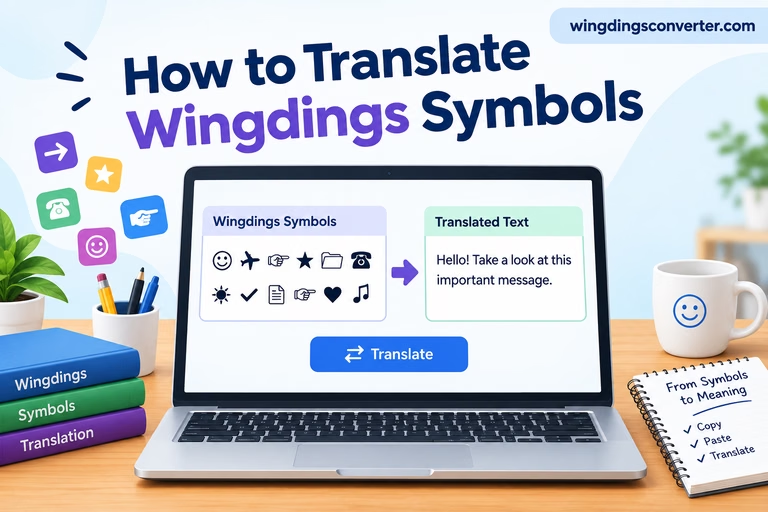
Can I translate Wingdings symbols into English?
You can often recover the underlying text or keyboard characters if you know the original font mapping. However, a graphical symbol does not always represent a specific English word. A converter can help with supported mappings, but the original document’s font and encoding may be important.
Why does Wingdings show letters instead of symbols?
The text may be displayed in a regular font rather than Wingdings. Select the relevant characters and check the font setting. If the correct font is missing, install or select an appropriate font where licensing and software support allow it.
Are Wingdings symbols the same as emoji?
No. Wingdings is a symbol font, whereas emoji are Unicode characters or sequences. Their appearance and portability differ, and a Wingdings character may not survive copying into another application as the same visual symbol.
Can I use Wingdings symbols on a website?
You can use them in web content when the required font and character mapping are supported, but visitors may not have the font installed. For broader compatibility, consider using Unicode symbols, properly licensed icon assets, or web fonts with reliable browser support.
How can I copy a Wingdings symbol without changing its appearance?
Copying the character alone may not preserve its appearance. The receiving application may need the same font, or the document may need to embed the font where permitted. If you need a symbol to look identical everywhere, exporting it as an image or using a suitable standardized alternative may be more reliable.
Final Thoughts
Wingdings symbols are easiest to understand when you separate their visual meaning from the character that produces them. An arrow may suggest direction, a star may draw attention, and an envelope may represent communication, but the exact mapping depends on the font and the software displaying it.
If you are trying to identify a symbol, start by checking the font in the original document. If you want to create new Wingdings text, use the Wingdings Converter on WingdingsConverter.com to explore the available conversion options. With the right mapping and a quick preview, you can use these classic symbols without unnecessary guesswork.