Wingdings Symbols Chart: A Guide to Symbols, Characters, and Their Uses
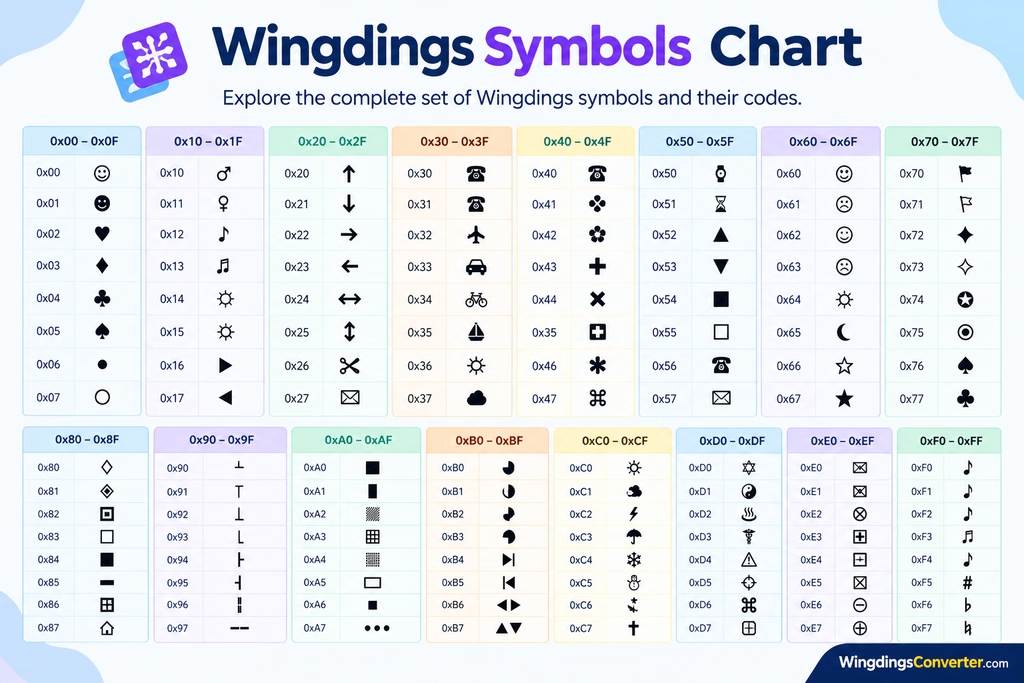
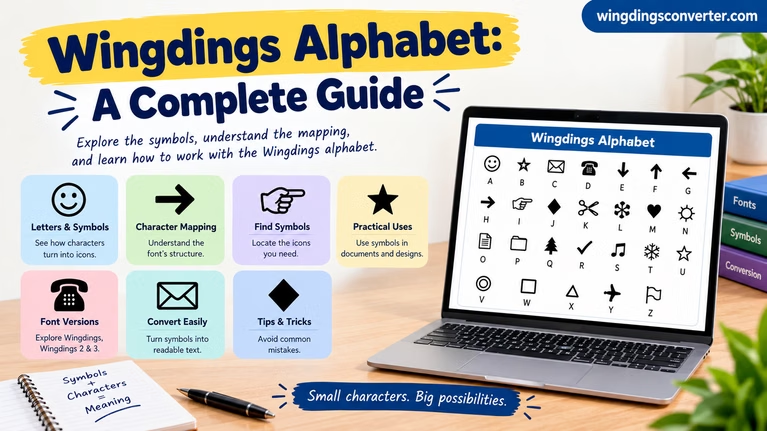
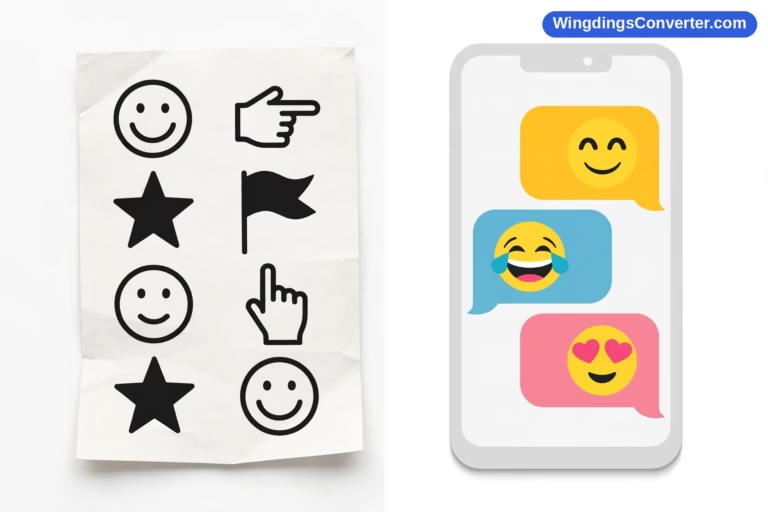
A Wingdings symbols chart makes it easier to identify the unusual icons displayed by the Wingdings font. Instead of showing ordinary letters in the familiar way, Wingdings uses character positions to display symbols such as arrows, hands, check marks, shapes, and decorative designs.
If you need to find a particular Wingdings symbol, understand a character in an old document, or figure out why copied text looks different, a chart is a useful place to start.
The important thing to remember is that a Wingdings chart must match the font version you are using. A symbol’s appearance, its underlying character, and its intended meaning are related, but they are not necessarily the same thing.
Wingdings Symbols Chart: Common Symbol Categories
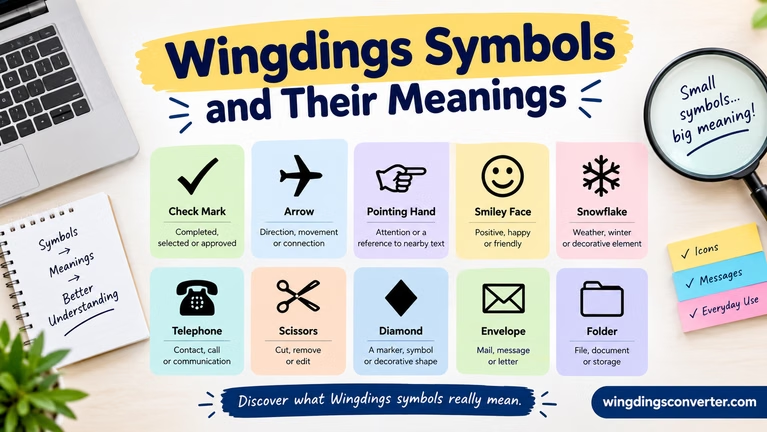
Wingdings includes a variety of pictorial symbols. The table below provides a quick visual reference to common symbol types and their everyday uses.
| Symbol example | Symbol category | Common use |
|---|---|---|
| ✓ | Check mark | Indicating completion or selection |
| → | Arrow | Showing direction or movement |
| ☺ | Smiley face | Adding a friendly or playful touch |
| ✉ | Envelope | Representing mail or messages |
| ✂ | Scissors | Indicating cutting or editing |
| ★ | Star | Highlighting an item or decorating a layout |
| □ | Square | Serving as a marker or geometric shape |
| ☎ | Telephone | Representing calls or communication |
| ☞ | Pointing hand | Drawing attention to text or an item |
| ♢ | Diamond shape | Decoration or visual organization |
What Information Does a Wingdings Chart Show?
A useful Wingdings character chart usually connects a symbol’s appearance with the character or input that produces it.
Depending on the reference, it may include:
- Symbol preview: What the character looks like when the correct font is applied.
- Keyboard character: The key or character associated with the symbol.
- Character code: A numerical value identifying the character in a particular encoding.
- Font name: The Wingdings version the chart covers.
- Input instructions: How to enter the character in a compatible application.
Not every chart includes all these details. Some are designed for quickly browsing symbols, while others focus on keyboard inputs and character codes.
If you only want to identify a picture, a visual chart may be enough. If you need to reproduce a symbol accurately, you will want the font name and character information as well.
How to Find a Symbol in the Chart
Finding a particular symbol is easier when you know what you are looking for. Instead of scanning every character, narrow the search by appearance and then confirm the mapping.
Step 1: Identify the symbol’s shape
Start by describing the symbol. Is it an arrow, a hand, a geometric shape, an object, or a decorative mark?
For example, if you need a right-pointing arrow, look for directional symbols rather than browsing the entire character set.
Step 2: Confirm the font version
Check whether your document uses Wingdings, Wingdings 2, Wingdings 3, or another symbol font.
These fonts have different character mappings. A symbol found in one chart may not correspond to the same keyboard character in another.
Step 3: Compare the symbol with the chart
Find a reference that identifies the font you are using. Compare the displayed symbol and note its corresponding character or input instructions.
Do not rely on a chart that shows only pictures if you need the exact keyboard character.
Step 4: Test the character
Enter the character in the application where you intend to use it, then apply the appropriate font if necessary.
Check the result against the chart. This final step helps catch mistakes caused by font differences, character encoding, or input methods.
Why Wingdings Symbols Look Different From Regular Text
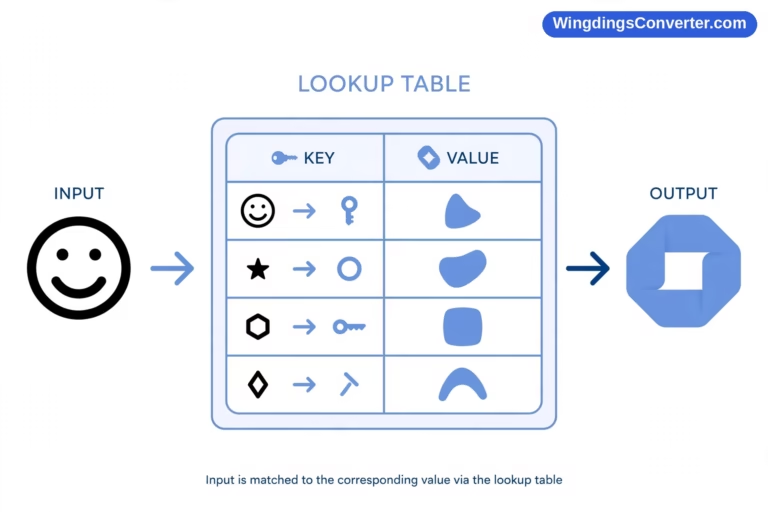
Wingdings is a symbol font, which means it changes how characters are displayed.
In a regular font, typing a letter such as A displays the familiar letter. With Wingdings, that character position may display a pictorial symbol instead.
Imagine copying a character from a Word document where Wingdings is applied. If you paste it into a plain-text editor, the font formatting may be removed. The underlying character may then appear as an ordinary letter or punctuation mark.
This does not necessarily mean the character has changed. It may simply be displayed using a different font.
This is also why a Wingdings symbols chart should be treated as a font-specific reference rather than a universal translation table.
Wingdings, Wingdings 2, and Wingdings 3: What’s the Difference?
The names are similar, but Wingdings, Wingdings 2, and Wingdings 3 are separate symbol fonts. Their character sets and mappings should not be assumed to be identical.
When using a chart, pay attention to the font name printed on it.
| Font | What to remember |
|---|---|
| Wingdings | Use a chart that specifically identifies the original Wingdings font. |
| Wingdings 2 | Check its own symbol set and character mapping. |
| Wingdings 3 | Use a reference designed for Wingdings 3 rather than assuming another chart will match. |
If a character produces an unexpected symbol, the font version is one of the first things to check.
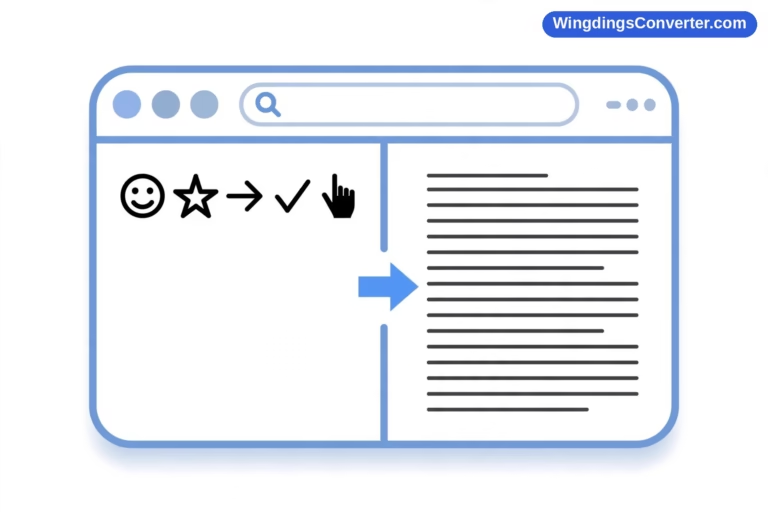
How to Convert Wingdings Symbols Into Readable Text
A chart is useful for identifying individual characters, but what if you have a whole sequence of Wingdings text?
The Wingdings Converter on WingdingsConverter.com can help with supported conversion tasks. It is useful when you need to work with text and symbols without manually checking each character against a chart.
Here is a practical way to approach the task:
- Open WingdingsConverter.com.
- Open the Wingdings Converter tool.
- Select the conversion direction that fits your task.
- Enter or paste the available text.
- Review the output and compare it with the original.
The result depends on the input and the character mapping supported by the converter.
For example, if you copy text from a document using Wingdings, you may copy the underlying characters rather than the visible symbol images. A compatible converter can help interpret those characters, but it cannot always determine the intended meaning of a puzzle or a deliberately encoded message.
If your source is a screenshot, remember that it contains image pixels rather than editable text. You may need to identify the symbols visually before you can work with their character values.
Can You Copy and Paste Wingdings Symbols?
Yes, in some situations, but copying a symbol does not always preserve the way it looks.
The result depends on the source application, the destination application, and whether the original font formatting is retained.
For the best results:
- Copy from the original document when possible.
- Check whether the Wingdings font remains applied after pasting.
- Confirm that the receiving application supports the required font.
- Use the correct chart if you need to identify the underlying character.
- Keep a copy of the original document before changing its formatting.
If the symbol looks different after pasting, inspect the font before assuming the character itself is incorrect.
What Are Wingdings Symbols Used For?
Wingdings symbols can be useful when you want to add visual elements to a document without inserting a separate image for every symbol.
Common uses include:
- Document formatting: Adding visual markers to lists and instructions.
- Forms and checklists: Using suitable symbols to distinguish items or indicate status.
- Diagrams: Adding arrows and other visual elements.
- Decorative layouts: Including shapes and symbols in headings or designs.
- Older documents: Identifying characters that may look different when a file is opened on another computer.
The font is most useful when the symbols are appropriate for the document and the people receiving it can view them correctly.
For documents shared across different systems, standard Unicode symbols or inserted images may be more reliable when consistent appearance is essential.
Common Problems When Using a Wingdings Chart
If a symbol chart does not seem to match what appears on your screen, check these possible causes.
The chart uses a different font. Confirm the exact font name before looking up a character.
The required font is unavailable. The application may substitute another font and display a different symbol.
The character was copied incorrectly. Some document formats and conversion processes may change or lose character information.
The symbol comes from an image. A screenshot does not contain the original editable character, so a character chart alone may not identify it automatically.
The symbol’s meaning is unclear. A chart can identify a character’s appearance, but its intended meaning may depend on the surrounding text.
Working through these checks is usually more useful than trying random keyboard characters until something looks right.
Frequently Asked Questions
Is there a complete Wingdings symbols chart?
A chart can document the symbols available in a particular Wingdings font, but its completeness and accuracy depend on the reference. Check the font version and whether the chart includes character codes or keyboard inputs.
Does every Wingdings symbol have a meaning?
No. Some symbols represent recognizable objects or common visual markers, while others are mainly decorative. Their interpretation can depend on context.
Can I use a Wingdings chart to decode a message?
A chart can help you identify the characters represented by Wingdings symbols. If someone has used the symbols as part of a separate code or substitution puzzle, additional steps may be needed to understand the message.
Why do I see letters instead of symbols?
The original Wingdings font may not be applied, or the text may have been copied into an application that does not preserve the font formatting. Check the font and compare the character with a matching reference chart.
Can I use Wingdings symbols on a website?
It depends on how the symbols are implemented and whether the required font is available to visitors. For reliable cross-device display, standard Unicode symbols or suitable image assets are often easier to manage.
Final Thoughts
A Wingdings symbols chart is most useful when it helps you connect a symbol’s appearance with the correct character and font. Start by identifying the symbol, check the font version, and verify the result in the application where you plan to use it.
If you need to work with a sequence of Wingdings characters rather than identify a single symbol, the Wingdings Converter on WingdingsConverter.com can help with supported conversions.
The key is to use the chart as a reference for a specific font, not as a universal dictionary of symbol meanings.