How to Convert Wingdings to Text: Easy Guide
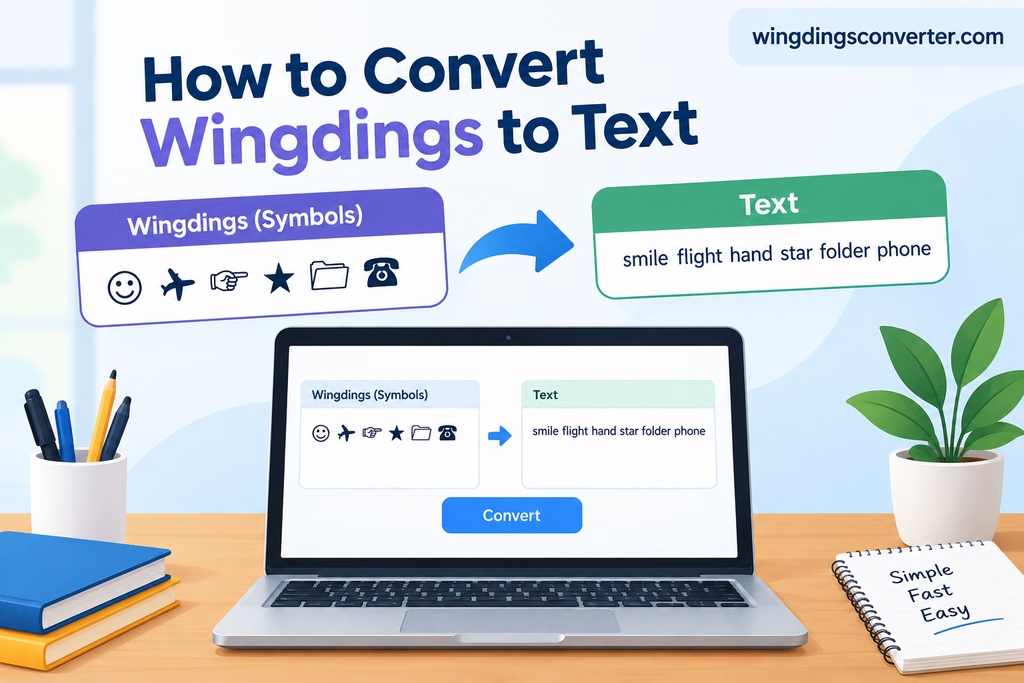
Wingdings symbols can be confusing when you receive a document filled with arrows, hands, stars, shapes, and other unfamiliar characters. You might recognize a few symbols, but figuring out what the entire message says is not always easy. Fortunately, you can often convert Wingdings to regular text without identifying every symbol manually.
You also read: How to Convert Text to Wingdings: Step-by-Step Guide
The easiest method is to use a Wingdings converter. Instead of guessing what each character represents, you can enter the Wingdings content into a suitable conversion tool and check the resulting text. However, the process depends on how the symbols were created and copied, because Wingdings is a symbol font rather than an ordinary text alphabet.
In this guide, you’ll learn how to convert Wingdings to text, what to do when the conversion doesn’t work, and how to handle symbols in documents and messages.
What Does Converting Wingdings to Text Mean?
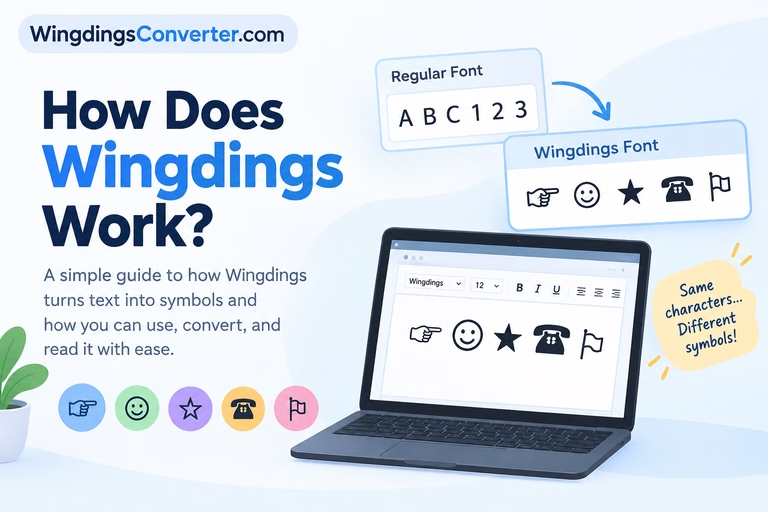
Wingdings is a symbol font that displays pictures and signs instead of the usual letters and numbers. Depending on the font version, its character positions can represent symbols such as telephone handsets, pointing hands, geometric shapes, and other illustrations.
When you convert Wingdings to text, your goal is to identify the symbols and recover the readable information they represent.
For example, a Wingdings character might appear as a star, an arrow, or a small picture in a document. Converting it may help you identify the original character or understand the symbol’s meaning.
There is one important distinction: a symbol’s appearance is not necessarily the same as its underlying character. A star-shaped symbol, for instance, does not automatically mean that the original text contained the word “star.”
The conversion method must account for the font mapping and the actual characters stored in the document.
How to Convert Wingdings to Text Online
If you have Wingdings content that you want to understand, an online converter is a convenient place to start.
Step 1: Open a Wingdings converter
Visit WingdingsConverter.com and open the available Wingdings conversion tool.
A dedicated converter can help you work with Wingdings characters without manually searching through a symbol chart.
Step 2: Copy your Wingdings content
Select the Wingdings content in the document, message, or other source and copy it.
If the symbols are in Microsoft Word, make sure you select the actual text rather than taking a screenshot of the symbols.
Important: Copying text from a document that uses the Wingdings font may preserve the underlying letters rather than the visible symbols. This matters because the copied content might look different when pasted into another application.
Step 3: Paste the content into the converter
Place the copied content into the converter’s input area.
Check what appears in the input field. If you see ordinary letters instead of the symbols you expected, the source may be storing standard characters that were simply displayed using the Wingdings font.
That is a useful clue when deciding how to recover the original information.
Step 4: Convert the symbols
Use the converter’s conversion control to process the input, following the instructions shown on the website.
The result depends on the input format and the conversion method supported by the tool. If the output looks unexpected, do not assume that the original message is meaningless. You may need to recover the character mapping from the source document first.
Step 5: Review and copy the result
Read the output carefully before copying it into another document.
Some Wingdings characters represent pictures rather than words, so a converter may identify a symbol without being able to determine what the original author intended to communicate.
If the result contains unusual characters, missing symbols, or text that makes no sense, try the troubleshooting methods later in this guide.
Why Doesn’t Pasting Wingdings Always Produce Readable Text?
This is one of the most important things to understand about Wingdings conversion.
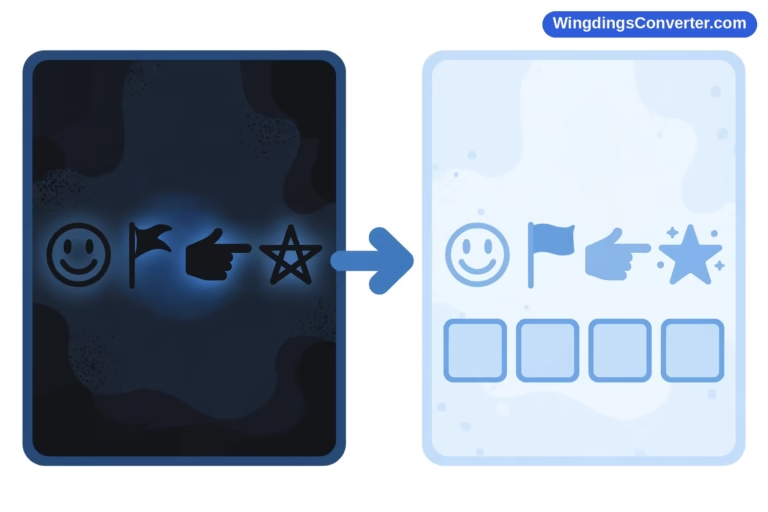
Imagine that someone types a letter in a document and changes its font to Wingdings. The document may still store the original character, even though the screen displays a symbol.
When you copy that character into a different application, the destination may use a standard font instead. The original letter can then appear instead of the Wingdings symbol.
For example, suppose a document displays a Wingdings symbol at a particular character position. The underlying character might be an ordinary letter, number, or punctuation mark. Its appearance changes because of the font applied to it.
This creates two different conversion situations:
- You have the original characters displayed in Wingdings. You may need to interpret or map those characters to their corresponding symbols.
- You have visible symbols but not the original character data. You may need to identify the symbols using the correct font mapping or another reliable reference.
A standard text converter cannot always solve both problems in the same way. The correct approach depends on what you actually copied.
How to Convert Wingdings to Text in Microsoft Word
If the Wingdings symbols appear in a Word document, you can investigate the original characters before using an online tool.
Check the font applied to the text
- Open the document in Microsoft Word.
- Select the section containing the symbols.
- Look at the font name in the toolbar.
- If the font is Wingdings, note that the visible pictures may correspond to ordinary stored characters.
Avoid changing the font immediately if you need to preserve the original appearance. Instead, work on a copy of the document.
Try changing the font on a duplicate
Select a copied version of the text and change its font to a standard font, such as Arial.
The result may reveal the underlying characters that were stored in the document. However, these characters are not necessarily a readable translation of the symbols. You may still need the correct Wingdings character map to understand them.
This technique is particularly useful when you know the document was created by typing ordinary characters and applying the Wingdings font.
Use a character map when necessary
If the text contains symbols that are difficult to identify, a Wingdings character chart can help you compare the stored character with the symbol shown by the font.
Keep the font version in mind. Wingdings, Wingdings 2, and Wingdings 3 are separate fonts, and their character mappings are not interchangeable in every case.
For documents that use a different symbol font, make sure you identify the correct font before attempting a conversion.
What If You Only Have a Picture of Wingdings Symbols?
A screenshot or photograph creates a different problem because it contains pixels rather than the original text characters.
Copying and pasting will not recover the underlying text from an image. You first need to identify the symbols visually.
Here is a practical approach:
- Crop the image so the symbols are clear and easy to inspect.
- Identify the font or symbol set if possible.
- Compare the visible symbols with a character chart for the correct Wingdings font.
- Record the corresponding characters or meanings.
- Review the result in context to determine whether the symbols form a message.
Optical character recognition (OCR) may help with ordinary text surrounding the symbols, but it may not recognize Wingdings accurately. Standard OCR tools are generally designed for conventional letters and numbers, not every symbol in a specialized font.
If the image is blurry or the symbols are similar in appearance, you may need to inspect them individually.
Common Wingdings Conversion Problems and Their Solutions
A conversion does not always produce the expected result on the first attempt. These are some common problems and the steps that can help.
The output contains ordinary letters
This often happens when the copied text retains its original characters but loses the Wingdings font formatting.
What to do: Check the source document’s font settings. If the original characters are still available, use the correct Wingdings mapping to identify the symbols.
The output contains question marks or empty boxes
Some applications cannot display a character because the required font or character mapping is unavailable. Copying through certain applications can also change or remove formatting.
What to do: Return to the original document, check which font is being used, and try copying the content again. If possible, work from the original editable file rather than a screenshot or converted document.
The converted text looks incorrect
The converter may be receiving the wrong type of input, or the source may use a different Wingdings font version.
What to do: Confirm whether the content uses Wingdings, Wingdings 2, Wingdings 3, or another symbol font. Then use a conversion method appropriate for that font and input.
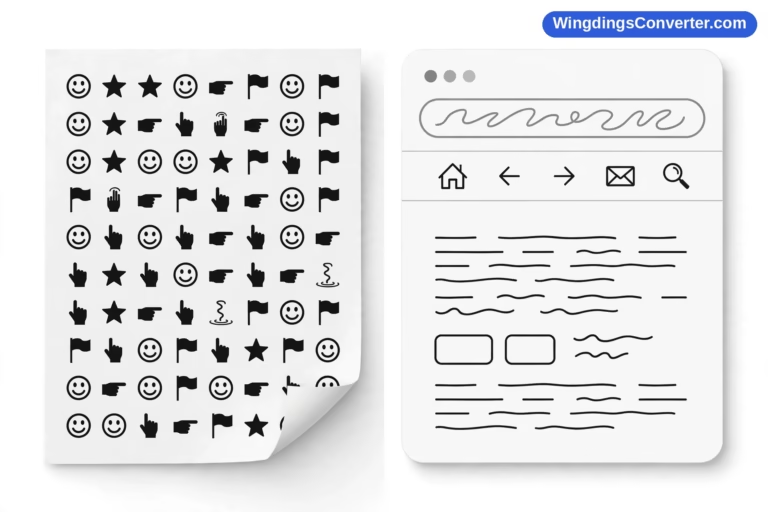
The symbols appear correctly in Word but not in a browser
Font availability and formatting support can differ between applications. A browser may not have the same font installed or may display copied content using a fallback font.
What to do: Check the original document and identify the stored characters before assuming that the symbols have been lost.
The symbols do not form a clear sentence
Wingdings is primarily a collection of symbols, not a complete language with a standard word-for-word translation. A row of pictures might be decorative, represent individual ideas, or serve as part of a custom code.
What to do: Identify each symbol first, then use the surrounding text and context to interpret its likely meaning. Do not assume that every symbol has one universal verbal translation.
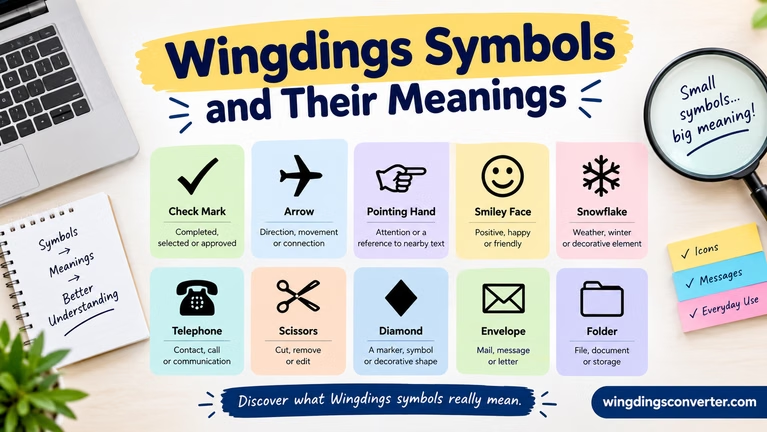
Wingdings Symbols: What Can You Actually Translate?
Not every Wingdings symbol can be translated into a word in the same way.
| Symbol type | What it may represent |
|---|---|
| Arrows | Direction, movement, or navigation |
| Pointing hands | Attention or a particular item |
| Stars and shapes | Decoration, emphasis, or visual markers |
| Telephone symbols | A telephone or contact-related idea |
| Check marks | Selection, completion, or approval |
| Geometric symbols | Visual organization or decoration |
These are possible interpretations, not guaranteed translations. The intended meaning depends on the symbol, the document, and the context in which it appears.
A symbol chart can help you identify the image associated with a character. A converter can help you map supported characters into another representation. Neither method can reliably determine the author’s intention in every situation.
Is Wingdings the Same as a Secret Code?
Not exactly.
Wingdings can make ordinary characters look unfamiliar, which may give the impression that a document contains a secret message. But the font itself is not an encryption system.
In many cases, the underlying character is still stored in the document, and the Wingdings font simply changes how that character looks.
Someone could also deliberately use symbols to create a puzzle or substitute pictures for words. In that case, identifying the symbols is only one part of understanding the message. You may need an additional rule or key to interpret it.
This distinction matters when you are trying to recover text from an old document or understand symbols copied from another source.
Frequently Asked Questions
Can I convert Wingdings symbols into English words?
Sometimes, but it depends on the content. A converter may identify the corresponding characters or symbols, while understanding a complete message may require additional context. Individual pictures do not always translate directly into English words.
Can I convert Wingdings to text without installing a font?
An online converter may be sufficient if you already have the relevant characters and the tool supports the conversion. However, if you are working with a document that relies on a particular font mapping, access to the correct font or a reliable character chart may be necessary.
Why does Wingdings turn into letters when I copy it?
The document may store ordinary characters and display them as symbols through Wingdings font formatting. When you paste the content somewhere that does not preserve that formatting, the underlying characters can become visible.
Can I decode Wingdings from a screenshot?
Yes, in some cases, but the process is usually more manual. You need to identify the visible symbols and compare them with the correct character chart. Blurry images, unusual font versions, and decorative layouts can make identification harder.
Are Wingdings and Wingdings 2 the same?
No. They are separate symbol fonts with different character mappings. A conversion method designed for one font may not correctly interpret characters from another, so identifying the font is an important first step.
Is Wingdings a real language?
Wingdings is a symbol font, not a natural language like English or Spanish. Its symbols can communicate ideas visually, but they do not automatically form sentences with the grammar and vocabulary of a conventional language.
Convert Wingdings Without Guessing Every Symbol
The best way to convert Wingdings to text is to start by identifying what you have: copied characters, formatted text in a document, or an image containing symbols. Each situation can require a different method.
For ordinary conversion tasks, WingdingsConverter.com is a useful place to start. If the result does not look right, check the original font, the stored characters, and whether the content uses a different Wingdings version.
Understanding that difference can save you time and help you recover the information more accurately, without guessing what every unfamiliar symbol means.