How to Convert Wingdings Characters
It usually starts with a single character. Not a whole document — just one stubborn symbol. A check mark in a form that won’t paste properly. A little face in an old message. An arrow that turns into a letter the second you copy it. If you’re searching for how to convert Wingdings characters, chances are you don’t need a grand theory of fonts. You need that one character to behave.
So let’s take the character-by-character view. It’s actually the clearest way to understand Wingdings at all, because Wingdings is characters — ordinary ones, wearing symbol costumes — and converting them means handling that disguise one glyph at a time.
What a “Wingdings Character” Really Is
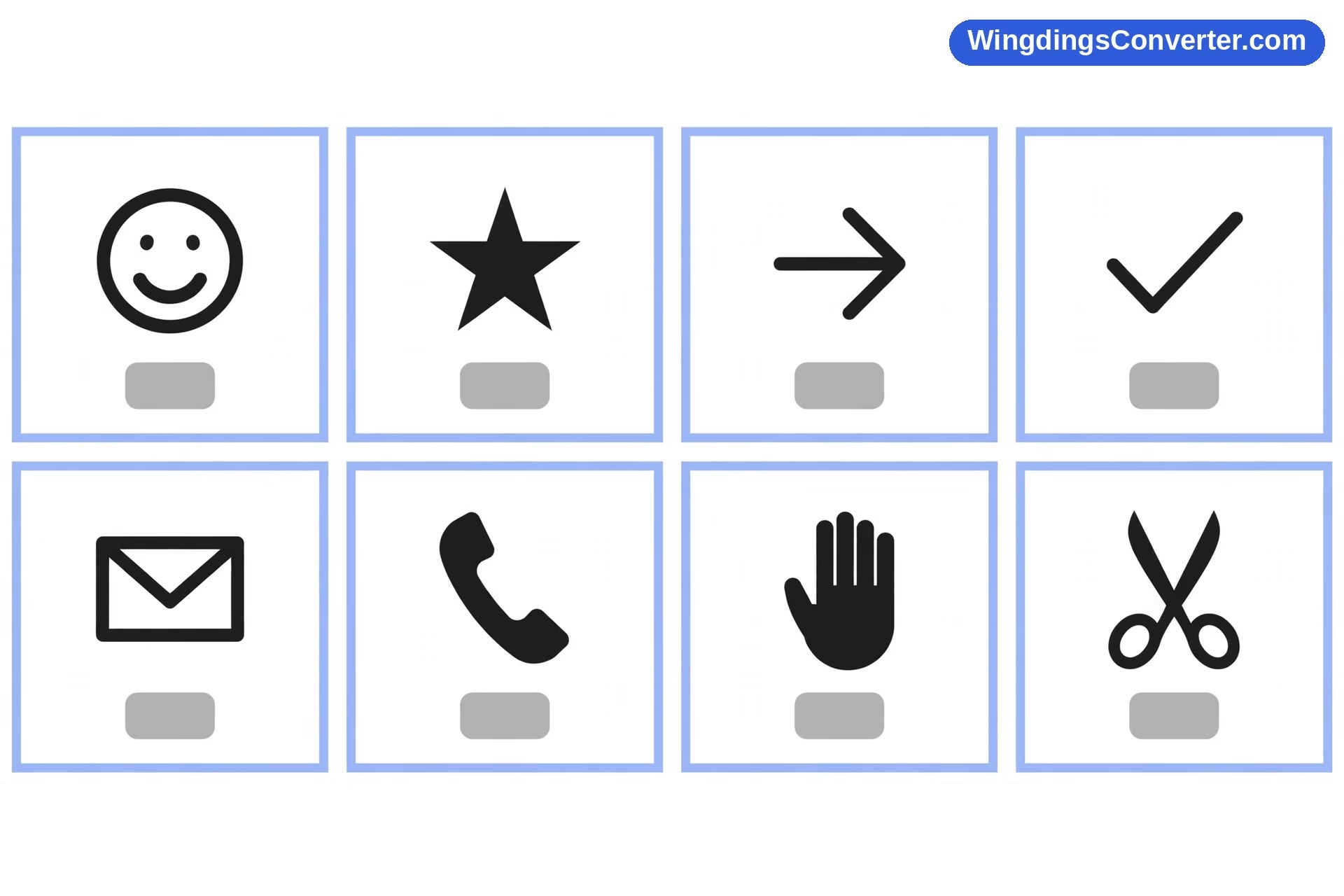
Every Wingdings character has two identities, and keeping them separate in your head makes conversion almost trivial:
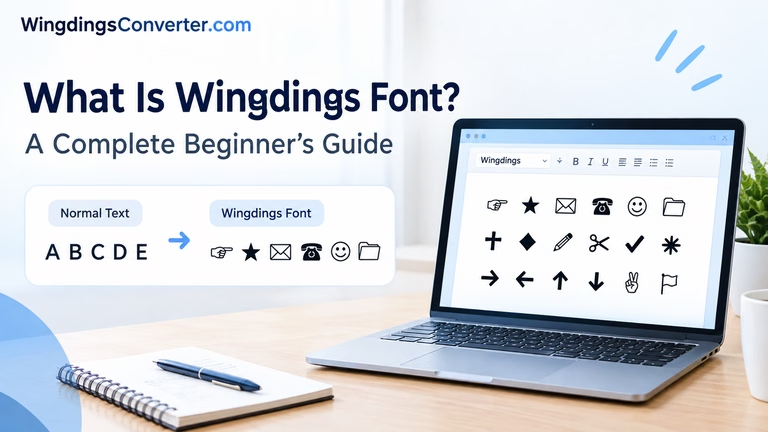
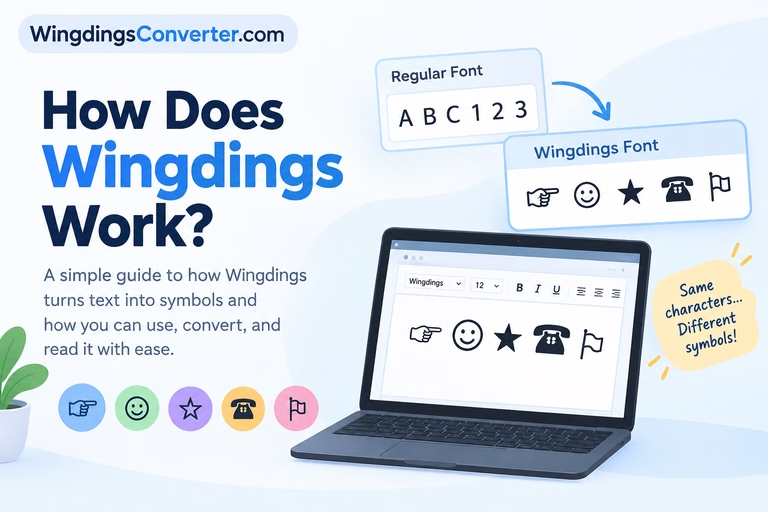
- The stored character — a completely normal letter, digit, or punctuation mark. This is what the computer saves.
- The displayed glyph — the picture the Wingdings font draws in that character’s place. This is what your eyes see.
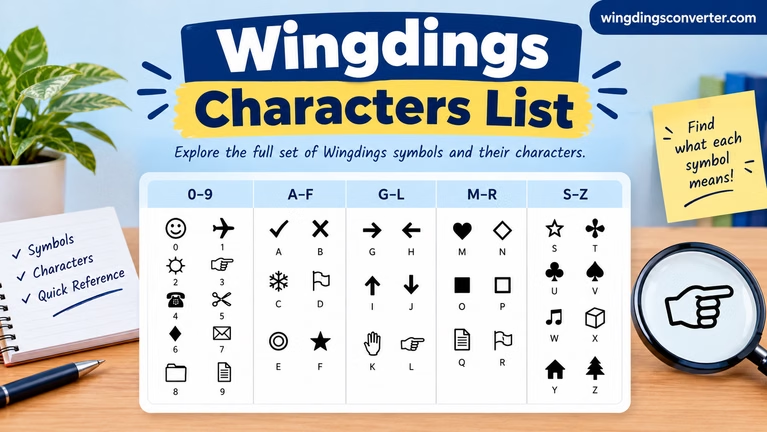
Wingdings was released by Microsoft in 1990, designed by Charles Bigelow and Kris Holmes at a time when getting any pictures into a document was genuinely hard. Their solution was elegant for its era: build a font where each keyboard slot paints a useful little drawing — a dingbat — instead of a letter. Type the slot, get the drawing.
Three mappings are so well known they’re worth pinning down as your reference points:
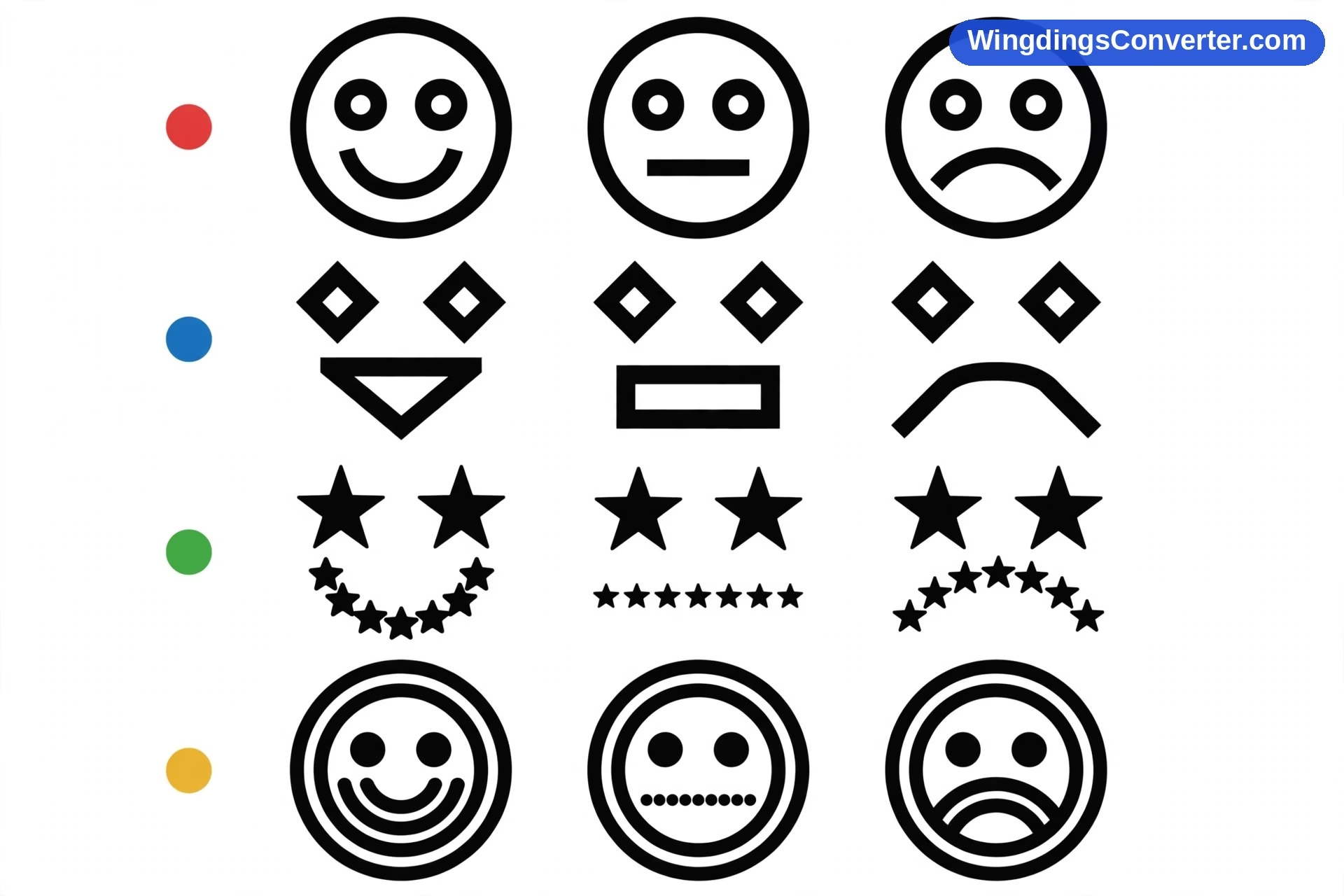
- J → smiling face
- K → neutral face
- L → sad face
Everything else on the keyboard follows the same principle: one slot, one symbol. A converter, a chart, or the font itself is just a way of asking, for any given character, “which two identities do you have?”
The catch, of course, is that Wingdings characters have no existence outside the font. Unlike Unicode characters — where ✓ is permanently U+2713 and ★ is permanently U+2605, in every font and on every device — a Wingdings glyph evaporates the moment the font does. That’s not a flaw in your document. It’s how the system was designed, and it’s why conversion is even a topic.
How to Convert Wingdings Characters in Each Direction
“Convert” gets used for three different jobs, and they need different handling. Let’s take them in turn.
From Wingdings to plain text
This is the decode direction: you see symbols, you want the letters underneath.
- In an editable document: select the character (or the whole run of text) and change the font to Arial, Calibri, Times New Roman — anything normal. The glyph vanishes and the underlying character stands there. One character or one thousand, the effort is the same.
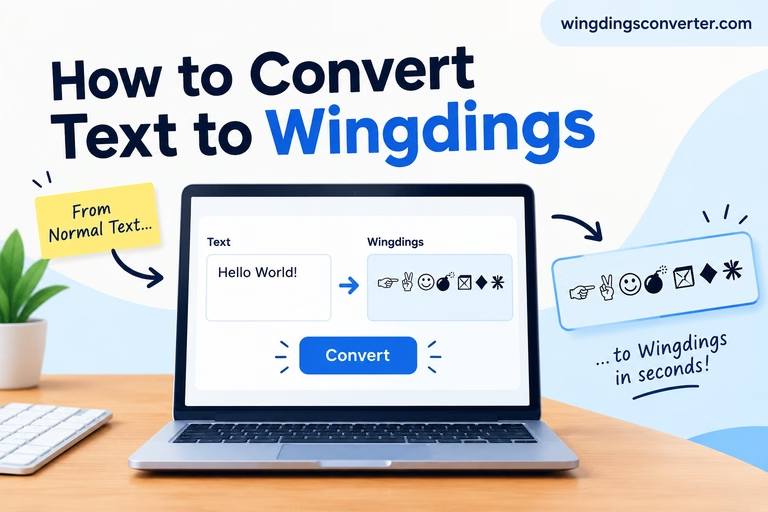
- From loose symbols: paste them into a converter like the one on our homepage set to the Wingdings-to-text direction, and read off the characters. This is the same process described step by step in how to decode Wingdings online, just applied at character scale.
- From an image: there’s no shortcut. Match the glyph against a chart visually, note the character, and type it. For a single character — the usual case with images — this takes seconds.
From plain text to Wingdings
The encode direction: you have ordinary characters, you want the symbols.
In Word, type your character, select it, and set the font to Wingdings. Done — the letter is now wearing its symbol. This is how those documents got made in the first place, and it’s also the cleanest way to check a conversion: if you suspect a symbol is really the letter J, type a J, apply Wingdings, and compare faces.
Online, type or paste your text into a converter’s text-to-Wingdings direction and it will render each character as its glyph. Remember, though, that what you’re copying out of a web tool may be the plain characters plus presentation, or Unicode lookalikes, depending on the tool — so if the exact Wingdings behaviour matters (for a Word document, say), doing it with the real font in Word is the ground truth.
From Wingdings to Unicode symbols
The modernisation direction: you want to keep the picture but lose the font dependency.
Here, each Wingdings glyph needs to be replaced by the genuine Unicode character for the symbol it depicts — the smiling face by a real face character, the check by U+2713, and so on. For a handful of characters, do it in Word with Insert > Symbol: delete the Wingdings character, then insert the matching symbol from a standard font. For many characters, a converter that outputs Unicode is faster; our dedicated walkthrough on how to convert Wingdings to Unicode covers the trade-offs, including the uncomfortable truth that a few decorative Wingdings glyphs have no exact Unicode equivalent and can only be matched approximately.
A related special case deserves a mention, because it has confused people for decades: Word’s check-mark trick, where you type the character ü (code 252) and switch it to Wingdings to get a tick. If you’re converting a checklist built that way, know that those check marks are ü characters in disguise. Convert them to a real ✓ and they’ll finally paste, print, and display correctly outside Word.
Telling Wingdings Characters Apart from Their Cousins
Sooner or later you’ll convert a character, get a result that makes no sense, and wonder what went wrong. Before blaming the converter, consider the family:
- Wingdings (original, 1990) — the one with J/K/L as the three faces.
- Wingdings 2 and Wingdings 3 — later companions with their own, different character maps. Same idea, different assignments.
- Webdings (1997) — a separate Microsoft symbol font that shipped with Internet Explorer 4 and Windows, designed for web-flavoured icons. It is not “Wingdings for the web” in terms of mapping; its characters sit on different slots. The history is summarised well in Wikipedia’s Webdings article.
The face test is your fastest diagnostic. Display or decode the characters for J, K, and L from your source. If they’re the smiling, neutral, and sad faces, you’re in original Wingdings and standard charts and converters apply. If they’re anything else, stop — you have a different font, and every conversion you run with the wrong map will be wrong in the same confident way.
This matters even for single characters. A lone symbol gives you no context, no surrounding words to judge by. Verifying the font from a known anchor character in the same document is the difference between converting a character and just guessing at one.
Copying and Pasting Single Characters Without Losing Them
Character-level work lives and dies by the clipboard, so a few practical habits help:
Copy from the source, not from a screenshot of the source. A screenshot turns your character into pixels. Everything downstream becomes manual.
Test-paste into something plain. Paste your converted character into a notes app or a plain-text field. What survives that paste is what you actually have. If a Wingdings character arrives as its underlying letter, you’ve learned the paste carried no font — useful to know before you send it to someone else.
Beware the box. If a pasted character shows as a hollow rectangle, you’re seeing the .notdef placeholder — nicknamed “tofu” — which means the displaying font lacks that character. The character itself may be perfectly fine. Try a different app or font before concluding the conversion failed. This comes up a lot with Unicode symbols on older devices, and it’s a display gap, not data loss.
Keep characters in context when you can. Converting a whole word or line and then picking out the character you need is often more reliable than isolating a symbol first, because the surrounding text helps you verify the font and the map as you go.
If copying behaviour in general is your headache — symbols changing between apps, formatting vanishing — our guide on how to copy and paste Wingdings symbols digs into exactly those mechanics.
A Tiny Worked Example, Character by Character
Let’s convert three characters properly, the slow way, so the pattern sticks.
Say a document shows you a smiling face, a sad face, and a check mark, all in Wingdings.
- Smiling face → your anchor table says that’s J.
- Sad face → that’s L.
- Check mark → here’s where you slow down. In a Wingdings document, a check might be an ordinary slot’s glyph, or it might be that ü (code 252) insertion trick. Either way, if what you want going forward is plain text, the honest record is the underlying character your chart or font swap reveals. And if what you want is a portable symbol, the conversion target is the real ✓, U+2713.
Notice the decision hiding in step 3: “convert” can mean reveal the letter or preserve the picture properly. Neither is wrong — they’re answers to different questions. Most character-conversion confusion dissolves once you ask yourself which of the two you actually need. Letters for reading and editing. Unicode for publishing and sharing.
FAQ
How can I tell what letter a single Wingdings symbol is?
Three ways, fastest first: paste it into a converter; select it in Word and change the font to a normal one; or match it against a Wingdings chart. If you have access to the document it came from, typing J, K, and L in Wingdings nearby also lets you confirm you’re using the right chart, since those are the smiling, neutral, and sad faces.
Why does my Wingdings character change when I paste it?
Because pasting often drops the font. The stored character — a normal letter or digit — arrives safely, but without Wingdings applied at the destination, it displays as itself instead of as a symbol. To keep the picture, convert the character to its Unicode symbol equivalent before sharing it.
Are Wingdings characters the same as Unicode symbols?
No. A Wingdings character is a normal keyboard character displayed as a symbol by one specific font. A Unicode symbol is a character in its own right, with its own code point — like U+2713 for ✓ — that displays as that symbol in any font that includes it. Converting between them means matching each Wingdings glyph to the Unicode character it pictures.
Can every Wingdings character be converted to Unicode?
Most common ones can — faces, stars, checks, arrows, and everyday icons all have Unicode counterparts. A few of the more decorative or unusual Wingdings glyphs have no exact Unicode match, so converters either substitute the closest symbol or leave them flagged. Always eyeball converted output for anything that matters.
What’s the difference between converting characters in Wingdings, Wingdings 2, and Wingdings 3?
The method is identical; the maps are not. Each variant assigns different symbols to the same keyboard slots, so you must convert using the map for the font the text was actually written in. Using the original Wingdings map on Wingdings 3 text produces wrong characters throughout, which is why verifying the font first — the J/K/L face test for the original — is worth the ten seconds it takes.
Is there a way to convert a Wingdings character in an image?
Only manually: look at the glyph, find it on a Wingdings chart, and note the character it corresponds to. No text-based converter can process an image, because the image contains a picture of a character rather than the character itself. For one or two symbols, the manual lookup is quick.
Conclusion
Converting Wingdings characters stops feeling fiddly once you hold onto the two-identities idea: every glyph is a normal character underneath and a picture on top, and conversion just means choosing which identity you want to walk away with — the letter, for reading, or the true Unicode symbol, for sharing.
Verify the font with the J/K/L faces, convert with a tool for volume or by hand for precision, and test-paste before you trust the result. Do that, and even the most stubborn single symbol will eventually tell you exactly what it is.