How to Turn Normal Text Into Wingdings
If you have ever wanted to turn normal text into Wingdings — maybe for a puzzle, a classroom worksheet, a secret note for friends, or just because those little symbols are fun to look at — you have probably discovered it is not quite as simple as typing and hoping for the best. The good news is that there are really only two ways to do it, and both take less than a minute once you understand what is happening underneath.
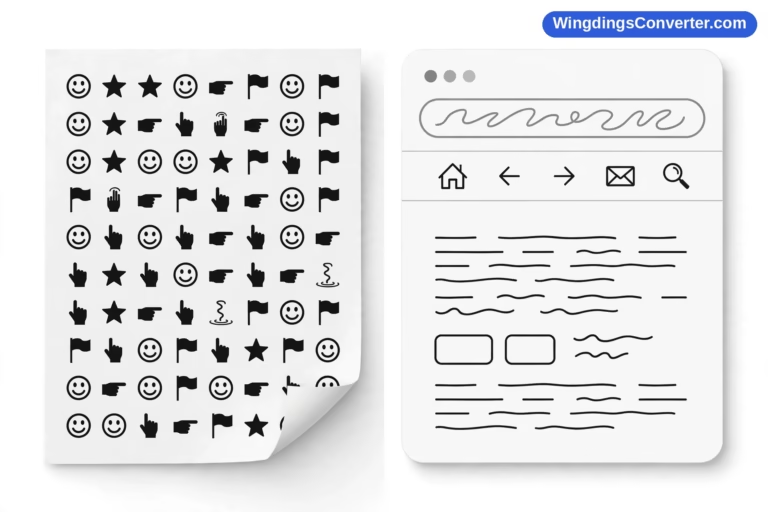
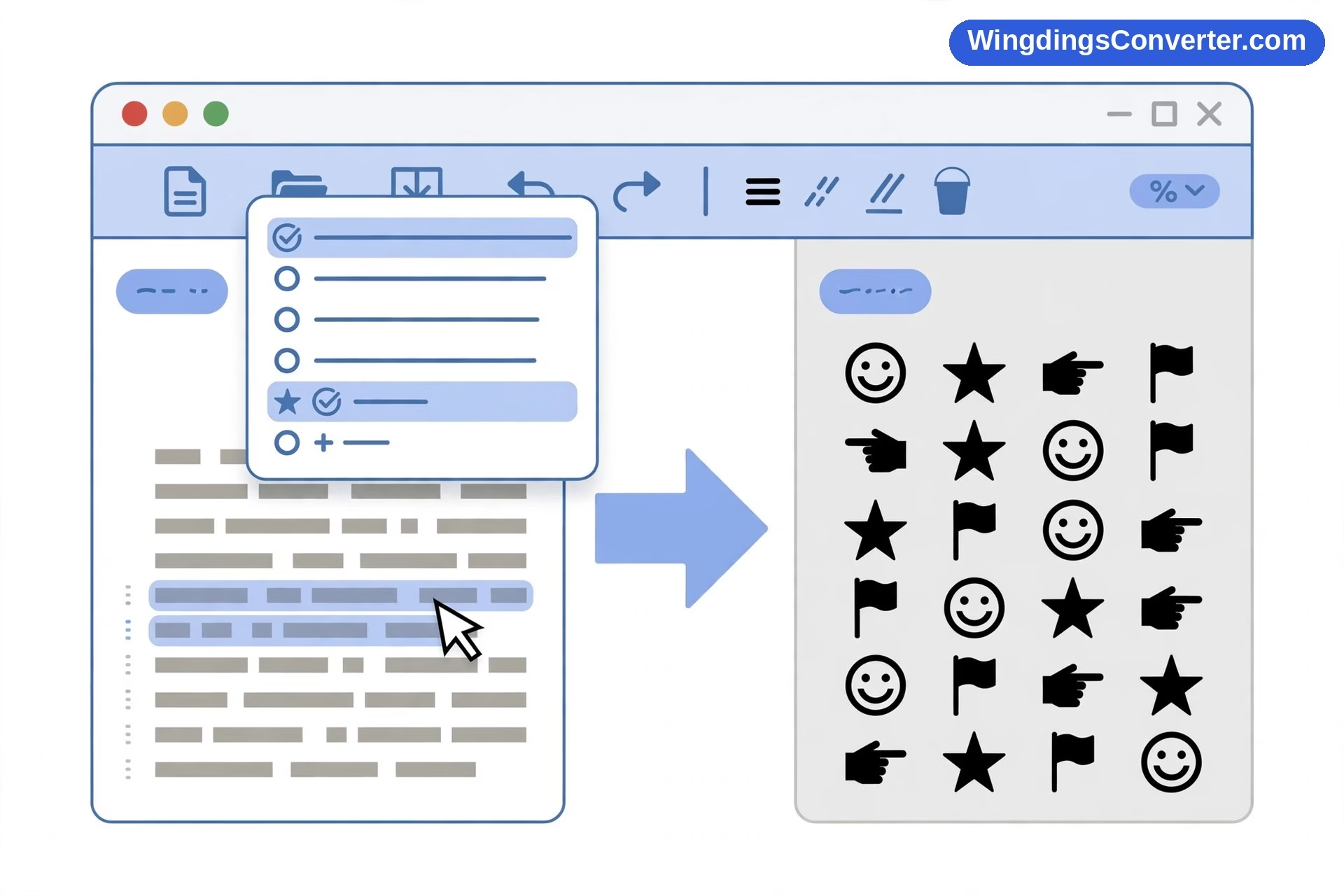
Here is the part most people miss: you are not actually changing the letters themselves. When you turn normal text into Wingdings, you are changing how those letters are displayed. An “A” is still an “A” in the file. The Wingdings font simply draws a symbol in place of the letter. Change the font back, and your original text reappears, perfectly readable. That one idea explains almost every success — and almost every frustration — people have with this font.
What actually happens when you turn normal text into Wingdings?
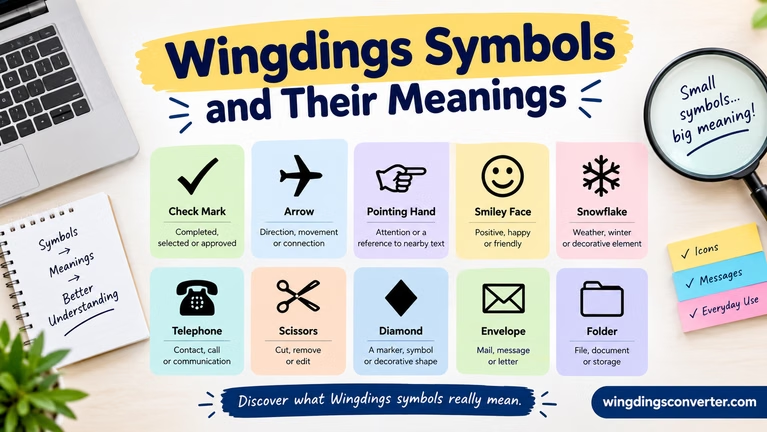
Wingdings is a dingbat font released by Microsoft in 1990, designed by Charles Bigelow and Kris Holmes of Type Solutions. Instead of drawing ordinary letter shapes, it maps each key on your keyboard to a picture — a star, an arrow, a hand, a face, a piece of office equipment, and dozens of other small glyphs.
So when you type “hello” and apply Wingdings, the computer still stores h-e-l-l-o. It just renders each of those characters using a symbol instead of a letter shape.
That is why the most famous examples work the way they do. Press J in Wingdings and you get a smiling face. K gives you a neutral face, and L gives you a sad face. Teachers have used that J-K-L trick for years on feedback sheets, because it is quick and everyone instinctively understands it.
It is also why Wingdings behaves badly when you send it to someone else. If the other person’s device does not have the font, or if a website strips the formatting away, the symbols can vanish, turn back into plain letters, or show up as empty boxes. The text was never really symbols — it was letters wearing a costume.
If you want the full background on the font itself, the Wingdings page on Wikipedia is a solid, factual place to start.
Method 1: Use an online converter (the easiest way)
If you just want symbols you can copy and share, an online converter is usually the fastest route.
Step 1: Open the converter
Go to the Wingdings converter on our homepage and look for the text input box. You do not need to install anything, create an account, or download a font file.
Step 2: Type or paste your text
Write something short to test it first — your name, or a simple word like “hello.” Short tests matter because long blocks of Wingdings are genuinely hard to read back. If you are making a puzzle, you will want to check the result line by line before you share it.
Watch the output update as you type. Each letter will be swapped for its Wingdings glyph.
Step 3: Check the symbols carefully
Do not just copy the first thing you see. Look for a few things:
- Does every letter have a symbol, or are some characters blank?
- Do numbers and punctuation also change, and does that matter for what you are making?
- Will the person receiving it be able to see the same thing on their phone or computer?
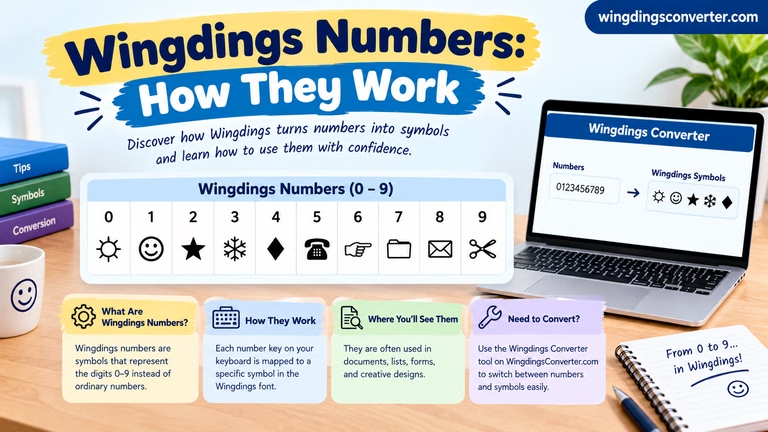
Numbers and punctuation do have glyphs in Wingdings, but they are not always the ones people expect. If your message includes a date, a price, or an important instruction, consider leaving that part in plain text.
Step 4: Copy the result — and test where it will go
Copy the converted text and paste it into the place you actually intend to use it: a document, a message, a worksheet, a social post. Then look at it there, not just in the converter.
This test step is where most problems show themselves. Some apps preserve the symbol characters and some do not. Some turn them into proper Unicode symbols that travel well, and others keep them tied to the Wingdings font, which travels badly. Our guide on how to copy and paste Wingdings symbols walks through the quirks platform by platform if you run into trouble.
Step 5: Keep a plain-text copy for yourself
Always save the original sentence somewhere. If the symbols get mangled later — and sooner or later, they will — you can rebuild it in seconds instead of trying to decode your own creation from memory.
Method 2: Change the font in a document
If you are working in Microsoft Word, PowerPoint, Excel, or a similar program, you do not need a converter at all. The font method gives you more control over size, colour, and layout.
Step 1: Type your text in a normal font first
Write everything out in Calibri, Arial, or whatever your document normally uses. Proofread it now. Fixing a typo is easy while you can still read the words, and surprisingly annoying once everything has turned into stars and arrows.
Step 2: Select the text you want to convert
Highlight just the part that should become symbols. Many people make the mistake of converting a whole document when they only wanted a heading, a border, or a single line to look decorative. Wingdings is best in small doses — a title, a divider, a set of bullet markers, a hidden answer key.
Step 3: Open the font menu and choose Wingdings
With the text selected, open the font dropdown and scroll to Wingdings. You may also see Wingdings 2 and Wingdings 3 in the list. Those are separate fonts with different symbol sets, mostly numbers in shapes, arrows, and geometric forms, so do not assume they will give you the same result.
Click Wingdings and your text will change instantly.
Step 4: Adjust the size
Wingdings glyphs tend to look smaller and less balanced than regular letters at the same point size. You will often need to bump the size up a few points for symbols to read clearly, especially if you plan to print. A line that looks fine at 12pt on screen can look cramped and muddy on paper.
Step 5: Save, and export carefully
If you plan to share the file, consider exporting it as a PDF. A PDF locks the appearance in place far more reliably than sending an editable document to someone who might not have the same fonts installed. If you send the original document file and the recipient’s system substitutes a different font, your symbols could revert to letters or disappear entirely.
A worked example, start to finish
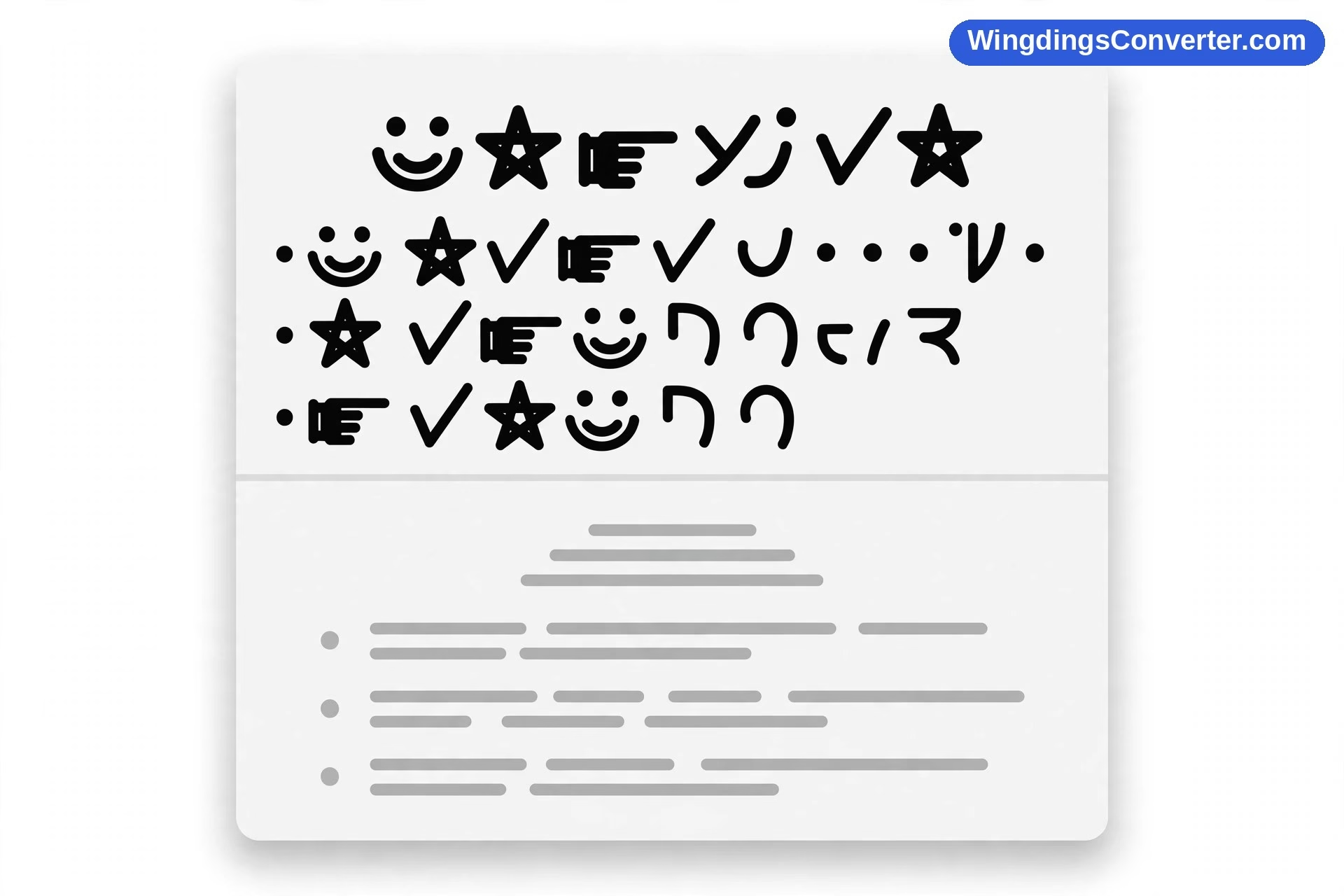
Let’s say you want to make a simple reward chart for a class, with a check mark for completed work.
You could type your list in plain text first:
- Finished reading
- Finished maths
- Helped a classmate
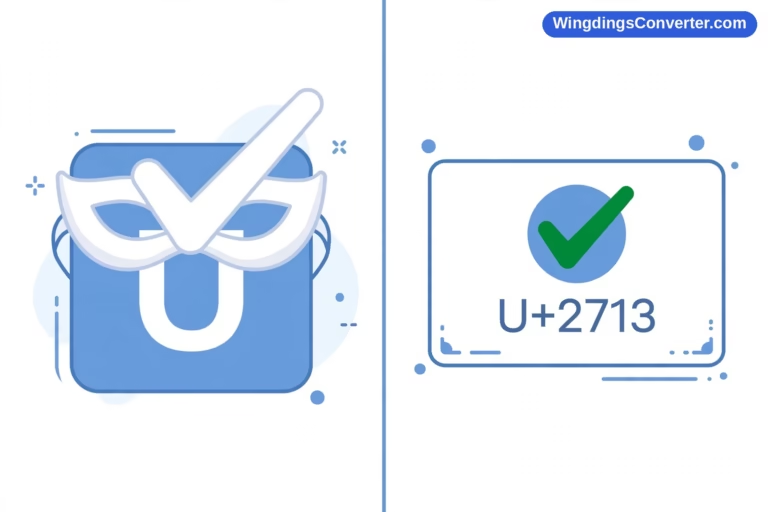
Next, you would add the symbol part separately rather than converting the whole list. In Wingdings, the character ü — code 252 — produces a check mark. That is one of the few reliable, well-known mappings, and it is why so many old worksheets and templates used it. You type that character, apply Wingdings, and you have a neat tick to place beside each completed item.
Notice the approach here: the readable words stay readable, and the symbols do a job words do less well. That is almost always the smartest way to use this font. Symbols for emphasis, markers, and decoration. Words for meaning.
If you went the other way and converted the entire chart to Wingdings, you would have something that looks interesting for about five seconds and then annoys everyone who has to decode it, including future you.
Turning Wingdings back into normal text
Reversing the process is just as simple, which is reassuring if you have received a document full of symbols and no explanation.
If the symbols are still formatted in Wingdings inside a document, select them and change the font back to a normal one. The original letters will appear, because they were there all along.
If you have copied symbols from a website or a converter and pasting them into Word does not help, you will need a decoder instead. Paste the symbols into a reverse converter and it will map each glyph back to its character. We explain the options in detail in our article asking can you convert Wingdings to normal text? — the short answer is yes, provided the symbols survived the copy intact.
Where it gets tricky is when symbols were converted to images, or when a platform replaced some glyphs with unrelated Unicode characters. In those cases there may be no clean way back, which is another reason to keep your plain-text original.
Common mistakes to avoid
Converting everything. A paragraph of Wingdings is not a paragraph anyone can read. Use it for short strings: titles, codes, puzzle clues, markers.
Forgetting that other people may not have the font. Wingdings ships with Windows and Microsoft Office, but it is not guaranteed everywhere else. Test on a phone if your audience will mostly be on phones.
Using symbols for essential information. Never put a phone number, an emergency instruction, or an accessibility-critical message only in Wingdings. Screen readers and search tools cannot make sense of it the way a sighted reader squinting at glyphs can.
Mixing up Wingdings, Wingdings 2, and Wingdings 3. They share a name, not a symbol map. A character that is a face in one can be something completely different in another.
Trusting a screenshot of symbols as a reference. Charts floating around online are often mislabelled or cropped from a different font version. Test the actual character in the actual font before you build a whole worksheet around it.
Tips for a better result
Keep a small personal cheat sheet of the symbols you use regularly — the check mark, the faces, a star or arrow you like — with the key that produces each one. Five minutes spent building that list saves repeated searching.
Work in a copy of your document, not the original. Font experiments have a way of spreading.
And if you are creating a puzzle or a code for others to solve, give them the first letter or a short example as a key. Wingdings codes are fun precisely because they are solvable. Without any foothold, they are just frustrating.
Frequently asked questions
How do I turn normal text into Wingdings without installing anything?
Use an online converter. Type your text into the input box, check the symbol output, then copy it into your document or message. No font download or software install is needed, and it works on phones and tablets as well as computers.
Does converting text to Wingdings change the actual letters?
No, not when you use the font method. The underlying characters stay exactly the same; only the appearance changes. Select the symbols and switch back to a normal font and the original words return. Converter tools may swap in separate symbol characters, which is why their results can behave differently when pasted.
Why does my Wingdings text turn back into letters when I send it?
Because the recipient’s app or device either does not have Wingdings or it ignored the font formatting. The letters underneath were never changed, so without the font to dress them up, they show as plain letters. Exporting to PDF or using a converter that produces standalone symbols reduces this problem.
Can I turn Wingdings back into readable text?
Usually, yes. In a document, change the font back to a standard one. For symbols copied from elsewhere, use a reverse converter. If the symbols were turned into an image or some glyphs were lost in copying, a perfect recovery may not be possible.
Is Wingdings available on Mac and phones?
Not always by default. Wingdings comes with Microsoft Office, so Macs with Office installed often have it, but phones and other systems vary. That inconsistency is a major reason symbols can look different — or disappear — from one device to another.
What is the Wingdings check mark key?
In Wingdings, the character ü at code 252 produces a check mark. In a document you can insert it through the symbol picker rather than trying to type it directly, which is easier on most keyboards.
Conclusion
Learning how to turn normal text into Wingdings is really about learning one idea: the font changes the look, not the letters. Once that clicks, the rest is straightforward. Use a converter for quick, shareable symbols, use the font menu when you want layout control in a document, test the result wherever it will actually be viewed, and keep your plain-text original safe.
Used in small, deliberate doses — a tick, a face, a title, a puzzle clue — Wingdings is still a charming little tool. Just do not ask it to carry a whole message on its own.