Why Is Wingdings Not Working? Common Fixes
You typed something, selected it, chose Wingdings — and nothing happened. Or it worked yesterday and doesn’t today. Or it works in Word but falls apart everywhere else. When people ask why is Wingdings not working, they usually mean one of about seven specific problems, and the good news is that most of them take under two minutes to diagnose once you check them in the right order.
Don’t start by reinstalling things. Start by figuring out which kind of “not working” you have. Do you see plain letters? Squares? Nothing at all? Does it fail in one app or in every app? Each answer points to a different fix, and guessing wastes more time than checking.
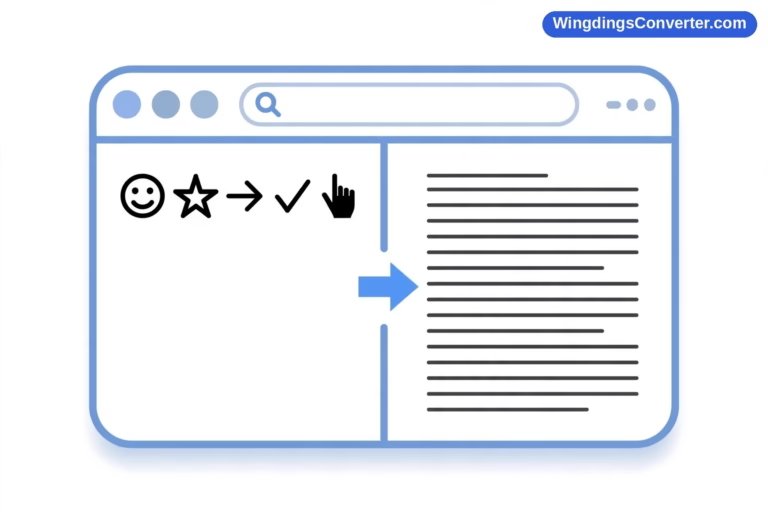
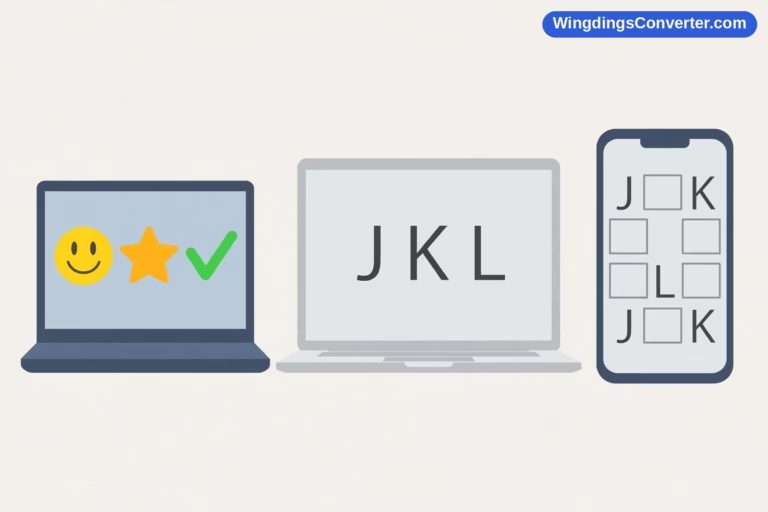
A quick reminder of how Wingdings works, because every fix below hangs on it: a Wingdings character is an ordinary letter — A, B, J, whatever you typed — plus formatting that says “display this in Wingdings.” The font, created for Microsoft in 1990 by Charles Bigelow and Kris Holmes, draws a picture for each letter. If the formatting isn’t applied, or the font isn’t available, or the app ignores the font, the picture disappears and you’re left with the letter underneath. Two failure modes matter here: plain letters mean the font or formatting is missing; squares mean a character was requested that the current font can’t draw at all.
Step 1: Check That Wingdings Is Actually Applied to the Right Selection
This sounds embarrassingly basic, and it is the single most common cause.
Select the exact characters that look wrong. Don’t just click in the paragraph — drag across them. Then look at the font name box on Word’s Home tab (or your app’s equivalent). What does it say?
- If it says Calibri, Arial, or anything other than Wingdings, the font was never applied to those characters, or something stripped it off. Reapply Wingdings to the selection and check again.
- If it says Wingdings but in italics, pay attention — in Word, italics in the font box is how Word flags a font it can’t find. The document asks for Wingdings, but this machine doesn’t have it available. Skip ahead to the missing-font section.
- If it says Wingdings in regular text, the formatting is there. Your problem is elsewhere — the app, the font file itself, or how the text got into the document.
One sneaky version of this problem: you changed the font with no text selected, typed one symbol that looked right, and everything after it reverted. Font changes in Word apply to the selection or to what you type next from that cursor position. Move the cursor, click into a differently formatted paragraph, and your setting goes with the new location. Always fix formatting by selecting the finished text, not by setting the font and hoping.
Step 2: Rule Out the App — Why Is Wingdings Not Working Outside Word?
Wingdings is a Microsoft font. It ships with Windows and with Microsoft Office, and it works reliably inside that world: Word, PowerPoint, Excel, Outlook on Windows. Outside that world, support gets patchy fast.
- Browsers: Most web pages and web apps can’t rely on Wingdings. Even if your computer has it, a website displaying your text in a browser may substitute something else.
- Google Docs and other online editors: These use their own font libraries. Wingdings isn’t a standard offering there, so text pasted in often loses its pictures. See our guide to how to use Wingdings in Google Docs for workarounds that actually hold up.
- Chat apps like WhatsApp: Paste Wingdings text into WhatsApp and you’ll almost always just see letters. The app doesn’t carry the font and doesn’t honour it. This is expected, not a bug on your end.
- Phones: Wingdings is not built into iOS or Android. A document that looks perfect on your Windows laptop can open on a phone showing plain letters, because the phone substitutes another font.
So before you troubleshoot your computer, ask: is it broken everywhere, or only in one place? If it works in Word on your PC and fails in a chat app, your PC is fine. The destination is the problem, and the portable fix is converting to Unicode symbols — real characters that are the symbol itself, so no special font is needed. Our walkthrough on how to convert Wingdings to Unicode shows the conversion, and how to copy and paste Wingdings symbols explains which paste method keeps formatting and which one drops it.
The plain-text paste trap
Here’s a scenario readers describe constantly: “It worked in Word, I copied it into my email / form / website, and now it’s just letters.”
When you copy, what travels depends on how you paste. A rich-text paste carries the font formatting along, so a receiving app that supports the font can show the pictures. A plain-text paste — Ctrl+Shift+V in many apps, or “Paste as plain text”, or pasting into a plain text field — strips all formatting by design. The letters arrive naked, Wingdings is gone, and letters are all you’ll ever see.
If you pasted and got letters, try pasting normally (Ctrl+V) into a rich-text destination that supports fonts. If the destination is genuinely plain text — a code field, a plain form box, many social media posts — no paste trick will save Wingdings there. Convert to Unicode instead.
Step 3: Check Whether the Font Is Missing or Damaged
On a healthy Windows + Office installation, Wingdings is simply there. If it’s missing, something removed it, or the Office installation is damaged, or you’re on a machine that never had Office.
Test it system-wide: open another Office app, like PowerPoint, and try Wingdings there. Or open the Windows Fonts folder (Settings > Personalisation > Fonts, or Control Panel > Fonts) and search for Wingdings. You’ll want to see the original Wingdings plus, ideally, Wingdings 2 and Wingdings 3 alongside Webdings — okay, Webdings is a separate font, but it usually travels with the same installations.
- Font present, still not working in one document: The document itself may be damaged, or its text may carry hidden formatting. Try copying a small piece into a fresh blank document and applying Wingdings there. If it works in the new file, the old file is the problem.
- Font missing entirely: Repair Office first — Settings > Apps > Microsoft Office > Modify, then Quick Repair. Wingdings comes with Office, so a repair restores it. Our step-by-step for how to install Wingdings font on Windows covers the manual route and where to get the font safely.
- On a Mac: Remember that macOS doesn’t include Wingdings on its own. Office for Mac does. No Office, no Wingdings — that’s normal. See how to use Wingdings on Mac for your options.

Corrupted font files do happen, usually after a messy system migration or an over-aggressive “cleaner” tool. The symptom is distinctive: the font is listed, but previews look blank or wrong, or applications crash when you select it. A repair or reinstall fixes it — don’t try to patch a font file by hand.
Step 4: Watch for Autocorrect and Autoformat Changing Your Text
Sometimes Wingdings “isn’t working” because Word is helpfully changing what you type before the font ever gets a say.
Autocorrect capitalizes, replaces straight characters with curly ones, turns typed sequences into other symbols, and converts some text into hyperlinks or formatted lists. If you type a character combination and Word swaps it for something else, then applying Wingdings gives you a picture for the replacement character, not the one you intended. The result looks random.
Quick test: type your characters, apply Wingdings, and if the result looks wrong, press Ctrl+Z once immediately after any automatic change to undo just the autoformat, or check File > Options > Proofing > AutoCorrect Options and review what’s being replaced as you type. For a document full of symbols, many people temporarily switch off “Replace text as you type” while they work, then turn it back on afterward. That’s a reasonable workflow, not a hack.
This is also why inserting through Insert > Symbol > More Symbols is more reliable than typing for one-off glyphs — insertion bypasses most of the typing-time interference. Our guide on how to find Wingdings symbols in Word shows that dialog in detail.
Step 5: Separate Letters Problems From Squares Problems
Everything so far has been about letters showing instead of pictures. Squares are a different animal, and mixing the two up sends people down the wrong fix path.
If you see neat little rectangles — often called tofu or the .notdef box — the app tried to draw something and the active font had no glyph for that character code. That happens with characters copied from sources that use private or unusual code points, or when a document mixes Wingdings-intended text with actual Unicode symbols the current font doesn’t contain.
Letters = font name or formatting lost in transit. Squares = a character the rendering font can’t draw. The fixes differ too, so identify yours honestly before continuing. We devoted a full article to the box problem — why does Wingdings show as squares — and the more general why do symbols show as boxes covers non-Wingdings cases as well.
Step 6: Test in a Fresh Document and a Fresh App
By now you’ve checked selection, destination app, paste style, font presence, and autocorrect. If it’s still not working, isolate the fault with two quick experiments:
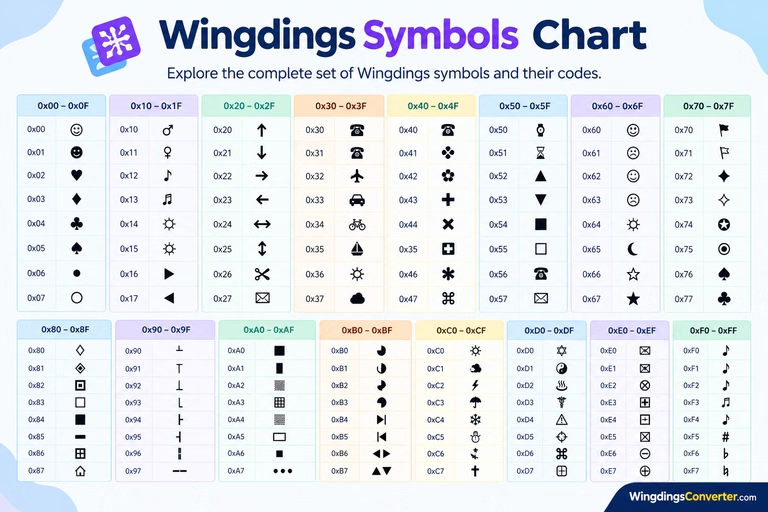
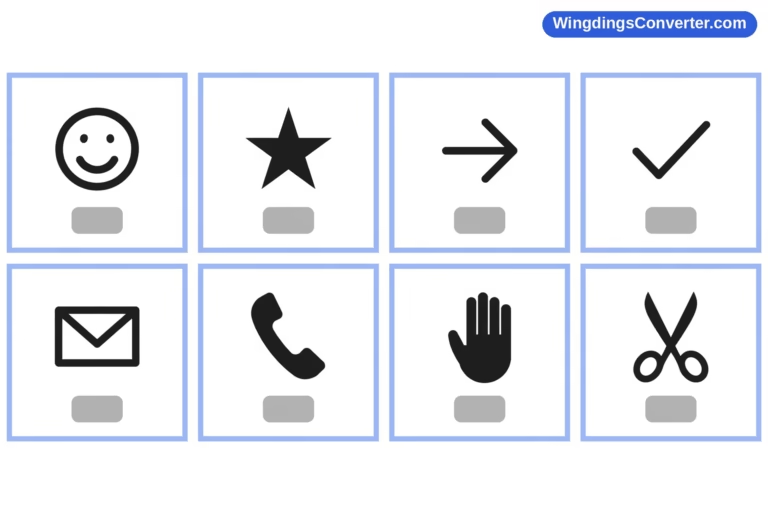
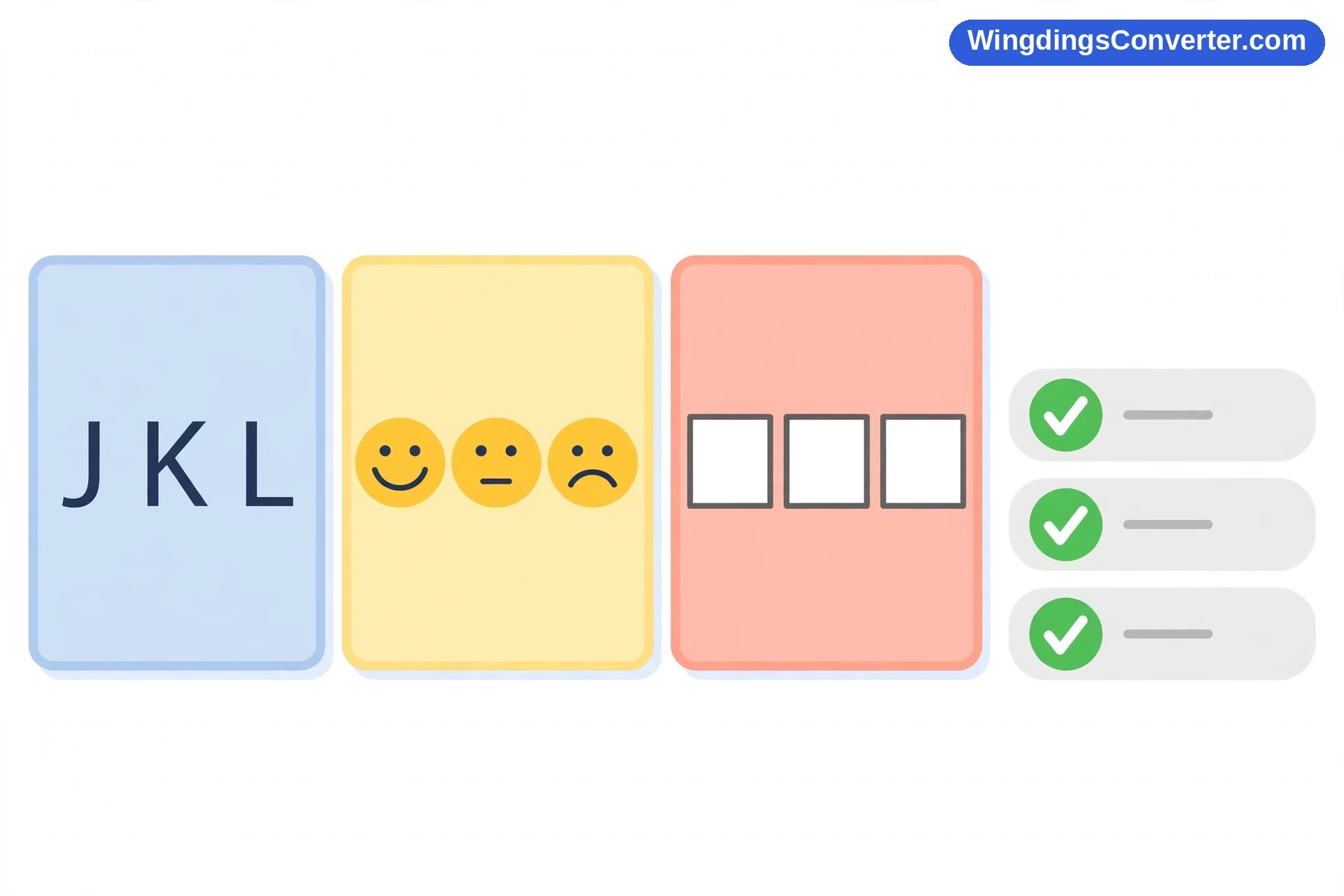
- Fresh document test: Open a blank Word document. Type J, K, L. Select them, apply Wingdings. You should see a smiling face, a neutral face, and a sad face — Wingdings’ most famous trio. If that works, your font and Word are healthy, and your original document or its text is where the trouble lives. If it doesn’t work even here, the problem is at the Word/Office/system level, and a repair is justified.
- Different app test: Try the same in PowerPoint or Excel. Working there but not in Word points to a Word-specific setting or add-in conflict. Failing everywhere points to the font or the system.
Keep notes on what each test showed. If you end up searching for help or asking someone, “JKL shows as letters in a fresh Word doc but works in PowerPoint” will get you a useful answer ten times faster than “Wingdings is broken.”
When the Fix Is to Stop Using Wingdings for This Job
There’s a point in troubleshooting where the honest answer is: Wingdings itself is the wrong tool for where this text is going.
If the text needs to survive on phones, in browsers, in chat apps, on a colleague’s Mac without Office, or on a printed handout from an unknown printer — a font-dependent trick from 1990 is fighting the modern world. Convert the important symbols to their Unicode equivalents. A Unicode check mark is a check mark on every device, because the character itself carries the meaning instead of borrowing a font’s drawing. The Wingdings font history is genuinely charming, but charm doesn’t help a worksheet that opens as alphabet soup on a student’s phone.
For documents that must stay visually exact, save or export as PDF once the symbols look right on your machine. A PDF freezes the appearance in a way a .docx travelling between computers doesn’t.
Frequently Asked Questions
Why does Wingdings work in Word but not in WhatsApp or my browser?
Because those apps don’t include or honour the Wingdings font. Wingdings pictures depend entirely on the font being present and applied. Word on a Windows PC has it; chat apps and most web apps don’t, so they show the underlying letters instead. Convert to Unicode symbols for anything headed to a chat app or the web.
Why did Wingdings stop working after I pasted my text somewhere?
You almost certainly pasted as plain text, or into a plain-text field. Plain-text pasting removes font formatting, and without the Wingdings formatting the characters are just letters. Paste with normal rich-text paste into a font-supporting app, or convert the symbols to Unicode before moving them.
How do I know if the Wingdings font is missing from my computer?
In Word, select the text and look at the font box — if “Wingdings” appears in italics, Word is asking for a font it cannot find. You can also search for Wingdings in the Windows Fonts settings. On a standard Windows machine with Office, it should be installed.
Will reinstalling Office fix a broken Wingdings?
Usually a repair is enough, and it’s faster than a full reinstall. Wingdings ships with Office, so Settings > Apps > Microsoft Office > Modify > Quick Repair restores a missing or damaged copy in most cases. Try a fresh-document test afterwards to confirm.
Why do I see squares instead of Wingdings symbols?
Squares mean the current font has no drawing for the character code it was asked to show — a different problem from missing formatting, which gives you letters. It often happens with characters copied from unusual sources or mixed with symbols the active font doesn’t contain.
Does Wingdings work on a phone?
Not reliably. Wingdings isn’t built into iOS or Android, so phones substitute another font and you see letters. If your audience will read on phones, use Unicode symbols or share the document as a PDF.
Conclusion
“Why is Wingdings not working?” is really six or seven smaller questions wearing a trench coat. Check the selection and the font box first, be honest about whether the destination app can even support the font, watch your paste style, rule out autocorrect, and only then reach for repairs and reinstalls. Nine times out of ten the answer is in the first two checks — formatting that never landed, or an app that was never going to show the pictures. And when the destination is a phone or a chat app, save yourself the repeat headache: convert to Unicode once, and the symbols will behave everywhere.