Why Are My Wingdings Symbols Missing?
There’s a particular sinking feeling that comes with opening a document you know was finished — the worksheet, the flyer, the checklist with all the little faces and check marks in place — and finding plain letters where the symbols used to be. If you’re asking why are my Wingdings symbols missing, the symbols almost certainly haven’t been deleted. What’s missing is something they depend on, and in most cases you can get them back without rebuilding the document.
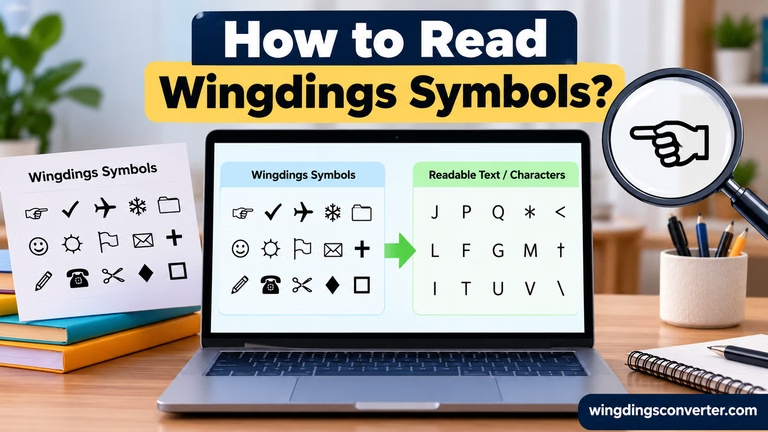
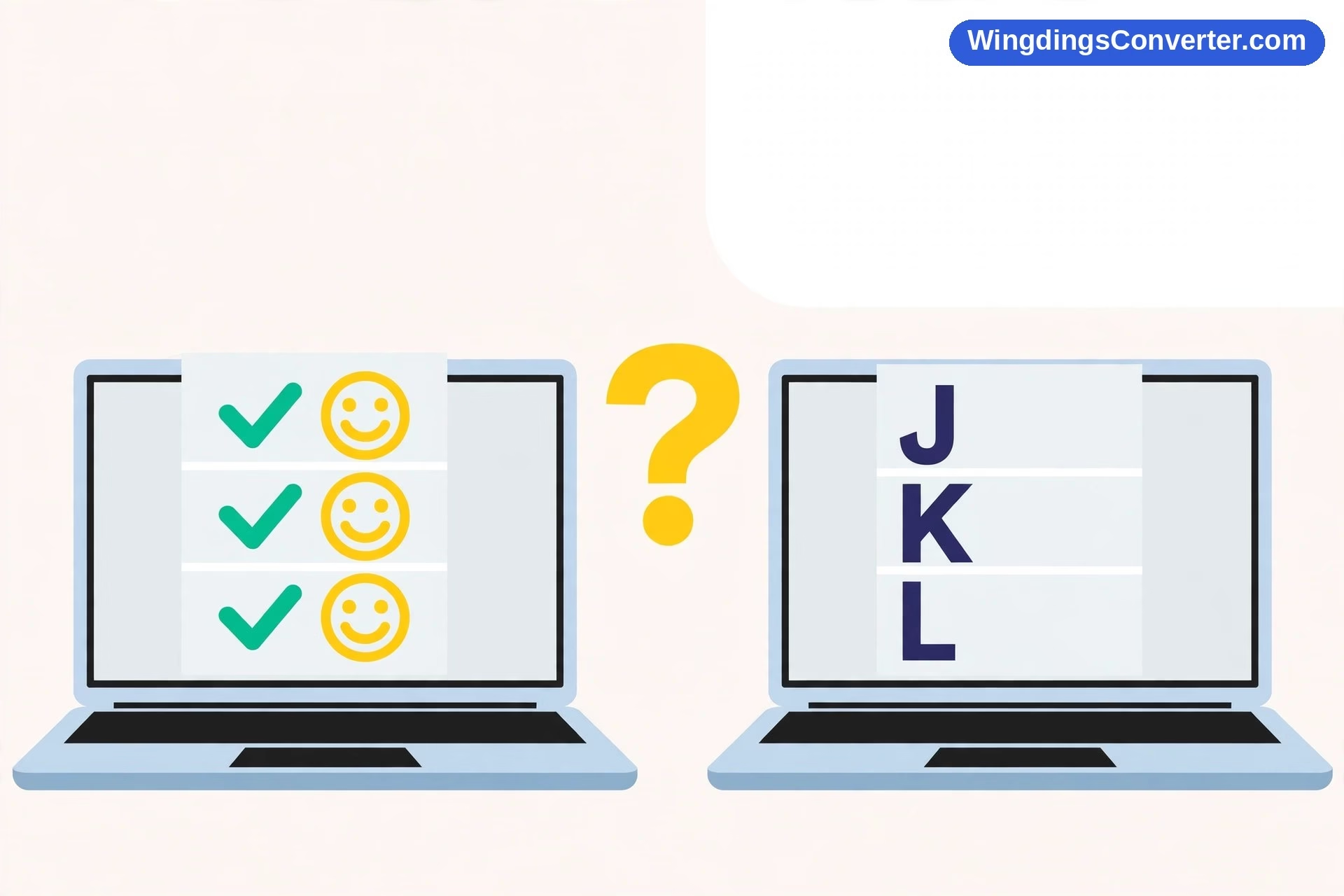
Here’s the mental model that makes this whole problem click. A Wingdings symbol in a document is really two pieces of information stored together: an ordinary keyboard letter, and an instruction that says “show this letter in Wingdings.” The font then draws a picture for that letter — a J becomes a smiling face, an L becomes a sad face, and so on. Your document keeps the letter and the instruction. It does not keep the picture itself. So if the machine opening the file can’t honour the instruction, the picture vanishes and the bare letter is what remains.
That one idea explains nearly every version of this problem, so let’s walk through where the instruction breaks down when a document moves, ages, or lands on a different machine.
The Most Common Reason: Wingdings Isn’t Installed on This Machine
Wingdings feels universal because it has been on Windows computers for so long. Microsoft introduced it in 1990, designed by Charles Bigelow and Kris Holmes at Type Solutions, and it has shipped with Windows and Microsoft Office ever since. Open a document on a typical Windows office PC and the font is just there, quietly doing its job.
Step outside that setup and the assumption collapses:
- Macs: Wingdings is not built into macOS. It arrives with Microsoft Office for Mac. A Mac running only Apple apps or Google tools may have no Wingdings at all.
- iPhones and Android phones: Neither system includes Wingdings. Opening your .docx in a phone app almost guarantees substitution.
- Chromebooks and Linux machines: Again, no built-in Wingdings. Web-based editors use their own font sets.
- A fresh or borrowed Windows PC: Usually fine if Office is installed — but a machine with only a browser and no Office can still trip you up in some apps.
When Word (or any app) opens your document and can’t find Wingdings, it doesn’t leave a hole. It substitutes another font that is available and renders the stored letters in that font. A row of smiley faces becomes “JJJJJ”. A checklist of check marks becomes a column of ü characters, because the check mark in Wingdings is the glyph drawn for character code 252. Nothing was erased — open the same file back on your own computer and the symbols reappear, which is the single best test for this cause. If the symbols come back on the original machine, the file is fine and the other machine is missing the font.
Our guide to how to install Wingdings font on Windows walks through getting the font onto a Windows PC properly, and how to use Wingdings on Mac covers the Apple side.
How to tell if substitution is happening in Word
Word leaves you a clue, but it’s subtle. Click on one of the characters that should be a symbol, then look at the font name box on the Home tab. If it reads “Wingdings” in italics, Word is telling you: the document requests this font, but I can’t find it installed, so I’m showing you something else. Normal, upright font name means the font is present. Italic font name means a stand-in is on screen.
That thirty-second check saves a lot of blind troubleshooting. If the name is italic, stop fiddling with the document — the fix is at the machine level: install or repair the font, or move to a machine that has it.
Symbols Missing in Only One Document? Look at the Document Itself
Sometimes the font is installed, other documents display Wingdings perfectly, and one particular file shows letters. Now the problem lives inside that file’s history.
It was edited somewhere that stripped formatting. If the file passed through an online editor, a phone app, or a “convert to .docx” website along the way, the Wingdings formatting may have been dropped or rewritten during the round trip, even though the text survived. The letters are still correct; the font instruction attached to them is gone or changed.
Part of the text was pasted in as plain text. This is the within-document version of the same issue, and it’s covered in depth in why do Wingdings symbols change when copied. Maybe you didn’t do it — a colleague added a section on their machine, or content was pasted from an email. The giveaway is inconsistency: symbols intact in some paragraphs, letters in others. Select the letter-only stretch, check its font box, and you’ll usually find it set to a normal text font. Reapplying Wingdings to just that selection restores the pictures instantly, because the underlying letters were right all along.
The file is genuinely old or converted. Documents that began life in very old formats, or were converted from PDF or another format by a tool that guessed at fonts, can lose symbol-font mappings in conversion. In that case the letters may not even be the originals, and reapplying the font produces the wrong glyphs — a smiling face where a star used to be. Conversion damage is the one scenario where rebuilding the affected symbols by hand is often faster than repairing them.
Missing Symbols vs. Squares: Know Which Problem You Have
Readers use “missing” for two different sights, and they have different causes, so it’s worth separating them before you try fixes.
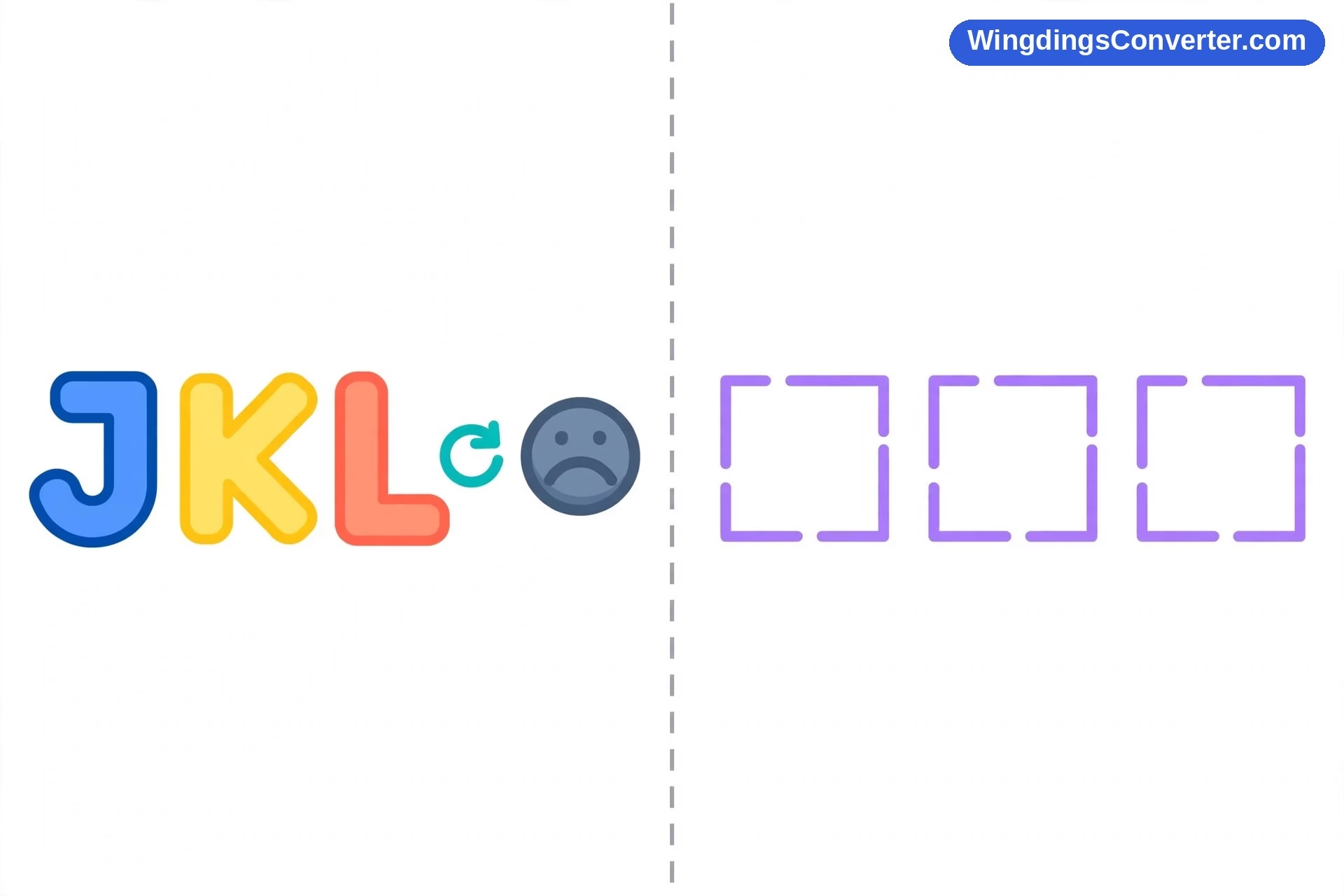
Plain letters where symbols should be — that’s font substitution or lost formatting, everything described above. The app found a font, just not Wingdings.
Neat little squares or rectangles — that’s something else. A square (the .notdef glyph, nicknamed “tofu”) means the app tried to render a specific character code and the active font had no drawing for it at all. This shows up with characters that use special code points, or text copied from unusual sources. Letters and squares are two different failure modes, not two severities of the same one. If squares are your symptom, jump to why does Wingdings show as squares and why do symbols show as boxes — the repair path there is different, and it’s the focus of how to fix missing Wingdings characters.
Fonts That Were Never Embedded When the File Was Shared
“But I sent the file exactly as it looked on my screen” is the most common sentence in this whole topic. Sending a .docx sends the letters and the font names. It does not automatically send the fonts.
Word does have a font-embedding feature — File > Options > Save > Embed fonts in the file — and when it’s used, the sender’s fonts travel inside the document, dramatically improving the odds the receiver sees what the sender saw. Two honest caveats: embedding has to be switched on before saving and sending, so it can’t rescue a file already delivered; and embedding isn’t guaranteed for every font, because font licensing can restrict it, and symbol fonts in particular may not embed. Treat embedding as a good habit for future shares within Windows/Office circles, not as a retroactive repair.
And even a perfectly embedded document still depends on the receiver’s app respecting the embedded fonts. A receiver who opens the file in a browser-based viewer or a phone app may get substitution anyway, embedded fonts or not. The further your audience is from desktop Word on Windows, the weaker every font-based promise becomes.
When the Recipient Is the One Reporting Missing Symbols
If the file looks perfect to you and broken to them, resist the urge to keep resending the same file. It will break the same way every time, because nothing about their setup changed. Instead, pick the delivery format based on what they actually need:
- They just need to read or print it: Export to PDF from your machine, where the symbols render correctly. A PDF freezes the appearance, so their lack of Wingdings stops mattering. This is the fastest, kindest fix for handouts, forms, and anything headed to a printer.
- They need to edit it, on Windows with Office: Ask them to check whether the font name shows in italics in their Word — if so, they need the font installed or Office repaired on their end. Why is Wingdings not working gives them a checklist written for exactly that machine-side problem.
- They need to edit it, on a phone, Mac without Office, or in a browser: Don’t fight the font battle. Convert the symbols to Unicode equivalents before sending. A Unicode check mark or arrow is a real character, understood by Unicode-supporting systems everywhere, and it doesn’t need Wingdings to exist. Our guide to how to convert Wingdings to Unicode shows how, and Wingdings vs Unicode: what’s the difference explains why the Unicode version travels so much better.
One more recipient-side wrinkle worth knowing: email previews and cloud-drive previews lie. If someone says the symbols are missing because they glanced at the preview in their inbox or in a file-list thumbnail, ask them to actually download and open the file in a proper app before you troubleshoot. Preview renderers substitute fonts aggressively.
Can Symbols Go Missing From a Document That Never Left Your Computer?
Yes, though it’s rarer, and it’s unnerving when it happens. The realistic causes:
A system cleanup, migration, or Office repair gone sideways damaged or removed the font files — Wingdings, Wingdings 2, Wingdings 3 — so your own machine started substituting. Test with the J/K/L trick in a brand-new document: type J K L, select them, apply Wingdings. If you don’t get the smiling, neutral, and sad faces, your local install is the problem, and repairing Office is the standard cure because the fonts ship with it.
An update or a different app version opened the file and re-saved it with changes. If the document lives in a synced folder and gets touched by multiple apps — desktop Word here, a phone app there, a web editor once — any one of those saves can be the moment the formatting changed. Version history in your cloud storage, if you have it, lets you roll back to the last good save, which beats manual repair when it’s available.
Or, occasionally, the document file itself is corrupted. Strange behaviour isolated to one file — symbols gone, other formatting oddities, a file that opens reluctantly — points that way. Copying the content into a fresh document (then reapplying Wingdings where needed) is the practical recovery.
Frequently Asked Questions
Did my Wingdings symbols get deleted from the document?
Almost certainly not. The document stores letters plus the Wingdings font instruction, not pictures. When the font is unavailable on the machine opening the file, apps substitute another font and you see the letters. Open the file on a computer with Wingdings installed and the symbols usually reappear untouched.
Why do my symbols show as letters like J and ü on another computer?
Because that computer substituted a different font. J is the letter behind the Wingdings smiling face, and ü (character code 252) is the character behind the Wingdings check mark. Seeing those specific letters is actually a good sign — it means your underlying text survived intact and only the display font changed.
How can I check if font substitution is happening in Word?
Click a character that should be a symbol and look at the font name box. If “Wingdings” appears there in italics, Word wants the font but can’t find it installed, so it’s substituting. An upright font name means the font is present and something else is going on.
Will embedding fonts stop my symbols from going missing?
It helps for .docx files shared between desktop Word users, via File > Options > Save > “Embed fonts in the file.” But licensing can restrict embedding and symbol fonts may not embed, and phone or browser viewers may ignore embedded fonts anyway. For mixed audiences, PDF export or Unicode symbols are more reliable.
Why are symbols missing only in part of my document?
That section was probably pasted as plain text or edited in an app that stripped the formatting, while the rest of the file kept it. Select the letter-only section and reapply Wingdings — if the underlying letters are correct, the symbols snap back immediately.
What should I send instead if the other person keeps losing the symbols?
If they only need to view or print, send a PDF exported while the symbols display correctly on your machine. If they need to edit across phones, Macs, or browsers, convert the Wingdings glyphs to Unicode symbols first, so no special font is required on their end.
Conclusion
When Wingdings symbols go missing from an existing document, the document is rarely the villain — the environment around it changed. A different machine, a missing font, a helpful app substituting quietly, a paste that dropped formatting. Work it in order: confirm the symbols return on the original machine, check for the italic font name that betrays substitution, and then choose the delivery fix that matches your audience — install the font, share a PDF, or convert to Unicode for good. Once you’ve seen the letter-plus-font trick behind Wingdings, the mystery disappears, and so does most of the panic.