How to Use Wingdings on Mac
Learning how to use Wingdings on Mac starts with one honest fact that saves a lot of frustration: Wingdings doesn’t come with macOS. There’s no Wingdings hiding somewhere in your Mac’s font list waiting to be switched on, the way there is on a typical Windows PC. If you open Pages or TextEdit on a fresh Mac and search for Wingdings, you won’t find it — not because you did something wrong, but because Apple never bundled it.
And yet, plenty of Mac users use Wingdings every day without thinking about it. The trick is knowing where it actually lives on a Mac, what works exactly like Windows, what’s missing, and which workarounds are worth your time when the font simply isn’t there. That’s what this guide covers: no false promises about a magic setting, just the real options, in the order most people should try them.
The good news: Microsoft Office for Mac includes Wingdings
If you have Microsoft Word, PowerPoint, or Excel for Mac installed, you almost certainly already have Wingdings available inside those apps.
Microsoft includes Wingdings with Office, and that applies to the Mac versions too. So your first check shouldn’t be a download at all. Do this:
- Open Word for Mac.
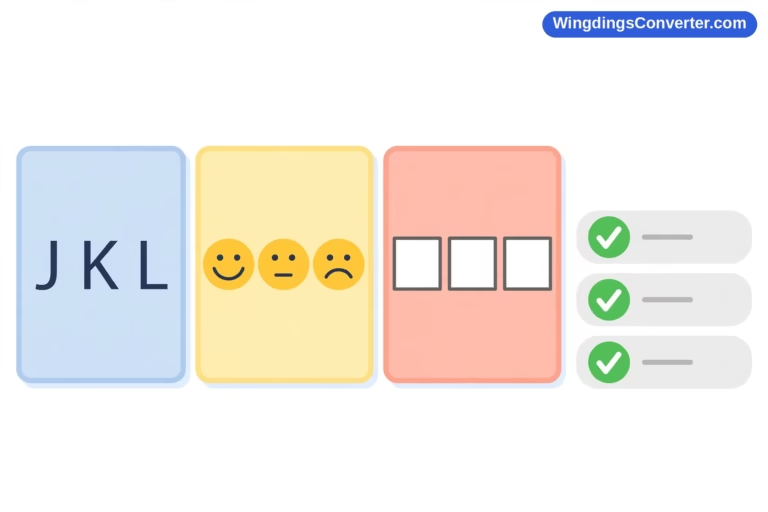
- Type a capital J on a blank line.
- Highlight it, open the font menu, and type “Wingdings” to jump to it.
- Apply the font.
If the J turns into a smiling face, you’re done. K gives you a neutral face and L a sad face, for reference — that little test is the quickest way to confirm the font is behaving, on any platform.
Try the same in PowerPoint and Excel for Mac if those are the apps you actually need. In our experience the font is available consistently across the Office for Mac suite once Office is properly installed. If it appears in Word, it will almost always appear in the other two.
This is also why two Mac users can have completely opposite experiences. One has Office and swears Wingdings “just works on Mac.” The other only uses Pages and Google Docs and swears it doesn’t exist. Both are telling the truth about their own setup. The difference isn’t the Mac — it’s the software on it.
For a bit of history while you’re here: Wingdings dates back to 1990, when Microsoft released it, designed by Charles Bigelow and Kris Holmes of Type Solutions. The Wikipedia overview of Wingdings explains how it became a standard part of the Windows and Office world — which is precisely why its presence on a Mac depends on Microsoft software rather than on macOS itself.
How to check what fonts your Mac actually has: Font Book
Font Book is macOS’s built-in font manager. It’s where you check what’s installed, preview fonts, install new ones, and fix font problems. If you’ve never opened it, you’ll use it more than you expect after reading this guide.
Find it in Applications > Font Book, or search for it with Spotlight (Cmd + Space, then type “Font Book”).
Once it’s open:
- Use the search box at the top to look for “Wingdings.”
- If it appears, click it to see a preview. You should see symbols, not ordinary letters.
- If it doesn’t appear, Wingdings isn’t installed at the system level. It may still be available inside Office apps, which manage things slightly differently, so the Word test above is still worth doing.
- Look out for a warning or a greyed-out entry. A font can be present but disabled, which looks identical to “missing” from inside your apps. If you find Wingdings listed but disabled, select it and choose Edit > Enable (the exact wording varies slightly by macOS version).
Font Book is also where you validate fonts, which we’ll use in a moment if you decide to install the font manually.
One warning that matters: don’t go deleting or disabling system fonts in Font Book to “clean up.” macOS depends on a number of its bundled fonts, and disabling the wrong one causes much stranger problems than a missing Wingdings. Stick to adding and checking the font you came for.
If you need to install Wingdings on your Mac
Sometimes Office isn’t an option. Maybe you work in Pages and Keynote, maybe you received a Wingdings-heavy document from a Windows colleague, or maybe you just want the font available everywhere on the system. In that case you can install it — provided you have a legitimate copy of the font file.
Wingdings is a Microsoft font, not freeware, so treat download sites with the same suspicion you’d use on Windows. Avoid any site that wants you to run an installer program to get a font, and start with our Wingdings font download page for guidance on legitimate sources. A proper font file ends in .ttf or .otf. If yours arrives in a zip file, double-click the zip in Finder to extract it first.
Installing through Font Book is straightforward:
- Open Font Book.
- Drag the .ttf or .otf file into the Font Book window, or choose File > Add Fonts and select the file.
- Font Book will preview and check the font. If it reports a problem, don’t ignore it — see the validation note below.
- Once added, leave Font Book and restart any app that was open while you installed. Most Mac apps only refresh their font lists on launch.
By default, fonts you add go to your user library and are available to your account. Font Book also lets administrators install for all users on the machine, but for a personal Mac there’s no practical difference. Install it once, for yourself, and move on.
Validate the font if something looks off
Font Book has a genuinely useful feature Windows users often envy: File > Validate Font (you can also right-click a font and validate it). It checks the file for corruption and structural problems and reports what it found in plain-ish language.
Run validation when:
- Wingdings appears in the list but previews as blank or boxes.
- An app crashes or beachballs when you select the font.
- You got the file from another computer and want to be sure it copied cleanly.
If validation reports serious errors, remove the font (File > Remove) and get a clean copy from a licensed source instead of trying to coax a damaged file into working. Damaged fonts cause disproportionate trouble for something so small.
Using Wingdings in Pages, Keynote, and other Mac apps
Once Wingdings is installed at the system level through Font Book, Apple’s own apps can use it like any other font. In Pages or Keynote, select your text, open the font chooser in the Format sidebar, and pick Wingdings. Type a J to test, as before.
If you haven’t installed it system-wide, Pages and Keynote won’t offer it at all. This catches people out because they assume iWork must include “the standard fonts.” It includes Apple’s standard fonts — Wingdings just isn’t one of them. There is no hidden setting to enable. Your choices are: install the font, work in Office for Mac instead, or use Unicode symbols (next section), which honestly suits many documents better anyway.
TextEdit follows the same rule. Installed system font? Available. Not installed? Not there.
A practical tip for documents you’ll share: if you build a Pages document using an installed-on-your-Mac-only Wingdings and send the file to someone without the font, they won’t see what you saw. They’ll see fallback fonts or plain letters. If the document matters, export it to PDF before sending — a PDF preserves the appearance — or switch the symbols to Unicode, as described below.
The native alternative most Mac users should know: Character Viewer
Here’s the part of this guide that changes how some people work entirely. Even without Wingdings, your Mac can insert thousands of proper symbols natively, through the Character Viewer.
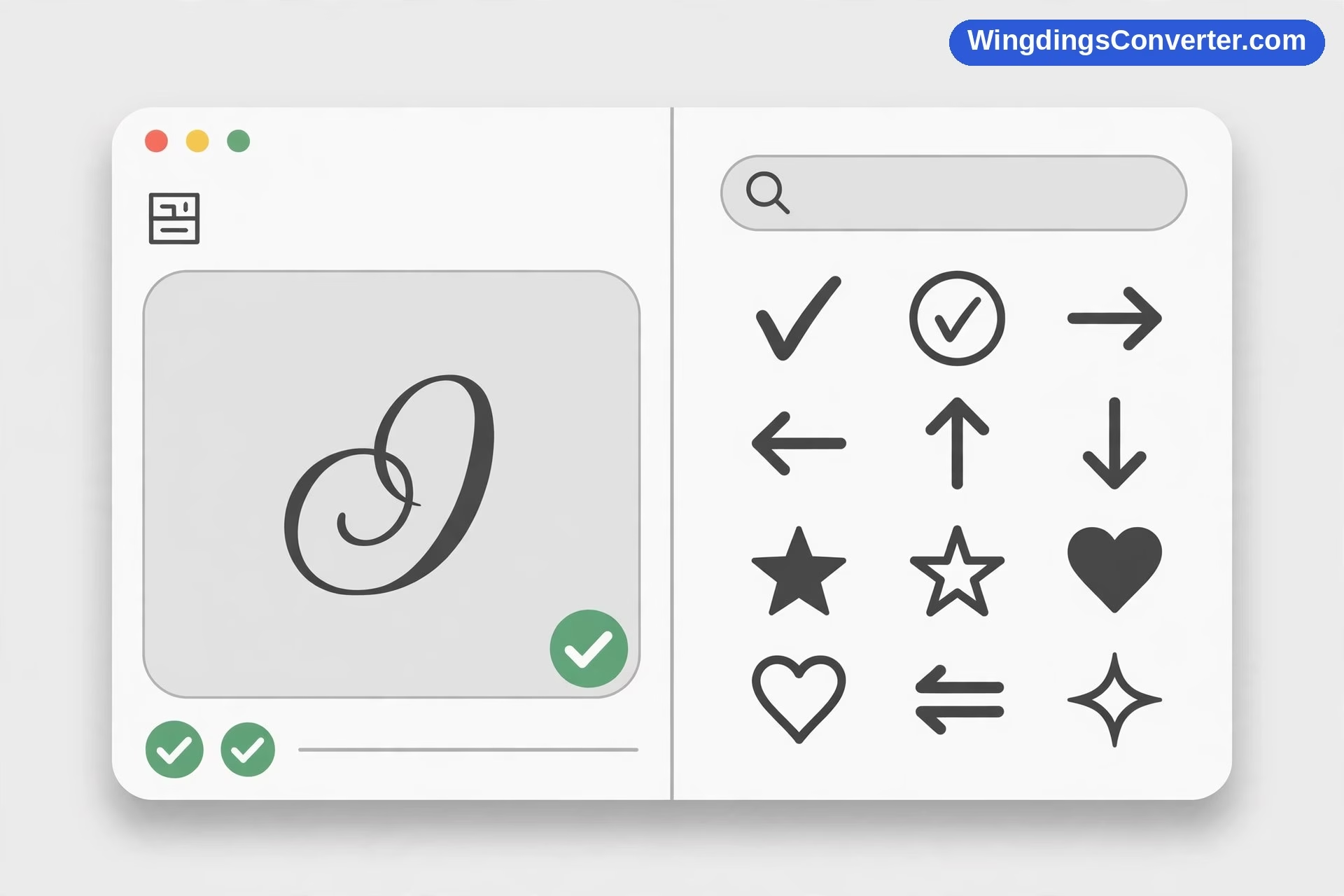
Open it with Edit > Emoji & Symbols in most apps, or press Ctrl + Cmd + Space. You get a searchable panel: type “check,” “arrow,” “star,” or “heart,” and matching symbols appear. Double-click (or drag) to insert one into your document.
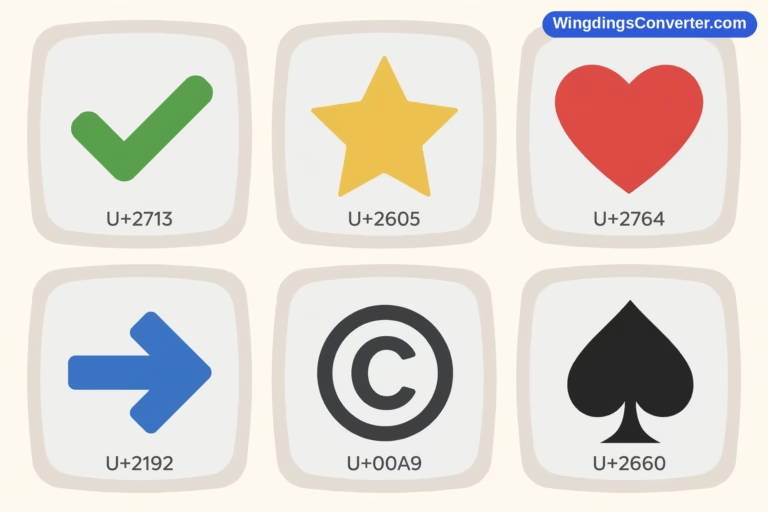
Why does this matter for Wingdings users? Because the symbols Character Viewer inserts are Unicode symbols. They carry their own identity, not just a font styling. That means:
- They look the same (or very nearly) on Mac, Windows, phones, and the web.
- They survive copy and paste into other apps without turning back into random letters.
- They don’t depend on the reader having any particular font installed.
If your goal is “put a check mark / arrow / star in this document,” Character Viewer is usually a better answer than Wingdings, regardless of platform. If your goal is “this document specifically uses Wingdings and I must match it” — a template from work, a shared file from a Windows team — then you need the actual font, via Office or a Font Book install. Understanding Wingdings vs Unicode and what’s actually different will help you decide which situation you’re in, and our simple explanation of Unicode is worth five minutes if the distinction is new to you.
Working with Wingdings documents sent from Windows
This is the most common real-world Mac scenario, so let’s be concrete. A colleague sends a Word document where headings, bullets, or little markers were typed in Wingdings.
- If you open it in Word for Mac, it will normally render correctly, because Office for Mac brings the font along. Check the J test if anything looks suspicious.
- If you open it in Pages, Pages will try to substitute a font you do have. The symbols may change, stretch, or revert to letters. The document isn’t broken; your Mac just rendered it with different materials.
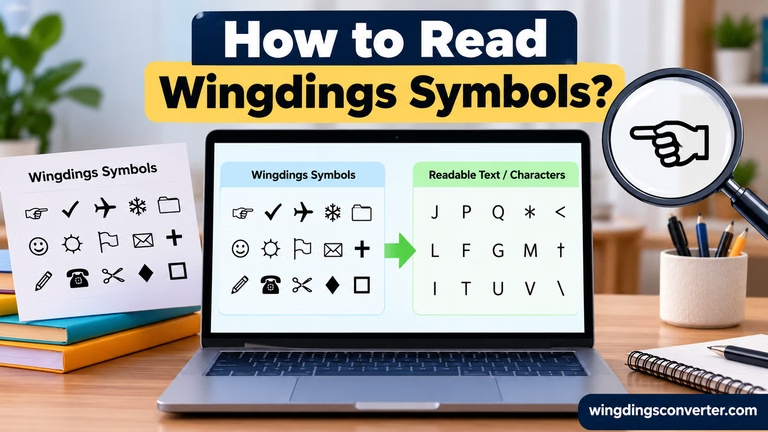
- If it opens as plain letters everywhere, the symbols were letters styled with Wingdings, and the styling was lost somewhere along the way. You can often decode it: copy a passage into the Wingdings converter on our homepage, translate it back, and you’ll see what the author meant. Our guide to how to copy and paste Wingdings symbols explains exactly why this happens, and it’s knowledge that will save you again in Google Docs, email, and chat apps too.
When you reply or return the document, mention which app you edited it in. It sounds fussy, but “edited in Word for Mac, Wingdings preserved” in a one-line email prevents the next person from opening it in the wrong tool and undoing your careful rendering.
What about Google Docs and web tools on a Mac?
Short answer: being on a Mac doesn’t change web apps. Google Docs doesn’t offer Wingdings in its font list for anyone, Windows or Mac, so the workaround there is pasting proper Unicode symbols or using Insert > Special Characters — we cover that in full in our guide to how to use Wingdings in Google Docs. Browser-based converters, including ours, work identically on macOS because they run in the browser, not the operating system. For a quick one-off translation, that’s almost always the path of least resistance on a Mac.
Frequently Asked Questions
Does macOS come with Wingdings pre-installed?
No. Wingdings is not a built-in macOS font. Your Mac ships with Apple’s own font collection. Wingdings reaches a Mac mainly through Microsoft Office for Mac, or by installing a legitimate font file yourself with Font Book.
I have Word for Mac. Why can’t I find Wingdings anywhere else?
Because Office provides the font for its own apps, while apps like Pages and TextEdit rely on fonts installed at the system level. If you want Wingdings available everywhere, install it through Font Book so macOS itself knows about it.
Is it legal and safe to download Wingdings for Mac?
Wingdings is a Microsoft font, not free software, so be wary of random font sites — especially any that bundle an installer program. Use a licensed source or guidance from a trustworthy download page, and only install a plain .ttf or .otf file. In Font Book, run Validate Font if you have any doubts about a file.
Can I use Wingdings in Pages and Keynote?
Yes, but only after it’s installed on your Mac through Font Book. Pages and Keynote don’t include Wingdings themselves. Once installed system-wide, select it from the font chooser like any other font — and consider exporting to PDF if you’re sharing the finished document.
What’s the difference between Character Viewer symbols and Wingdings?
Character Viewer inserts Unicode symbols, which are real characters that travel safely between apps and devices. Wingdings, by contrast, displays ordinary letters as symbols through font styling — remove the font and the symbols turn back into letters. For new documents, Unicode symbols are usually the more robust choice.
My Wingdings document from a Windows PC shows letters on my Mac. Is the file broken?
Almost certainly not. The file stores letters plus Wingdings formatting, and your app couldn’t apply that font, so you saw the raw letters. Open it in Word for Mac to view it as intended, or paste a sample into an online converter to read what the symbols mean.
Conclusion
Using Wingdings on a Mac isn’t hard once you stop expecting macOS to provide it. Check Office for Mac first — for most people, the font is already there. If you need it everywhere, install a legitimate copy through Font Book and validate it. And for everyday symbols in your own documents, give Character Viewer a fair try: its Unicode symbols are the Mac-native way to get the same visual result with far fewer surprises when your work leaves your machine.