What Are Special Characters?
Try signing up for almost any website and you will run into the phrase within a minute. “Your password must contain at least one special character.” Fine — but what are special characters, exactly? Is a space one? Is an accented letter? Why does one site accept a symbol that another site rejects outright?
The short answer is that a special character is any character that is not a plain letter or a plain digit. The longer, more useful answer is that “special” is not one fixed list. It depends on context — and once you see how the different contexts work, password rules, typing tricks, and those odd error messages all become much easier to deal with.
A working definition of special characters
Let’s settle the basics first. When people ask what are special characters, they usually mean characters like these:
- Punctuation: . , ! ? ; : ‘ ” – ( )
- Symbols: @ # $ % & * + = / \ | ~ ^ _ ` { } [ ] < >
- Currency signs: £ € ¥ ₹ ¢
- Typographic marks: © ® ™ ° § ¶ • …
- Mathematical operators: × ÷ ≠ ≤ ≥ √ ∞
- Accented and extended letters: é ñ ü ç ø
Strictly speaking, special characters are characters beyond plain A–Z, a–z, and 0–9. That is the definition password forms are using. In the world of text encoding, the term stretches further to include accented letters, symbols from other scripts, and even emoji. And in some technical contexts — programming, web forms, databases — “special” has an even narrower meaning: characters that the system itself uses for instructions, which therefore need careful handling when you type them as ordinary text.
So the same character can be perfectly ordinary in one place and “special” in another. An apostrophe is just punctuation when you write don’t, but it is special — genuinely disruptive — inside certain database queries and code. Context is everything.
Why do passwords demand them?
The password rule is where most people meet this term, so it deserves a straight explanation.
A password made only of lowercase letters gives an attacker 26 possible choices per position. Add capitals and digits and you are at 62. Add the common symbols and you are somewhere around 90-plus choices per character. That bigger pool makes brute-force guessing — trying combinations systematically — take meaningfully longer, especially as the password gets longer.
That said, let’s be honest about the limits. A short password with one symbol tacked on the end is not magically strong. Length does more work than cleverness. “correct-horse-battery-staple” style passphrases beat “P@ssw0rd!” even though the second one looks more “special.” The symbol rule exists because it nudges people away from pure dictionary words, not because an exclamation mark has protective powers.
A few practical notes from years of collective frustration:
- Most sites count these as special: ! @ # $ % ^ & * ( ) – _ = + and often a handful more.
- Some sites quietly reject certain symbols — spaces, quotes, < and > are frequent casualties because they can interfere with how the form processes your input.
- If a password with a symbol keeps failing at sign-up, try swapping the symbol rather than shortening the password. A hyphen or underscore is accepted almost everywhere.
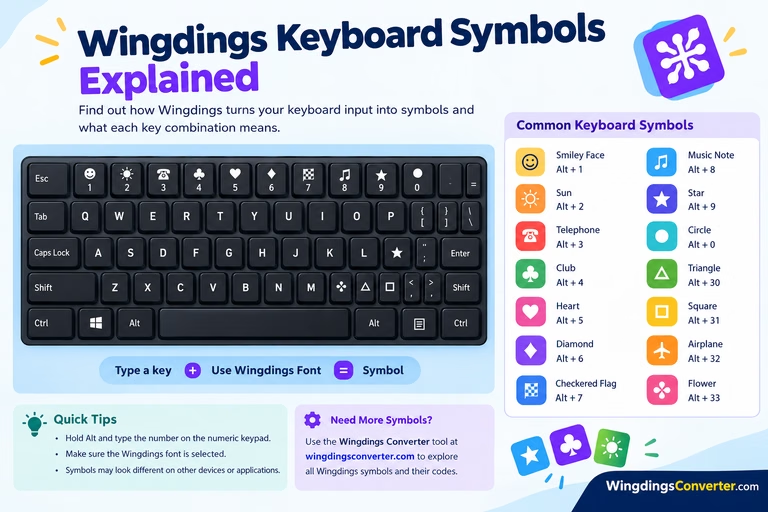
Our rundown of common keyboard symbols and their meanings is worth a look if half your keyboard’s top row is still a mystery.
Special characters in Unicode terms
Underneath all of this sits Unicode, the system that assigns every character a code point — an identifying number written like U+00A9 for the © copyright sign, or U+2605 for the ★ star.
From Unicode’s point of view, there is nothing second-class about special characters. The @ sign has a code point (U+0040). So does the humble letter A (U+0041, in fact — they are neighbours). Accented letters, math operators, arrows, currency signs: all first-class characters with their own numbers.
What Unicode does do is organise characters into categories — letters, numbers, punctuation, symbols, marks, separators, and a catch-all “other.” When a developer builds a form or a password checker, they decide which categories to allow by referring to exactly these groupings. That is why two websites can disagree about whether, say, a £ sign counts as a special character: the underlying catalogue is the same, but their house rules differ.
If you want to explore the catalogue itself, our article with Unicode symbols explained walks through the main families — arrows, checks, stars, currency, and more — in plain language.
The ones on your keyboard vs. the ones that aren’t
Here is a distinction that clears up a lot of confusion.
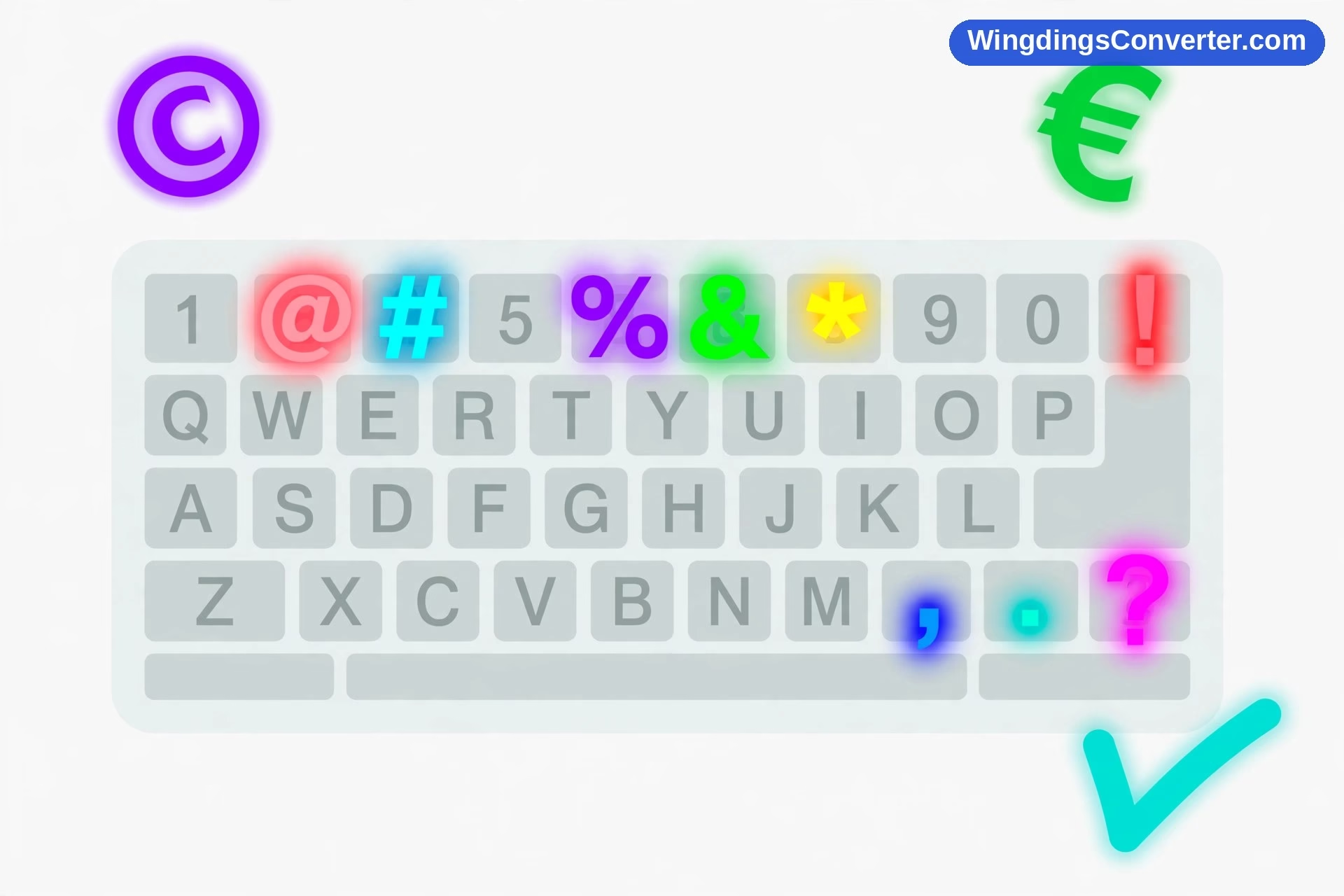
Keyboard special characters are the ones printed on your physical keys: the shifted number row (! @ # $ % ^ & *), brackets, punctuation, the backslash, and so on. You can type them all directly, most with Shift plus one key.
Non-keyboard special characters are everything else: ©, ™, °, ✓, ★, ½, the long dash — , accented letters your keyboard does not show. These exist in Unicode and in your fonts, but there is no dedicated key for them, so you reach them through shortcuts, character pickers, copy-and-paste, or symbol menus in apps like Word.
Neither group is more “special” than the other. The only difference is how many steps it takes to produce them.
A quick word about spaces, because people ask: is a space a special character? In encoding terms, yes, it has a code point (U+0020) and belongs to the separator category. In password terms, usually no — many systems either disallow spaces or ignore them entirely, and a few trim them off the ends without telling you, which has caused many “but I typed it correctly!” moments.
How to type special characters
The method depends on your device, but the options are consistent enough to learn once.
On Windows
Hold Alt and type a number code on the numeric keypad — an old system, still supported in many apps, though the codes are worth looking up per character rather than memorising. More modern: press Windows key + . (period) to open the emoji and symbols panel, which includes punctuation, currency, and math symbols alongside emoji. And in Microsoft Office, the Insert > Symbol dialog lets you browse by font and category — the same dialog used for Wingdings, which our guide on how to type Wingdings symbols in Word explains in detail.
On a Mac
The Option key is your friend: Option plus another key produces a large set of symbols and accented letters, and holding a letter key down pops up its accented variants. For the full catalogue, the Character Viewer (Control + Command + Space) lets you search by name — type “copyright” and the © appears.
On phones
Long-press is the main trick. Long-press a letter for accents, long-press the $ key for other currencies, and explore the symbols pages of the keyboard (usually behind a “?123” key and then a second symbols page). If a character simply is not there, copying it from a reference page and pasting it works — just be aware that very new or obscure characters may not display on older phones, for reasons covered in why symbols show as boxes.
Special characters in names, forms, and filenames
This is where special characters stop being trivia and start causing real paperwork problems.
Names are the classic case. Many real names contain characters that older computer systems were never built to handle: apostrophes (O’Brien), hyphens (Mary-Jane), accents (José, Renée, Łukasz). When a form insists “letters only,” it is usually protecting an old database rather than following any law of nature. Modern systems, built on Unicode, handle these names perfectly well. If you are filling in such a form, follow its rules for that submission — consistency with your official documents matters more than winning an argument with a web form — but know that the limitation is the system’s, not your name’s.
Filenames are stricter for good technical reasons. Characters like / \ : * ? ” < > | have jobs inside file systems — separating folders, marking drives, standing in as wildcards — so Windows and other systems forbid them in file names. Try to save a file as “Q&A: 2026?” and you will be stopped. It is not fussiness; letting those characters through would make the file impossible to refer to reliably.
When special characters cause trouble
A short tour of the greatest hits:
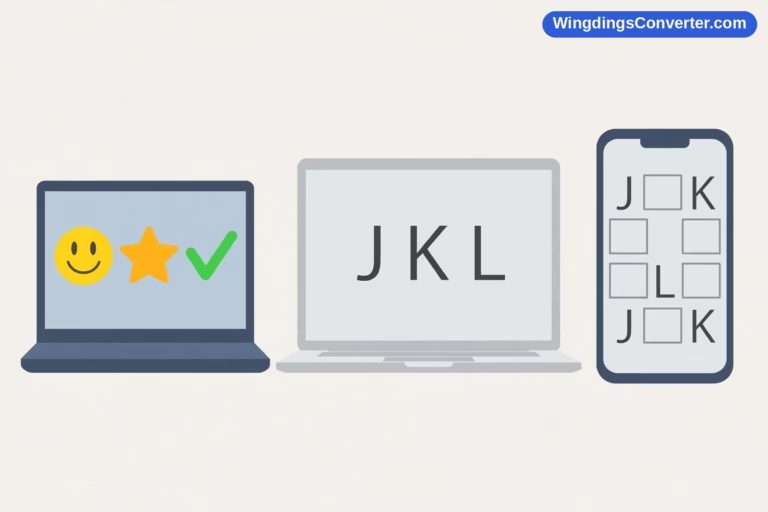
Boxes instead of symbols. You paste a ✓ and see a rectangle. The receiving font does not contain that character. Real Unicode symbols usually survive via font fallback, but older software and limited fonts still produce the infamous box.
Mangled text (mojibake). You have seen this: a document where every apostrophe has turned into a string like ’. That is an encoding mismatch — the file was saved in one character encoding and opened in another, so the bytes were reinterpreted wrongly. The text is often recoverable by reopening it with the correct encoding.
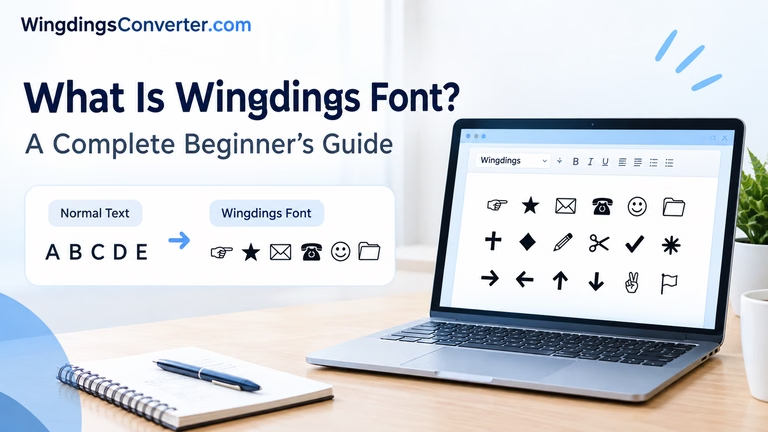
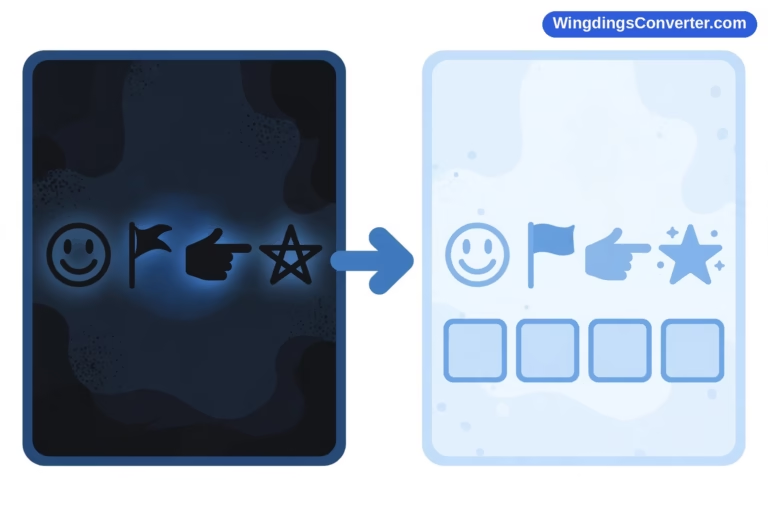
Font-based symbols changing identity. This one catches Wingdings users constantly. A check mark typed in a symbol font is really a letter wearing a costume. Copy it somewhere the font is missing and you get the plain letter back. Genuine Unicode characters do not do this — which is a good argument for converting important symbol-font text, something the Wingdings converter tool on our homepage can help you sort out.
Forms rejecting valid input. An address with a # (as in “Apartment #4”) occasionally trips up forms that treat certain symbols as dangerous. Spelling it out — “Apt 4” — is the pragmatic workaround.
Are emoji special characters?
By the plain definition — not a letter, not a digit — yes, emoji qualify. They are Unicode characters with code points, and password-style definitions would lump them in with symbols.
In practice, treat emoji separately. Many systems that happily accept ! or # will reject emoji in passwords, usernames, and form fields, because emoji are comparatively new, drawn differently on every platform, and sometimes encoded as sequences of several code points at once. Fun in messages and documents; risky anywhere structural. If you are curious about how emoji compare with older symbol systems, Wingdings vs emoji makes the contrast nicely.
Frequently asked questions
What counts as a special character in a password?
Usually any punctuation or symbol on the keyboard: ! @ # $ % ^ & * and similar, often plus characters like – _ = +. The exact list varies by website, and some sites silently exclude a few symbols (spaces, quotes, < >). If your chosen symbol is rejected, the site will normally say so — swap in a hyphen or underscore, which are accepted almost universally.
Is a space a special character?
Technically it is a character with its own Unicode code point, but most password systems and forms do not count it as a special character — many do not allow it at all. Do not rely on a space to satisfy a “one special character” rule, and be careful pasting passwords, since stray spaces at the start or end are a common cause of mysterious login failures.
Are accented letters special characters?
In the broad sense, yes — é, ñ, and ü sit outside plain A–Z. Unicode treats them as full letters in their own right, not decorations. Whether a given form or password field accepts them depends on that system’s rules; older systems remain the most likely to object. If an accented character is part of your name, use it where the system allows, and match your official documents where it does not.
How do I type a special character that is not on my keyboard?
On Windows, try the symbols panel (Windows key + .) or Insert > Symbol in Office apps. On a Mac, use the Character Viewer or Option-key combinations. On phones, long-press related keys. Copying from a reliable character reference also works, and for characters you use daily, it is worth learning the specific shortcut or setting up a text replacement.
Why did my special character turn into a box or strange letters?
A box means the font on the viewing device lacks that character. Strange letter strings usually mean an encoding mismatch — the file and the program reading it disagree about how characters are stored. And if a symbol turned back into an ordinary letter, it was probably created in a symbol font like Wingdings rather than as a true Unicode character.
Can special characters break a website or app?
Typed into the wrong field, occasionally, yes. Characters like < > and quote marks have meaning in code, which is why well-built sites carefully neutralise them in user input — and why badly built ones sometimes reject or mangle them. For you as a user, the practical takeaway is simple: if a form chokes on a symbol, spell the meaning out in words and move on.
Conclusion
Special characters are not really a mysterious separate species. They are simply everything in the vast character catalogue that is not a plain letter or digit — punctuation, currency signs, math operators, accented letters, symbols, and more. What makes them feel “special” is context: a password rule, a form’s limitations, a font that does or does not contain them. Understand that, and you can stop fighting the rules and start using the full keyboard — and well beyond it — with confidence.