Why Does Wingdings Show as Squares?
Few things look more broken than a document dotted with little empty rectangles where symbols should be. If you’re wondering why does Wingdings show as squares — those neat, hollow boxes marching across your page — you’re looking at a very specific failure with its own name, its own cause, and, fortunately, its own fixes. It is not the same problem as Wingdings turning into letters, and treating it as if it were will send you in circles.
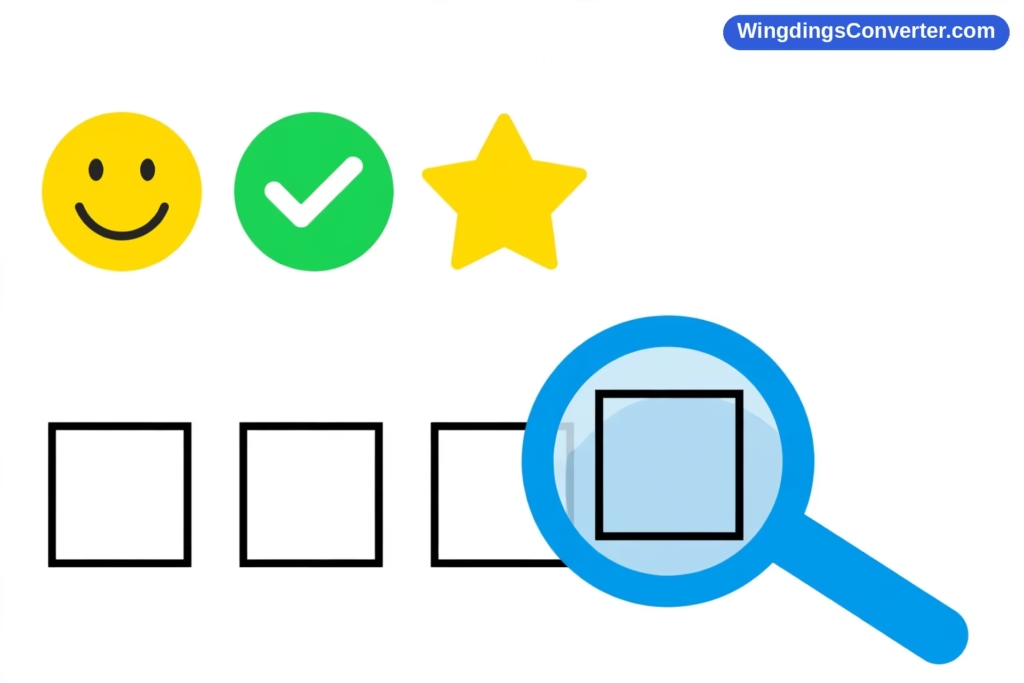
Start with the shape itself. That rectangle is called the .notdef glyph — literally “not defined.” Almost every font carries one: a placeholder drawing, usually a hollow box, sometimes a box with an X or a question mark inside, that the system displays when it’s asked to render a character the font simply does not contain. In internet slang it’s nicknamed “tofu,” because the little white rectangles resemble cubes of tofu. When you see tofu, the software isn’t being lazy. It’s telling you, honestly, “I was asked for a character I can’t draw.”
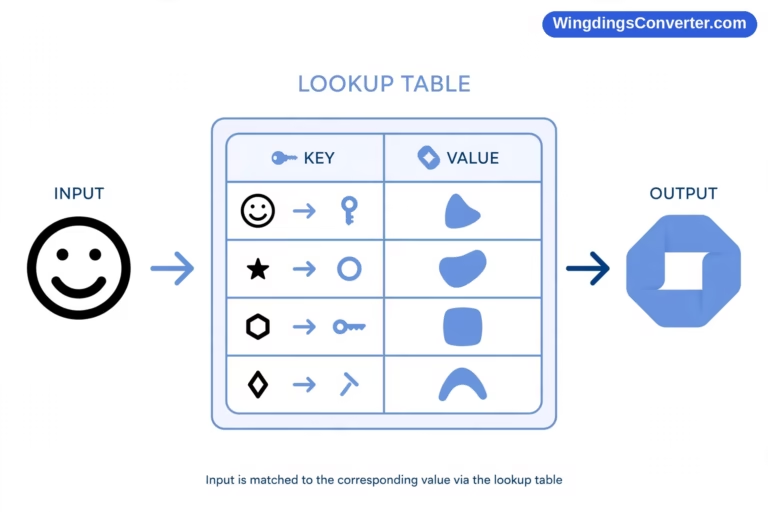
To understand why that happens with Wingdings, you need the usual one-sentence background: Wingdings, released by Microsoft in 1990 and designed by Charles Bigelow and Kris Holmes, works by drawing pictures for ordinary keyboard characters. Your document stores letters plus the Wingdings font name. Normally that’s enough on a Windows PC with Office, where the font ships with the system. Squares appear when the rendering chain reaches a character code that the font doing the drawing has no picture for.
Squares vs. Letters: Two Different Failure Modes
This distinction sits at the heart of the whole topic, so let’s make it unmistakable.
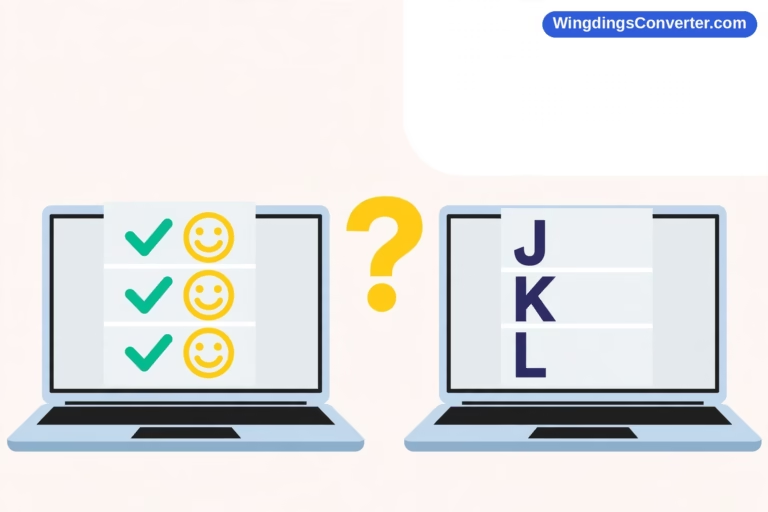
You see plain letters (a J where a smiley should be, a ü where a check mark should be) when the Wingdings formatting or the font itself is lost, and the app substitutes a normal text font. A normal font can draw J and ü — it just draws them as letters. The character exists in the substitute font, so you get a readable, wrong-looking result. That’s font substitution, covered fully in why are my Wingdings symbols missing.
You see squares when the character code being requested has no glyph at all in the font being used to render it. There’s nothing to substitute a drawing with — the code points at an empty slot — so out comes the .notdef box. The character doesn’t exist in that font, so you get an unreadable, empty result.
Same family of trouble (“the wrong rendering happened”), completely different mechanism. Letters mean the app found a font that knows these characters but draws them plainly. Squares mean the app is using a font that doesn’t know these characters at all. Keep that sentence in mind and the causes below will sort themselves.
Cause 1: The Character Is a Real Unicode Symbol, but the Font Is Wingdings
Here’s the most modern version of the problem, and it catches people who did everything “right.”
Suppose you — or a colleague, or a website you copied from — inserted a genuine Unicode symbol: a real check mark character, a real arrow character, the kind that exists independently of any font thanks to the Unicode standard. That symbol is stored in the document as its own code point, not as a letter waiting for a costume change.
Now that text gets formatted in Wingdings, or pasted into a Wingdings-formatted area, or the document’s font for that run is Wingdings. Wingdings is a small, old, symbol font built around the ordinary keyboard range. It has no glyph assigned for that modern Unicode code point. Word asks Wingdings, “draw this character,” Wingdings has an empty slot there — square.
The fix in this case is almost comically simple once you see it: don’t render true Unicode symbols in Wingdings. Select the squared character and set it to a normal, broad-coverage font — Calibri, Arial, Segoe UI Symbol — and the real symbol appears, because those fonts actually contain it. The character was never lost; it was just assigned to a font that couldn’t speak its language. We unpack the underlying divide in Wingdings vs Unicode: what’s the difference.
Cause 2: Text Copied From a Source That Used Private or Unusual Code Points
A lot of “Wingdings” text floating around the internet isn’t classic Wingdings at all. Generators, puzzle sites, social media posts, and older symbol tools sometimes encode decorative characters using the Private Use Area of Unicode — a range of code points deliberately left undefined by the standard, for fonts to use however they like — or they rely on character codes meaningful only in one specific font.
That text can look perfect at the source, because the source’s font assigns pictures to those private codes. Copy it into Word, into a different app, anywhere the receiving font doesn’t make the same private assignments, and the codes land on empty slots. Squares, in neat rows, exactly where the fun symbols were.
You can spot this cause by its pattern: everything from that paste turned to boxes, uniformly, while Wingdings you typed yourself elsewhere in the document works fine. The source text itself is the suspect. The practical remedies:
- Go back to the source and, if it offers one, choose a standard Wingdings or Unicode output rather than a fancy/private encoding.
- Retype the key symbols yourself in Word via Insert > Symbol > More Symbols with Wingdings selected — our guide to finding Wingdings symbols in Word shows the dialog — so the characters are stored cleanly.
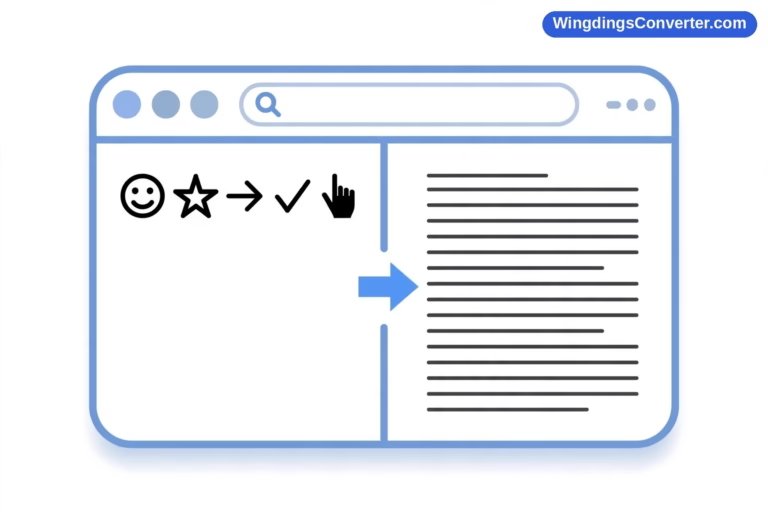
- Or replace the pasted glyphs with Unicode equivalents that render anywhere, using a converter like the one on our homepage to decode what the original was meant to say first.
Cause 3: The Font in Use Is Missing Glyphs — or Isn’t Really Wingdings
Squares can also appear inside an otherwise genuine Wingdings workflow when the font doing the rendering isn’t the full, healthy, original font.
A damaged Wingdings installation — say, after a botched system migration — might have missing or corrupted glyph data for parts of the set. Some characters draw, neighbours don’t, and the gaps show as boxes. Equally, a lookalike or partial font installed under a confusing name, or an app silently substituting a different symbol font with a smaller character set, produces the same patchy result: this glyph exists, that one doesn’t, box.
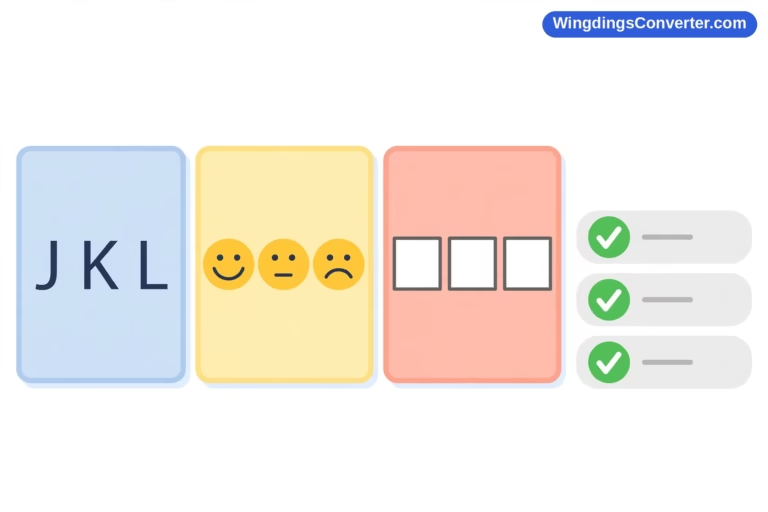
Clues that you’re in this territory: the squares are inconsistent — some Wingdings symbols in the same line render fine while others box out — and the pattern follows the characters, repeating wherever a particular character appears. Test it the clean way. In a fresh blank document, type J, K, and L, select them, and apply Wingdings. You should see the famous trio: smiling face, neutral face, sad face. Then type or insert the specific characters that squared on you. If they box even in the fresh test with real Wingdings confirmed in the font box, the font install or the character code itself is at fault, and repairing Office — Wingdings ships with it, so a repair restores a clean copy — is the sensible next step. Step-by-step help lives in how to fix missing Wingdings characters and the general checklist in why is Wingdings not working.
Cause 4: Viewing on a Device or App Without Proper Font Support
Phones deserve a special mention. Wingdings is not built into iOS or Android, and it’s not part of macOS by itself either — it comes with Office for Mac. When a phone app opens your document, it substitutes fonts with whatever it has, and its substitution choices are optimized for ordinary text, not for a 1990 symbol font’s mapping scheme.
Depending on the app and exactly how the characters were encoded, that substitution lands you in letters territory (the app picks a text font that can draw the stored letters) or in squares territory (the app tries to honour a symbol encoding its fonts can’t satisfy). Either way, the document is fine and the viewing environment is the limit. If your audience is mostly on phones, this is less a bug to fix than a design fact to plan around — a point we explore further in why does Wingdings look different on different devices.
The same logic applies to browser-based viewers and email previews, which render with their own font stacks and often flatten or replace document fonts. Always judge the file in a real app before concluding the symbols have “turned into squares” permanently.
How to Diagnose Your Squares in Two Minutes
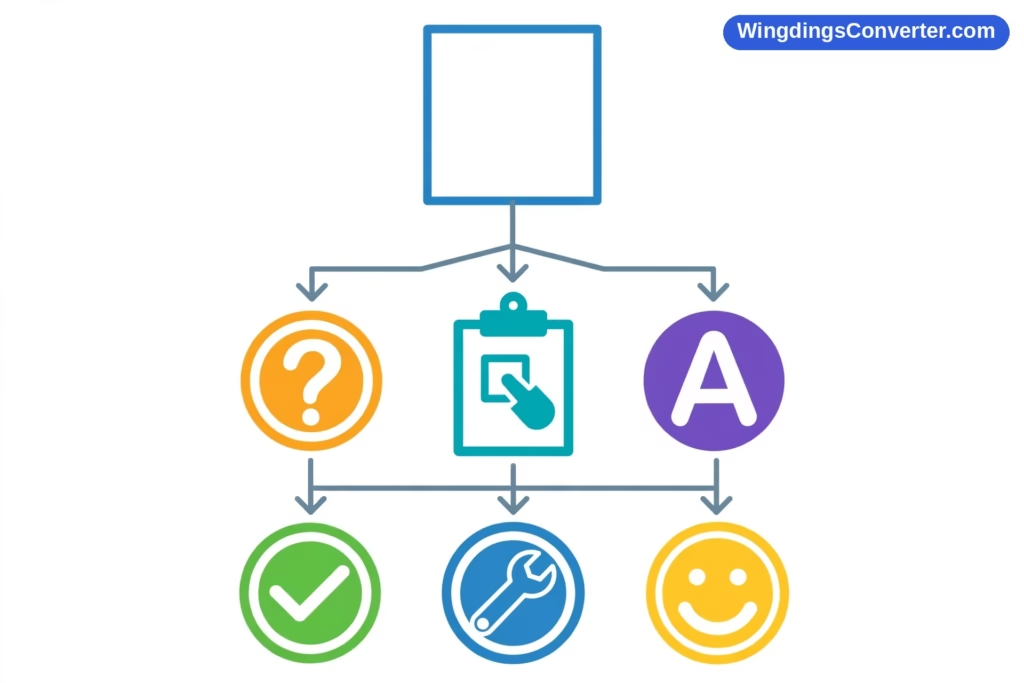
Pulling the causes together into an order you can actually run:
- Select a squared character in Word and read the font box. If it says Wingdings in italics, Word can’t find Wingdings installed — you’re dealing with a missing-font substitution, and the fix is installing or repairing the font, as in how to install Wingdings font on Windows.
- Try changing just that character to Calibri or Segoe UI Symbol. If a real symbol pops into view, the character was a genuine Unicode symbol being forced through Wingdings. Keep it in the normal font — fixed, permanently.
- Ask where the text came from. Pasted from a generator, a puzzle, or a social post, and all of it boxed? Suspect private code points from the source. Retype or replace those glyphs with clean Wingdings or Unicode versions.
- Run the fresh-document test with J/K/L and your problem character, to separate a sick font install from a sick document.
- Check the viewing device. If the file looks right on your Windows PC and squares only appear on a phone or in a web preview, nothing is broken — the environment lacks the font support, and PDF export or Unicode conversion is the answer, not repair.
Notice what’s not on this list: changing the font size, restarting Word repeatedly, or re-saving under a new name and hoping. Squares have a mechanical cause, and the five checks above find it.
Preventing Squares Next Time
Once you’ve cleaned up a document, a few habits keep the boxes from returning. Insert symbols from inside Word’s Symbol dialog rather than pasting them from random web pages, so their encoding is known-good. Keep true Unicode symbols in normal fonts and reserve Wingdings formatting for genuine Wingdings characters — mixing the two systems in one formatted run is how Cause 1 happens. If a document must travel to people on mixed devices, either export a PDF while it looks right on your machine (freezing the appearance), or convert the important symbols to Unicode equivalents that every modern system can draw natively. And if you share .docx files within a Windows/Office circle, remember Word’s File > Options > Save > Embed fonts in the file option exists — with the caveat that licensing can restrict embedding and symbol fonts may not embed, so treat it as a helper, not a guarantee.
For the broader, non-Wingdings version of this whole topic, why do symbols show as boxes covers emoji, foreign scripts, and other fonts hitting the same .notdef wall.
Frequently Asked Questions
What is the little square that appears instead of a symbol called?
It’s the .notdef glyph — the “not defined” placeholder built into fonts — nicknamed “tofu.” A font displays it when asked to render a character code for which it has no drawing. It’s a diagnostic message, in effect: this character isn’t in this font.
Why does Wingdings show as squares instead of letters?
Letters and squares are two different failures. Letters appear when Wingdings formatting is lost and a normal text font draws the underlying characters plainly. Squares appear when the font doing the rendering has no glyph at all for the character code requested — for example, a true Unicode symbol forced into Wingdings, or a private code point copied from a website.
Why do only some of my Wingdings symbols turn into squares?
Because the fault is per-character. Some character codes have a glyph in the rendering font and some land on empty slots. A patchy pattern — a few boxes among working symbols — usually points to copied characters with unusual code points, or a damaged or substituted font missing parts of its set.
Can a square turn back into the right symbol?
Often, yes. If the square is a Unicode symbol stuck in the wrong font, selecting it and choosing a normal font like Calibri reveals the symbol instantly. If it’s a missing-font problem, installing Wingdings restores the display. Only privately encoded copied text usually needs replacing rather than reformatting.
Do squares mean my document is corrupted?
Rarely. Most squares are encoding or font-availability issues, not file corruption. If the same document renders perfectly on another machine or after a font change, the file is fine. Corruption becomes a real suspect only when squares come with other damage — garbled text, missing content, files that won’t open cleanly.
How do I stop Wingdings squares when sharing files?
Export to PDF for view-only sharing, so the appearance is frozen as it looked on your machine. For editable sharing beyond Windows/Office, replace Wingdings glyphs with Unicode symbols, which don’t depend on any single font being installed.
Conclusion
A square is not your document mocking you — it’s precise information. It says a character code arrived at a font that had nothing drawn for it, and once you know that, the mystery shrinks to a short list: a Unicode symbol wearing the wrong font, private codes smuggled in by a paste, a damaged or substituted font, or a viewer without the right support. Work the two-minute diagnosis, fix the actual cause, and keep the letters-versus-squares distinction in your pocket. It’s the difference between troubleshooting Wingdings and just guessing at it.