How to Install Wingdings Font on Windows
If you’re searching for how to install Wingdings font on Windows, there’s a decent chance you don’t actually need to install anything at all. On most Windows PCs, Wingdings is already there, sitting quietly in your font list, waiting for Word or PowerPoint to call on it. It has shipped with Windows and Microsoft Office for decades. So before you download anything from anywhere, it’s worth spending two minutes checking whether the font is already installed, whether it’s just hidden in one app, or whether something has genuinely gone wrong with it.
This guide walks through the whole picture in order: how to check, where a legitimate copy comes from if yours really is missing, the three proper ways to install a font file on Windows, and how to confirm the install actually worked. It also covers the unglamorous but important part — what to do when Wingdings looks installed but still shows blank boxes or the wrong characters.
First, check if Wingdings is already on your PC
Wingdings was released by Microsoft in 1990, designed by Charles Bigelow and Kris Holmes of Type Solutions, and it has been bundled with Windows and Office ever since. That long history is why most “how to install Wingdings” problems turn out to be something else: an app that doesn’t use system fonts the way you expect, a document made on another computer, or a corrupted font cache rather than a missing font.
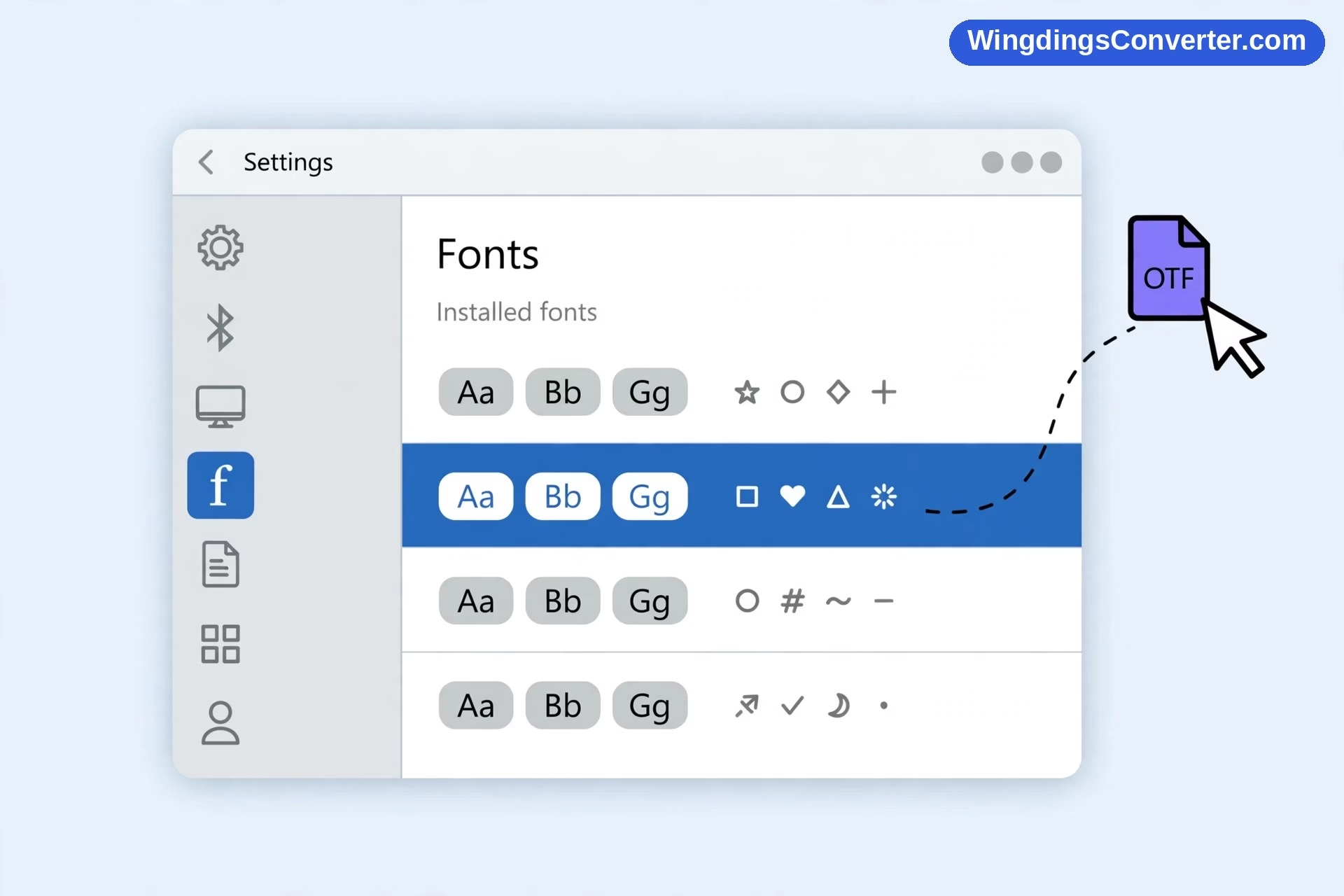
Here’s the fastest check. Open Settings, go to Personalization > Fonts, and type “Wingdings” into the search box at the top. If it appears, click it. Windows will show you preview lines in different sizes. If those previews show little symbols — envelopes, arrows, faces, and shapes — instead of ordinary letters, the font is installed and working at the system level.
Prefer the older route? Open File Explorer and look in C:\Windows\Fonts. Scroll or search for Wingdings. You’ll usually see it listed simply as “Wingdings” with a preview icon.
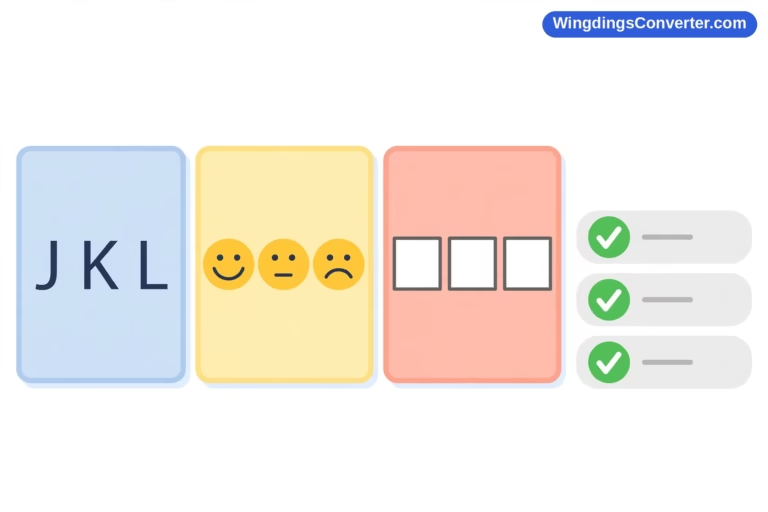
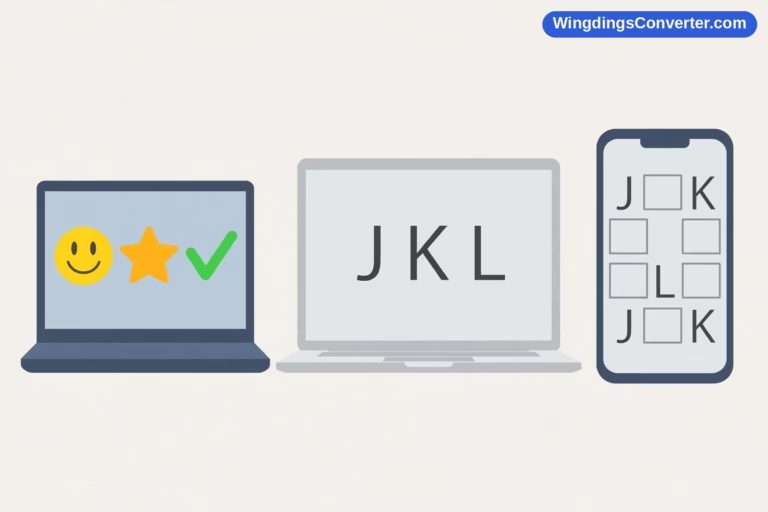
A second, practical check is to open Word (if you have it), type a capital J, highlight it, and change the font to Wingdings. The J should turn into a smiling face. K becomes a neutral face and L becomes a sad face — those three are the safest, best-known examples of how Wingdings maps ordinary letters to symbols. If that works in Word, you do not have an installation problem, even if another program is behaving oddly. That other program is likely the issue, and our guide to why Wingdings is not working and common fixes is a better next step than reinstalling.
If Wingdings doesn’t appear in Settings, doesn’t appear in C:\Windows\Fonts, and doesn’t appear in Word’s font list, then yes — you probably do need to install or restore it.
Where should a legitimate Wingdings font file come from?
This matters more than the install steps themselves, and it’s the part a lot of quick tutorials skip.
Wingdings is a Microsoft font. It is not freeware that anyone can legally redistribute from a random download site. It comes with a licensed copy of Windows or Microsoft Office. So the cleanest sources, in order, are:
- Your own Windows or Office installation. If the font was deleted or damaged, restoring it through Windows or repairing Office is safer than downloading a replacement from the internet.
- Another licensed Windows PC you own, by copying the font file from C:\Windows\Fonts on that machine.
- Our Wingdings font download page, which explains your options and points you in the right direction without pretending the font is something it isn’t.
Please be careful with general font download sites. Some are fine, many are not. A surprising number bundle font files with adware installers, browser extensions you didn’t ask for, or “download manager” software that has nothing to do with the font itself. A font file itself should be small and simple — typically a single .ttf file for a font like this. If a site wants you to run an .exe installer to get a font, close the tab. You don’t need it, and that pattern is a well-known malware delivery trick.
Also check what you actually downloaded before installing. You want a file ending in .ttf (TrueType) or .otf (OpenType). If you downloaded a .zip, open it first and install the font file inside — Windows can’t install the zip itself as a font in the normal drag-and-drop flow, and double-clicking a zip just shows you its contents. That’s not an error; it’s just one extra step people often miss.
If you’re curious about the font’s background while you’re here, the Wingdings article on Wikipedia covers its origins and its place in Microsoft’s dingbat fonts well.
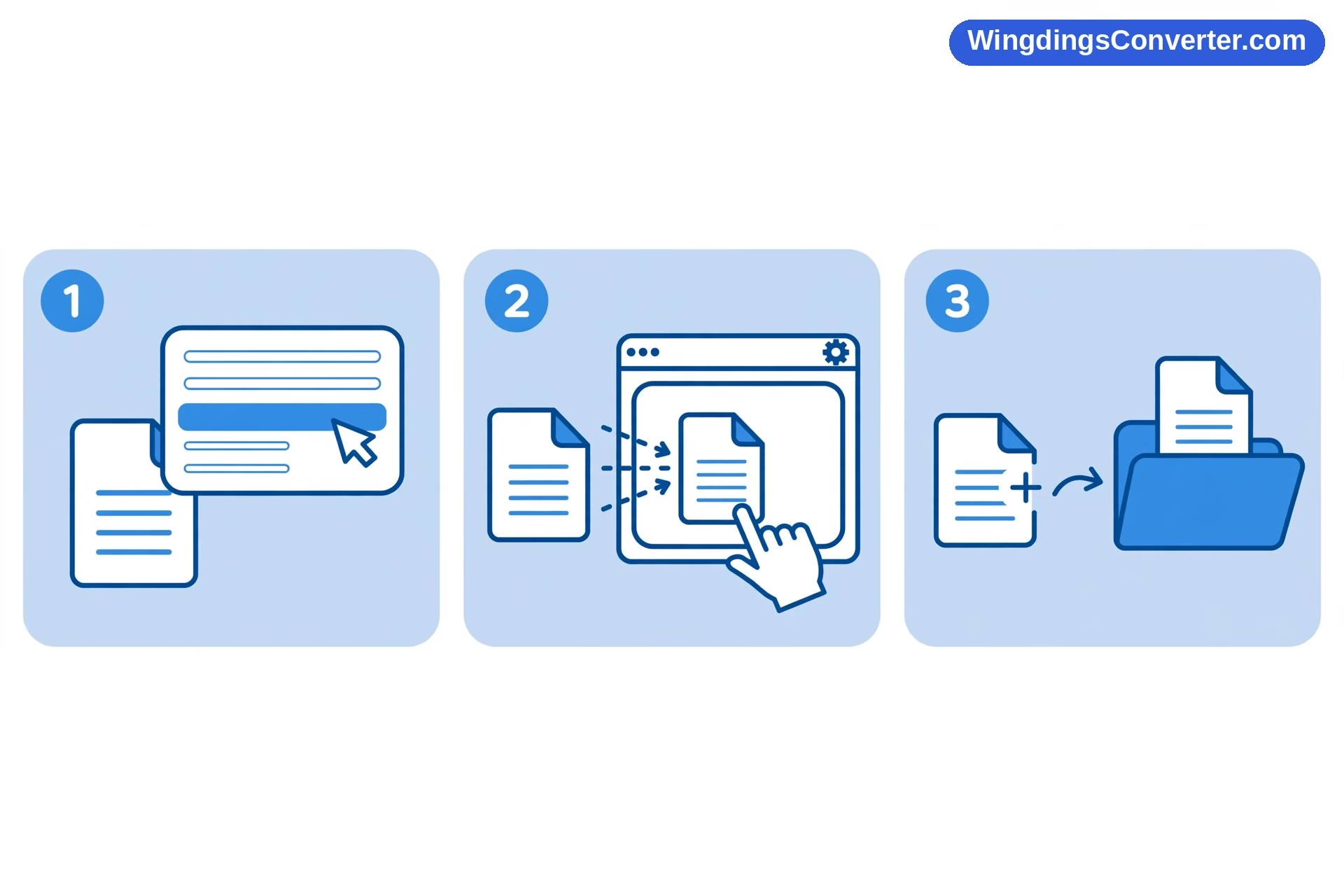
Method 1: Right-click and install (the quickest way)
If you have a legitimate .ttf or .otf file — say, in your Downloads folder — this is the method most people should use.
- Find the font file in File Explorer.
- Right-click it.
- Choose Install.
That’s it. Windows copies the font into your font collection and registers it. On newer versions of Windows you may see a brief progress window; on some setups the menu also offers Install for all users, which we’ll come back to in a moment because the difference actually matters.
One detail trips people up: after installing, an app that was already open may not show the new font straight away. Word, PowerPoint, and most design programs build their font list when they start. So if Wingdings doesn’t appear immediately, save your work, close the app completely, and reopen it. In the vast majority of cases, the font will be there on the second launch.
Method 2: Settings > Personalization > Fonts (the modern way)
Microsoft’s current help for adding a font in Windows points you here, and it’s the most visual method, which makes it good if you want confirmation as you go.
- Open Settings > Personalization > Fonts.
- Open File Explorer in a second window and find your font file.
- Drag the file onto the “Drag and drop to install” area at the top of the Fonts settings page.
- Wait for the brief install to finish, then search for “Wingdings” in that same page to see its preview.
The advantage of this route is feedback. You see the font land in the list, and you can click straight into its preview to confirm the symbols render correctly. If dragging does nothing, check that you’re dragging the actual .ttf/.otf file and not a shortcut or a zip archive — that’s the usual cause.
Method 3: Copy the file into C:\Windows\Fonts (the old-school way)
This method has worked for generations of Windows and still works now, which is why older tutorials mention it.
- Copy your font file (press Ctrl + C on it).
- Go to C:\Windows\Fonts.
- Paste it there (Ctrl + V). Windows should show an “Installing” progress message as it registers the font.
In practice you rarely need this method unless the other two are unavailable, but it’s useful to know because it explains where fonts live. It also explains a common confusion: dropping a font file into an ordinary folder, a project folder, or onto your Desktop does not install it. Location matters. A font only becomes a system font when Windows registers it through one of these routes.
“Install” vs “Install for all users” — which do you need?
When you right-click a font file, some versions of Windows show two options. The plain Install adds the font for your user account only. Install for all users adds it for everyone who logs into that PC, and it requires administrator permission — Windows will ask for an admin password or confirmation.
For a personal laptop where you’re the only user, plain Install is perfectly fine. Choose “Install for all users” when:
- The PC is shared by family members or colleagues who all need the font.
- The app that needs the font runs under a different account.
- You’re setting up a work machine for someone else.
If you install for your account only and then log in as a different user and can’t find Wingdings, you haven’t broken anything. You’ve just discovered this distinction the hard way. Reinstall with the “all users” option from an admin account and the problem goes away.
How to verify the installation really worked
Don’t trust the install dialog alone. Verify in two places.
First, in Settings. Go back to Personalization > Fonts, search for Wingdings, and open its preview. You should see symbol glyphs, not A-B-C letterforms. Click through a couple of sizes. A font can be listed but damaged, and the preview is where damage usually shows up as blank spaces or boxes.
Second, in a real app. Open Word or another Office app, type J K L on separate lines, select them, and apply the Wingdings font. You should get a smiling face, a neutral face, and a sad face. If you get those three, your installation is genuinely working and you can use the font anywhere system fonts are supported — including the workflows in our guide to how to use Wingdings in Microsoft Word.
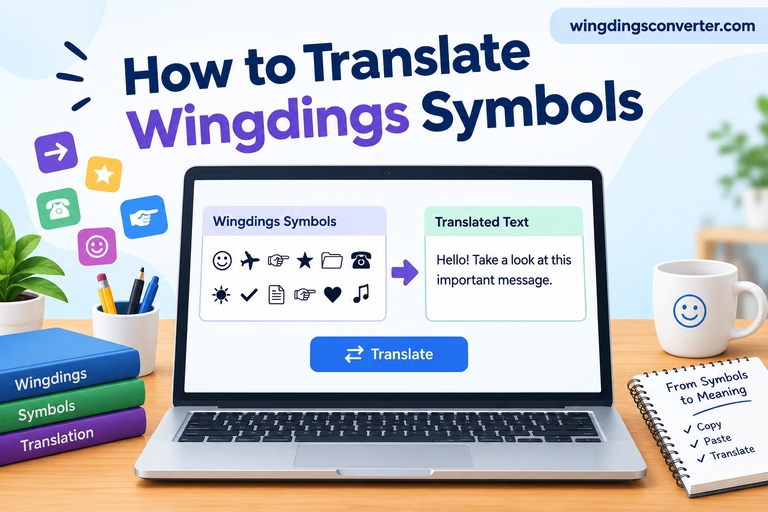
If you don’t have Office, you can still test in WordPad’s successor tools or any desktop app with a font picker. And if you just need to read or write a quick Wingdings message without any of this, the Wingdings converter on our homepage works in your browser with nothing to install at all.
When Wingdings is installed but still misbehaves
A few scenarios come up again and again:
The font shows in Settings but not in one app. Restart the app first. If that fails, check whether the app uses its own font system. Web apps and some cross-platform tools don’t read Windows fonts the way desktop Office apps do. That’s an app limitation, not a failed install.
Symbols show as squares or boxes. The app may be substituting a different font, or the document you’re opening was made with a variant you don’t have. Our explainer on why symbols show as boxes goes deeper, but the short version is: a box usually means “the character is requested but no glyph was found in the font actually being used.”
Wingdings worked yesterday and doesn’t today. Think about what changed. A Windows update, an Office repair, a font manager utility, or aggressive “PC cleaner” software can all remove or disable fonts. If you suspect corruption, the safest fix is to repair Office (Settings > Apps > Microsoft Office > Modify > Repair) or restore the font from a licensed source, rather than layering a downloaded copy over a damaged one.
You have multiple similar entries. Occasionally a font gets installed twice — once per-user and once for all users. Windows usually copes, but if previews look inconsistent, remove the extra copy from the Fonts settings page and reinstall once, cleanly.
A note on removing a font, since people ask: in Settings > Personalization > Fonts, open the font and choose Uninstall. Don’t casually uninstall fonts that shipped with Windows, though — other documents and even parts of the interface can depend on them. Wingdings is a good example. Removing it to “tidy up” is how some people end up reading an article like this one in the first place.
A quick word on fresh and minimal Windows setups
Most readers will never need this section, but if you’ve built a PC with a stripped-down Windows image, set up a virtual machine, or use a work device managed by IT, fonts can genuinely be absent or locked down. In managed environments, you may not have permission to install fonts at all — the “Install for all users” prompt will fail and even per-user installs can be blocked by policy. In that case, don’t work around your IT department with downloaded files. Ask them to deploy the font, or simply use a browser-based converter for one-off tasks. It’s faster than fighting group policy, and it’s what the tool is there for.
Frequently Asked Questions
Is Wingdings already installed on Windows 10 and Windows 11?
Almost always, yes. It ships with Windows and with Microsoft Office, so on a normal PC you should find it in Settings > Personalization > Fonts without installing anything. If it’s missing, something has removed it, the setup is minimal or managed, or the installation is damaged.
Is it safe to download Wingdings from a free font site?
Be cautious. Wingdings is a Microsoft font, not freeware, and some font sites bundle downloads with unwanted software. Only use trustworthy sources, never run an .exe just to get a font, and check our download page for guidance first. A legitimate download is just a .ttf or .otf file.
Why did the font install but not appear in Word?
Word and other apps usually load their font list at startup. Close the app fully and reopen it after installing. If it still doesn’t appear, confirm the font shows a correct symbol preview in Settings > Fonts — if the preview is broken there too, the file itself may be damaged.
Do I need administrator rights to install Wingdings?
Not for a standard per-user install. You do need admin permission for “Install for all users,” and on a work or school PC, local policy may block font installation entirely. On a managed device, ask IT rather than trying to bypass the restriction.
What file type should the Wingdings font be?
A TrueType (.ttf) or OpenType (.otf) file. If your download is a .zip, extract the font file from inside it first, then install that file. Windows can’t treat the zip itself as an installed font.
Will installing Wingdings affect my existing documents?
No. Adding a font doesn’t change any documents. It simply makes that font available. Documents that already specified Wingdings should actually display more correctly once the font is present, because the app can finally render the symbols it was asking for.
Conclusion
For most Windows users, “installing” Wingdings turns out to mean confirming it’s already there — a thirty-second check in Settings > Fonts saves a needless download. If yours really is missing, stick to a legitimate source, use whichever install method you prefer (right-click Install is hard to beat for speed), restart the app you care about, and verify with the simple J / K / L face test. Do that, and you’ll know the font is properly installed rather than just hoping the dialog told the truth.